

Uživatelská příručka k inteligentnímu ovládání žaluzií Pulse PRO Automate RTI

AUTOMATIZACE PULSE PRO OVERVIEW
Vylepšete si zážitek z automatizace bezproblémovou integrací motorizovaných žaluzií Automate do řídicích systémů RTI. Automate Pulse PRO nabízí výkonnou integraci s diskrétním ovládáním žaluzií a obousměrnou komunikací, která poskytuje aktuální informace o poloze žaluzií a stavu baterie v reálném čase. Pulse PRO je vybaven ethernetovým (CAT 5) i bezdrátovým připojením 2.4 GHz a zajišťuje tak hladkou integraci domácí automatizace prostřednictvím snadno přístupného portu RJ45 umístěného na zadní straně rozbočovače. Každý rozbočovač podporuje až 30 žaluzií, což z něj činí všestranné řešení pro jakoukoli domácí automatizaci.
ZAČÍNÁME:
In order to integrate your motorized window treatments with RTI Control System, you will need to have:
- Downloaded the free Automate Pulse PRO via the Apple App Store (available under iPhone /iPad apps) or the Google Play Store.
- Purchased one or more Automate Pulse PRO depending on size of the space and additional repeaters if is required.
- Integrated your motorized window treatments onto Automate Shades App.
OBSAHUJÍCÍ POKYNY:
- Set up instructions for both the Automate Shades App & Automate Pulse PRO.
- RTI Driver Installation Specification.
- RTI Control System Driver Operating Guide.
- Integration Diagram.
- Integration FAQ’s.
HISTORIE REVIZÍ:
- Initial release of the driver.
OBECNÉ INFORMACE:
- The Automate Pulse PRO Operating Guide for information on setup of the system. This driver is for control and feedback only. Setup of the Automate Pulse PRO Hub must be completed prior to setting up driver. Contact Rollease Acmeda for information on how to complete setup using the Hub and App. This driver is for the Automate Pulse PRO Hub only and control motors (i.e. shades) via TCP Communication.
NASTAVENÍ PŘIPOJENÍ: The Network TCP is the only method for communicating with the Pulse PRO Hub. Enter the IP Address of the Hub in the TCP Address field.
MOTOR COUNT (i.e. Shade Count): Enter the number of motors (Shades) that this Pulse PRO is controlling using the App to have the same capability on RTI Control System Driver.
MOTOR NAME (i.e. Shade Naming): Enter a unique name for each motor (i.e. shade). When the driver is running on the processor, the Motor or Shade name is updated automatically accordingly named on the Automate Shades App.
MOTOR ADDRESS (i.e. Shade Address): Enter the motor address that corresponds to the motor (i.e. shade) to be controlled. This address is acquired during the Automate App setup on the system.
DRIVER COMMAND: The control commands are available for movement of motors (i.e. shades) up and down as well as adjusting the shade to a discrete level by entering a value as a percentage.
DRIVER VARIABLES: Feedback variables are available for initialization state, connection state, and motor (i.e. shade) specific.
DRIVER INSTALATION:
- Vybalte vybavení:
• In this case, were used XP3 Processor and a KX3 Touch Panel to exemplify the communication between the RTI Control System and Automate Pulse PRO.
• XP 3 – Use provided power supply to power up processor. Also connect to network (make sure to use ethernet connection and not RS-232). If you have a POE connection, then the XP-3 can be powered that way as well.
• 3 KX – Use provided power supply (has a RJ-45 end) to power the KX3 through the Control Port on the back of the unit. Connect this to the network as well. If you have a POE connection, then the KX3 can be powered that way as well. - Rozbalte file obsahující řidiče a sample fileZkopírujte ovladač. file (Rollease Pulse.rtidriver) to Integration Designer’s Control Driver Library (Documents\Integration Designer\Control Drivers). We will open the sample file in Integration Designer APEX
- Load Integration Designer APEX onto your computer and launch software.
- Open provided Integration Designer APEX file (Rollease Pulse Sample File.apex) z File menu.

- Use the Automate Shades App to get the Hub IP address. On Manage Hub screen, you have the full Hub information. Enter “Hub IP Address” as one variable on the connection settings on Integration Designer Software.

- V tomto examptj. byly použity pouze 2 motory/žaluzie. „Číslo“ motoru určí, kolik motorů se zobrazí v seznamu pod ním. Pro každý motor v tomto seznamu přidejte jedinečný „název motoru“ a zadejte „adresu motoru“ pro každou žaluzii podle dostupnosti v aplikaci Automate Shades na obrazovce zařízení.

- Click on the “Download” icon from the top toolbar. This will open a screen with all devices available on Integration Designer. After that, click on the “USB” link that corresponds to your processor (in this case for the XP-3) in the Target column. When clicking that, a new window will open that shows all processors in your system. Select that one it corresponds to your processor and click on “Use Select Device”. Then after the window closes click the “Send” button in the Download column.
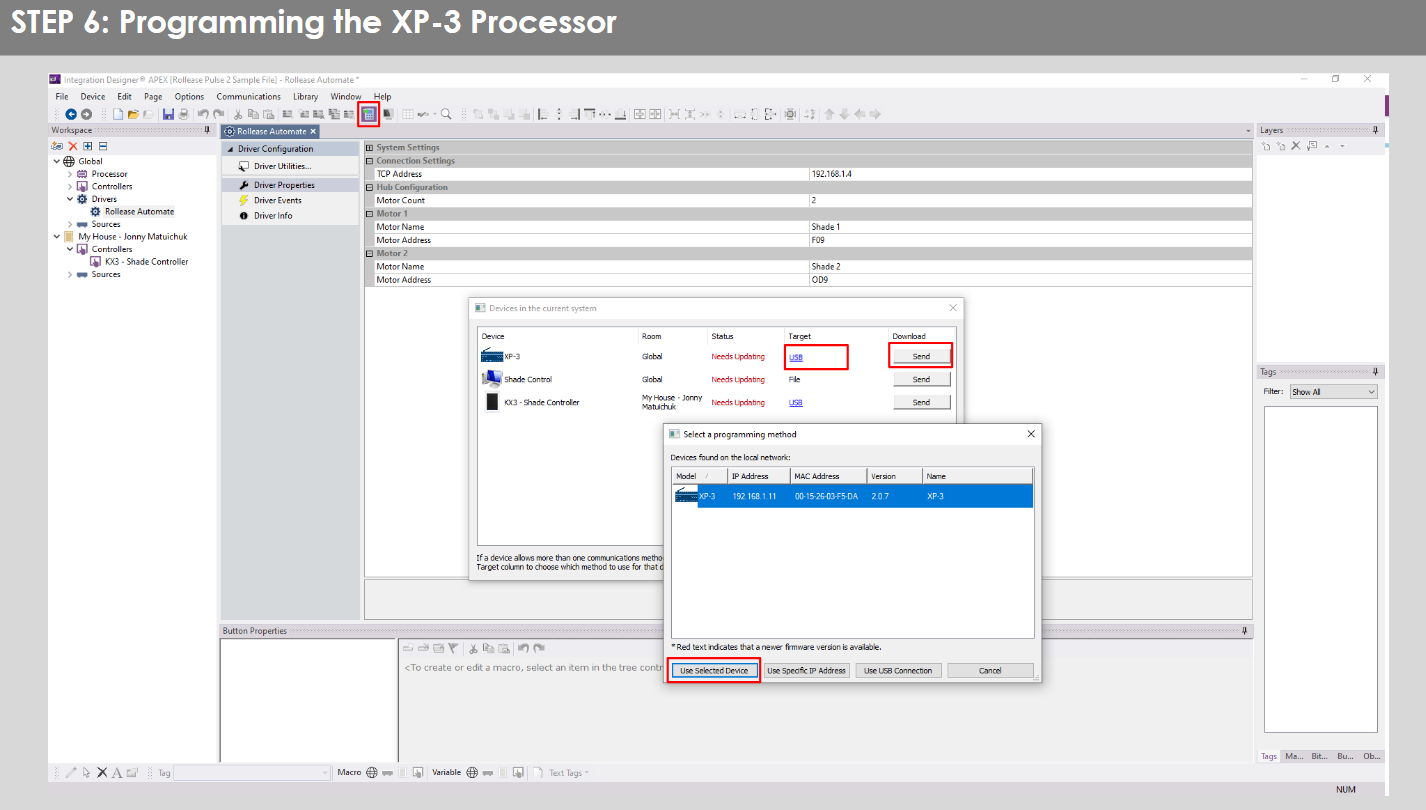
- Repeat the same process for KX3 Touch Pad.

- There is also a Virtual Panel control provided in the file který vytvoří řadič pro váš počítač.


- To launch the Virtual Panel, click the “Send” button like you did with the previous devices. Since this is a virtual device you will be directed to save the Virtual Panel to a location on your computer.

- Once you save the Virtual Panel it will launch.

Časté chyby:
- Zadání nesprávné IP adresy do konfiguračního řádku „IP adresa“.
If you’re failing to communicate with the devices, double check this!
PŘIPOJENÍ ŘÍDICÍHO SYSTÉMU RTI:

ČASTO KLADENÉ OTÁZKY:
Otázka: Nebyl detekován žádný Pulse PRO.
A. Ujistěte se, že je váš Automate Pulse PRO připojen ke správné síti, má dostupnou IP adresu a stále komunikuje se sítí pomocí aplikace Automate Shades.
Q. Limity odstínu nejsou správně nastaveny.
A. Calibrate shade limits with your Rollease Acmeda remote before setting the appropriate open and close time within RTI Control System.
Q. Stín se vůbec nehýbe.
A. Make sure the selected Pulse PRO Hub is the correct Pulse PRO Hub for the shade to be controlled. Confirm the correct bindings are set in the RIT Control System connections tab between the Pulse PRO Hub and Shade drivers.
Q. We get unexpected responses from the RTI system, or “?” symbols
A. Ujistěte se, že všechna připojení pomocí ethernetového portu nebo Wi-Fi fungují správně. Je známo, že zmeškané připojení přináší nechtěné nebo neočekávané výsledky.
PROSTŘEDKY PODPORY:
Pro další pomoc kontaktujte svého prodejce, navštivte naše webmísto na www.rolleaseacmeda.com

Dokumenty / zdroje
 |
AUTOMATE Pulse PRO Automatické ovládání žaluzií RTI [pdfUživatelská příručka RTI, Pulse PRO Automatické inteligentní ovládání žaluzií RTI, Automatické inteligentní ovládání žaluzií RTI, Inteligentní ovládání žaluzií, Ovládání žaluzií |