1. Úvod
Thank you for choosing the TECKNET Wireless Mouse TK-MS076. This advanced mouse offers versatile connectivity options, a comfortable ergonomic design, and precise control for various tasks. Please read this manual carefully to ensure proper setup and optimal performance.
Mezi klíčové vlastnosti patří:
- Třírežimové připojení: Seamlessly switch between Bluetooth 5.0, Bluetooth 3.0, and 2.4G USB-A dongle connections.
- Dobíjecí baterie: Integrated 700mAh battery provides long-lasting power with convenient Type-C charging.
- Tiché kliknutí: Enjoy a quiet working environment with silent left and right click buttons.
- Nastavitelné DPI: Six customizable DPI levels (800/1200/1600/2400/3200/4800) for precise cursor control.
- Ergonomický design: Crafted for comfort with a left-side thumb rest to reduce wrist strain during extended use.
2. Konec produktuview
Familiarize yourself with the components of your TECKNET Wireless Mouse:

Figure 1: TECKNET Wireless Mouse Components. This diagram illustrates the various parts of the mouse, including the left button, right button, scroll wheel, DPI button, DPI indicator, forward button, back button, USB-C port, power switch, channel switch/pairing button, and USB receiver storage.
- Levé tlačítko: Primární funkce kliknutí.
- Pravé tlačítko: Funkce sekundárního kliknutí.
- Rolovací kolečko: For vertical scrolling and clickable for middle-click functions.
- Tlačítko DPI: Press to cycle through DPI settings.
- Indikátor DPI: LED light indicating current DPI level.
- Tlačítko vpřed: Naviguje vpřed web prohlížeče popř file explorers (not available on Mac).
- Tlačítko Zpět: Naviguje zpět web prohlížeče popř file explorers (not available on Mac).
- Port USB-C: Pro nabíjení myši.
- Vypínač: Turns the mouse On/Off.
- Channel Switch / Pairing Button: Switches between 2.4G, Bluetooth 1, and Bluetooth 2 modes, and initiates Bluetooth pairing.
- USB přijímač: Stores the 2.4G wireless dongle.
3. Nastavení
3.1 Nabíjení myši
Před prvním použitím se doporučuje myš plně nabít.
- Connect the provided USB-C charging cable to the USB-C port on the front of the mouse.
- Connect the other end of the cable to a USB-A power source (e.g., computer USB port, USB wall adapter).
- Kontrolka baterie se během nabíjení rozsvítí a po plném nabití změní barvu nebo zhasne.

Figure 2: USB-C Rechargeable Mouse. The image shows the mouse connected via a USB-C cable for charging, highlighting its 700mAh battery capacity and quick charging capability.
A full charge takes approximately 2 hours and can provide up to 3 months of standby time.
3.2 Režimy připojení
The TECKNET TK-MS076 mouse supports three connection modes: 2.4G wireless via USB receiver, Bluetooth 1 (BT5.0), and Bluetooth 2 (BT3.0). You can connect to up to three devices simultaneously and switch between them.
Video 1: TECKNET Wireless Mouse Bluetooth 5.0/3.0 & 2.4G Rechargeable. This video provides a brief overview of the mouse's features, including its tri-mode connectivity and ergonomic design.
Bezdrátové připojení 2.4G:
- Vyhledejte USB přijímač uložený v přihrádce ve spodní části myši.
- Zapojte USB přijímač do volného portu USB-A na vašem počítači.
- Turn on the mouse using the power switch at the bottom.
- Press the Channel Switch button until the indicator light for 2.4G (usually a specific color or position) is active. The mouse should connect automatically.
Připojení Bluetooth (BT1 / BT2):
- Zapněte myš pomocí vypínače.
- Press the Channel Switch button to select either BT1 or BT2 mode. The corresponding indicator light will blink slowly.
- To enter pairing mode, press and hold the Channel Switch/Pairing Button for 3-5 seconds until the indicator light blinks rapidly.
- On your device (laptop, tablet, etc.), enable Bluetooth and search for new devices.
- Select "TECKNET Mouse" or a similar name from the list of available devices to pair.
- Po spárování přestane kontrolka na myši blikat a zůstane několik sekund svítit nepřetržitě, než se vypne.

Figure 3: Tri-Mode Connectivity. This image demonstrates the mouse connecting to a desktop monitor, a laptop, and a tablet simultaneously using Bluetooth and 2.4G USB-A connections.
4. Návod k obsluze
4.1 Nastavení DPI
The mouse features 6 adjustable DPI levels to suit your precision needs:
- 800 DPI
- 1200 DPI
- 1600 DPI (výchozí)
- 2400 DPI
- 3200 DPI
- 4800 DPI
To change the DPI, press the DPI button located below the scroll wheel. The DPI indicator light will flash to confirm the current setting (e.g., one flash for 800 DPI, two for 1200 DPI, etc.).

Figure 4: 6-Level DPI Adjustment. This graphic illustrates the different DPI settings available, ranging from 800 to 4800, suitable for various tasks from office work to graphic design and gaming.
4.2 Funkce tlačítek
The mouse is equipped with 6 buttons for enhanced productivity:
- Levé a pravé tlačítko: Designed for silent clicks, minimizing noise in quiet environments. Tested for up to 6 million clicks.
- Rolovací kolečko: Provides smooth scrolling and can be pressed for a middle-click function.
- Tlačítko DPI: Changes cursor sensitivity.
- Tlačítka vpřed a vzad: Pohodlné pro navigaci web stránky a dokumenty. Note: These buttons are not available on Mac systems.
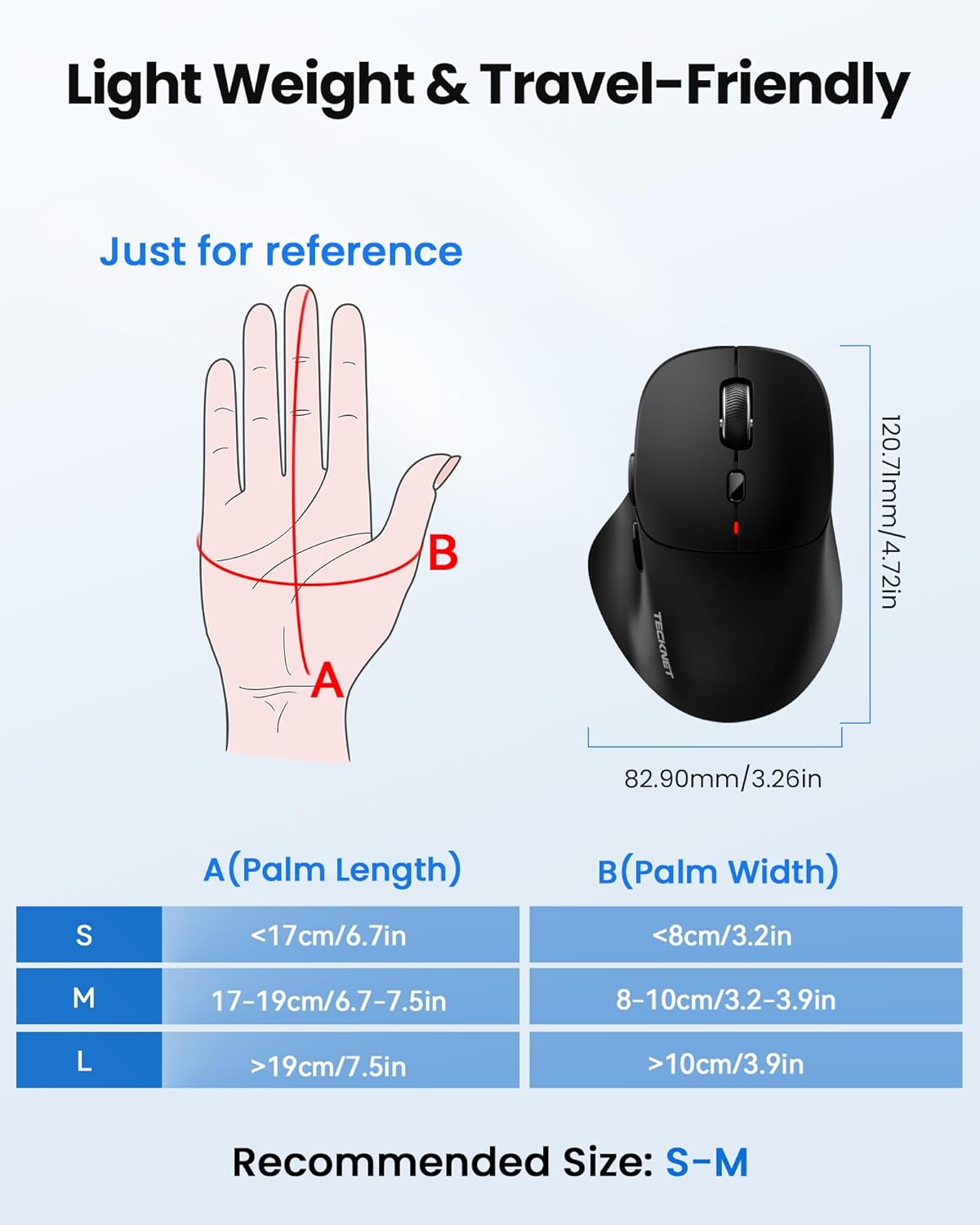
Figure 5: Multi-Button Control. This image highlights the six buttons on the mouse, including the forward and backward side buttons, and emphasizes the silent click feature and durability.
4.3 Ergonomický design
The mouse features an ergonomic design with a unique left-side thumb contour to provide a comfortable grip and reduce wrist strain during prolonged use. This design helps maintain a neutral alignment for your wrist and palm.

Figure 6: Ergonomic Design. A hand is shown comfortably resting on the mouse, illustrating the ergonomic palm-shaped design, side finger rests, and angled design for reduced wrist pressure.
4.4 Široká kompatibilita
The TECKNET Wireless Mouse is compatible with a wide range of operating systems and devices:
- Windows
- Android
- macOS
- iOS
It works seamlessly with tablets, laptops, and desktop computers, making it a versatile tool for various computing needs.

Figure 7: Multi-System Compatibility. This image displays the mouse alongside various devices and operating system logos (Windows, Mac OS, iOS, Android), indicating its broad compatibility.
5. Údržba
To ensure the longevity and optimal performance of your TECKNET Wireless Mouse, follow these maintenance guidelines:
- Čištění: Regularly wipe the mouse surface with a soft, slightly damp tkanina. Vyhněte se používání agresivních chemikálií nebo abrazivních čisticích prostředků.
- Péče o senzor: Udržujte optický senzor ve spodní části myši čistý a bez prachu nebo nečistot, abyste zajistili přesné sledování.
- Péče o baterie: Charge the mouse regularly to maintain battery health. Avoid fully discharging the battery frequently. Store the mouse in a cool, dry place when not in use for extended periods.
- Skladování: When transporting the mouse, ensure the USB receiver is securely stored in its dedicated compartment to prevent loss.
6. Řešení problémů
If you encounter any issues with your TECKNET Wireless Mouse, please refer to the following troubleshooting steps:
6.1 Mouse Not Connecting / Unresponsive
- Zkontrolujte napájení: Ensure the mouse is turned ON using the power switch at the bottom.
- Režim ověření: Press the Channel Switch button to confirm you are in the correct mode (2.4G, BT1, or BT2) for your connected device.
- Opětovné spárování Bluetooth: If using Bluetooth, go to your device's Bluetooth settings, remove the mouse from the list of paired devices, and then re-initiate the pairing process as described in Section 3.2.
- Zkontrolujte USB přijímač: If using 2.4G, ensure the USB receiver is securely plugged into a working USB-A port on your computer. Try a different USB port if necessary.
- Nabíjení baterie: Connect the mouse to a power source using the USB-C cable to ensure it has sufficient charge.
6.2 Cursor Erratic or Unresponsive
- Úprava DPI: Press the DPI button to cycle through different sensitivity levels. A lower DPI might provide more stable tracking.
- Čistit senzor: Gently clean the optical sensor at the bottom of the mouse with a soft, dry cloth to remove any dust or debris.
- Change Surface: Try using the mouse on a different surface or a mouse pad. Highly reflective or uneven surfaces can affect tracking performance.
6.3 Tlačítka nefungují
- Re-connect Mouse: Try turning the mouse off and then on again, or re-connecting it to your device.
- Zkontrolujte kompatibilitu: Remember that Forward and Back buttons are not functional on Mac systems.
7. Specifikace
| Funkce | Popis |
|---|---|
| Číslo modelu | TK-MS076 |
| Technologie připojení | Bluetooth 5.0, Bluetooth 3.0, 2.4G USB |
| Úrovně DPI | 800/1200/1600 (Default)/2400/3200/4800 |
| Tlačítka | 6 (doleva, doprava, kolečko, DPI, vpřed, vzad) |
| Kapacita baterie | 700mAh Rechargeable (1 Nonstandard Battery included) |
| Nabíjecí port | USB-C |
| Životnost baterie | Až 3 měsíce na jedno nabití |
| Click Durability | 6 million clicks (Left/Right buttons) |
| Rozměry produktu | 4.72 x 1.61 x 0.1 palce |
| Hmotnost položky | 2.72 unce |
| Speciální funkce | Portable, Rechargeable, Silent, Wireless, Ergonomic |
| Technologie detekce pohybu | Optický |
8. Záruka a podpora
TECKNET offers an exclusive 36-month warranty for registered members, demonstrating our commitment to product quality and customer satisfaction.
For technical support, warranty claims, or any inquiries, please refer to the contact information provided on the product packaging or visit the official TECKNET webmísto.


