Zavedení
This manual provides essential information for the safe and efficient operation of your GooDee 4K UHD Smart Projector. Please read it thoroughly before using the device and retain it for future reference. This projector integrates Google TV, AI voice control, advanced connectivity, and automatic image adjustments for a premium viewzkušenosti.
Co je v krabici
Po vybalení zkontrolujte, zda jsou všechny položky přítomny:
- Napájecí kabel
- HDMI kabel
- Krytka objektivu projektoru
- Dálkové ovládání
- Uživatelská příručka
Konec produktuview
Familiarize yourself with the physical components and features of your projector.
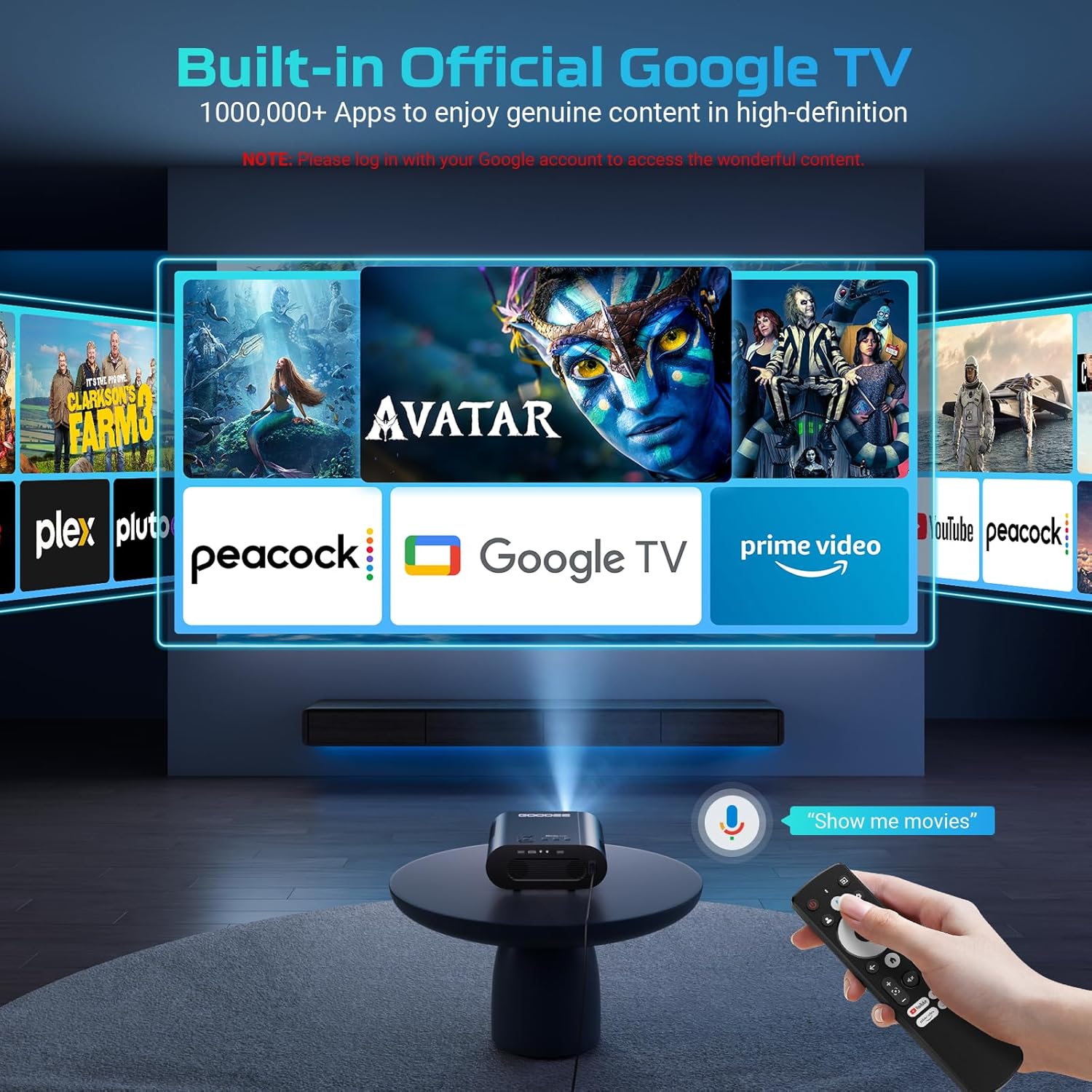
Obraz: The GooDee 4K UHD Smart Projector, showcasing its compact design and the Google TV interface projected onto a large screen, with the remote control visible in the foreground.
Porty a připojení

Obraz: Detailní view of the projector's rear panel, highlighting the HDMI, USB, and audio output ports for connecting external devices.
- HDMI vstup: Supports 4K resolution for connecting external media players, gaming consoles, or laptops.
- USB porty (x2): For connecting USB flash drives to play media directly.
- Zvukový výstup (3.5 mm): Pro připojení externích sluchátek nebo reproduktorů.
- AV vstup: Pro připojení starších zařízení pomocí AV kabelu.
- Příkon: Standard AC 100-240V, 50/60Hz.
Ovládací prvky a úpravy
- Manual Focus/Keystone Dials: Located on the top of the projector for fine-tuning image clarity and shape.
- Dálkové ovládání: Full-function remote with dedicated buttons for popular streaming apps (Netflix, YouTube, Prime Video) and Google Assistant voice control.
- Montážní závit: A 1/4-inch thread on the bottom allows for tripod or ceiling mounting. An adjustable bolt is also present for desktop angle adjustment.
Průvodce nastavením
Follow these steps for initial setup and configuration.
1. Počáteční zapnutí
- Připojte napájecí kabel k projektoru a do elektrické zásuvky.
- Stisknutím tlačítka napájení na projektoru nebo dálkovém ovladači zapněte zařízení.
- The projector will boot up and display the initial setup screen.
2. Připojení k Wi-Fi
- On the setup screen, select your preferred language.
- Navigate to the Wi-Fi settings and select your home network.
- Zadejte heslo k Wi-Fi pomocí klávesnice na obrazovce a dálkového ovladače.
- Once connected, the projector will guide you through Google TV setup, including signing in with your Google account.

Obraz: The projector displaying the Google TV home screen, showing popular streaming applications like YouTube, Prime Video, and Hulu, indicating successful Wi-Fi and Google TV setup.
3. Image Adjustment (Auto Focus & Keystone)
The projector features Smart AI Setup for automatic image correction.
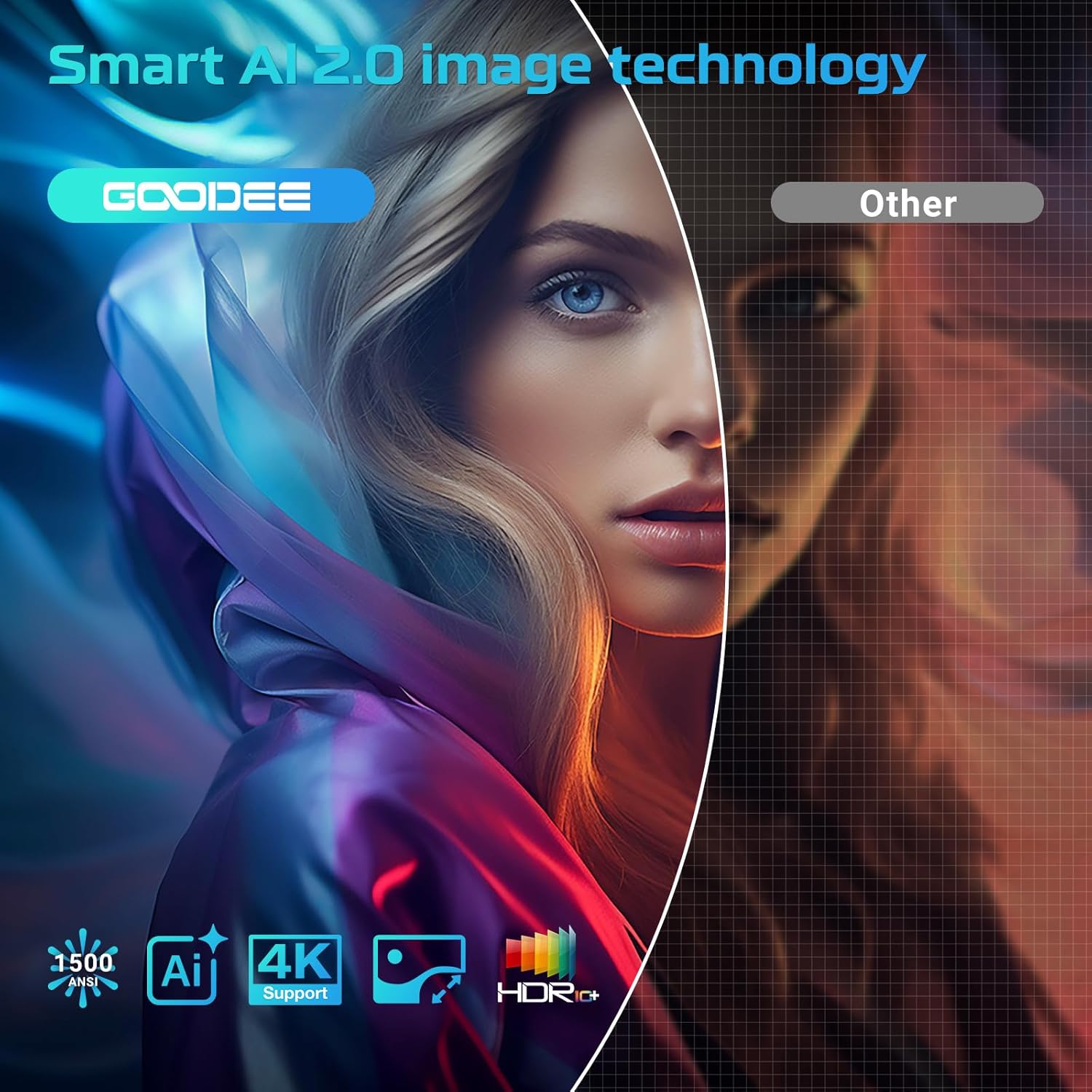
Obraz: The projector demonstrating its AI Auto Focus and Auto Keystone Correction features, ensuring a clear and perfectly shaped image on the screen.
- The projector will automatically detect and correct image distortion and focus upon startup or movement.
- For manual adjustments, use the focus and keystone dials on the projector or the corresponding buttons on the remote control.
- Zoom & Shift: Adjust the screen size from 50% to 100% and reposition the image using the remote control settings.
4. Připojení externích zařízení
- HDMI: Connect your device to the HDMI port. The projector will automatically switch to the HDMI input.
- USB: Insert a USB flash drive into a USB port. The media player app will usually launch automatically.
- Bluetooth: Navigate to the Bluetooth settings in the Google TV menu to pair with external Bluetooth speakers or headphones.
Návod k obsluze
Maximalizujte své viewing experience with the projector's smart features.
Rozhraní Google TV
The projector comes with officially authorized Google TV, providing access to over 1,000,000 applications.
Video: An official GooDee video demonstrating the Google TV interface and its seamless navigation, highlighting the integration of various streaming services and apps.
- The home screen displays recommended content and your installed apps.
- Navigate using the directional pad on the remote control.
- Access the App Store to download additional applications.
AI Smart Voice Assistant
Use your voice to control the projector and access content quickly.

Obraz: A user holding the remote control and speaking into it, demonstrating the AI Smart Voice Assistant feature to control the projector and search for content.
- Press and hold the voice control button (microphone icon) on your remote.
- Speak your command clearly, such as "Open Netflix," "Hledat movies," or "Adjust volume."
- The projector will execute the command or display relevant search results.
Streamovací aplikace
Enjoy a wide range of entertainment directly from your projector.
- Popular apps like YouTube, Prime Video, Hulu, and Disney+ are readily available.
- Ensure you are logged into your respective accounts for full access to content.
Image & Sound Settings
Přizpůsobte si svůj viewzážitek z poslechu a poslechu.
Nastavení obrazu
- Access picture settings via the Google TV menu.
- Choose from preset modes: Standard, Vivid, Movie, or Game.
- Utilize the Custom mode to manually adjust Contrast, Saturation, Sharpness, Color Temperature, and Gamma.
Nastavení zvuku

Obraz: The projector highlighting its Bluetooth 5.2 and Dolby Audio capabilities, showing a cinematic setup with external speakers for an immersive sound experience.
- The projector features dual 15W speakers with Dolby Audio for 360° surround sound.
- Select from sound modes: Standard, Movie, Music, or Sport.
- Adjust advanced sound controls, including surround sound and expert settings.
Údržba
Správná údržba zajistí dlouhou životnost a optimální výkon vašeho projektoru.
- Čištění objektivu: Use the provided lens cloth to gently wipe the projector lens. Avoid abrasive materials or harsh chemicals.
- Odstranění prachu: Regularly clean the air inlet and outlet vents to prevent dust buildup, which can affect performance and lead to overheating.
- Skladování: Pokud projektor nepoužíváte, zakryjte objektiv dodaným krytem objektivu a skladujte jej na chladném a suchém místě.
Odstraňování problémů
Řešení běžných problémů naleznete v této části.
| Problém | Možné řešení |
|---|---|
| Rozmazaný obrázek | Adjust the focus manually using the dial or remote. Ensure the projector is placed at an optimal distance from the screen. |
| Zkreslený obraz (lichoběžník) | Use the auto keystone correction feature or manually adjust keystone via the remote control settings. |
| Žádné Wi-Fi připojení | Check your Wi-Fi password and ensure the projector is within range of your router. Restart the projector and router if necessary. |
| Žádný zvuk | Check volume levels on the projector and any connected external audio devices. Ensure correct audio output settings are selected. |
| Dálkové ovládání nereaguje | Ensure batteries are correctly inserted and charged. Re-pair the remote control if necessary (refer to remote's specific instructions). |
Specifikace
| Funkce | Detail |
|---|---|
| Rozměry produktu | 16.9 x 31.6 x 12.7 palce |
| Hmotnost položky | 4.24 libry |
| Rozlišení displeje | 1920 x 1080 (Native 1080P, 4K support) |
| Technologie připojení | Dual-Band Wi-Fi 6, Bluetooth 5.2, HDMI, USB, AV |
| Speciální funkce | Built-in Google TV, AI Smart Voice Assistant, Auto Focus, Auto Keystone Correction, Dolby Audio, 50%-100% Zoom |
| Doporučená použití | Home Cinema, Indoor/Outdoor Entertainment |
Záruka a podpora
For warranty information, technical support, or service inquiries, please refer to the contact details provided in your product packaging or visit the official GooDee webmísto.


