1. Konec produktuview
The ZTE G5 Ultra MC8512 is an advanced 5G-A and Wi-Fi 7 router designed to provide high-speed internet connectivity. It features MLO multifrequency aggregation technology for peak rates up to 19000 Mbps, supporting seamless high-resolution video conferencing and data transmissions. The device includes independent high-performance antennas with a maximum gain of 13 dBi and 2.5G dual network ports with intelligent WAN/LAN adjustment.
Equipped with a 4-core 4nm 5G high-speed chip operating at 2.2GHz, the router ensures stable operation and high-speed functions. It supports NFC one-touch network connection for easy Wi-Fi access without a password and can connect up to 384 devices simultaneously. The router offers flexible internet access with support for both SIM cards and wired broadband, including seamless switching and backup functions.
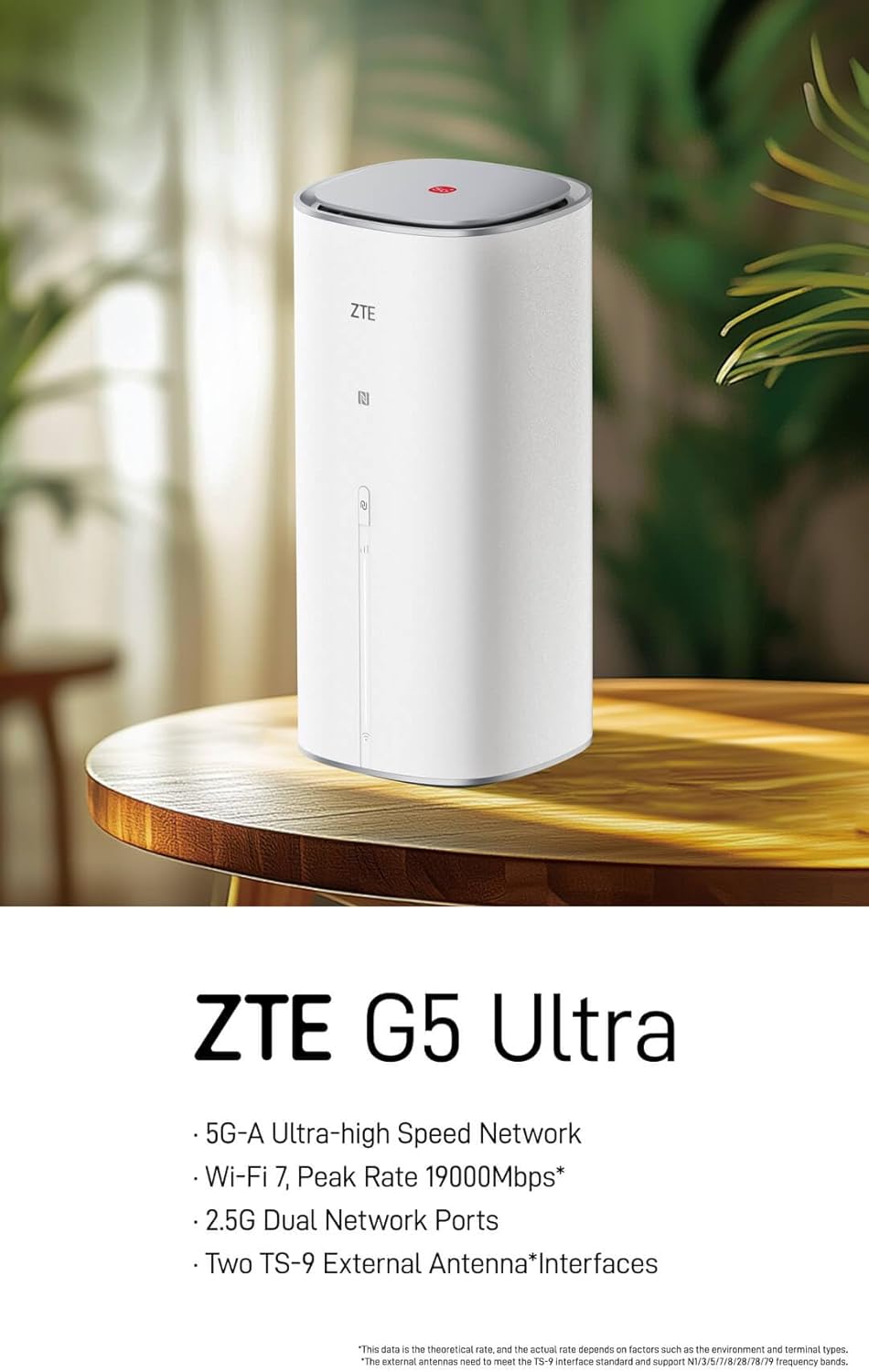
Figure 1: ZTE G5 Ultra MC8512 5G-A WiFi 7 Router, front view. This image shows the ZTE G5 Ultra MC8512 router, a cylindrical white device with the ZTE logo and indicator lights on the front. It highlights its 5G-A, Wi-Fi 7, 2.5G Dual Network Ports, and TS-9 External Antenna Interfaces capabilities.
2. Obsah balení
Než budete pokračovat v instalaci, ověřte si prosím, zda jsou v balení přítomny všechny položky:
- ZTE G5 Ultra MC8512 Router
- Napájecí adaptér
- Příručka pro rychlý start
Note: External TS-9 antennas may be sold separately or included depending on the specific product variant.
3. Pokyny k nastavení
3.1. Rozložení zařízení a porty

Figure 2: Rear panel of ZTE G5 Ultra MC8512 router. This image displays the rear panel of the ZTE G5 Ultra MC8512 router, detailing the various ports including USB, Phone, LAN, and WAN/LAN connections.
Familiarize yourself with the ports on the rear of the device:
- Napájecí port: Připojuje se k napájecímu adaptéru.
- Slot pro SIM kartu: Pro vložení 5G SIM karty.
- WAN/LAN Ports (2.5G): For connecting to wired broadband or local network devices. These ports intelligently adjust between WAN and LAN functions.
- TS-9 Antenna Interfaces: Two ports for connecting optional external TS-9 antennas to enhance signal reception.
- USB port: Pro budoucí použití nebo specifické funkce.
- Telefonní port: For voice services if supported by your SIM card and service provider.
3.2. Počáteční instalace
- Vložte SIM kartu: Locate the SIM card slot. Gently insert your 5G SIM card into the slot until it clicks into place. Ensure the SIM card is oriented correctly as indicated on the device.
- Připojte napájení: Connect the provided power adapter to the router's power port and then plug the adapter into a power outlet. The router will power on automatically.
- Optional: Connect External Antennas: If using external TS-9 antennas, connect them to the two TS-9 interfaces on the router.
- Optional: Wired Broadband Connection: If using wired broadband, connect an Ethernet cable from your modem or wall jack to one of the WAN/LAN ports on the router.
- Umístění: Place the router in a central location, away from obstructions and other electronic devices that may cause interference, to ensure optimal Wi-Fi signal coverage.
3.3. Počáteční konfigurace
- Připojení k Wi-Fi: On your computer or mobile device, search for the Wi-Fi network name (SSID) printed on the label at the bottom of the router. Connect to this network using the default Wi-Fi password (also on the label).
- Přístup Web Rozhraní: Otevřete a web prohlížeč a zadejte výchozí IP adresu (např.
192.168.1.1or192.168.0.1) into the address bar. The exact IP address can be found on the router's label or in the Quick Start Manual. - Přihlášení: Zadejte výchozí uživatelské jméno a heslo (obvykle
adminfor both, or as specified on the label). It is highly recommended to change the default login credentials for security purposes during the first login. - Postupujte podle Průvodce nastavením: Router je web interface may guide you through an initial setup wizard to configure basic settings such as internet connection type (5G or wired), Wi-Fi name, and password.
4. Obsluha routeru
4.1. LED indikátory
The router features LED indicators on its front panel to display its status:
- LED napájení: Indicates power status. (e.g., Solid White: On; Off: No power)
- 5G/Internet LED: Indicates internet connection status. (e.g., Solid Blue: Connected to 5G network; Solid Green: Connected to wired broadband; Blinking: Connecting; Red: No service/Error)
- Wi-Fi LED: Indicates Wi-Fi status. (e.g., Solid White: Wi-Fi active; Blinking: Data transfer; Off: Wi-Fi disabled)
4.2. Připojení zařízení
- Wi-Fi připojení: Hledat your Wi-Fi network (SSID) on your device and enter the password. The router supports Wi-Fi 7 for high-speed wireless connections.
- NFC připojení jedním dotykem: For NFC-enabled devices, gently touch the device to the NFC touch area on the router to automatically connect to the Wi-Fi network without entering a password.
- Ethernetové připojení: Connect devices like computers, gaming consoles, or smart TVs to the router's LAN ports using Ethernet cables for a stable wired connection.
4.3. Správa sítě
Přístup k routeru web rozhraní (jak je popsáno v části 3.3) pro správu pokročilých nastavení:
- Nastavení Wi-Fi: Změňte SSID, heslo, typ zabezpečení a povolte/zakažte hostující sítě.
- Nastavení internetu: Configure 5G APN settings, manage wired broadband connection, and set up failover between 5G and wired broadband.
- Správa zařízení: View connected devices, set parental controls, and manage bandwidth.
- Nastavení systému: Update firmware, change login password, and view systémové protokoly.
5. Údržba
- Aktualizace firmwaru: Pravidelně kontrolujte a instalujte aktualizace firmwaru prostřednictvím routeru web rozhraní. Aktualizace firmwaru mohou zlepšit výkon, přidat nové funkce a zvýšit zabezpečení.
- Čištění: Keep the router clean and free from dust. Use a soft, dry cloth to wipe the exterior. Do not use liquid cleaners or aerosols. Ensure ventilation openings are not blocked.
- Optimální umístění: Ensure the router is placed in an open area, away from walls, large metal objects, and other devices that emit radio frequencies (e.g., microwaves, cordless phones) to minimize interference and maximize Wi-Fi coverage.
- Restartování: Pokud máte problémy se sítí, zkuste restartovat router odpojením napájecího adaptéru, počkejte 10 sekund a poté jej znovu zapojte.
6. Řešení problémů
| Problém | Možná příčina | Řešení |
|---|---|---|
| Žádné připojení k internetu |
|
|
| Pomalá rychlost internetu |
|
|
| Odpojení Wi-Fi |
|
|
| NFC One-Touch Not Working |
|
|
| Router Requires Login After Power Cut |
|
|
7. Technické specifikace
| Funkce | Specifikace |
|---|---|
| Značka | ZTE |
| Název modelu | MC8512 |
| Network Technology | 5G-A |
| Bezdrátové Standardní | Wi-Fi 7 (802.11be) |
| Maximální rychlost stahování | 4.29 Gbps (5G-A) |
| Max Wi-Fi Rate | 19000 Mbps (MLO) |
| Procesor | 4-core 4nm, 2.2GHz main frequency |
| Síťové porty | 2 x 2.5G WAN/LAN intelligent adjustment ports |
| Typ antény | Independent high-performance (up to 13 dBi gain), 2 x TS-9 external antenna interfaces |
| Podpora zařízení | Až 384 zařízení současně |
| Speciální funkce | NFC One-Touch, Dual SIM/Wired Broadband Support, Tri-Band Frequency |
| Kompatibilní zařízení | WiFi Devices |
| Operační systém | ZyNOS |
| Rozměry balení | 29 x 18 x 11.6 cm |
| Hmotnost položky | 1.46 kg |
8. Záruka a podpora
For detailed warranty information, please refer to the warranty card included with your product package. Warranty terms and conditions may vary by region and retailer.
If you encounter any issues that cannot be resolved using the troubleshooting guide, or require further assistance, please contact ZTE customer support. You can typically find support contact information on the official ZTE webwebu nebo v dokumentaci k produktu.
For the latest support resources, FAQs, and contact details, please visit the official ZTE webmísto: www.zte.com.cn/global/


