Zavedení
The GIGABYTE X870E AORUS Elite X3D is an ATX motherboard designed for AMD AM5 processors, supporting Ryzen 9000, 8000, and 7000 series. This manual provides essential information for the proper installation, operation, and maintenance of your motherboard, ensuring optimal performance and longevity.
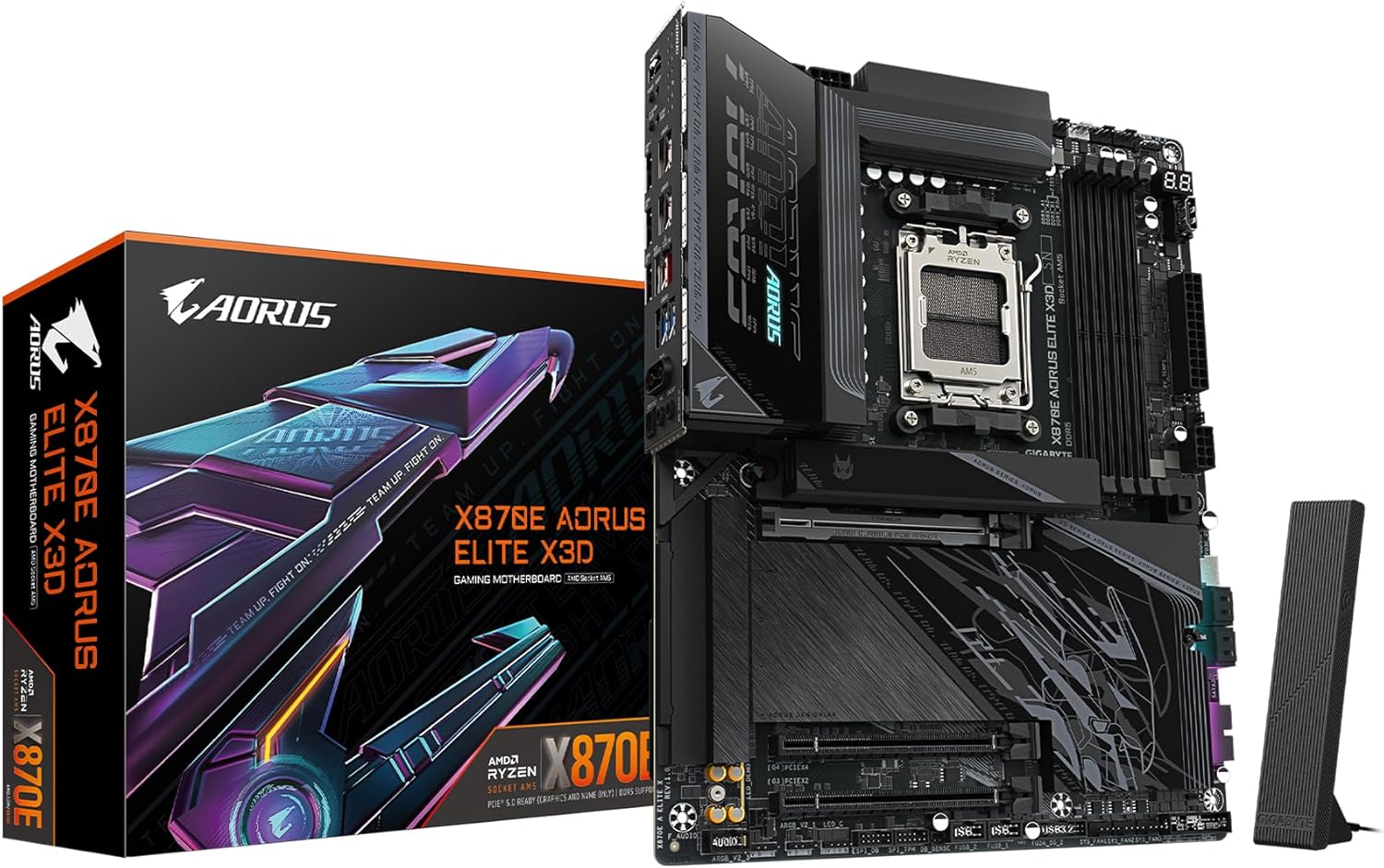
Figure 1: GIGABYTE X870E AORUS Elite X3D Motherboard Overview
Nastavení a instalace
Careful installation is crucial for the stability and performance of your system. Follow these steps for proper component installation.
1. Instalace procesoru
This motherboard supports AMD AM5 socket processors. Ensure the CPU is correctly oriented before placing it into the socket. Refer to the processor's manual for specific installation instructions.

Figure 2: AMD AM5 CPU Socket
2. Instalace paměti (RAM)
The motherboard features four DDR5 DIMM slots. Install DDR5 memory modules by aligning the notch on the module with the key in the slot and pressing down firmly until the clips on both sides lock into place. This board supports AMD EXPO memory profiles.

Obrázek 3: Sloty pro paměti DDR5
3. Instalace úložného zařízení
The motherboard includes two PCIe 5.0 M.2 slots and two PCIe 4.0 M.2 slots for high-speed NVMe SSDs. Additionally, multiple SATA 6Gb/s ports are available for traditional SATA drives. Utilize the M.2 EZ-Latch for tool-less installation of M.2 drives.
4. Instalace rozšiřující karty
Install your graphics card into the primary PCIe Gen5 x16 slot. The slot is reinforced with PCIe UD armor for durability. Other PCIe slots are available for additional expansion cards. The PCIe EZ-Latch Plus simplifies graphics card removal.

Figure 4: PCIe Gen5 x16 and M.2 Slots
5. Připojení napájení
Connect the 24-pin ATX main power connector, and the 8-pin and 4-pin EPS 12V CPU power connectors from your power supply to the motherboard.
6. Přední panel a vstupně/výstupní připojení
Connect your case's front panel headers (power button, reset button, USB ports, audio jacks) to the corresponding pins on the motherboard. The motherboard features an integrated I/O Shield for simplified installation and a comprehensive set of rear I/O ports including USB4 Type-C with DP Alt, USB 3.2 Gen 2, USB 3.2 Gen 1, 5 GbE LAN, and WiFi 7 antenna connectors.

Figure 5: Rear I/O Panel and Internal Connectors

Figure 6: M.2 EZ-Latch, PCIe EZ-Latch, and WiFi EZ-Plug
Návod k obsluze
1. Počáteční spuštění a nastavení BIOSu/UEFI
Upon first power-on, press the designated key (usually DEL or F2) during the boot sequence to enter the BIOS/UEFI setup utility. Here you can configure system settings, boot order, and enable features like AMD EXPO for memory optimization.
2. Instalace ovladače
After installing your operating system, install the necessary drivers for the chipset, LAN, audio, and other components. These drivers are typically provided on a support DVD or available for download from the GIGABYTE webmísto.
3. AI Overclocking (AORUS AI Snatch)
The motherboard features AORUS AI Snatch for intelligent overclocking. This function can automatically optimize CPU and memory performance based on system conditions. Consult the GIGABYTE software utility guide for detailed usage.
Údržba
1. Aktualizace BIOSu
Pravidelně kontrolujte GIGABYTE website for BIOS updates. BIOS updates can improve system stability, compatibility, and performance. When updating the BIOS, use a small capacity USB drive (typically 32GB or less, formatted to FAT32) for the Q-Flash utility. Follow the instructions provided with the BIOS update file opatrně.
2. Čištění
Periodically clean your computer's interior to prevent dust buildup, which can lead to overheating and reduced performance. Use compressed air to remove dust from heatsinks, fans, and other components. Ensure the system is powered off and unplugged before cleaning.
3. Kontroly součástí
Occasionally inspect all cable connections (power, data, and peripheral) to ensure they are secure. Verify that all expansion cards and memory modules are properly seated in their slots.
Odstraňování problémů
Pokud narazíte na problémy, zvažte následující běžné kroky pro řešení potíží:
- Žádné napájení/žádné spuštění: Double-check all power connections to the motherboard and components. Ensure the power supply is functioning correctly.
- Problémy se zobrazením: Verify that your graphics card is properly seated and connected to the monitor. If using integrated graphics, ensure your monitor is connected to the motherboard's video output.
- Nestabilita paměti: If experiencing crashes or boot failures related to memory, try reseating the RAM modules. Ensure memory is installed in the correct slots according to the manual for dual-channel operation. Adjusting memory frequency or timings in BIOS may be necessary if using high-speed kits.
- Periferní zařízení nebylo detekováno: Check USB or SATA connections. Ensure drivers for the peripheral are installed.
- Vymazat CMOS: If system settings become unstable or you cannot access BIOS, use the Clear CMOS button on the rear I/O panel or the designated jumper on the motherboard to reset BIOS settings to default.
For more advanced troubleshooting, refer to the comprehensive manual available on the GIGABYTE support webwebu nebo kontaktujte technickou podporu.
Specifikace
| Funkce | Specifikace |
|---|---|
| Značka | GIGABYTE |
| Název modelu | X870E AORUS ELITE X3D |
| Zásuvka CPU | LGA 1718 (AMD AM5) |
| Kompatibilní procesory | Řada AMD Ryzen 7000, 8000, 9000 |
| Typ čipové sady | AMD X870E |
| Technologie paměti RAM | DDR5 |
| Rychlost paměti | Up to 5200 MHz (Native), higher with EXPO |
| PCIe sloty | 1x PCIe Gen5 x16, 2x PCIe x4 |
| M.2 Sloty | 2x PCIe 5.0 M.2, 2x PCIe 4.0 M.2 |
| USB porty | 2x USB4 Type-C with DP Alt, 1x USB 3.2 Gen 2 Type-C, 5x USB 3.2 Gen 2 Type-A, 3x USB 3.2 Gen 1 Type-A, 65W Front USB-C |
| LAN | 5 GbE |
| Bezdrátové připojení | WiFi 7 |
| Form Factor | ATX |
| Rozměry (DxŠxV) | 12.01 x 9.61 x 1.75 palce |
| Fáze napájení | Digital Twin 16+2+2 |
Informace o záruce
The GIGABYTE X870E AORUS Elite X3D Motherboard comes with a 5-letá záruka. For detailed terms and conditions, please refer to the official GIGABYTE warranty policy available on their webmísto.
Podpora
For further assistance, technical support, driver downloads, or updated manuals, please visit the official GIGABYTE support webmísto:
https://www.gigabyte.com/support
Užitečné zdroje a komunitní fóra můžete také najít na webu GIGABYTE. webmísto.