1. Konec produktuview
The GIGABYTE B760M DS3H WIFI6E GEN5 is an M-ATX motherboard designed to support 14th and 13th Generation Intel Core Processors. It features an LGA 1700 socket and is built with a focus on performance and connectivity for modern computing needs.
Klíčové vlastnosti:
- Patice Intel LGA 1700: Podporuje procesory Intel Core 14. a 13. generace.
- Kompatibilita s DDR5: Features Dual Channel DDR5 memory support across 4 DIMM slots.
- Robustní konstrukce napájení: Equipped with a Hybrid 8+2+1 Phases Digital VRM Solution for stable power delivery.
- Konektivita nové generace: Includes PCIe 5.0, M.2 slots, and USB 3.2 Gen 2x2 Type-C ports.
- Vysokorychlostní síťování: Integrated Intel Wi-Fi 6E and 2.5GbE LAN for fast and reliable network connections.
- Uživatelsky přívětivé funkce: Incorporates Smart Fan 6 for advanced cooling control and Q-Flash Plus for BIOS updates without CPU, memory, or GPU installation.

Obrázek 1.1: Shora dolů view of the GIGABYTE B760M DS3H WIFI6E GEN5 motherboard, showing the LGA 1700 socket, DDR5 DIMM slots, PCIe slots, and M.2 slots.
2. Nastavení a instalace
This section provides general guidelines for installing your GIGABYTE B760M DS3H WIFI6E GEN5 motherboard. Always refer to the detailed instructions provided with your CPU, cooler, and other components for specific installation steps.
2.1 Pořadí instalace komponent
- Instalace CPU: Carefully open the LGA 1700 socket lever, align the CPU with the triangular mark on the socket, place the CPU gently, and close the lever to secure it.
- Instalace chladiče CPU: Nainstalujte zvolený chladič procesoru podle pokynů výrobce. Zajistěte správné nanesení teplovodivé pasty.
- Instalace paměti (RAM): Insert DDR5 memory modules into the DIMM slots. For dual-channel operation, refer to the motherboard manual for recommended slot configurations (typically slots A2 and B2 first). Press firmly until the clips on both ends lock the module in place.
- Instalace M.2 SSD: Locate the M.2 slots on the motherboard. Insert the M.2 SSD at an angle and secure it with the provided screw or EZ-Latch mechanism.
- Instalace grafické karty (GPU): Insert your graphics card into the primary PCIe 5.0 x16 slot. Ensure it is fully seated and secured by the PCIe EZ-Latch.
- Připojení napájení: Připojte 24pinový konektor napájení ATX a 8pinový konektor napájení CPU ze zdroje k základní desce.
- Zařízení SATA: Connect SATA data cables to your storage drives (HDDs/SSDs) and the SATA 6Gb/s ports on the motherboard.
- Konektory na předním panelu: Connect the case's front panel headers (power button, reset button, USB ports, audio jacks) to the corresponding pins on the motherboard. Refer to the motherboard's silkscreen labels for correct orientation.
- Instalace antény: For Wi-Fi functionality, screw the included Wi-Fi antennas onto the rear I/O panel's antenna connectors (WiFi EZ-Plug).

Figure 2.1: Motherboard layout diagram highlighting key connectors such as USB ports, Wi-Fi antenna connectors, HDMI, DisplayPort, LAN, and audio jacks.
3. Návod k obsluze
3.1 Počáteční spuštění a přístup k BIOSu/UEFI
- Po sestavení systému připojte monitor, klávesnici a myš.
- Zapněte systém. Během spouštění opakovaně stiskněte tlačítko DEL klávesu pro vstup do nástroje pro nastavení systému BIOS/UEFI.
- In the BIOS/UEFI, you can configure boot order, enable/disable features, adjust fan speeds (Smart Fan 6), and monitor system status.
3.2 Instalace ovladače
- After installing your operating system, install the necessary drivers for the motherboard components.
- Ovladače naleznete na oficiálních stránkách GIGABYTE. website for your specific motherboard model. Key drivers include chipset, LAN, Wi-Fi, audio, and USB drivers.
3.3 BIOS Update with Q-Flash Plus
- The Q-Flash Plus feature allows you to update the BIOS without installing the CPU, memory, or graphics card.
- Stáhněte si nejnovější BIOS file od společnosti GIGABYTE website and rename it to GIGABYTE.bin.
- Zkopírujte přejmenovaný BIOS file to a USB flash drive (FAT32 format).
- Vložte USB flash disk do určeného USB portu Q-Flash Plus na zadním I/O panelu.
- With the power supply connected and turned on (but the system off), press the Q-Flash Plus button. The LED will flash, indicating the update process. Wait until the LED stops flashing.
4. Údržba
Pravidelná údržba pomáhá zajistit dlouhou životnost a optimální výkon vaší základní desky a systému.
- Odstranění prachu: Periodically clean dust from inside your computer case, especially from heatsinks, fans, and motherboard surfaces, using compressed air. Ensure the system is powered off and unplugged before cleaning.
- Aktualizace BIOSu: Keep your BIOS updated to the latest version to benefit from performance improvements, bug fixes, and support for new hardware. Use the Q-Flash Plus feature or the BIOS utility.
- Aktualizace ovladačů: Pravidelně kontrolujte GIGABYTE website for updated drivers for your motherboard's components.
- Fyzická kontrola: Occasionally inspect all cable connections (power, SATA, front panel) to ensure they are secure.
5. Řešení problémů
Tato část se zabývá běžnými problémy, se kterými se můžete setkat.
5.1 Běžné problémy a řešení
- No Power / System Does Not Turn On:
- Ensure the power supply is connected to the motherboard (24-pin ATX and 8-pin CPU) and the wall outlet.
- Check if the power supply switch is in the ON position.
- Ověřte, zda je kabel tlačítka napájení na předním panelu správně připojen k základní desce.
- No Display / No POST (Power-On Self-Test):
- Confirm that the monitor is connected to the graphics card (or integrated graphics if applicable) and powered on.
- Reseat the RAM modules firmly in their slots. Try booting with only one RAM module.
- Reseat the graphics card in its PCIe slot. Ensure any required PCIe power cables are connected to the GPU.
- Clear the CMOS by removing the CMOS battery for 5-10 minutes or using the Clear CMOS jumper (refer to the full manual for location).
- Operační systém se nespustí:
- Check the boot order in the BIOS/UEFI to ensure your primary storage drive is selected.
- Verify that the SATA data and power cables are securely connected to your storage drive.
- If using an M.2 SSD, ensure it is properly seated and detected in the BIOS.
- Problémy s připojením k síti:
- For wired LAN, ensure the Ethernet cable is securely connected and the LAN driver is installed.
- For Wi-Fi, ensure the antennas are properly attached to the WiFi EZ-Plug connectors and the Wi-Fi driver is installed.
- Zkontrolujte nastavení sítě ve vašem operačním systému.
If issues persist, consult the comprehensive GIGABYTE user manual or contact technical support.
6. Technické specifikace
| Funkce | Detail |
|---|---|
| Značka | GIGABYTE |
| Název modelu | B760M DS3H WIFI6E GEN5 |
| Zásuvka CPU | LGA 1700 |
| Kompatibilní procesory | 14th, 13th Gen Intel Core Series Processors |
| Čipová sada | Čipová sada Intel B760 Express |
| Technologie paměti RAM | DDR5 |
| Paměťové sloty | 4 x patice DDR5 DIMM (dvoukanálové) |
| Maximální rychlost paměti | Až 5600 MHz (přetaktování) |
| PCIe sloty | 1 slot PCIe 5.0 x16, 2 sloty PCIe 3.0 x1 |
| Konektory M.2 | 2× M.2 konektor (PCIe 4.0 x4) |
| SATA porty | Konektory 4 x SATA 6Gb / s |
| USB porty (zadní) | 1 x USB 3.2 Gen 2x2 Type-C, 1 x USB 3.2 Gen 2, 2 x USB 3.2 Gen 1, 4 x USB 2.0/1.1 |
| vytváření sítí | Intel Wi-Fi 6E, 2.5GbE LAN |
| Zvuk | Zvukový kodek Realtek (zvuk s vysokým rozlišením) |
| Video výstupy | 1 x HDMI, 1 x DisplayPort (requires CPU with integrated graphics) |
| Form Factor | Micro ATX (M-ATX) |
| Rozměry (DxŠxV) | 8.82 x 8.82 x 1 palce |
| Hmotnost položky | 2 libry |
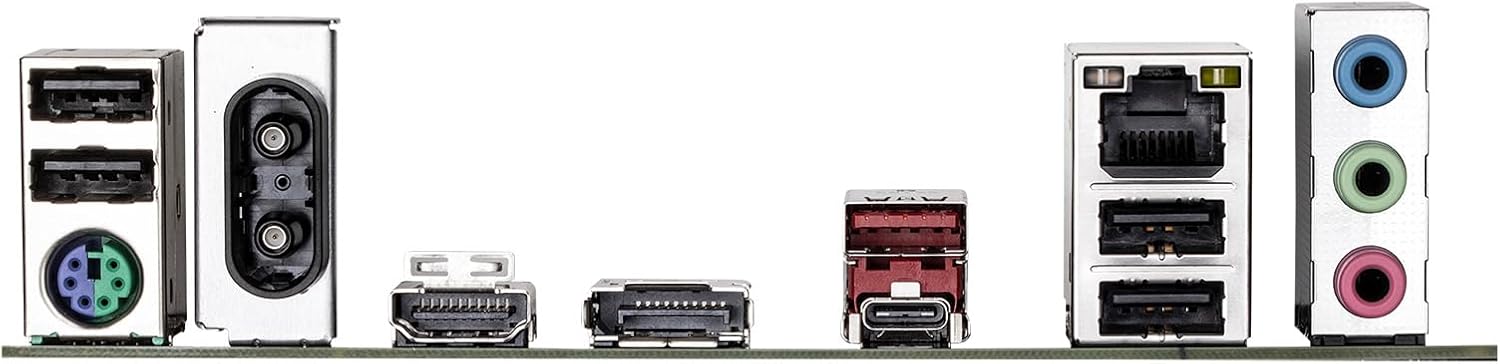
Figure 6.1: Rear I/O panel showing various ports including USB, LAN, Wi-Fi antenna connectors, HDMI, DisplayPort, and audio jacks.
7. Informace o záruce
GIGABYTE products are covered by a limited warranty. For detailed and up-to-date warranty terms, conditions, and registration procedures, please refer to the official GIGABYTE website or the warranty card included with your product. Warranty periods may vary by region and product type.
8. Technická podpora
For technical assistance, driver downloads, BIOS updates, FAQs, and further product information, please visit the official GIGABYTE support webmísto:
Before contacting support, please have your motherboard model name (B760M DS3H WIFI6E GEN5) and serial number ready.


