1. Úvod
This manual provides detailed instructions for the setup, operation, and maintenance of your TECKNET Wireless Headset (Model: TK-HS003). Please read this manual thoroughly before using the product to ensure optimal performance and longevity.
2. Obsah balení
Ověřte, zda jsou v balení produktu přítomny všechny položky:
- Bezdrátová náhlavní souprava
- Nabíjecí základna
- Nabíjecí kabel USB-C
- USB dongle
- Uživatelská příručka
3. Klíčové vlastnosti
- AI Noise Cancellation & Mute: The headset utilizes AI-powered Environmental Noise Cancellation (ENC) to reduce up to 99.8% of background noise during calls, ensuring clear voice transmission. A dedicated mute function allows for private conversations. Note: ENC is for call clarity and differs from Active Noise Cancellation (ANC) for media playback.
- Extended Battery Life & Charging Options: Enjoy up to 40 hours of worktime on a single charge. The headset includes a plug-and-play charging base (also functions as a storage stand) and a USB-C cable for flexible charging. The headset disconnects after 10 minutes of inactivity to conserve battery.
- Dual Connection & Wide Compatibility: Connects to various devices via Bluetooth or the included USB dongle. Seamlessly switch between computer meetings and incoming calls. The USB dongle provides connectivity for non-Bluetooth devices. Note: USB connection takes priority if both are plugged in.
- Optimal Working Range: Maintains reliable connectivity up to 33 feet (10 meters) with computers, tablets, or smartphones. For best performance, ensure a clear line of sight and minimize physical obstructions.
- Adjustable Design for Comfort: Features an adjustable headband to fit most head sizes and a flexible, 270° rotatable microphone for optimal positioning. Position the microphone at least 4 inches from your mouth to prevent muffled audio.
4. Nastavení a instalace
4.1 Připojení pomocí USB adaptéru
- Vložte USB dongle do volného USB portu v počítači.
- The headset will automatically connect to the dongle. A voice prompt will confirm the connection.
4.2 Připojení přes Bluetooth
- Ensure the headset is powered on and in pairing mode (usually indicated by a flashing LED).
- On your device (computer, tablet, smartphone), navigate to Bluetooth settings.
- Hledat available devices and select "TECKNET TK-HS003" to pair.
- Hlasový pokyn potvrdí úspěšné spárování.
4.3 Adjusting Windows Sound Settings
If you experience issues with sound or microphone quality on Windows 10/11, follow these steps:
- Open "This PC", right-click on the window, and select "Properties".
- Navigate to "Control Panel" > "Hardware and Sound" > "Devices and Printers".
- Locate your Bluetooth headset (TK-HS003), right-click, and select "Properties".
- Go to the "Services" tab. Uncheck all services, click "Apply" and "OK". The headset will indicate it is disconnected.
- Re-open the "Services" tab, select all services, click "Apply" and "OK". The headset will reconnect.
- Restartujte počítač.
- After restarting, click on Windows Settings (gear icon) in the lower left corner.
- Go to "System" > "Sound".
- Under "Output", select "Headphones (TK-HS003 Stereo)" as your output device.
- Under "Input", select "Headphones (TK-HS003 Hands-Free AG Audio)" as your input device.
Video: Setting up sound for TECKNET Bluetooth Headset on Windows. This video guides you through adjusting Windows sound settings to ensure proper audio output and microphone input for your headset.
5. Návod k obsluze
5.1 Zapnutí/vypnutí
Press and hold the Power button for 3 seconds to power the headset on or off.
5.2 Ovládání hlasitosti
Use the +/- buttons on the headset to adjust the volume up or down.
5.3 Funkce ztlumení
Press the Mute button on the microphone boom to mute or unmute your microphone during calls.
5.4 Potlačení hluku pomocí umělé inteligence
The AI Noise Cancellation feature is automatically active during calls to reduce background noise for the listener. This ensures your voice is clear even in noisy environments.

Image: AI Noise Cancellation in action. This image demonstrates how the headset's AI noise cancellation significantly reduces background noise, improving call clarity.
5.5 Připojení dvou zařízení
The headset can maintain connections with two devices simultaneously. It will seamlessly switch between a computer meeting and an incoming call on your smartphone. If both USB dongle and Bluetooth are connected, the USB dongle connection will take priority.

Image: Two Connectivity Options. This image shows the flexibility of connecting the headset via Bluetooth 5.0 or the USB dongle, highlighting the USB connection's priority.
5.6 Nastavení mikrofonu
The microphone boom is flexible and can be rotated 270 degrees, allowing it to be worn on either the left or right ear. Position the microphone approximately 4 inches (10 cm) from your mouth for optimal voice pickup and to avoid muffled sound.

Image: Headset for Left or Right Ear. This image illustrates the 270° rotatable microphone, allowing users to wear the headset comfortably on either ear.
6. Nabíjení náhlavní soupravy
The headset offers two convenient charging methods:
- USB-C Cable Charging: Connect the provided USB-C cable to the headset and a power source (e.g., computer USB port, wall adapter). A full charge typically takes approximately 2 hours.
- Inductive Charging Base: Place the headset onto the charging base. Ensure the headset is correctly seated for the pogo pins to make contact. The charging base connects to a power supply via USB-C.
The LED indicator on the headset will show charging status. A full charge provides up to 40 hours of usage.
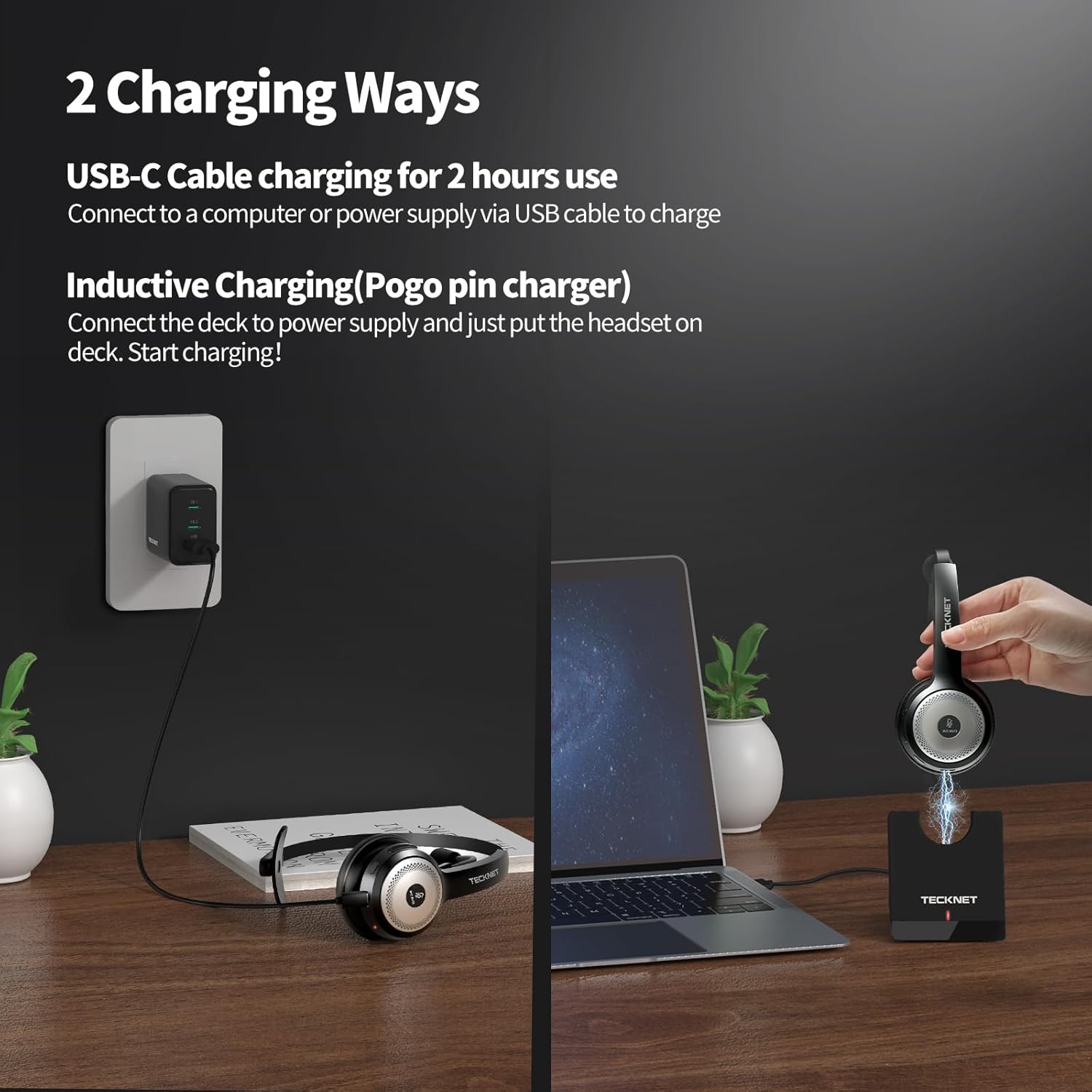
Image: Two Charging Ways. This image displays both USB-C cable charging and inductive charging via the base, offering flexible power replenishment options.
7. Řešení problémů
7.1 Žádný zvuk nebo špatná kvalita zvuku
- Ensure the headset is properly connected to your device (Bluetooth or USB dongle).
- Zkontrolujte úroveň hlasitosti na sluchátkách i na připojeném zařízení.
- Verify that the correct output device is selected in your computer's sound settings (refer to Section 4.3 for Windows settings).
- Restart your computer and reconnect the headset.
7.2 Mikrofon nefunguje
- Ujistěte se, že mikrofon není ztlumený.
- Check that the correct input device is selected in your computer's sound settings (refer to Section 4.3 for Windows settings).
- Confirm the microphone is positioned correctly, approximately 4 inches from your mouth.
- Vyzkoušejte mikrofon s jinou aplikací nebo zařízením.
7.3 Headset Disconnects Frequently
- Ensure the headset is within the 33ft/10m working range of your device.
- Minimize physical obstructions between the headset and your device.
- Zkontrolujte, zda nedochází k rušení jinými bezdrátovými zařízeními.
- Ujistěte se, že je baterie sluchátek dostatečně nabitá.
8. Specifikace
| Funkce | Detail |
|---|---|
| Název modelu | TK-HS003 |
| Technologie připojení | Bezdrátové (Bluetooth) |
| Umístění uší | Na uchu |
| Form Factor | Na uchu |
| Barva | Černý |
| Hmotnost položky | 13.4 unce |
| Rozměry balení | 7.83 x 7.48 x 3.15 palce |
| Speciální funkce | Adjustable Headband, AI Noise Cancelling Microphone |
| Baterie | 1 nestandardní baterie (součástí balení) |
9. Záruka a podpora
For warranty information, technical support, or customer service inquiries, please refer to the official TECKNET webwebu nebo se přímo obraťte na jejich zákaznickou podporu. Uschovejte si účtenku pro případ reklamace.