1. Úvod
This manual provides detailed instructions for the proper use and maintenance of your UnionSine FD450 USB C External Solid State Drive. Please read this manual thoroughly before using the device to ensure optimal performance and longevity.

Image 1.1: UnionSine FD450 USB C External SSD. This image displays the compact, grey UnionSine FD450 USB C External SSD, highlighting its USB-C connector.
2. Nastavení
2.1. Připojení SSD disku
The UnionSine FD450 SSD features a plug-and-play design, requiring no additional drivers for most operating systems. Simply connect the USB-C connector of the SSD directly into a compatible USB-C port on your device.

Image 2.1: Cross-Device Transmission. This image illustrates the SSD connected to a laptop, tablet, and smartphone, demonstrating its versatility for data transfer across various devices.
2.2. Initial Recognition and Formatting
Upon first connection, your device should automatically recognize the SSD. The drive comes pre-formatted with EXFAT, which is compatible with most operating systems. If your device does not recognize the drive or if you wish to use a different file system, formatting may be required.

Image 2.2: Default Format and Compatibility Table. This image shows a table detailing supported file formats (FAT16, FAT32, NTFS, EXFAT, APFS, HFS+, EXT2, EXT3, EXT4) across different operating systems (Windows, Mac OS, Linux, Android, TV).
Poznámka: Formatting the drive will erase all data. Back up any important files před pokračováním ve formátování.
3. Návod k obsluze
3.1. Přenos dat
The FD450 SSD utilizes a USB 3.2 interface, offering high-speed data transfer. Read speeds can reach up to 450 MB/s, and write speeds up to 400 MB/s. This allows for quick movement of large files, such as high-resolution photos and videos.

Image 3.1: High-Speed Transmission Comparison. This graphic compares the read/write speeds of the UnionSine USB 3.2 Solid State Drive (450MB/s read, 400MB/s write) against an ordinary USB 3.0 Flash Drive (120MB/s read, 45MB/s write).
3.2. File Management on iPhone (15/16/17 Series)
For iPhone 15/16/17 series, you can directly connect the SSD to expand storage and transfer files. Následuj tyto kroky:
- Krok 1: Connect the SSD to your iPhone.
- Krok 2: Open the Photos app, select the photos/videos you wish to transfer, and tap the Share icon.
- Krok 3: Select "Save to Files ".
- Krok 4: Tap "Browse" and locate the UnionSine SSD.
- Krok 5: Select the desired folder on the SSD or create a new one.
- Krok 6: Tap "Save" to complete the transfer.

Image 3.2: iPhone File Transfer Steps. This image provides a six-step visual guide on how to connect the SSD to an iPhone 15/16/17 Series and transfer files using the 'Save to Filemožnost s.
Poznámka: This functionality is not applicable for iPhone 14, 13, 12, 11, XS, XR, X, or SE models.
3.3. File Management on Android Phones
For Android phones with OTG functionality, you can transfer files directly to the SSD. Follow these steps:
- Krok 1: Connect the SSD to your Android phone.
- Krok 2: Otevřete si telefon file manažer (např. „Files" or "My Files").
- Krok 3: Přejděte na files you wish to transfer (e.g., "Images").
- Krok 4: Vyberte files and choose the "Copy" option.
- Krok 5: Browse to the UnionSine SSD (often listed under "USB Drive" or similar).
- Krok 6: Vložte files into the desired location on the SSD.

Image 3.3: Android File Transfer Steps. This image provides a six-step visual guide on how to connect the SSD to an Android phone and transfer files pomocí file manager's copy/paste function.
Poznámka: Only compatible with devices that support OTG (On-The-Go) functionality.
3.4. 4K ProRes Video Recording
The FD450 SSD supports 4K 60fps ProRes video recording, allowing you to save high-definition videos directly to the drive. This feature is particularly useful for compatible iPhone models.

Image 3.4: 4K ProRes Recording. This image shows an iPhone recording a scene with a campfire, indicating that the device supports 4K 60fps ProRes HDR video recording directly to the external SSD.
To activate 4K ProRes HDR recording on iPhone 15 Pro/Pro Max, 16 Pro/Pro Max, or 17 Pro/Pro Max:
- Krok 1: Go to System Settings > Camera > Open "Apple ProRes".
- Krok 2: In the Camera app, select video mode and tap on "ProRes HDR" to enable it.

Image 3.5: Activate 4K ProRes HDR Recording. This image illustrates the steps to enable Apple ProRes recording in iPhone camera settings and activate ProRes HDR within the camera app.
Poznámka: This function is only available for iPhone 15 Pro/Pro Max, 16 Pro/Pro Max, and 17 Pro/Pro Max models.
4. Údržba
4.1. Obecná péče
- Keep the SSD dry and away from extreme temperatures.
- Zabraňte pádu zařízení nebo jeho vystavení silným nárazům.
- Vnější povrch čistěte měkkým, suchým hadříkem. Nepoužívejte tekuté čisticí prostředky.
- Always safely eject the drive from your device before disconnecting to prevent data corruption.
4.2. Capacity Note
The advertised capacity of storage devices is calculated using the decimal system (1GB = 1,000MB). However, operating systems typically use binary measurement (1GB ≈ 1,024MB). This difference results in the formatted capacity appearing approximately 7-10% lower than the advertised capacity. This is standard for all storage devices and not an indication of a defect.
- 128GB ≈ 119GB usable capacity
- 256GB ≈ 237GB usable capacity
- 512GB ≈ 476GB usable capacity
5. Řešení problémů
- Zařízení nebylo rozpoznáno:
Ensure the SSD is securely connected to a functional USB-C port. Try connecting to a different port or another compatible device to rule out port or device issues. Verify your device's operating system is up-to-date. - Pomalé přenosové rychlosti:
Confirm that you are connected to a USB 3.2 compatible port on your host device. Older USB 2.0 or 3.0 ports will result in slower transfer rates. Ensure no other intensive data operations are running in the background. - Problémy s formátováním:
Refer to the compatibility table in Section 2.2 to ensure the chosen file system is supported by your operating system. If formatting fails, try using a different computer or a disk utility tool. - Poškození dat:
Always safely eject the SSD before physical disconnection. Unexpected removal can lead to data loss or corruption. Regularly back up important data.
6. Specifikace
| Model | FD450 |
| Kapacita | 128 GB |
| Rozhraní | USB 3.2 (Backward compatible with USB 3.0 and USB 2.0) |
| Rychlost čtení | Až 450 XNUMX MB/s |
| Rychlost zápisu | Až 400 XNUMX MB/s |
| Ovladač | 40 nm high-performance SSD main controller, TLC NAND flash, LDPC algorithm error correction |
| Kompatibilita | Windows, Mac OS, Android, Linux, iPhone 15/16/17 Series, Tablet, TV, Car Audio |
| Rozměry (cca) | 22 mm (0.86 palce) x 15 mm (0.59 palce) x 17 mm (0.67 palce) |
| Hmotnost | 0.352 unce |
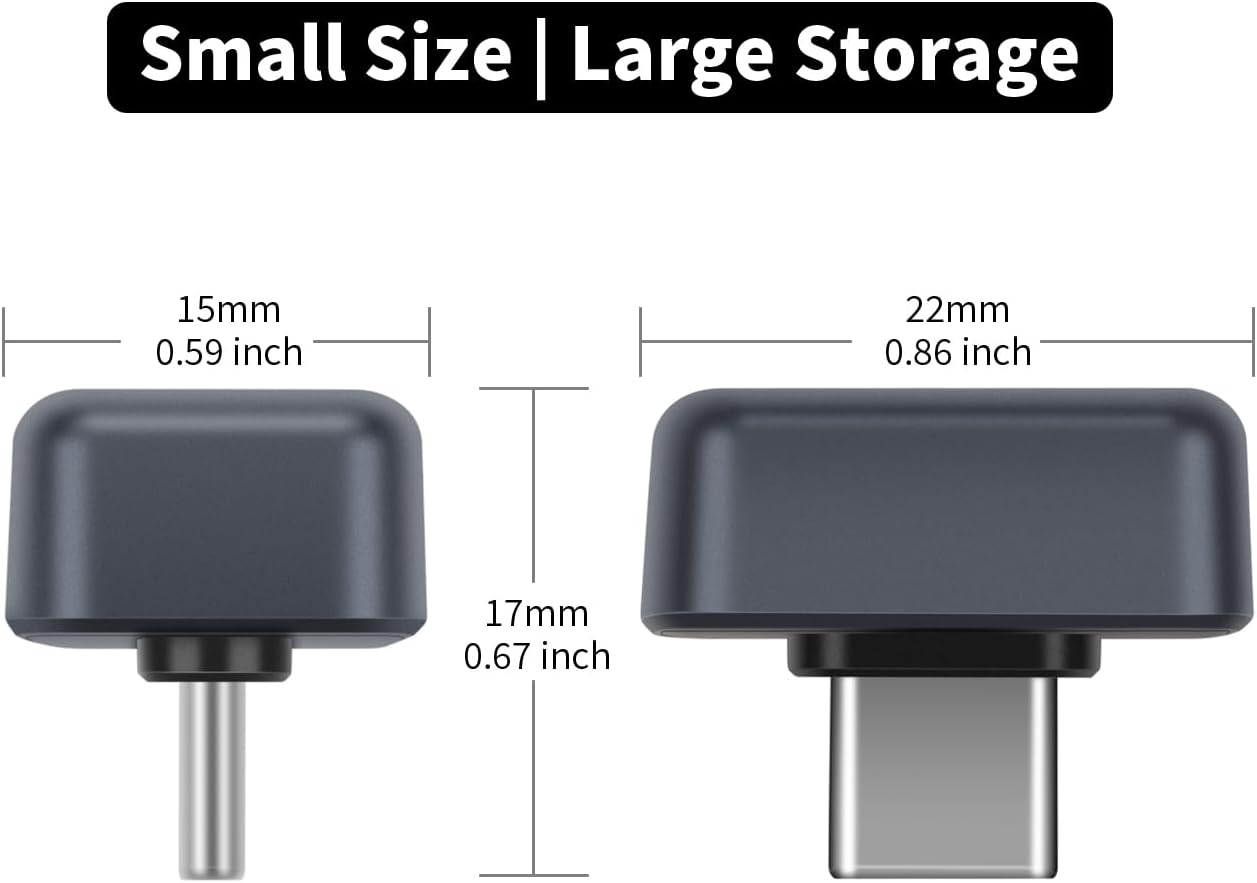
Image 6.1: UnionSine FD450 SSD Dimensions. This image provides a visual representation of the SSD's compact size, showing its length (22mm / 0.86 inch), width (15mm / 0.59 inch), and height (17mm / 0.67 inch).
7. Informace o záruce
The UnionSine FD450 USB C External SSD comes with a 3-letá záruka. Please observe the following conditions:
- Doklad o koupi: Please retain your product packaging as it serves as your warranty certificate.
- Záruční doba: The specific warranty period is listed on the product packaging.
- Vyloučení: The warranty does not cover products exceeding the warranty period, unauthorized disassembly, or damage caused by improper use.
- Data Responsibility: UnionSine is not liable for personal data stored on the product. Users are strongly advised to regularly back up their data.
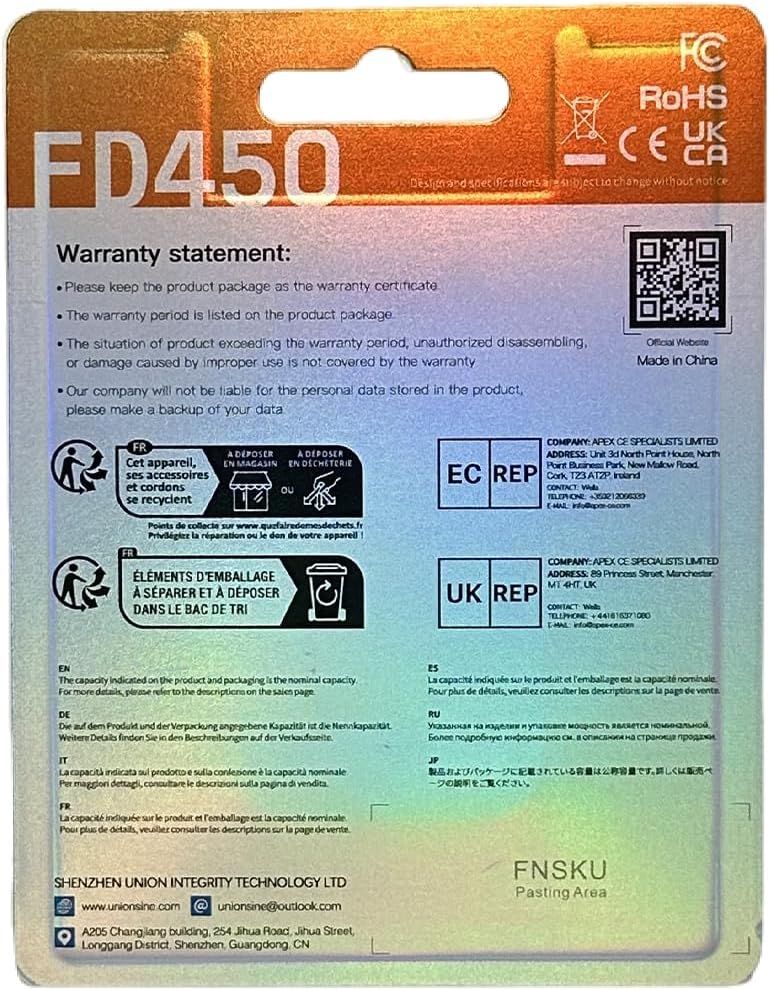
Image 7.1: UnionSine FD450 Packaging Back. This image shows the rear of the product packaging, which includes the warranty statement and contact information.
8. Podpora
For technical assistance or customer support, please contact UnionSine through the following channels:
- Výrobce: SHENZHEN UNION INTEGRITY TECHNOLOGY LTD
- Webmísto: www.unionsine.com
- E-mail: unionsine@outlook.com

