1. Úvod
This manual provides essential information for setting up, operating, and maintaining your ASUS Vivobook S16 AI PC Laptop. Please read this manual thoroughly before using your device to ensure proper function and longevity.

Figure 1: ASUS Vivobook S16 AI PC Laptop
The ASUS Vivobook S16 is a high-performance laptop featuring a 16-inch 2.8k OLED display, an Intel 16-core Ultra 9 285H processor, 32GB RAM, and a 1TB SSD. It is designed for various professional and creative tasks.
2. Co je v krabici
Ověřte, zda jsou v balení přítomny všechny položky:
- ASUS Vivobook S16 AI PC Laptop
- Napájecí adaptér a kabel
- Uživatelská příručka (tento dokument)
- iCarp Type-C 3-in-1 Hub (USB 3.0, HDTV 4K Output, Type-C PD) - May be included as an accessory.

Figure 2: iCarp Type-C 3-in-1 Hub (Optional Accessory)
This hub provides additional connectivity options, including USB 3.0, 4K HDMI output, and Type-C Power Delivery.
3. Nastavení
3.1 Počáteční zapnutí
- Nabijte baterii: Connect the power adapter to the laptop's power port and then to a wall outlet. Allow the battery to charge for at least 30 minutes before initial use.
- Open the Display: Carefully lift the display panel.
- Zapnutí: Stiskněte tlačítko napájení, které se obvykle nachází na klávesnici.
- Nastavení systému Windows: Follow the on-screen instructions to complete the Windows 11 Home setup process. This includes selecting your region, connecting to a Wi-Fi network, and creating a user account.
3.2 Připojení periferních zařízení
Your ASUS Vivobook S16 features various ports for connecting external devices. Refer to the port diagram below for identification.

Obrázek 3: Rozložení portů notebooku
This diagram illustrates the location and type of ports available on your laptop for connecting external devices such as monitors, USB drives, and audio equipment.
- Zařízení USB: Connect USB-A devices (e.g., mouse, keyboard, external hard drive) to the USB Type-A 3.2 ports (6, 7).
- USB-C/Thunderbolt Devices: Connect compatible USB-C or Thunderbolt 4 devices to the Thunderbolt 4 ports (2, 3). These ports support data transfer, video output, and power delivery.
- Externí displej: Use the HDMI 2.1 TMDS port (1) or a Thunderbolt 4 port (2, 3) with an appropriate adapter to connect an external monitor.
- Zvuk: Connect headphones or external speakers to the Audio combo jack (5).
- Paměťové karty: Insert MicroSD cards into the MicroSD Card Reader (4).
4. Ovládání notebooku
4.1 Funkce displeje
Your laptop features a 16-inch 2.8k (2880x1800) OLED display with a 120Hz refresh rate, offering vibrant colors and smooth visuals.

Figure 4: 120Hz OLED Display
The 120Hz refresh rate provides a smoother visual experience, particularly noticeable during fast-paced content or scrolling.
4.2 Klávesnice a touchpad
The laptop is equipped with a 1-zone RGB backlit keyboard for comfortable typing in various lighting conditions and a responsive touchpad for navigation.

Figure 5: 1-zone RGB Backlit Keyboard
The keyboard backlight can be adjusted or turned off via function keys (refer to your laptop's specific function key layout for details).
4.3 Audio systém
Experience enhanced audio with the Harman/kardon sound system and Smart Amp Technologie.

Figure 6: Harman/kardon Audio and Copilot+ AI
The integrated audio system provides clear and powerful sound for multimedia and communication.
4.4 Copilot+ AI Features
Leverage the integrated Copilot+ AI features for enhanced productivity and creative tasks within Windows 11.
5. Údržba
5.1 Čištění
- Obrazovka: Použijte měkký hadřík, který nepouští vlákna dampOpláchněte vodou nebo čističem obrazovek. Vyhněte se agresivním chemikáliím.
- Klávesnice a šasi: Použijte měkký, suchý hadřík. Na odolnou špínu použijte lehceamp Lze použít hadřík namočený v jemném mýdlovém roztoku a ujistit se, že se do otvorů nedostane žádná tekutina.
- Porty: Use compressed air to gently remove dust from ports.
5.2 Péče o baterii
- Vyhněte se častému úplnému vybíjení baterie.
- Store the laptop in a cool, dry place if not used for extended periods, with the battery charged to approximately 50%.
- Používejte pouze originální napájecí adaptér ASUS.
5.3 Aktualizace softwaru
Regularly update your Windows operating system and ASUS drivers to ensure optimal performance and security. Access Windows Update through Settings and check the ASUS support website for driver updates.
6. Řešení problémů
6.1 Problémy s napájením
- Notebook se nezapne: Ensure the power adapter is securely connected to both the laptop and a working power outlet. Check if the power indicator light is on. Try a different outlet.
- Baterie se nenabíjí: Verify the power adapter connection. Check for any damage to the adapter or charging port.
6.2 Problémy se zobrazením
- Žádné zobrazení na obrazovce: Connect an external monitor to check if the issue is with the laptop's internal display. Ensure the display brightness is not set to minimum.
- Blikající obrazovka: Update graphics drivers. Adjust display refresh rate settings in Windows.
6.3 Problémy s připojením
- Nelze se připojit k Wi-Fi: Ensure Wi-Fi is enabled in Windows settings. Restart your router and the laptop. Check for updated Wi-Fi drivers.
- Zařízení USB nebylo rozpoznáno: Try connecting the device to a different USB port. Ensure the device drivers are installed.
6.4 Problémy s výkonem
- Pomalý výkon: Close unnecessary applications. Check for malware. Ensure sufficient free storage space. Update drivers and Windows.
- Přehřívání: Ujistěte se, že jsou větrací otvory volné. Používejte notebook na tvrdém a rovném povrchu.
7. Specifikace
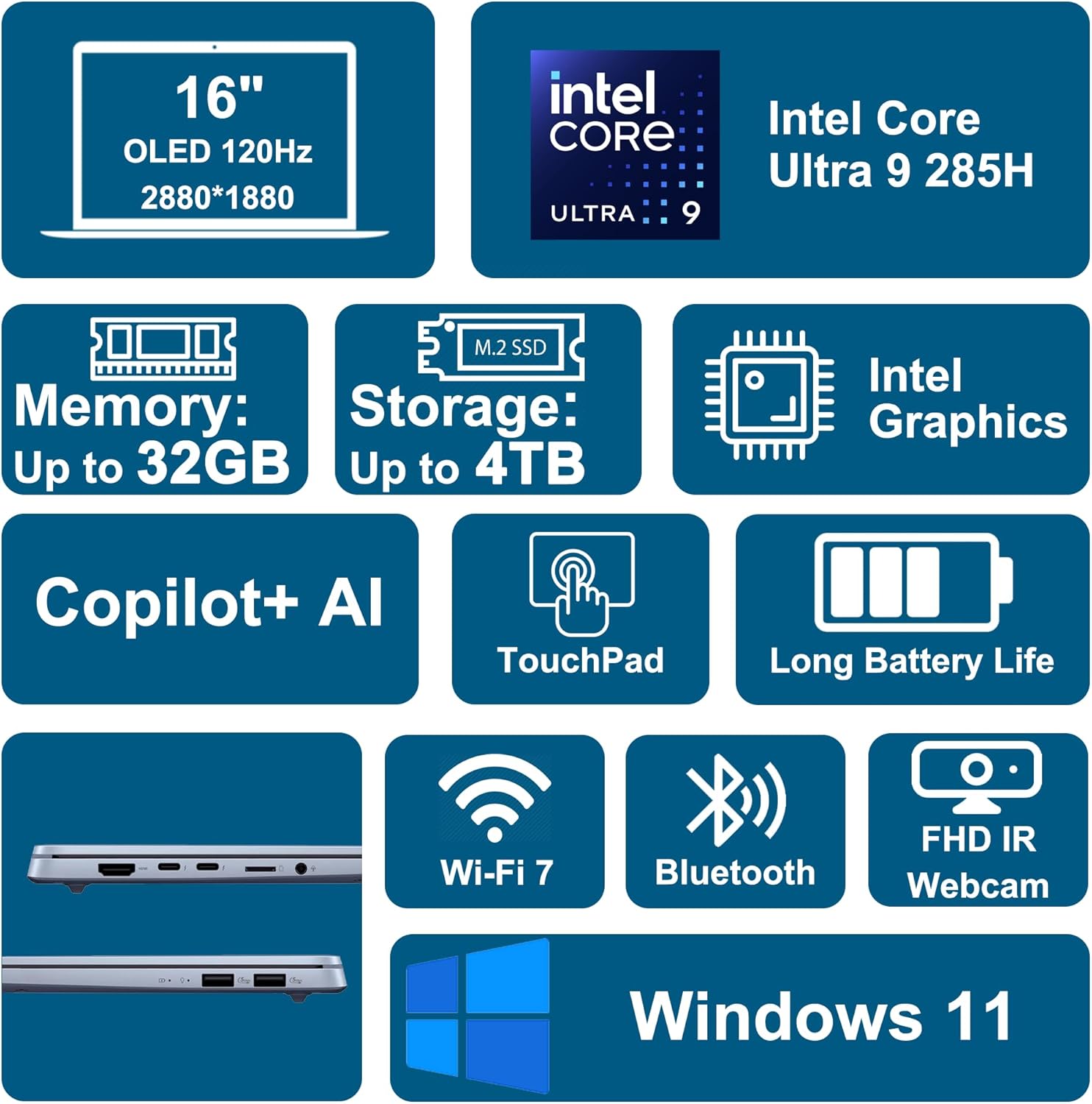
Obrázek 7: Klíčové vlastnostiview
A visual summary of the laptop's primary components and capabilities.
| Funkce | Detail |
|---|---|
| Název modelu | ASUS Vivobook S16 Ultra 9 285H |
| Procesor | Intel 16-core Ultra 9 285H (2.9 GHz) |
| Operační systém | Windows 11 Home |
| Zobrazit | 16-inch 2.8k (2880x1800) OLED, 120Hz, 600nits HDR, 100% DCI-P3 |
| Grafika | Integrated Intel Arc 140T GPU |
| Paměť (RAM) | 32 GB DDR5 |
| Skladování | 1TB SSD (jednotka SSD) |
| Bezdrátové připojení | Wi-Fi 7 (802.11ax), Bluetooth |
| Porty | 2 x Thunderbolt 4, 2 x USB-A 3.2, 1 x HDMI 2.1 TMDS, 1 x MicroSD Card Reader, 1 x Audio combo jack |
| Klávesnice | 1-zone RGB Backlit Keyboard |
| Webvačka | FHD IR kamera |
| Zvuk | Harman/kardon, Smart Amp Technologie |
| Baterie | 75 Wh |
| Rozměry (DxŠxV) | 9.72 cm x 13.92 cm x 0.63 cm |
| Hmotnost | 3.31 liber |
| Barva | Mlha modrá |

Figure 8: Laptop Dimensions and Weight
Physical dimensions and weight of the ASUS Vivobook S16 laptop.
8. Záruka a podpora
8.1 Informace o záruce
Your ASUS Vivobook S16 AI PC Laptop comes with a standard manufacturer's warranty. Please refer to the warranty card included in your packaging or visit the official ASUS support webpodrobné podmínky specifické pro váš region naleznete na webu.
Optional protection plans may be available for purchase to extend coverage. For exampten:
- Dvouletý ochranný plán
- Dvouletý ochranný plán
- Kompletní ochrana (měsíční předplatné)
Note: Availability and terms of protection plans may vary.
8.2 Technická podpora
For technical assistance, driver downloads, or further product information, please visit the official ASUS support webmísto:
Než budete kontaktovat podporu, mějte prosím připravené sériové číslo vašeho notebooku. Sériové číslo se obvykle nachází na štítku na spodní straně notebooku nebo ho lze nalézt v systémových informacích ve Windows.


