1. Úvod
This manual provides essential information for setting up, operating, maintaining, and troubleshooting your ASUS ROG Strix G16 G614 gaming laptop. Please read this manual thoroughly to ensure proper use and to maximize your device's performance and longevity.
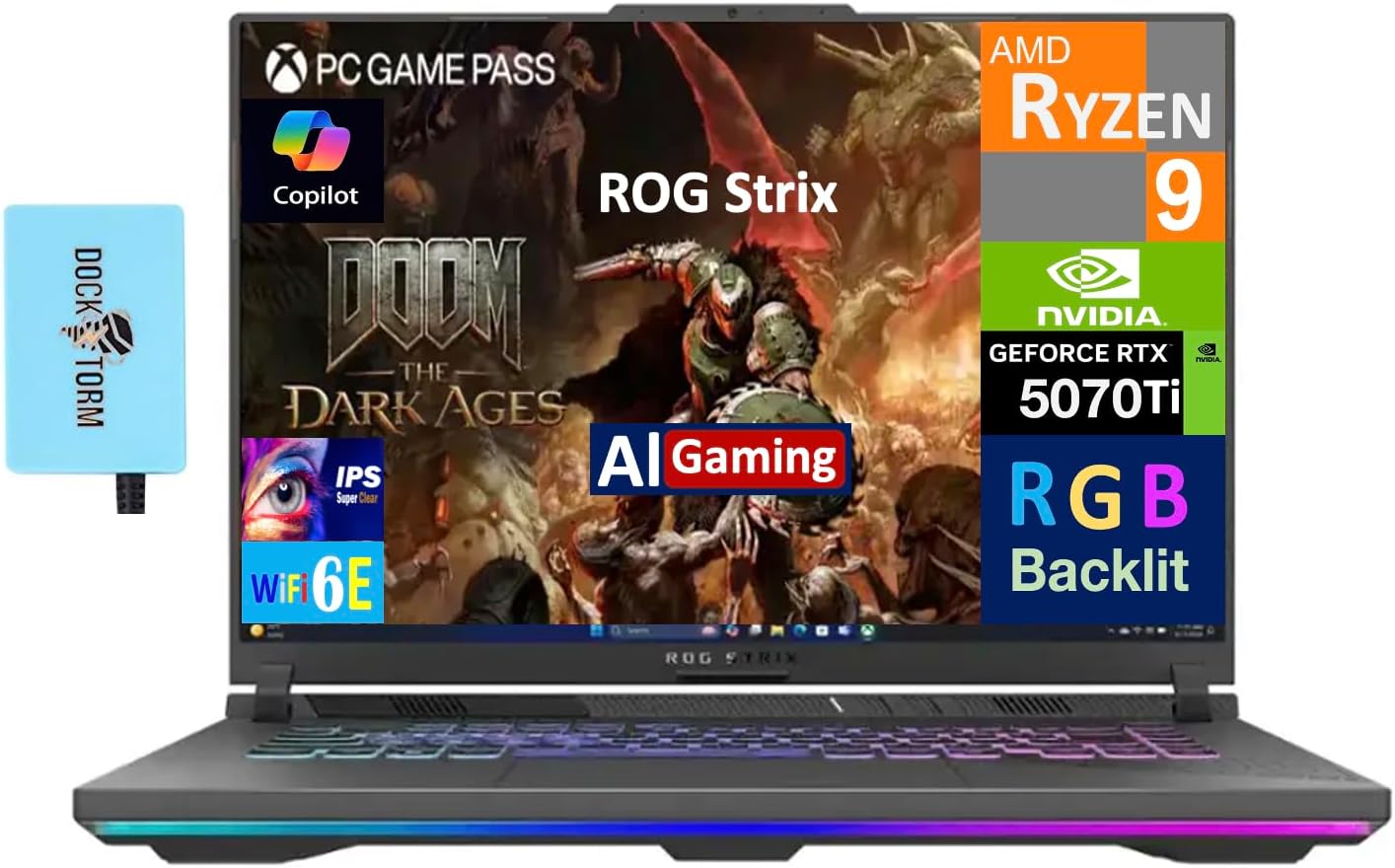
Figure 1: ASUS ROG Strix G16 G614 Gaming Laptop. This image shows the laptop open with a game displayed on the screen, highlighting its gaming capabilities.
2. Nastavení
2.1 Vybalení a počáteční kontrola
Opatrně vyjměte všechny součásti z obalu. Zkontrolujte, zda jsou přítomny následující položky:
- ASUS ROG Strix G16 G614 Laptop
- Napájecí adaptér a kabel
- Přenosný USB Hub Dockztorm
- Dokumentace (včetně této příručky)
Zkontrolujte notebook, zda není fyzicky poškozen. Pokud zjistíte jakékoli poškození, okamžitě kontaktujte svého prodejce.
2.2 Připojení napájení
Připojte napájecí adaptér k napájecímu portu notebooku a poté zapojte napájecí kabel do zásuvky. Notebook lze během nabíjení používat.
2.3 Počáteční spuštění a nastavení operačního systému
Press the power button to turn on the laptop. Follow the on-screen instructions to complete the Windows 11 Pro setup process. This includes selecting your region, connecting to a network, and creating a user account.
2.4 Připojení přenosného USB hubu Dockztorm
The included Dockztorm Portable USB Hub can be connected to an available USB port on your laptop to expand connectivity options. This hub supports data transfer rates up to 5Gbps.

Figure 2: Dockztorm Portable USB Hub. This image displays the compact blue USB hub included with the laptop.
3. Provoz
3.1 Zapnutí/vypnutí a režim spánku
- To power on: Press the power button located on the top right of the keyboard deck.
- To power off: Click the Start button, then Power > Shut down.
- To enter sleep mode: Click the Start button, then Power > Sleep, or close the laptop lid.
3.2 Klávesnice a touchpad
The laptop features an RGB backlit keyboard. You can customize the lighting effects through the pre-installed ASUS software. The touchpad supports multi-touch gestures for navigation.

Figure 3: Keyboard and Touchpad. This image provides a top-down view of the laptop's keyboard, showcasing the RGB backlighting and the touchpad.
3.3 Nastavení zobrazení
The 16.0-inch WUXGA (1920x1200) IPS display operates at a 165Hz refresh rate. You can adjust display settings, including resolution and refresh rate, via Windows Display Settings or NVIDIA Control Panel for optimal gaming and viewzkušenosti.
3.4 Konektivita
The laptop supports 802.11ax Wi-Fi for high-speed wireless internet, Bluetooth 5.3 for connecting wireless peripherals, and an RJ-45 port for wired Ethernet connections.
4. Údržba
4.1 Čištění
- Obrazovka: Lehce používejte měkký hadřík, který nepouští vlákna dampOpláchněte vodou nebo čističem obrazovek. Vyhněte se agresivním chemikáliím.
- Klávesnice a šasi: Používejte měkký hadřík. Na prach ve štěrbinách použijte stlačený vzduch.
- Průduchy: Regularly check and clean the cooling vents to prevent dust buildup, which can affect performance.
4.2 Aktualizace softwaru
Keep your operating system (Windows 11 Pro), drivers (especially graphics drivers), and ASUS utilities updated to ensure optimal performance and security. Check for updates regularly through Windows Update and ASUS Armoury Crate software.
4.3 Péče o baterii
To prolong battery life, avoid fully discharging the battery frequently. For extended storage, charge the battery to approximately 50-60% and store the laptop in a cool, dry place.
5. Řešení problémů
Tato část se zabývá běžnými problémy, se kterými se můžete setkat.
- Notebook se nezapne: Ujistěte se, že je napájecí adaptér bezpečně připojen k notebooku i k funkční zásuvce. Zkuste jinou zásuvku.
- Problémy se zobrazením (žádný obraz, blikání): Connect an external monitor to verify if the issue is with the laptop's display or the graphics output. Update graphics drivers.
- Zpomalení výkonu: Check for background applications consuming resources. Ensure cooling vents are clear. Update drivers and operating system.
- Problémy s připojením k Wi-Fi: Restart your router and the laptop. Check Wi-Fi settings in Windows. Ensure Wi-Fi drivers are updated.
V případě složitějších problémů se obraťte na podporu ASUS. webwebu nebo kontaktujte technickou podporu.
6. Specifikace
Key technical specifications for the ASUS ROG Strix G16 G614 laptop:
| Funkce | Specifikace |
|---|---|
| Model | G614PR-G16 |
| Zobrazit | 16.0" IPS WUXGA (1920x1200) 165Hz |
| Procesor | AMD Ryzen 9 8940HX (up to 5.3 GHz, 16-Cores, 32-Threads) |
| Grafika | NVIDIA GeForce RTX 5070 Ti 12GB GDDR7 |
| BERAN | 32GB DDR5 SODIMM |
| Skladování | 1TB PCIe NVMe SSD |
| Operační systém | Windows 11 Pro (64bitový) |
| Bezdrátové připojení | Wi-Fi 802.11ax, Bluetooth 5.3 |
| Porty | HDMI, Headphone/Microphone Combo Jack, RJ-45, USB (via Dockztorm Hub) |
| Baterie | 4článková 90 Wh |
| Hmotnost | Přibližně 9.9 libry |
| Barva | Eclipse Grey |
7. Záruka a podpora
Your ASUS ROG Strix G16 G614 laptop comes with a 1-year manufacturer warranty from GreatPriceTech. For warranty claims or technical assistance, please contact GreatPriceTech directly.
For additional support resources, driver downloads, and FAQs, please visit the official ASUS support webmísto: www.asus.com/support/


