Zavedení
This manual provides essential information for setting up, operating, maintaining, and troubleshooting your NIMO 17.3 Gaming Laptop. Designed for high performance with an AMD Ryzen 9 8945HS processor and Radeon 780M graphics, this laptop offers a powerful computing experience for gaming, creative work, and everyday tasks. Please read this manual thoroughly to ensure optimal use and longevity of your device.
1. Počáteční nastavení
1.1 Vybalení a první zapnutí
Carefully remove your NIMO laptop and all accessories from the packaging. Place the laptop on a stable, flat surface. Before first use, it is recommended to fully charge the battery.

The NIMO 17.3 Gaming Laptop, ready for initial setup.
1.2 Nabíjení baterie
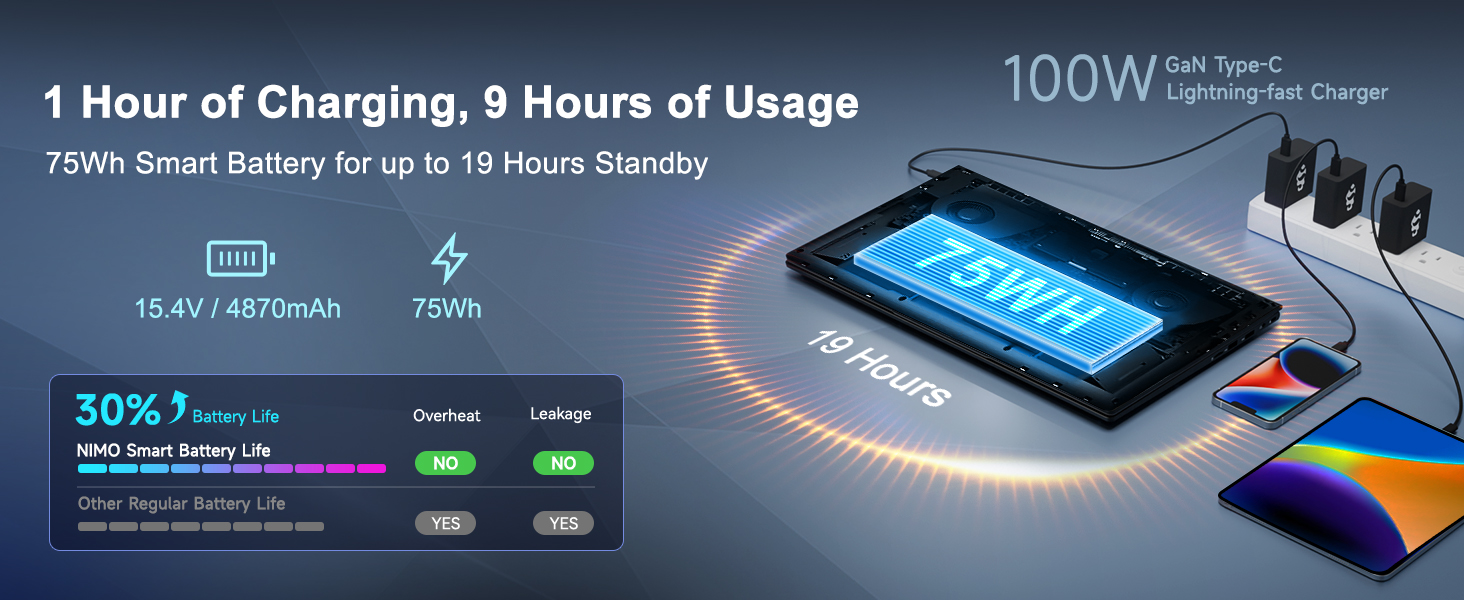
Connect the provided 100W PD Type-C fast charger to the USB-C port on your laptop and then to a power outlet. The charging indicator light will illuminate. Allow the laptop to charge fully before its first use for optimal battery calibration.

The 100W GaN Type-C charger connected to the laptop, illustrating fast charging capability.
1.3 Konfigurace operačního systému
Upon first power-on, you will be guided through the Windows 11 setup process. Follow the on-screen instructions to configure language, region, network settings, and user accounts.
1.4 Nastavení čtečky otisků prstů
For enhanced security and quick login, set up the integrated fingerprint reader during the Windows 11 setup or later via Windows Settings > Accounts > Sign-in options. Follow the prompts to register your fingerprints.

Close-up of the backlit keyboard and integrated fingerprint reader for secure access.
1.5 Připojení periferních zařízení
Your NIMO laptop features a comprehensive multi-port design for various peripherals:
- USB-C 4.0: For ultra-fast data transfer, external displays, and eGPU support.
- USB 3.2: Vysokorychlostní přenos dat pro kompatibilní zařízení.
- USB 2.0: Pro standardní USB zařízení.
- HDMI: Připojení k externím monitorům nebo televizorům.
- Slot pro SD kartu: Pro paměťové karty.
- Headphone Combo Jack: Pro audio výstup a mikrofonní vstup.
- Slot zámku Kensington: Pro fyzické zabezpečení.
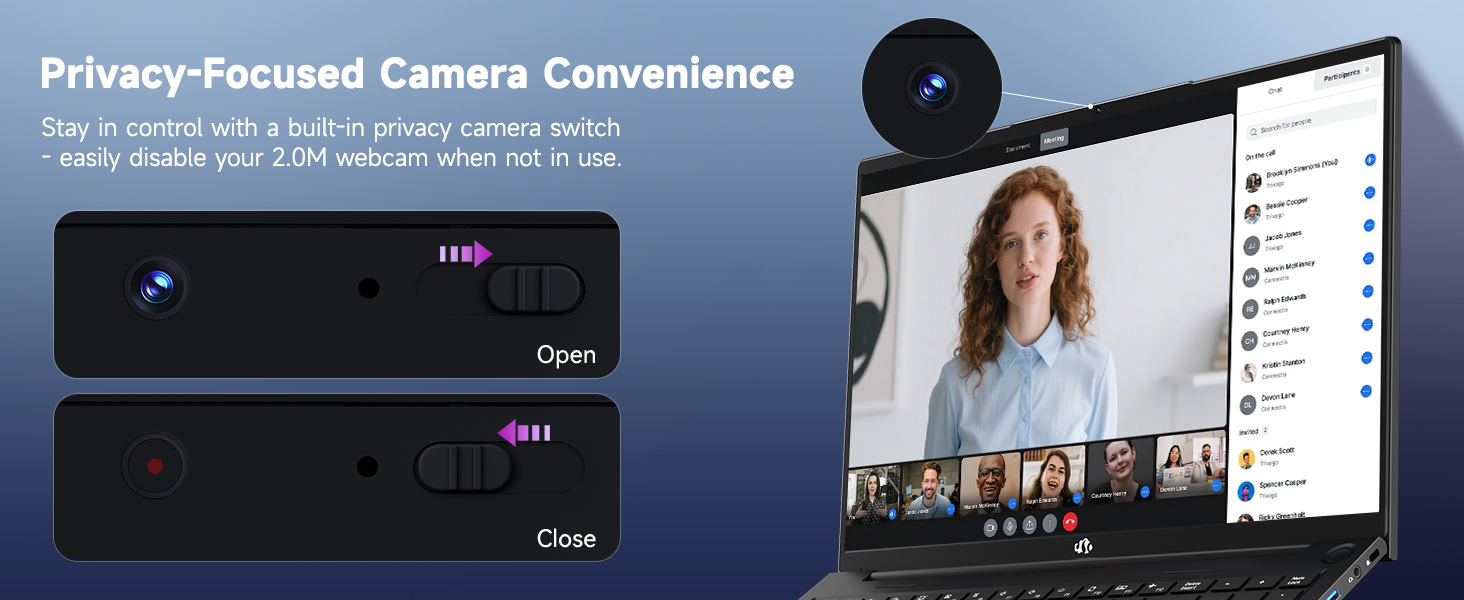
Diagram illustrating the comprehensive multi-port design of the NIMO laptop, including USB-C 4.0, HDMI, USB 3.2, USB 2.0, SD Card slot, Headphone Combo, and Kensington Lock.
2. Návod k obsluze
2.1 Zapnutí/vypnutí a režimy spánku
- Zapnutí: Stiskněte tlačítko napájení umístěné na klávesnici.
- Vypnout: Klikněte na tlačítko Start a poté na Napájení > Vypnout.
- Režim spánku: Klikněte na tlačítko Start a poté na Napájení > Režim spánku nebo zavřete víko notebooku.
2.2 Používání klávesnice a touchpadu
The NIMO laptop features a full-size keyboard with a numeric keypad and adjustable backlighting. Press Fn + F10 (or similar function key depending on model) to cycle through backlight brightness levels. The large touchpad supports multi-touch gestures for navigation.
2.3 Funkce displeje
Experience clear visuals on the 17.3-inch Full HD (1920x1080) IPS display. This screen provides vibrant colors and wide viewing angles, suitable for various applications from productivity to entertainment.

The NIMO laptop displaying a vibrant image, highlighting its 17.3-inch Full HD IPS screen.
2.4 WebPřepínač soukromí kamery
For privacy, your laptop includes a physical webcam privacy switch. Slide the switch to the left to cover the camera lens and disable the webcam, or to the right to uncover and enable it.
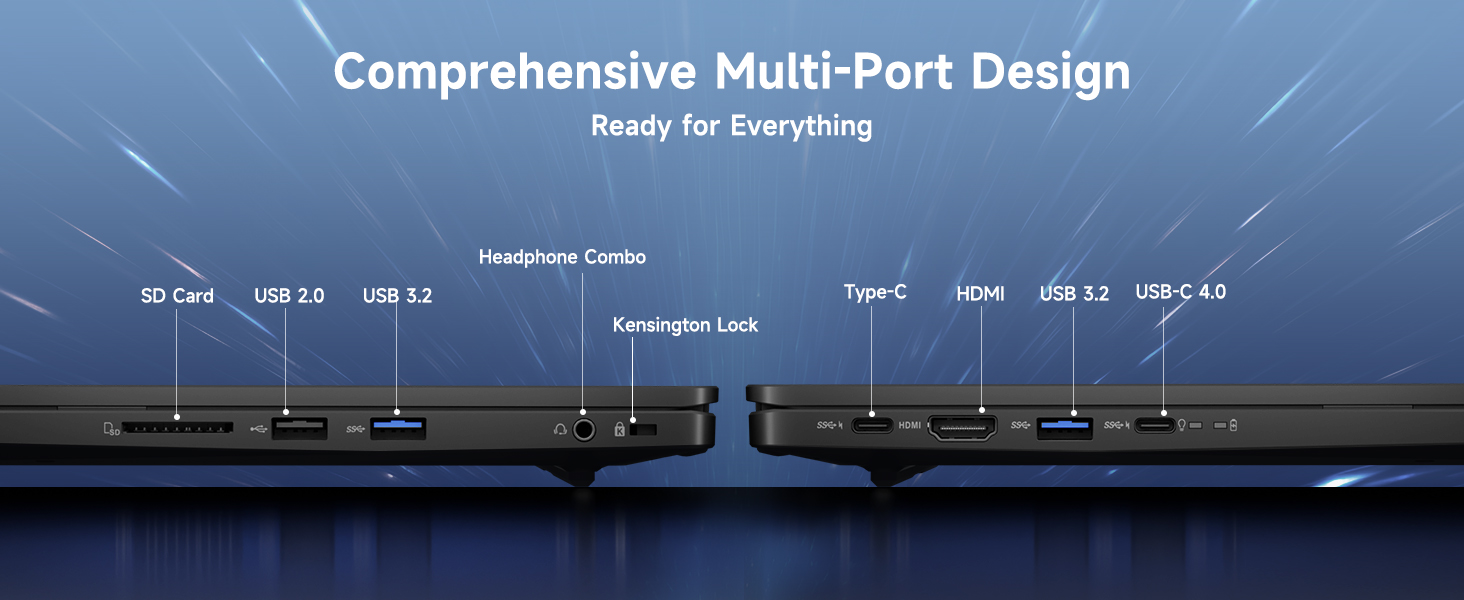
Ilustrace webcam privacy switch in both open and closed positions, demonstrating how to control camera access.
2.5 Výkon nadview
The NIMO laptop is powered by an AMD Ryzen 9 8945HS processor, offering 8 cores and 16 threads with a max boost clock of 5.2GHz. Integrated AMD Radeon 780M graphics provide capable performance for gaming and demanding creative applications.

Diagram znázorněníasing the AMD Ryzen 9 8945HS processor with its 8 cores/16 threads and integrated Ryzen AI NPU.

Visual representation of the AMD Radeon 780M graphics, emphasizing its capabilities for gaming and creative work.
3. Péče a údržba
3.1 Čištění notebooku
- Obrazovka: Lehce používejte měkký hadřík, který nepouští vlákna dampvodou nebo čističem obrazovek. Nestříkejte tekutinu přímo na obrazovku.
- Klávesnice a šasi: Použijte měkký, suchý hadřík. Na odolnou špínu použijte lehceamp Lze použít hadřík. Vyhněte se agresivním chemikáliím.
- Porty: K jemnému odstranění prachu z portů použijte stlačený vzduch.
3.2 Správa baterie
The laptop is equipped with a 75Wh battery. To prolong battery life:
- Vyhněte se častému úplnému vybíjení baterie.
- Pokud notebook delší dobu nepoužíváte, skladujte jej na chladném a suchém místě.
- Utilize power-saving settings in Windows 11.

Graphic illustrating smart battery optimization features, including extended battery life, smart power control, safe fast charging, and battery health protection.
3.3 Odvod tepla
The NIMO laptop features an efficient cooling system with dual fans and double copper pipes to manage heat. Ensure that the ventilation openings are not blocked during use to maintain optimal performance and prevent overheating.
Vnitřní view of the laptop's efficient heat dissipation system, featuring dual fans and double copper pipes.
3.4 Aktualizace softwaru
Regularly update your Windows 11 operating system and device drivers to ensure system stability, security, and optimal performance. You can check for updates via Windows Settings > Windows Update.
4. Řešení problémů
This section addresses common issues you might encounter with your NIMO laptop.
4.1 Problémy s napájením
- Notebook se nezapíná: Ensure the charger is securely connected and the power outlet is functional. Try holding the power button for 15-20 seconds to perform a hard reset.
- Baterie se nenabíjí: Verify the charger is correctly plugged into both the laptop and the wall. Check for any damage to the charger cable or port.
4.2 Problémy se zobrazením
- Žádné zobrazení na obrazovce: Připojte externí monitor přes HDMI a zkontrolujte, zda je problém s interním displejem notebooku. Pokud externí monitor funguje, může být vadný interní displej nebo jeho připojení.
- Blikající obrazovka: Aktualizujte ovladače grafické karty. Upravte obnovovací frekvenci displeje v nastavení systému Windows.
4.3 Problémy s připojením
- Nelze se připojit k Wi-Fi: Ensure Wi-Fi is enabled in Windows settings. Restart your router and laptop. Update wireless drivers.
- Zařízení Bluetooth se nespáruje: Ujistěte se, že je na obou zařízeních povoleno rozhraní Bluetooth. Odeberte a znovu přidejte zařízení v nastavení Bluetooth ve Windows.
4.4 Zhoršení výkonu
- Pomalý výkon: Zavřete nepotřebné aplikace. Zkontrolujte Správce úloh, zda nedochází k vysokému využití CPU/RAM. Zajistěte dostatek volného místa na disku SSD. Spusťte antivirovou kontrolu.
- Přehřívání: Ensure ventilation vents are clear. Use the laptop on a hard, flat surface. Consider reducing demanding workloads.
5. Technické specifikace
| Funkce | Specifikace |
|---|---|
| Značka | NIMO |
| Název modelu | NIMO N175L |
| Velikost obrazovky | 17.3 palce |
| Rozlišení obrazovky | 1920 x 1080 pixelů (Full HD) |
| Procesor | AMD Ryzen 9 8945HS (Up to 5.2 GHz) |
| BERAN | 32 GB DDR5 |
| Pevný disk | 1024 GB SSD (polovodičový disk) |
| Grafický koprocesor | AMD Radeon 780M (integrovaná) |
| Operační systém | Windows 11 |
| Bezdrátový typ | 802.11a/b/g/n/ac |
| USB porty | 1x USB 2.0, 3x USB 3.0, 1x USB-C 4.0 |
| Průměrná životnost baterie | 12.8 hodiny |
| Hmotnost položky | 3.84 libry |
| Rozměry produktu | 15.66 x 9.99 x 0.74 palce |
| Barva | Černý |
| Speciální funkce | Podsvícená klávesnice, čtečka otisků prstů, HD zvuk, numerická klávesnice |
6. Záruka a zákaznická podpora
6.1 Informace o záruce
Your NIMO laptop comes with a 2-letá záruka for support and service. Additionally, NIMO offers a 90denní zásada vrácení from the date of purchase for any reason.
Image depicting a technician working on a laptop, symbolizing the 2-year support provided for NIMO products.
Image of a customer receiving a package, representing the 90-day return policy for NIMO products.
6.2 Kontaktování podpory
For any product-related questions, technical assistance, or warranty claims, please contact NIMO customer support:
- E-mail: service@nimopc.com
- Professional customer assistance is available to help resolve your issues.
Image of customer service representatives, indicating professional customer assistance is available.


