1. Úvod
This manual provides detailed instructions for the proper setup, operation, and maintenance of your Hayve DM13 10.1 Inch LCD Digital Microscope. Designed for precision tasks such as electronics repair, soldering, coin inspection, and general observation, this device offers high-resolution imaging and versatile magnification capabilities. Please read this manual thoroughly before using the microscope to ensure optimal performance and longevity.

Image 1.1: The Hayve DM13 Digital Microscope, featuring its 10.1-inch LCD screen, adjustable stand, dual gooseneck LED lights, a wireless remote control, and an included 32GB TF card.
2. Obsah balení
Ověřte, zda jsou v balení obsaženy všechny níže uvedené položky:
- Hayve DM13 Digital Microscope Unit (with 10.1-inch LCD screen)
- Nastavitelný kovový stojan
- Bezdrátové dálkové ovládání
- Karta 32GB TF
- USB kabel (typ C)
- Napájecí adaptér
- Kalibrační pravítko
- Uživatelská příručka

Image 2.1: The microscope's TF card slot, illustrating the inclusion of a 32GB TF card for storage of captured photos and videos.
3. Konec produktuview
Familiarize yourself with the various components and controls of your Hayve DM13 Digital Microscope.

Image 3.1: Labeled diagram of the Hayve DM13 Digital Microscope components, including the Up/OK/Down/Menu buttons, Power on/off, Reset Button, Type-C Interface, TF Card slot, Lights wheel, LED Lights, Left/Right-side lights, Base light, Indicator light, and Infrared receiver tube.
- 10.1palcový IPS HD displej: Poskytuje široký viewing angle and clear, vibrant images.
- Mikroskopický objektiv: Captures magnified images of the specimen.
- Focus Wheel: Adjusts the focus for clear observation.
- LED světla: Eight adjustable LED lights around the lens and two flexible gooseneck auxiliary lights illuminate the observation area.
- Ovládací tlačítka: Power, Menu, OK, Up, Down buttons for on-device control.
- Slot na kartu TF: For inserting the included 32GB TF card to store photos and videos.
- Rozhraní typu C: For power supply and data connection to a computer.
- Bezdrátové dálkové ovládání: Allows for hands-free operation, including capturing photos, recording videos, and adjusting zoom.
4. Nastavení
4.1 Montáž
Follow these steps to assemble your digital microscope:
- Opatrně vybalte všechny součásti z krabice.
- Attach the microscope unit to the adjustable metal stand, ensuring it is securely fastened.
- Position the two flexible gooseneck LED lights as desired for optimal illumination.
- Insert the provided 32GB TF card into the TF card slot on the side of the microscope unit.
4.2 Zapnutí
- Connect the microscope to a power source using the provided USB Type-C cable and power adapter.
- Press and hold the Power On/Off button located on the microscope unit until the screen illuminates.
- The microscope has a built-in 3000mAh lithium battery, providing up to 3 hours of working time on a full charge.

Image 4.1: A visual guide demonstrating the basic setup and operation steps: 1. Turn on the microscope. 2. Adjust the distance between the object and the microscope lens. 3. Rotate the focus wheel to focus. 4. Screen is rotatable. 5. Observe the details of an object on the HD IPS screen.
5. Návod k obsluze
5.1 Základní obsluha
- Place the object you wish to observe on the base plate directly beneath the microscope lens.
- Adjust the height of the microscope unit on the stand to bring the object into approximate view.
- Rotate the focus wheel on the microscope unit until the image on the 10.1-inch screen is clear and sharp.
- The microscope offers 50X to 2000X magnification. Adjust the distance and focus to achieve the desired magnification level.

Image 5.1: Visual representation of the microscope's magnification range, showing an object at 50X, 1000X, and 2000X zoom.
5.2 Nastavení osvětlení
The microscope is equipped with 8 adjustable LED lights around the lens and 2 flexible gooseneck auxiliary lights to ensure optimal illumination.
- Use the 'Lights wheel' on the microscope unit to adjust the brightness of the main LED lights.
- Manually position the two gooseneck lights to eliminate shadows and glare on your specimen.

Image 5.2: The microscope's lighting system, featuring 8 adjustable LED lights and 2 flexible gooseneck lights, with controls for brightness adjustment.
5.3 Pořizování fotografií a videí
Use the wireless remote control for convenient, shake-free capture of images and videos.
- Stiskněte tlačítko Photo/OK button on the remote to capture a still image.
- Stiskněte tlačítko Video button to start recording. Press it again to stop recording.
- Použijte Přiblížit/oddálit buttons on the remote to adjust magnification during observation or recording.
- The Přehrávání tlačítko umožňuje znovuview captured media directly on the screen.
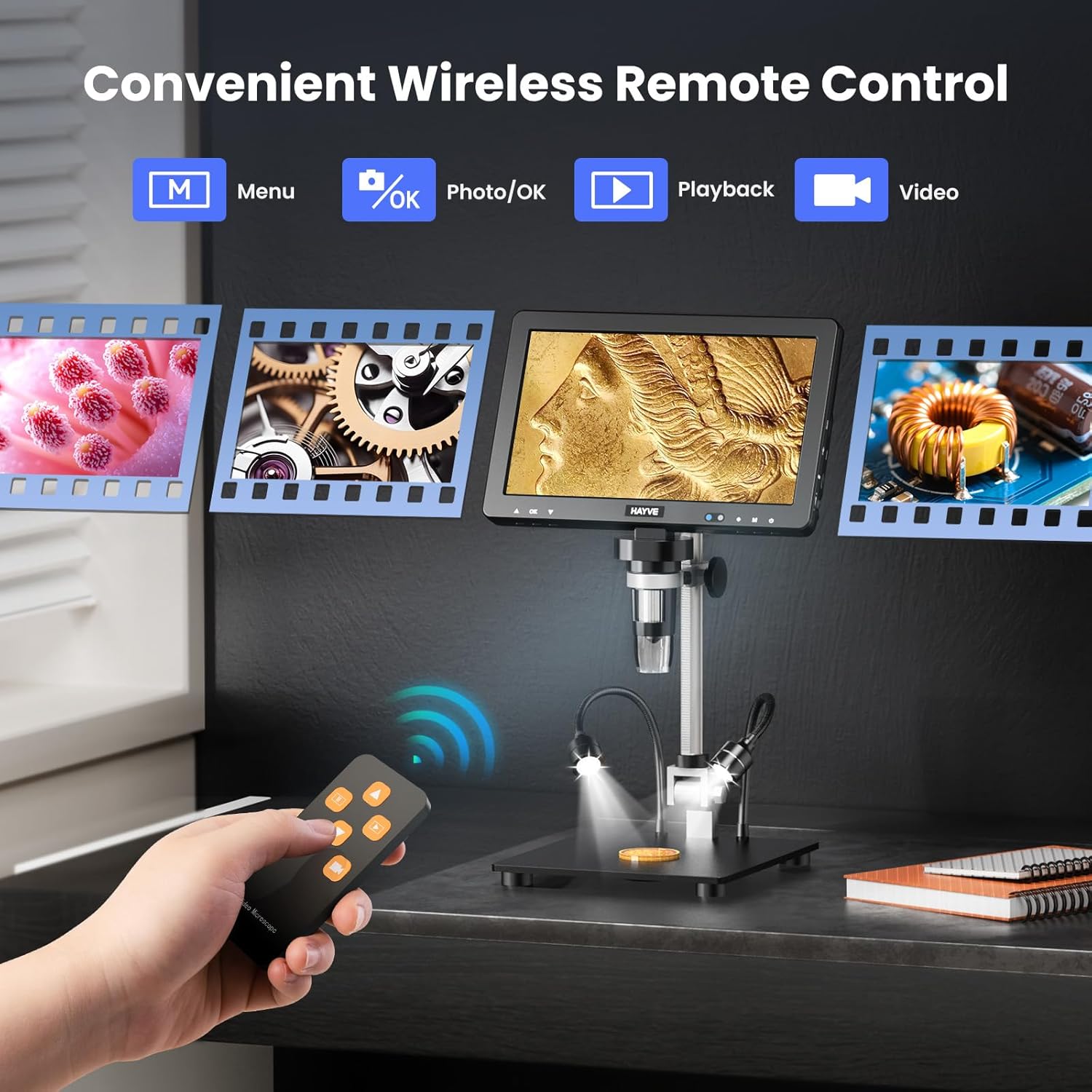
Image 5.3: The wireless remote control, illustrating its functions for menu navigation, photo capture, video recording, and playback.
5.4 Připojení k PC
Connect the microscope to a Windows PC or Mac for a larger viewing experience and collaborative analysis.
- Ujistěte se, že je mikroskop zapnutý.
- Connect the microscope to your computer using the provided USB Type-C cable.
- The microscope should be recognized as a webcam or storage device. Follow on-screen prompts or use appropriate software (e.g., default camera application) to view živé vysílání.

Image 5.4: The microscope connected to a PC and Mac, demonstrating the ability to display the magnified view on a larger external screen for enhanced observation and sharing.
6. Údržba
6.1 Čištění
- Always power off and unplug the microscope before cleaning.
- Use a soft, dry cloth to clean the exterior of the microscope.
- For the lens and screen, use a specialized lens cleaning cloth and solution to avoid scratches. Do not use abrasive cleaners.
6.2 Skladování
- Mikroskop skladujte na chladném a suchém místě mimo dosah přímého slunečního záření a extrémních teplot.
- Keep the lens covered when not in use to prevent dust accumulation.
6.3 Péče o baterii
- Charge the built-in lithium battery regularly, even if not in frequent use, to maintain battery health.
- Vyhněte se delšímu úplnému vybíjení baterie.

Image 6.1: The microscope charging, highlighting its 3000mAh built-in lithium battery which provides up to 3 hours of continuous operation.
7. Řešení problémů
If you encounter issues with your Hayve DM13 microscope, refer to the following common problems and solutions:
- Bez napájení:
- Ujistěte se, že je napájecí adaptér bezpečně připojen a zásuvka je funkční.
- Check if the battery is charged. Connect to power and allow it to charge for a period.
- Rozmazaný obrázek:
- Adjust the focus wheel carefully until the image is sharp.
- Ensure the object is within the microscope's working distance. Adjust the stand height if necessary.
- Clean the lens if there is dust or smudges.
- Obrazovka se nezobrazuje:
- Verify the microscope is powered on.
- If connected to a PC, ensure the correct display mode or software is selected.
- Dálkové ovládání nereaguje:
- Ensure there are no obstructions between the remote and the microscope's infrared receiver.
- Zkontrolujte baterii dálkového ovladače.
- Cannot Connect to PC:
- Ensure the USB cable is properly connected to both the microscope and the computer.
- Zkuste jiný port USB na počítači.
- Restart both the microscope and the computer.
8. Specifikace
| Funkce | Specifikace |
|---|---|
| Název modelu | DM13 |
| Velikost displeje | 10.1 inches IPS HD |
| Rozsah zvětšení | 50x - 2000x |
| Obrazový snímač | 16 MP |
| Světelný zdroj | 8 adjustable LED lights + 2 flexible gooseneck auxiliary lights |
| Skladování | 32GB TF karta (součástí balení) |
| Konektivita | USB Type-C (PC/Mac compatible) |
| Baterie | 3000mAh Lithium Polymer (up to 3 hours working time) |
| Hmotnost položky | 4.16 libry |
| Rozměry balení | 12.24 x 11.42 x 4.21 palce |
| Materiál | Kov |
| Barva | Černý |
| Skutečný úhel View | 178 stupňů |
9. Informace o záruce a podpoře
Your Hayve DM13 Digital Microscope is covered by a manufacturer's warranty against defects in materials and workmanship. Please refer to the warranty card included in your package for specific terms and conditions.
For technical support, troubleshooting assistance, or warranty claims, please contact Hayve customer service through the retailer's platform or the official Hayve website. When contacting support, please have your product model number (DM13) and purchase information readily available.


