1. Úvod
This manual provides detailed instructions for the installation, operation, and maintenance of your Eonon M3BLX7 Android 14 Car Stereo Receiver. This unit is specifically designed for Mazda 3 models manufactured between 2010 and 2013, offering seamless integration and enhanced in-car entertainment and navigation features. Please read this manual thoroughly before installation and use to ensure proper functionality and safety.

Figure 1.1: Eonon M3BLX7 Car Stereo Receiver
2. Co je v krabici
Před zahájením instalace ověřte, zda jsou všechny komponenty přítomny:
- A0125 Reversing camera *1
- Napájecí kabel *1
- GPS anténa *1
- USB adaptérový kabel *2
- Audio/video adapter cable *2
- Reverse video input cable *1
- 15A pojistka *1
- Externí mikrofon *1
- CANBUS *1
- Manuál *1
- Double-sided adhesive sticker *1
- AUX adapter cable *1
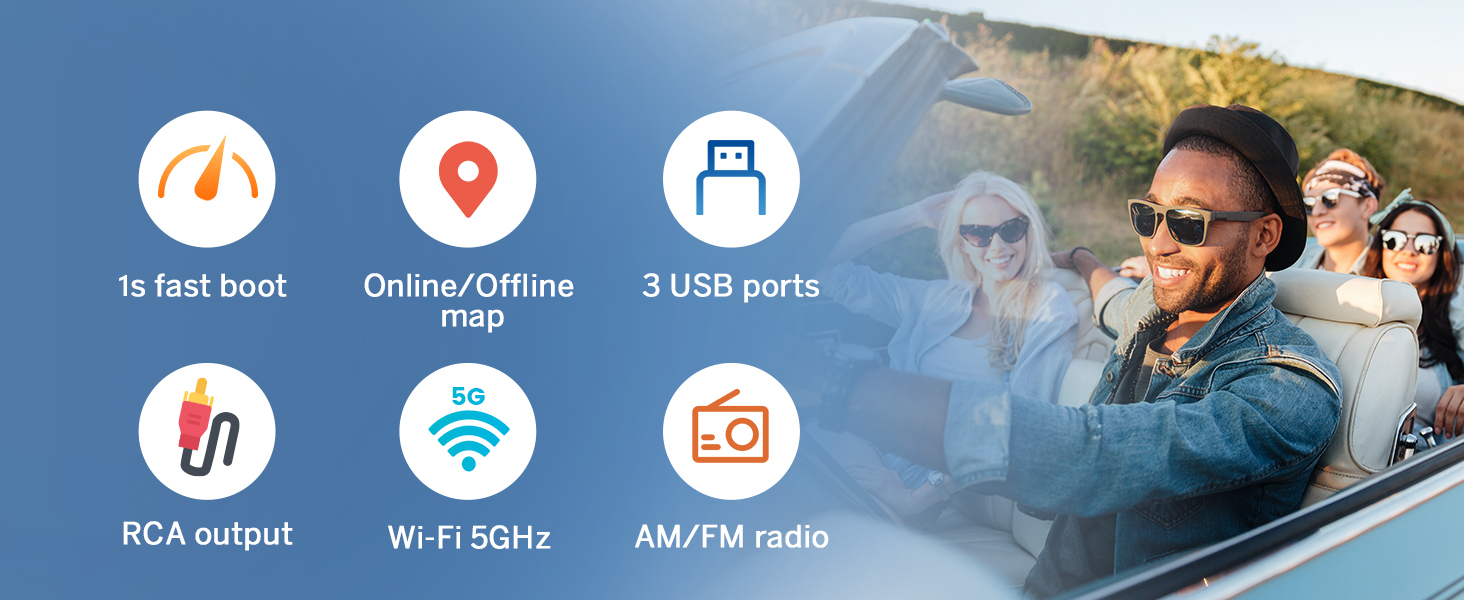
Obrázek 2.1: Zahrnuté součásti
3. Nastavení a instalace
The M3BLX7 head unit is designed for plug-and-play installation in Mazda 3 models from 2010-2013. No additional frame or cable modifications are typically required. The included CANBUS supports most original vehicle functions, including steering wheel controls (SWC) and the factory LCD screen.
3.1 Kontroly před instalací
- Ujistěte se, že je vypnuté zapalování vozidla a odpojená baterie.
- Confirm compatibility with your Mazda 3 (2010-2013).
- Ověřte, zda jsou přítomny všechny komponenty uvedené v části 2.
3.2 Removal of Factory Unit
Carefully pry off the air vent housing from the top to access the OEM stereo. Remove any securing screws and unclip the electrical connectors from the back of the factory unit. Gently slide out the old stereo.
3.3 Zapojení kabeláže
Connect the provided wiring harness to the M3BLX7 unit and the vehicle's existing connectors. Ensure all connections are secure. Refer to the wiring diagram for specific connections.

Obrázek 3.1: Schéma zapojení
3.4 Instalace jednotky
Slide the M3BLX7 unit into the dashboard opening. Ensure it fits securely. Reattach any removed trim pieces. Reconnect the vehicle battery.
3.5 Instalace volitelného příslušenství
- Backup Camera (A0125 included): Connect the backup camera to the dedicated input. The unit supports HD 720P/1080P backup camera input.
- Front Camera (not included): Connect a front camera to the designated input if desired.
- OBD Scanner (V0056 not included): Connect an OBD scanner for vehicle diagnostics and real-time data.
Video 3.1: Installation Guide for Eonon Car Stereo in Mazda 3 (2010)
This video demonstrates the installation process of an Eonon car stereo in a 2010 Mazda 3, including removal of the old unit and connection of the new one.
4. Návod k obsluze
4.1 Zapnutí/vypnutí
The unit powers on automatically with the vehicle ignition. To manually power off or restart, use the designated power button on the unit or within the system settings.
4.2 Uživatelské rozhraní a navigace
The M3BLX7 runs on the Android 14 operating system, providing a responsive and intuitive touchscreen experience. It features a 9-inch IPS display with 1280x720 resolution and a 178° viewúhel pro dobrou viditelnost.

Figure 4.1: 9-inch IPS Display Features
4.2.1 Split-Screen Functionality
The unit supports split-screen mode, allowing you to run two applications simultaneously, such as navigation and media playback. Windows are adjustable for size.
4.2.2 Customizable Themes
Choose from multiple UI themes to personalize the appearance of your stereo. Day and Night modes are supported for optimal visibility.

Figure 4.2: Customizable UI Themes
Video 4.1: New UI Features and Split-Screen Functionality
This video demonstrates the new user interface, split-screen media and navigation, adjustable windows, vertical volume control, and the fixed bottom shortcut bar.
4.3 Bezdrátové CarPlay a Android Auto
The M3BLX7 supports both wireless and wired Apple CarPlay and Android Auto. This allows for hands-free control of music, navigation, phone calls, and messages via voice commands (Siri or Google Assistant).

Figure 4.3: Wireless Apple CarPlay & Android Auto
4.3.1 Bezdrátové připojení Apple CarPlay
- Click the Zlink5 app on the car stereo.
- Turn on Wi-Fi and Bluetooth on your iPhone.
- Find 'EONON' in your phone's Bluetooth device list and pair it. Once connected, tap 'Use CarPlay'.
- Počkejte několik sekund na dokončení připojení.

Figure 4.4: Wireless Apple CarPlay Connection Steps
4.3.2 Bezdrátové připojení k systému Android Auto
- Click the Zlink5 app on the car stereo.
- Turn on Wi-Fi and Bluetooth on your Android phone.
- Find 'EONON' in your phone's Bluetooth device list and pair it.
- Počkejte několik sekund na dokončení připojení.

Obrázek 4.5: Kroky bezdrátového připojení k systému Android Auto
4.4 Zrcadlení obrazovky
Mirror apps from your smartphone onto the car stereo display.
4.4.1 Screen Mirroring for iOS
- Click the Zlink5 app on the car stereo, set the car stereo to iPhone wireless screen mirroring mode.
- Turn on the iPhone hotspot, and connect to the car stereo.
- Turn on the iPhone screen mirroring function and select "zj-airplay".

Figure 4.6: iOS Screen Mirroring Steps
4.4.2 Screen Mirroring for Android
- Click the Zlink5 app on the car stereo, set the car stereo to Android wireless screen mirroring mode.
- Turn on the phone's hotspot, and connect to the car stereo.
- Install the Zplus app on your phone. Turn on the app and select "wireless connection".

Figure 4.7: Android Screen Mirroring Steps
4.5 Zvukové funkce
The unit includes a built-in amplifier (4x45W output) and a 36-band equalizer for sound customization. It supports Bluetooth audio, FM/AM radio, and AUX audio input.
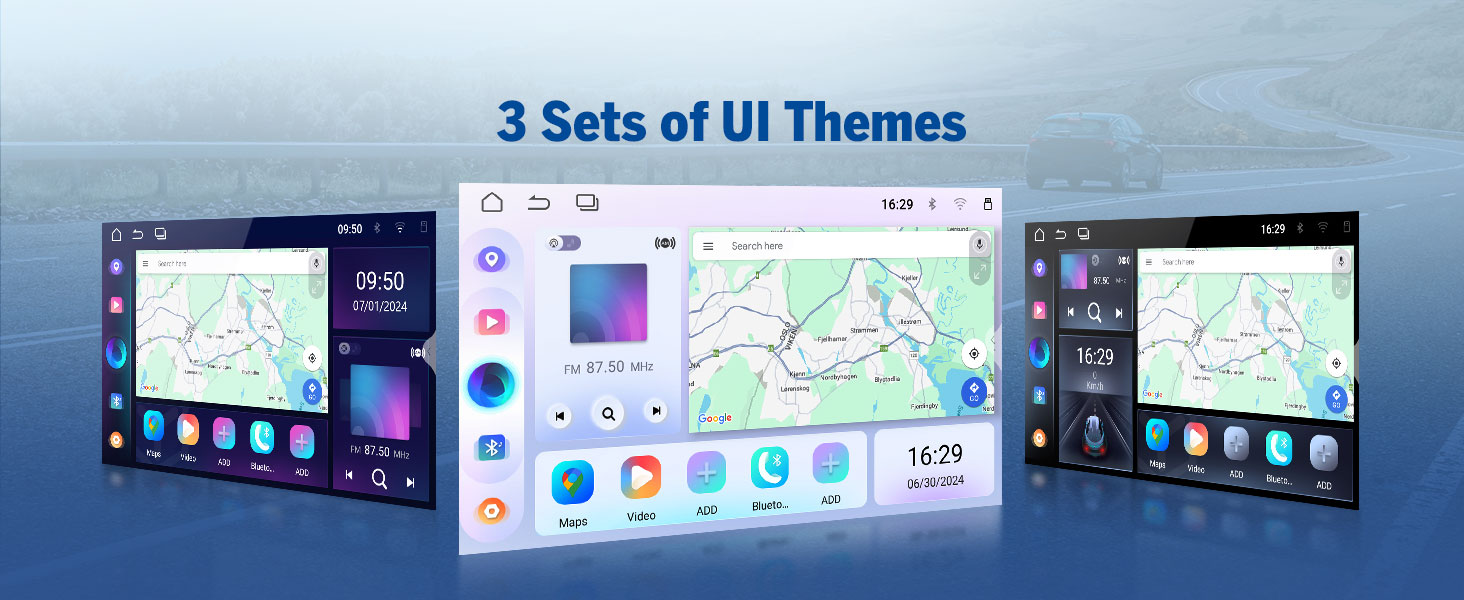
Figure 4.8: 36-Band Graphic Equalizer
5. Údržba
5.1 Čištění
K čištění obrazovky a vnějšího povrchu jednotky používejte měkký, suchý hadřík. Nepoužívejte abrazivní čisticí prostředky ani rozpouštědla, která by mohla poškodit povrch.
5.2 aktualizací firmwaru
The unit supports over-the-air (OTA) firmware updates to fix software issues and enhance security. Access the 'Updater' app on the unit to check for and install updates. Note that Android system upgrades are not supported via OTA.

Figure 5.1: Over-the-Air Firmware Update
6. Řešení problémů
If you encounter issues with your M3BLX7 unit, refer to the following common solutions:
- Bez napájení: Check all power connections and the 15A fuse. Ensure the vehicle battery is properly connected.
- Žádný zvuk: Zkontrolujte připojení reproduktorů. Zkontrolujte úrovně hlasitosti a nastavení ekvalizéru. Ujistěte se, že je vybrán správný zdroj zvuku.
- Problémy s připojením k CarPlay/Android Auto: Ensure Wi-Fi and Bluetooth are enabled on your phone and the stereo. Restart both devices and attempt to reconnect. Confirm the Zlink5 app is running.
- Steering Wheel Controls Unresponsive: Ensure the CANBUS is correctly connected. Some steering wheel buttons may require a longer press to register input.
- Nezobrazuje se couvací kamera: Check the reverse video input cable connection. Ensure the camera is receiving power.
- System Lag/Unresponsiveness: Close unused applications. Perform a system restart. Check for and install any available firmware updates.
For persistent issues, contact Eonon customer support for assistance.
7. Specifikace
| Funkce | Specifikace |
|---|---|
| Rozměry produktu | 8.67 x 5.12 x 1.34 palce |
| Hmotnost položky | 4.4 libry |
| Číslo modelu položky | M3BLX7 |
| Operační systém | Android 14 |
| Velikost obrazovky | 9 palce |
| Rozlišení obrazovky | 1280 * 720 IPS |
| Viewúhel | 178° |
| Procesor | Rockchip (8-core) |
| Kapacita paměti | 32 GB |
| Technologie připojení | Bluetooth 5.4, Wi-Fi, USB |
| Speciální funkce | Wireless CarPlay, Android Auto, DSP, Touchscreen, AM/FM, SWC Support |
| Režim zvukového výstupu | Stereo (4x45W) |
| Typ mapy | Road (GPS Navigation) |
8. Záruka a podpora
Eonon offers the following support for your M3BLX7 car stereo:
- Zásady vrácení: 30-day hassle-free return policy.
- Maintenance Coverage: 2-year maintenance coverage.
- Technická podpora: Doživotní technická podpora.
For warranty claims, technical assistance, or product inquiries, please visit the official Eonon webnebo kontaktujte jejich oddělení zákaznických služeb.


