1. Úvod
Welcome to the JMGO PicoPlay Portable Mini Projector user manual. This guide provides essential information for the safe and efficient use of your new projector. Please read it thoroughly before operation and retain it for future reference.
Bezpečnostní informace
- Do not look directly into the projector lens when the device is operating.
- Udržujte zařízení mimo dosah vody nebo jiných kapalin.
- Zajistěte správné větrání, aby nedošlo k přehřátí.
- Používejte pouze dodaný napájecí adaptér.
- Zabraňte pádu projektoru na zem nebo jeho vystavení silným nárazům.
2. Konec produktuview
The JMGO PicoPlay is a versatile portable mini projector designed for immersive entertainment. It combines a 1080P FHD projector, an immersive Bluetooth speaker, and dynamic ambient lighting.
Klíčové vlastnosti:
- Rozlišení 1080P Full HD: Delivers crisp and clear images up to 200 inches.
- 400 ISO Lumens: Provides bright visuals for various environments.
- Google TV with Licensed Netflix: Access a wide range of streaming apps and content.
- 8W Dolby Audio Speakers: Offers rich and powerful sound.
- 88° Rotatable Gimbal: Allows flexible projection angles from wall to ceiling.
- Automatic Image Optimization: Features auto-focus, auto-keystone correction, and intelligent screen alignment.
- 3D and HDR10 Support: Enhances visual depth and color.
- Přenosný design: Kompaktní a lehký pro snadnou přepravu.
- Režim okolního světla: Customizable lighting to set the mood.
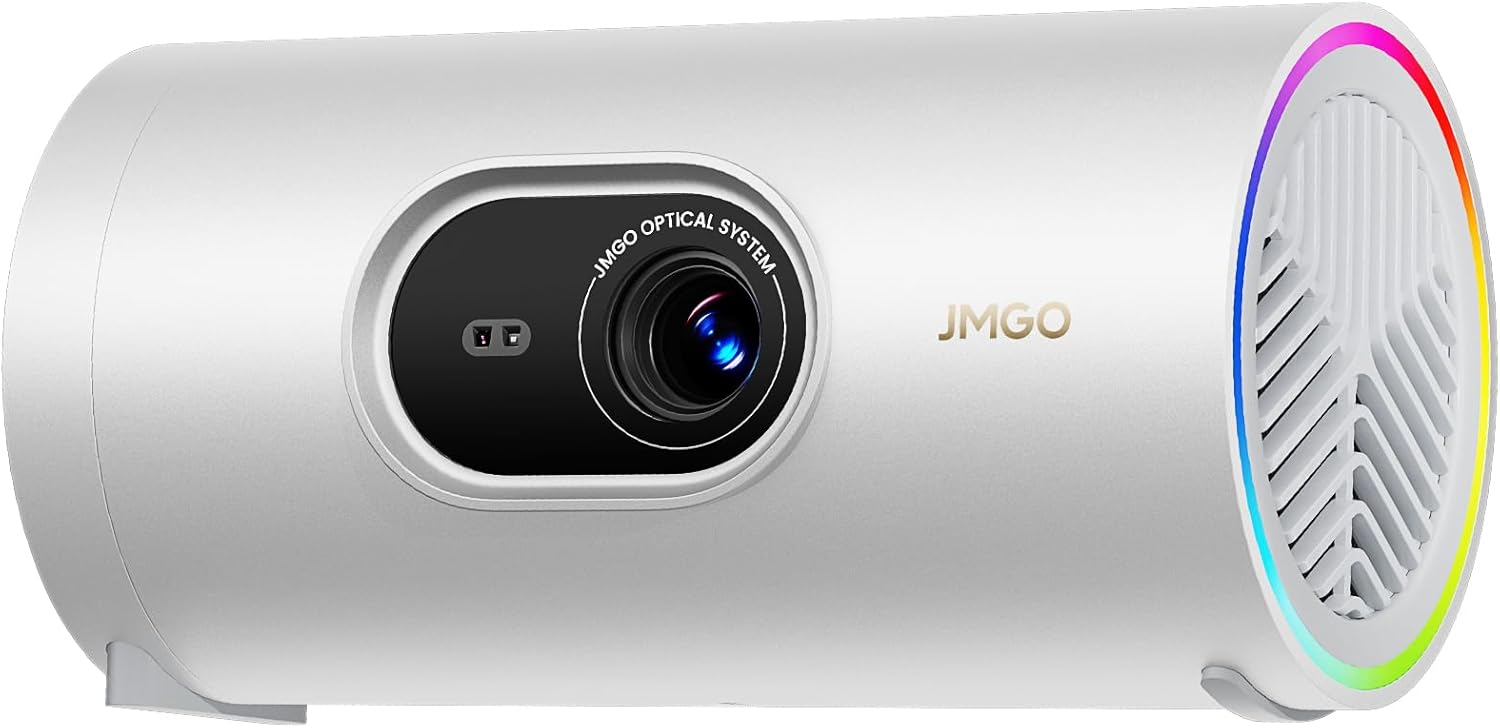
Figure 2.1: The JMGO PicoPlay Portable Mini Projector, showcasinjeho kompaktní design a objektiv.
Co je v krabici:
- JMGO PicoPlay Projector
- Uživatelská příručka
- Dálkové ovládání
- Napájecí kabel
- Optical Filter (for ambient light mode)
- Pouzdro na přenášení

Figure 2.2: All items included in the JMGO PicoPlay packaging.
3. Nastavení
3.1 Zapnutí
- Připojte dodaný napájecí kabel ke vstupnímu portu projektoru.
- Zapojte napájecí adaptér do elektrické zásuvky.
- Alternatively, connect to a 65W Type-C external battery for portable use (sold separately).
- Stisknutím tlačítka napájení na projektoru nebo dálkovém ovladači zapněte zařízení.

Figure 3.1: The PicoPlay projector connected to an external battery for extended use.
3.2 Initial Setup & Remote Pairing
- Upon first power-on, the projector will guide you through the initial setup process.
- Follow the on-screen instructions to select your language and connect to a Wi-Fi network.
- To pair the remote control, press and hold the indicated buttons on the remote until pairing is successful.
- Log in to your Google account to access Google TV features and licensed Netflix.
3.3 Úprava obrazu
The PicoPlay features Flexismart System for automatic image optimization:
- Automatické ostření: Projektor automaticky upraví zaostření pro dosažení jasného obrazu.
- Automatická korekce lichoběžníkového zkreslení: Koriguje zkreslený obraz způsobený úhlovou projekcí.
- Inteligentní zarovnání obrazovky: Automatically aligns the projected image to the screen or wall.
- 88° Rotatable Gimbal: Manually adjust the projection angle by rotating the projector on its base to project from wall to ceiling.

Figure 3.2: Illustration of the automatic focus, keystone correction, and screen alignment.

Figure 3.3: The projector's 88° rotatable gimbal allows for flexible projection angles.
4. Návod k obsluze
4.1 Navigace a ovládání
Control your PicoPlay using the included remote control, the JMGO app, or the touch buttons on the device.
- Dálkové ovládání: Use the directional pad and dedicated buttons for navigation, volume, and quick access to apps like Netflix and YouTube.
- On-Device Touch Buttons: Located on the projector, these buttons allow basic control for volume, power, and menu navigation.
- Aplikace JMGO: Download the official JMGO app for advanced control and settings adjustments from your smartphone.

Figure 4.1: Various control methods for the PicoPlay projector.
4.2 Konektivita
The PicoPlay offers multiple connectivity options:
- HDMI (ARC): Připojte externí zařízení, jako jsou notebooky, herní konzole nebo přehrávače Blu-ray.
- USB-A: Pro připojení USB disků nebo jiných periferií.
- USB-C: For power input or data transfer.
- Wi-Fi: Připojte se k domácí síti pro streamování a online funkce.
- Bluetooth: Pair with external speakers or use the PicoPlay as a standalone Bluetooth speaker.

Obrázek 4.2: Zadní view of the PicoPlay showing available ports.
4.3 Using Google TV & Streaming
With integrated Google TV, you can access a vast library of entertainment:
- Navigate the Google TV interface to browse movies, TV shows, and apps.
- Enjoy licensed Netflix directly on the projector.
- Use Google Cast to stream content from your smartphone or tablet.
- Utilize Google Assistant for voice commands.

Figure 4.3: The Google TV home screen displaying available streaming applications.
4.4 Režim Bluetooth reproduktoru
Transform your PicoPlay into a powerful Bluetooth speaker:
- Place the projector in a vertical position.
- Select Bluetooth speaker mode from the menu or by pressing the dedicated action button.
- Pair your smartphone or other Bluetooth device with the PicoPlay to play music.
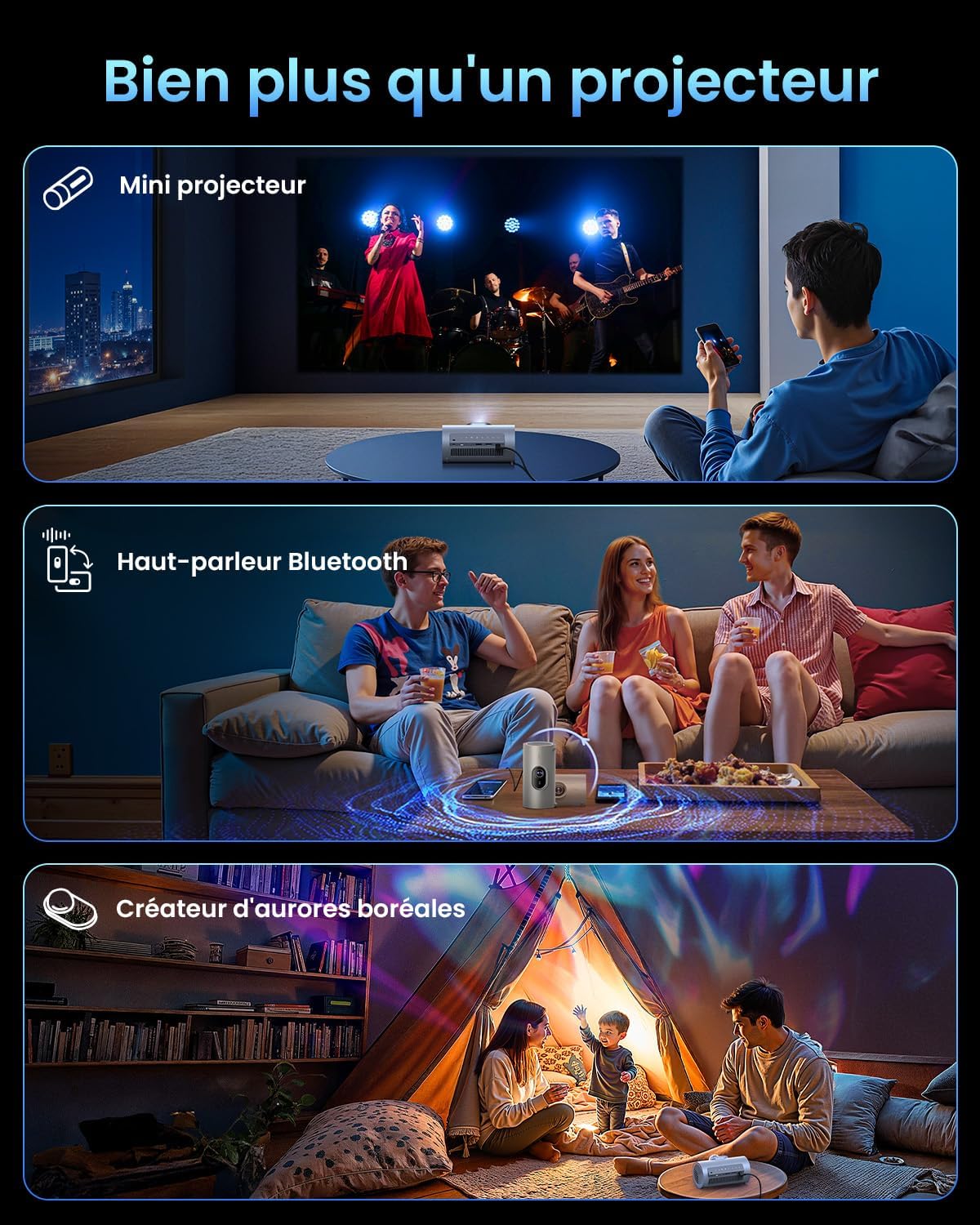
Figure 4.4: The PicoPlay in Bluetooth speaker mode, providing immersive audio.
4.5 Ambient Light Mode
Use the optical filter to create dynamic ambient lighting:
- Attach the optical filter to the projector lens.
- Select Ambient Light mode from the settings.
- Customize colors and effects to create your desired atmosphere.

Figure 4.5: The PicoPlay projecting customizable ambient lighting.
5. Údržba
5.1 Čištění
- Čočka: Používejte měkký hadřík bez žmolků, speciálně určený pro optické čočky. Nepoužívejte abrazivní čisticí prostředky.
- Vnější: Otřete vnější povrch projektoru měkkým, suchým hadříkem. V případě odolných skvrn použijte lehceamp hadříkem a ihned osušte.
- Ventilační mřížky: Use a soft brush or compressed air to gently remove dust from the ventilation grilles.
5.2 Skladování
When not in use, store the projector in a cool, dry place, away from direct sunlight and extreme temperatures. Use the provided carrying pouch for protection during transport or storage.
6. Řešení problémů
Běžné problémy a řešení:
| Problém | Možná příčina | Řešení |
|---|---|---|
| Žádná síla | Napájecí kabel není připojen; problém se zásuvkou. | Ensure power cable is securely connected. Try a different outlet. |
| Žádný obrázek | Input source incorrect; cable loose; lens cap on. | Select correct input source. Check HDMI/USB connections. Remove lens cap. |
| Rozmazaný obrázek | Out of focus; projector too close/far. | Nechte automatické zaostření nastavit. Upravte vzdálenost projektoru od promítací plochy. |
| Zkreslený obraz | Projector not aligned with screen. | Allow auto-keystone correction to adjust. Manually adjust if needed. |
| Žádný zvuk | Volume too low; external audio device connected. | Increase volume. Disconnect external audio or select internal speakers. |
7. Specifikace
| Funkce | Detail |
|---|---|
| Značka | JMGO |
| Model | PicoPlay |
| Technologie displeje | DLP, LED |
| Nativní rozlišení | 1920 x 1080 (Full HD) |
| Jas | 400 ISO lumenů |
| Zvuk | 8W reproduktory Dolby Audio |
| Konektivita | Wi-Fi, HDMI (ARC), USB-A, USB-C |
| Speciální funkce | HDR10, 3D, APP Control, Google TV, Netflix, 88° Rotatable Gimbal, Auto-focus |
| Rozměry (D x Š x V) | 8.5 x 8.5 x 16.6 cm |
| Form Factor | Přenosný |
| Doporučené použití | Home cinema, Gaming, Business, Education |
8. Záruka a podpora
8.1 Záruka výrobce
The JMGO PicoPlay projector comes with a 2-year manufacturer warranty. Please retain your proof of purchase for warranty claims.
8.2 Zákaznická podpora
For technical assistance, troubleshooting, or warranty inquiries, please contact JMGO customer service. You can find contact information on the official JMGO webwebu nebo prostřednictvím svého prodejce.

Pro více informací navštivte JMGO Brand Store.


