1. Konec produktuview
The CITLLA PRO MAX E510 is an ergonomic wireless mouse designed for comfort and efficiency across multiple devices. It features dual Bluetooth and 2.4G wireless connectivity, adjustable DPI settings, and a unique smart flying scroll wheel with a side thumb wheel for enhanced navigation.

Image: The CITLLA PRO MAX E510 Wireless Bluetooth Mouse in white, showcasing its ergonomic design and multiple buttons.
2. Pokyny k nastavení
2.1 Počáteční nabíjení
Before first use, fully charge the mouse using the provided USB-C cable. The charging port is located at the front of the mouse. A full charge can last up to 60 days. The mouse features an auto-sleep mode after 15 minutes of inactivity to conserve battery life.
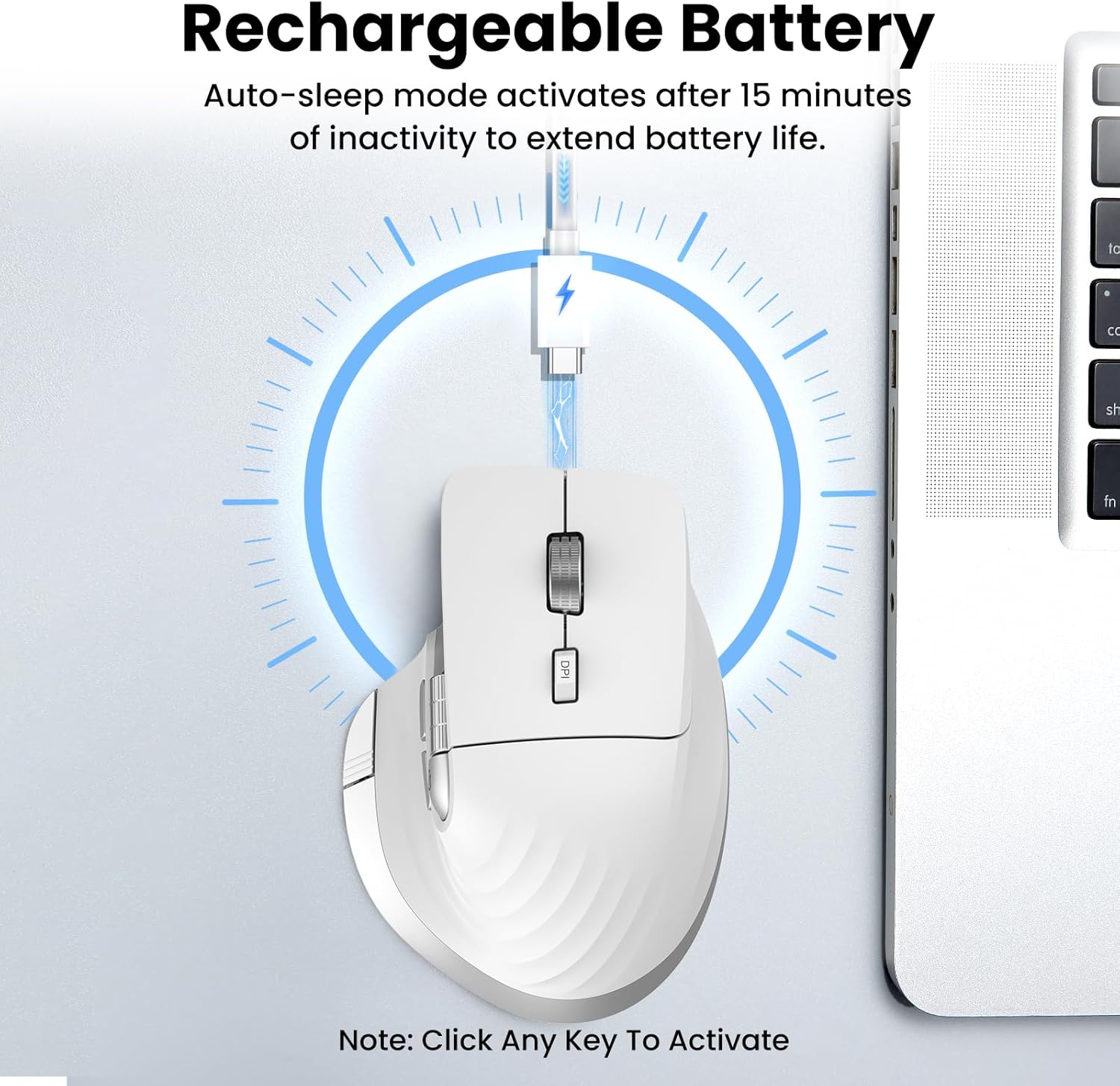
Image: The mouse connected to a USB-C charging cable, illustrating the rechargeable battery feature.
2.2 Připojení k zařízením
The mouse supports connection to up to three devices via 2.4G wireless (USB receiver) and two Bluetooth channels (Bluetooth 1, Bluetooth 2).
- Bezdrátové připojení 2.4G:
- Vyhledejte USB přijímač uložený v přihrádce na spodní straně myši.
- Zapojte USB přijímač do volného USB portu na vašem počítači.
- Zapněte myš pomocí vypínače, který se nachází na spodní straně.
- Press the 'Devices Switch Button' (labeled 6 in the button diagram) until the white indicator light for 2.4G (labeled 7) illuminates. The mouse should now be connected.
- Bluetooth Connection (Bluetooth 1 / Bluetooth 2):
- Zapněte myš pomocí vypínače.
- Press the 'Devices Switch Button' (6) to select either Bluetooth 1 (blue indicator) or Bluetooth 2 (green indicator).
- Press and hold the 'Devices Switch Button' for 3-5 seconds until the selected Bluetooth indicator light starts flashing rapidly. This indicates pairing mode.
- Na svém zařízení (notebooku, tabletu, chytrém telefonu) přejděte do nastavení Bluetooth a vyhledejte nová zařízení.
- Select "CITLLA E510" (or similar name) from the list of available devices to pair.
- Po spárování přestane kontrolka blikat a zůstane svítit.

Image: Diagram showing the mouse wirelessly connected to a laptop, desktop monitor, and tablet, illustrating its multi-device capability.
3. Návod k obsluze
3.1 Funkce tlačítek

Image: Detailed diagram of the mouse buttons and their corresponding functions.
- 1. Left Button: Standardní funkce levého kliknutí.
- 2. Right Button: Standardní funkce kliknutí pravým tlačítkem myši.
- 3. Inteligentní létající rolovací kolečko: For ultra-fast, nearly silent vertical scrolling.
- 4. DPI Button: Press to cycle through 4 adjustable DPI levels (1000/1600/2400/3200).
- 5. Side Wheel: For fast horizontal scrolling.
- 6. Devices Switch Button: Press to switch between connected devices (2.4G, Bluetooth 1, Bluetooth 2). Press and hold to enter Bluetooth pairing mode.
- 7. Devices Indicators: White for 2.4G, Blue for Bluetooth 1, Green for Bluetooth 2. Also includes a low power indicator.
- 8. Forward/Back Buttons: Navigate forward/back in web browsers or switch applications (macOS).
- 9. Return to Desktop Button: Instantly minimizes all windows to show the desktop (Windows only). For macOS, this button can be used for Full Screen (Control+Command+F).
3.2 Scrolling Functions
The mouse features two distinct scrolling mechanisms:
- The Inteligentní létající rolovací kolečko (3) on top provides smooth and rapid vertical scrolling, ideal for long documents or web stránky.
- The Boční kolo (5) allows for horizontal scrolling, which is particularly useful for navigating wide spreadsheets or timelines.
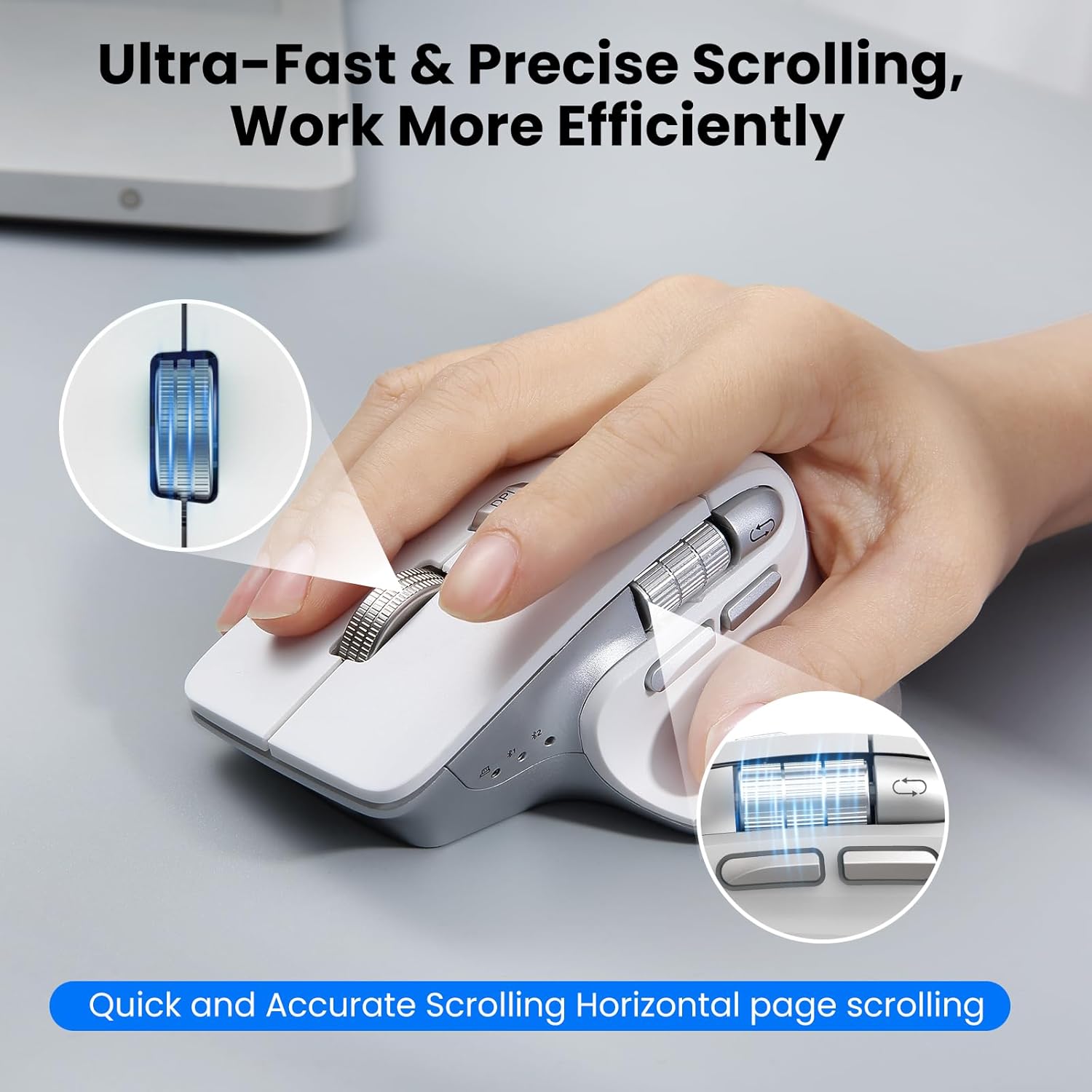
Image: A hand operating the mouse, highlighting the smart flying scroll wheel and the side thumb wheel for efficient navigation.
3.3 Nastavení DPI
The DPI (Dots Per Inch) button (4) allows you to adjust the cursor sensitivity. Press the DPI button to cycle through the four available settings: 1000, 1600, 2400, and 3200 DPI. Choose a setting that best suits your task, whether it's precise graphic design or fast-paced gaming.

Image: A visual representation of the 4-level adjustable DPI settings (1000, 1600, 2400, 3200 DPI).
3.4 Speciální funkce
- Tichý design s kliknutím: The mouse is engineered for quiet operation, making it suitable for shared workspaces and quiet environments.
- Return to Desktop (Windows Only): The dedicated button (9) provides a quick way to minimize all open windows and display your desktop. This feature is specific to Windows operating systems.

Image: A laptop screen showing multiple open windows, with an arrow indicating the 'Return to Desktop' button on the mouse minimizing them.
3.5 Video s informacemi o produktu
Video: An official product video from CITLLA showcasing the key features and functionality of the PRO MAX E510 Wireless Bluetooth Mouse, including its ergonomic design, multi-device connectivity, and smart scrolling.
4. Údržba
4.1 Čištění
To maintain optimal performance, regularly clean your mouse. Use a soft, dry cloth to wipe the exterior. For stubborn dirt, a slightly damp Lze použít hadřík, abyste zajistili, že se do vnitřních součástí nedostane vlhkost. Nepoužívejte agresivní chemikálie ani abrazivní materiály.
4.2 Péče o baterii
The mouse is equipped with a rechargeable battery. Charge it using a standard USB-C cable. The low power indicator will alert you when charging is needed. To prolong battery life, the mouse enters an auto-sleep mode after 15 minutes of inactivity. Click any button to reactivate it.
5. Řešení problémů
- Myš nereaguje:
- Ujistěte se, že je myš zapnutá.
- Zkontrolujte úroveň nabití baterie a v případě potřeby ji dobijte.
- Verify the correct connection mode (2.4G, BT1, BT2) is selected using the Devices Switch Button.
- Pro 2.4G se ujistěte, že je USB přijímač bezpečně zapojený.
- Pro Bluetooth znovu spárujte myš se zařízením.
- Pohyb kurzoru je nepravidelný nebo pomalý:
- Adjust the DPI setting using the DPI button (4) to a higher sensitivity.
- Ujistěte se, že senzor myši je čistý a bez překážek.
- Používejte myš na vhodném povrchu (např. podložce pod myš).
- Nelze přepínat mezi zařízeními:
- Ujistěte se, že všechna zařízení jsou správně spárována/připojena k příslušným kanálům (2.4G, BT1, BT2).
- Press the Devices Switch Button (6) firmly to cycle through the connections.
- Return to Desktop button not working:
- This feature is only supported on Windows systems.
- Ujistěte se, že váš operační systém Windows je aktuální.
6. Specifikace
| Rozměry produktu | 4.6 x 2.6 x 0.04 palce |
| Hmotnost položky | 6.7 unce |
| Baterie | 1 nestandardní baterie (součástí balení) |
| Technologie připojení | Bluetooth, 2.4G bezdrátové připojení přes USB |
| Speciální funkce | 4 Way Scrolling, Ergonomic Design, Rechargeable, Silent Click, Wireless |
| Technologie detekce pohybu | Optický |
7. Kompatibilita
The CITLLA PRO MAX E510 Wireless Bluetooth Mouse is compatible with a wide range of operating systems:
- Windows
- Mac OS
- Chrome OS
- Linux
- iOS
- Android

Image: Icons for Android, Linux, Windows, Chrome OS, and Mac OS, indicating wide compatibility.
8. Co je v krabici
- CITLLA PRO MAX E510 Wireless Bluetooth Mouse
- Nabíjecí kabel USB-C
- 2.4G USB Receiver (stored in mouse)
- Uživatelská příručka
9. Záruka a podpora
For warranty information, technical support, or any inquiries regarding your CITLLA PRO MAX E510 Wireless Bluetooth Mouse, please refer to the contact information provided in the packaging or visit the official CITLLA webwebu. Náš tým zákaznických služeb je vám k dispozici, aby vám pomohl s jakýmikoli dotazy týkajícími se produktu.


