1. Úvod
This manual provides instructions for the proper setup, operation, and maintenance of your A4TECH KR-3330S USB Keyboard and Mouse combo. This product is designed for general-purpose computing tasks, offering a reliable and ergonomic input solution for personal computers and laptops.
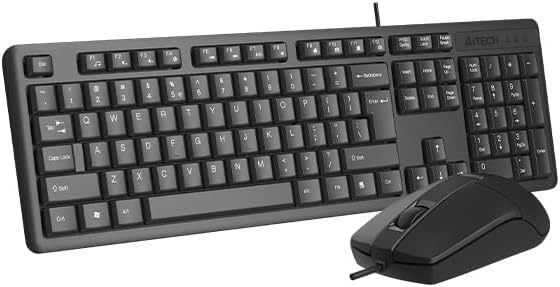
Image 1.1: The A4TECH KR-3330S USB Keyboard and Mouse combo. This image displays the full-size keyboard with a numeric keypad and the accompanying wired mouse, both in black.
2. Pokyny k nastavení
The A4TECH KR-3330S keyboard and mouse are designed for simple plug-and-play installation. No additional drivers are typically required for basic functionality.
- Rozbalte zařízení: Opatrně vyjměte klávesnici a myš z obalu.
- Připojení klávesnice: Locate an available USB port on your computer (desktop PC or laptop). Insert the USB connector of the keyboard firmly into the USB port.
- Připojte myš: Locate another available USB port on your computer. Insert the USB connector of the mouse firmly into the USB port.
- Rozpoznávání systému: Váš operační systém by měl automaticky detekovat a nainstalovat potřebné ovladače. Tento proces může chvíli trvat.
- Test funkčnosti: Once installed, test the keyboard by typing in a text editor and test the mouse by moving the cursor and clicking.

Image 2.1: The A4TECH KR-3330S keyboard and mouse, showcasing their wired USB connectivity. Both devices are black and feature a standard layout.
3. Návod k obsluze
3.1 Používání klávesnice
- Standardní psaní: Pro zadávání textu použijte alfanumerické klávesy.
- Funkční klávesy (F1–F12): Tyto klávesy plní různé funkce v závislosti na aplikaci nebo operačním systému.
- Numerická klávesnice: The dedicated numeric keypad on the right provides efficient data entry. Ensure "Num Lock" is active.
- Horké klávesy: The keyboard features 10 hot keys for quick access to common functions. Refer to your operating system or application documentation for specific hot key assignments.
- Ergonomický design: The keyboard is designed for comfortable use during extended periods. Adjust your seating and desk height for optimal posture.
3.2 Použití myši
- Hnutí: Pohybem myši po rovném povrchu ovládáte kurzor na obrazovce. Optický senzor zajišťuje přesné sledování.
- Levé kliknutí: Používá se k výběru položek, otevírání filea aktivační funkce.
- Klikněte pravým tlačítkem myši: Otevírá kontextové nabídky.
- Rolovací kolečko: Procházejte dokumenty nahoru nebo dolů a web pages. The scroll wheel can also function as a middle click button.
- Tiché kliknutí: The mouse features silent click buttons, reducing audible click noise during use.
- DPI: The mouse operates at 1200 DPI (Dots Per Inch), providing a balance of speed and precision for general use.
4. Údržba
Proper maintenance ensures the longevity and optimal performance of your A4TECH KR-3330S keyboard and mouse.
- Čištění klávesnice:
- Před čištěním odpojte klávesnici od počítače.
- Použijte měkký hadřík, který nepouští vlákna dampKlávesy a povrch otřete vodou nebo jemným čisticím roztokem.
- Nestříkejte tekutiny přímo na klávesnici.
- K odstranění prachu a nečistot z prostoru mezi klávesami použijte stlačený vzduch.
- Čištění myši:
- Před čištěním odpojte myš od počítače.
- Wipe the surface of the mouse with a soft, lint-free cloth.
- Ensure the optical sensor on the underside of the mouse is clean and free of obstructions for accurate tracking.
- Skladování: When not in use for extended periods, store the devices in a clean, dry environment away from extreme temperatures.
5. Řešení problémů
If you encounter issues with your A4TECH KR-3330S keyboard and mouse, refer to the following common troubleshooting steps:
- Zařízení nebylo rozpoznáno:
- Ensure the USB cables are securely plugged into the computer's USB ports.
- Try connecting the devices to different USB ports on your computer.
- Restartujte počítač.
- Test the devices on another computer to determine if the issue is with the devices or your computer's ports.
- Keys Not Responding / Mouse Not Moving:
- Check for any physical obstructions under the keys or around the mouse sensor.
- Ujistěte se, že jsou klávesnice a myš správně připojeny k portům USB.
- Restartujte počítač.
- For the mouse, ensure the optical sensor is clean and not obstructed.
- Přerušovaná funkce:
- Ensure USB connections are stable and not loose.
- Avoid using the devices on uneven or highly reflective surfaces (for the mouse).
6. Specifikace
| Funkce | Detail |
|---|---|
| Značka | A4TECH (also listed as Generic) |
| Číslo modelu | KR-3330S (also referred to as KK-3330) |
| Technologie připojení | Kabel USB |
| Barva | Černý |
| Popis klávesnice | Wired keyboard with soft touch keys, 10 hot keys, ergonomic design. |
| Detekce pohybu myši | Optický |
| DPI myši | 1200 dpi |
| Speciální funkce | Ergonomic design, Silent Click Mouse |
| Kompatibilní zařízení | Přenosný počítač, osobní počítač |
| Hmotnost položky | 0.7 kg |
| Rozměry balení | 53.3 x 15.8 x 4.5 cm |
| Jsou vyžadovány baterie | Žádný |
| Země původu | Čína |
7. Záruka a podpora
Informace o záruce a technickou podporu naleznete v dokumentaci dodané s vaším nákupem nebo se obraťte přímo na prodejce/výrobce. Uschovejte si doklad o koupi pro případné reklamace.


