1. Úvod
The Hama WM-450 Multi-Device Wireless Mouse is an optical mouse designed for versatile use across multiple devices. It features 7 buttons, a scroll wheel, and supports wireless connectivity via Bluetooth (two channels) and a 2.4 GHz radio frequency (one channel) using a USB-A receiver. This allows simultaneous connection to up to three devices, with quick switching between them. An integrated AI Assist button enhances productivity by activating an inter-program AI assistant. The mouse is designed for comfortable and silent operation.

Obrázek 1.1: Konecview of the Hama WM-450 mouse highlighting its key features: Bluetooth connectivity, 10-meter wireless range, USB-A receiver, and battery power.
2. Nastavení
2.1 Instalace baterie
- Najděte přihrádku na baterie na spodní straně myši.
- Otevřete kryt bateriového prostoru.
- Insert the two AAA batteries (included) according to the polarity markings (+/-) inside the compartment.
- Bezpečně zavřete kryt bateriového prostoru.
2.2 Zapnutí/vypnutí
Slide the ON/OFF switch, located on the underside of the mouse, to the 'ON' position to power on the mouse. Slide it to 'OFF' when not in use to conserve battery life.
2.3 Connecting via USB-A Receiver (2.4 GHz Radio)
- Remove the USB-A receiver from its storage slot on the underside of the mouse.
- Plug the USB-A receiver into an available USB-A port on your computer, laptop, or compatible device.
- The mouse should be automatically recognized and ready for use. This connection uses the 2.4 GHz radio channel.
2.4 Připojení přes Bluetooth
The mouse supports two Bluetooth channels for connecting to different devices.
- Ujistěte se, že je myš zapnutá.
- Press the channel switch button (usually on the underside or top of the mouse) to select either Bluetooth Channel 1 or Bluetooth Channel 2. The corresponding indicator light will flash.
- On your device (PC, tablet, smartphone), go to Bluetooth settings and enable Bluetooth.
- Hledat new devices. The mouse should appear as 'Hama WM-450' or similar.
- Vyberte myš, kterou chcete spárovat. Postupujte podle pokynů na obrazovce.
- Once paired, the indicator light will stop flashing and remain solid for a few seconds, indicating a successful connection.

Image 2.1: The underside of the Hama WM-450 mouse, illustrating the battery compartment, the ON/OFF switch, and the integrated storage for the USB-A receiver.
3. Provoz
3.1 Základní funkce
- Levé kliknutí: Primární výběr a aktivace.
- Klikněte pravým tlačítkem myši: Accesses context menus.
- Rolovací kolečko: Prochází dokumenty a web pages. The high-quality aluminum scroll wheel provides precise control.
- Tlačítka s tichým klikáním: The left and right click buttons are designed for silent operation, reducing noise in quiet environments.
3.2 Přepínání více zařízení
To switch between connected devices (USB-A, Bluetooth 1, Bluetooth 2), press the dedicated channel switch button on the mouse. The mouse will instantly connect to the selected device.
3.3 Side Navigation Buttons
The mouse features two practical side buttons. These buttons typically function as 'Back' and 'Forward' for easier navigation in web browsers, file explorers, and applications like Outlook.

Obrázek 3.1: Detailní záběr view of the two side navigation buttons on the Hama WM-450 mouse, used for 'Back' and 'Forward' functions.
3.4 Nastavení DPI
The mouse includes a DPI switch button, usually located near the scroll wheel. Press this button to cycle through different sensitivity settings: 800, 1200, and 1600 DPI (Dots Per Inch). Choose the DPI setting that best suits your preference and task.
3.5 AI Assist Button
The dedicated AI Assist button activates an inter-program AI assistant, designed to enhance productivity. Refer to your device's software documentation for specific functionalities enabled by this feature.
4. Údržba
4.1 Čištění
To clean the mouse, use a soft, dry, lint-free cloth. For stubborn dirt, slightly dampen the cloth with water or a mild cleaning solution. Avoid using harsh chemicals, abrasive cleaners, or excessive moisture, as these can damage the mouse.
4.2 Výměna baterie
When the mouse performance degrades or the indicator light signals low battery, replace the two AAA batteries. Always use fresh batteries of the same type.
4.3 Úložiště USB přijímače
When transporting the mouse or not using the 2.4 GHz radio connection, store the USB-A receiver in its dedicated slot on the underside of the mouse to prevent loss.
5. Řešení problémů
- Myš nereaguje:
- Ujistěte se, že je myš zapnutá.
- Zkontrolujte stav baterie a v případě potřeby ji vyměňte.
- For USB-A connection, ensure the receiver is securely plugged into a working USB port. Try a different USB port.
- Pro připojení Bluetooth se ujistěte, že je na vašem zařízení povoleno připojení Bluetooth a myš je spárovaná. Zkuste myš znovu spárovat.
- Ensure the correct channel (USB-A, BT1, BT2) is selected on the mouse.
- Přerušované připojení:
- Move the mouse closer to the receiver/device. The effective range is up to 10 meters, but obstacles can reduce this.
- Nepoužívejte myš v blízkosti jiných bezdrátových zařízení, která by mohla způsobovat rušení.
- Pohyb kurzoru je nepravidelný nebo pomalý:
- Vyčistěte optický senzor na spodní straně myši.
- Ensure you are using the mouse on a suitable surface. Highly reflective or transparent surfaces may affect performance.
- Adjust the DPI setting to a higher value if the cursor is too slow.
- Side buttons or AI Assist button not working:
- Ensure your operating system or application supports these functions.
- Check for any specific software or driver requirements for your device.
6. Specifikace
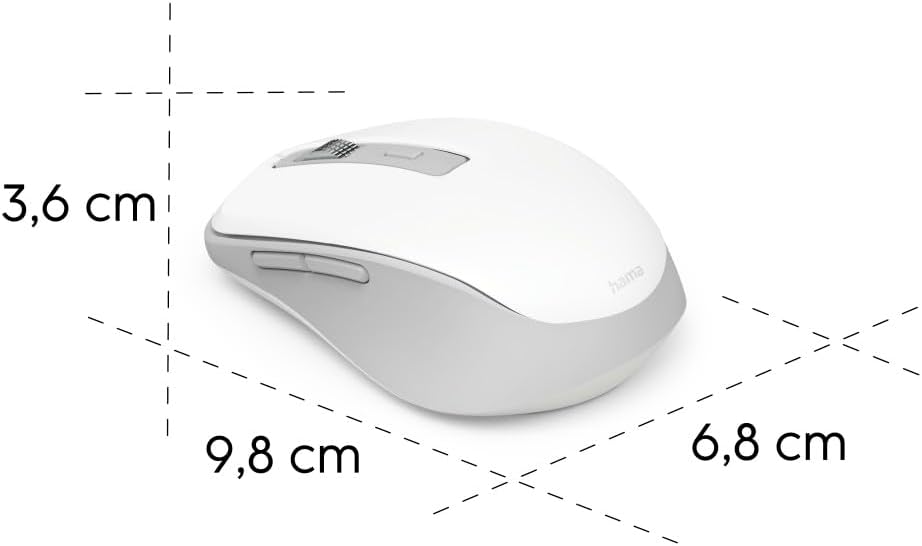
Image 6.1: Dimensional diagram of the Hama WM-450 mouse, indicating its length, width, and height.
| Značka | Hama |
| Název modelu | WM-450 |
| Číslo modelu | 00173080 |
| Technologie připojení | Bluetooth, 2.4 GHz Radio (USB-A) |
| Bezdrátové Dosah | Až 10 metrů |
| technologie Sensor | Optický |
| Nastavení DPI | 800, 1200, 1600 |
| Počet tlačítek | 7 (including scroll wheel click) |
| Zdroj napájení | 2 x AAA baterie (součástí balení) |
| Rozměry (D x Š x V) | 9.8 x 6.8 x 3.6 cm (přibližně) |
| Hmotnost | 140 gramů |
| Kompatibilní zařízení | PC, Tablet, Laptop, Smartphone, iPad |
| Speciální funkce | Multi-device connectivity (3 devices), AI Assist button, Silent click buttons, Side navigation buttons, Retractable USB receiver, Polymer-coated mouse feet, High-quality aluminum scroll wheel. |
| Materiálové složení | At least 20% recycled materials |
| Obal | 100% plastic-free |
7. Záruka a podpora
Informace o záruce, technickou podporu nebo servisní dotazy naleznete v záručním listu dodaném s vaším produktem nebo navštivte oficiální webové stránky Hama. webwebu. Kontaktní údaje zákaznické podpory jsou obvykle k dispozici na webových stránkách výrobce webmísto.


