1. Úvod
This manual provides detailed instructions for the setup, operation, and maintenance of your Transformers GK01 Wireless Mechanical Keyboard. The GK01 is a versatile keyboard featuring tri-mode connectivity (Bluetooth 5.0, 2.4GHz wireless, and USB-C wired), a 101-key layout, RGB backlighting, and hot-swappable switches for a customizable typing experience.

Figure 1.1: Transformers GK01 Wireless Mechanical Keyboard.
2. Obsah balení
Ověřte prosím, zda jsou ve vašem balení obsaženy všechny níže uvedené položky:
- Transformers GK01 Wireless Mechanical Keyboard
- Kabel USB-C na USB-A
- Bezdrátový USB adaptér 2.4 GHz
- Klíčenka a stahovák spínačů 2 v 1
- Uživatelská příručka (tento dokument)
- Spare Switches (2 pieces)
- Kryt klávesnice
3. Nastavení a připojení
3.1. Tri-Mode Connection Overview
The GK01 keyboard supports three connection modes: USB-C wired, 2.4GHz wireless, and Bluetooth 5.0. You can connect to up to five devices simultaneously and switch between them seamlessly.

Figure 3.1: Tri-Mode Connection Capabilities.
3.2. Kabelové připojení USB-C
- Vyhledejte port USB-C na klávesnici.
- Připojte jeden konec dodaného kabelu USB-C ke klávesnici.
- Připojte druhý konec kabelu USB-C k volnému portu USB-A v počítači.
- Klávesnice bude automaticky rozpoznána a připravena k použití.
3.3. Bezdrátové připojení 2.4 GHz
- Locate the 2.4GHz wireless USB dongle.
- Plug the dongle into an available USB-A port on your computer.
- On the keyboard, ensure the mode switch (usually on the side or back) is set to 2.4GHz mode.
- Klávesnice by se měla připojit automaticky. Pokud ne, stiskněte Fn + R pro zahájení párování.

Figure 3.2: USB-C Port and 2.4GHz Dongle Location.
3.4. Připojení Bluetooth 5.0
The keyboard supports connecting to up to three Bluetooth devices (BT1, BT2, BT3).
- On the keyboard, set the mode switch to Bluetooth mode.
- To enter pairing mode for a specific Bluetooth channel, press and hold Fn + Q (pro BT1), Fn + W (pro BT2), nebo Fn + E (for BT3) for 3-5 seconds until the indicator light flashes rapidly.
- On your device (PC, tablet, smartphone), open Bluetooth settings and search for new devices.
- Select "Transformers GK01" from the list of available devices.
- Once connected, the indicator light on the keyboard will stop flashing.
- Chcete-li přepínat mezi spárovanými zařízeními Bluetooth, jednoduše stiskněte Fn + Q, Fn + Wnebo Fn + E.
4. Základní obsluha
4.1. Keyboard Layout and Anti-Ghosting
The GK01 features a 101-key layout, providing a full set of keys including a numeric keypad. All keys are equipped with anti-ghosting technology, ensuring that every keystroke is registered accurately, even when multiple keys are pressed simultaneously.
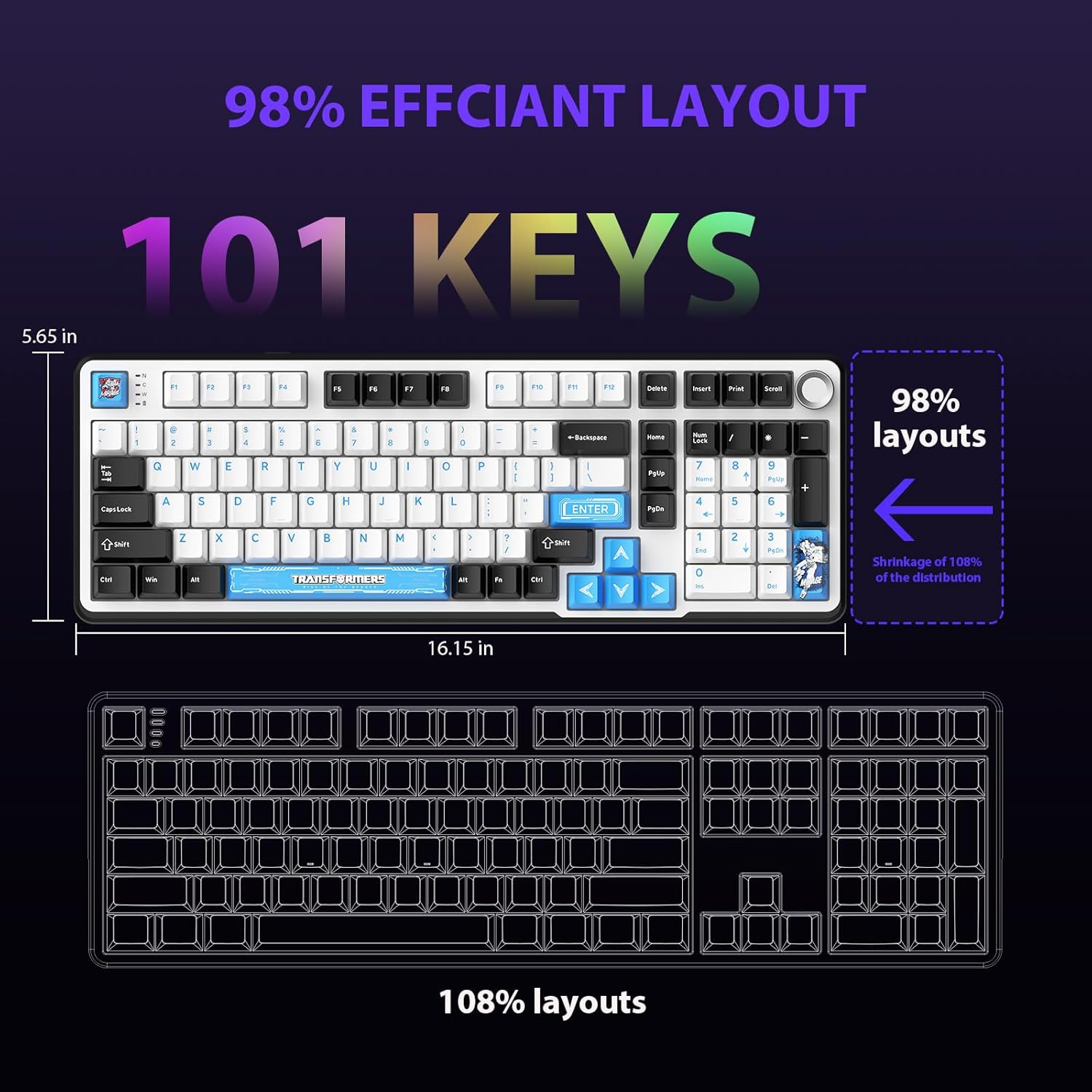
Figure 4.1: 101-Key Layout.
4.2. Ovládací knoflík multimédií
The dedicated knob located on the top right of the keyboard provides convenient multimedia control:
- Otáčet po směru hodinových ručiček: Zvyšte hlasitost.
- Otočit proti směru hodinových ručiček: Snížit hlasitost.
- Zmáčkni: Ztlumit/Zapnout zvuk.
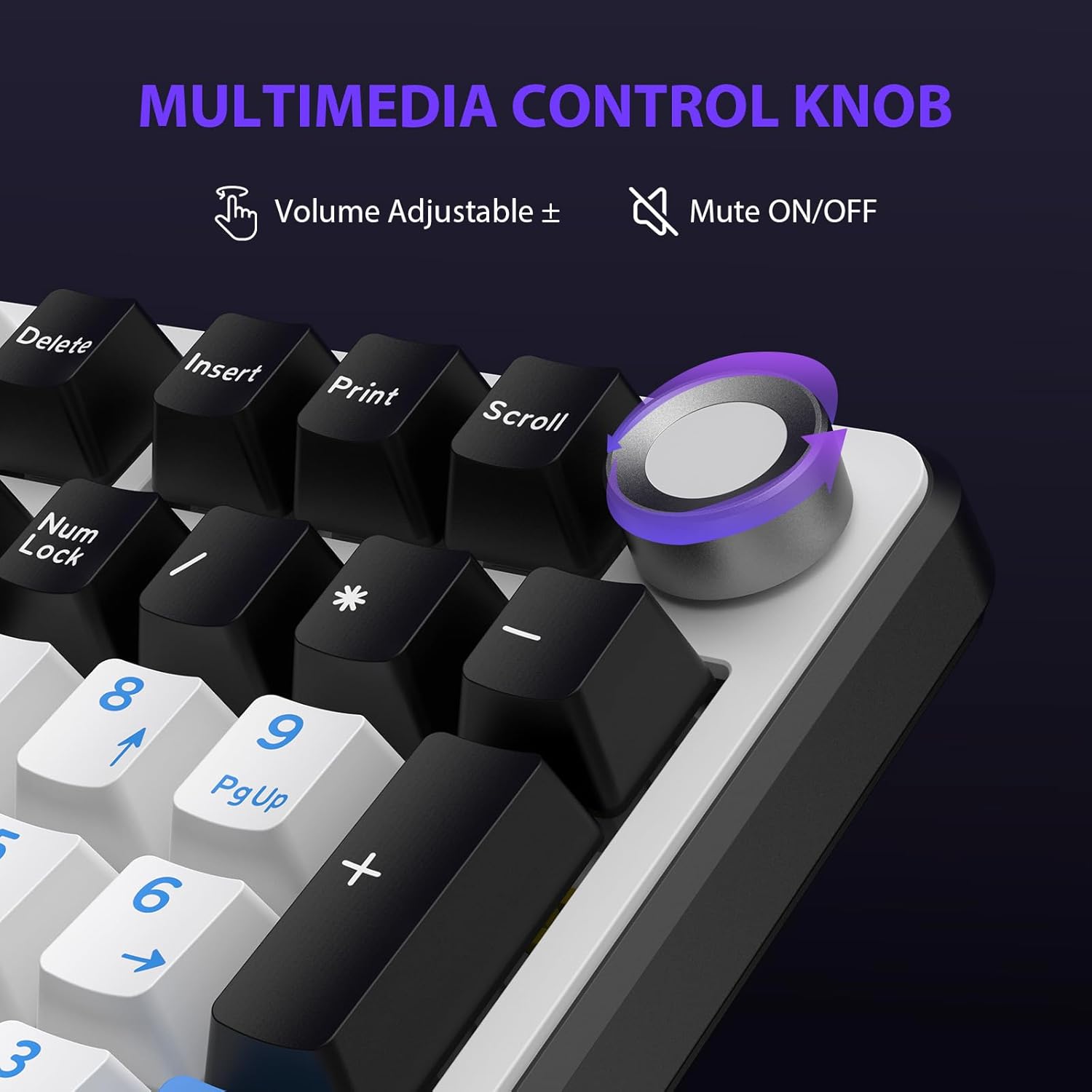
Figure 4.2: Multimedia Control Knob.
4.3. Ovládání podsvícení RGB
The GK01 keyboard features 16.8 million color RGB backlighting with various effects.
- Fn + [Right Arrow]: Adjust 5 brightness levels.
- Fn + [Left Arrow]: Adjust 5 speed levels for dynamic effects.
- Fn + [Vložit]: Přepínejte mezi 20 různými režimy podsvícení.
- Fn + [Enter]: Switch color order within certain modes.
- Fn + [X]: Turn off light / activate power-saving mode.
- Fn + [Backspace]: Switch color order within certain modes.

Figure 4.3: RGB Backlight Controls.
5. Pokročilé funkce
5.1. Přepínače vyměnitelné za provozu
The GK01 keyboard is equipped with pre-lubricated Cybertron linear switches and supports solder-free hot-swapping. This allows you to easily replace switches with compatible 3-pin or 5-pin mechanical switches without soldering.
Výměna spínače:
- Using the provided 2-in-1 keycap and switch puller, gently remove the keycap from the desired switch.
- Insert the switch puller onto the switch, ensuring it grips the top and bottom clips of the switch.
- Jemně vytáhněte spínač přímo nahoru a vyjměte jej z desky plošných spojů.
- Zarovnejte piny nového spínače s otvory na desce plošných spojů. Ujistěte se, že piny jsou rovné, aby se neohnuly.
- Nový spínač pevně zatlačte na místo, dokud nezaklapne.
- Znovu nasaďte krytku kláves.

Figure 5.1: Hot-Swappable Switch Replacement.
5.2. Programovatelný software
The GK01 supports custom software for advanced customization, including key remapping, macro creation, and detailed RGB lighting effects.
- The software is compatible only with the Windows operating system.
- The keyboard must be connected via USB-C wired mode to use the software.
- For driver download, please visit the official Transformers Keyboard website or refer to the link provided in the product packaging.
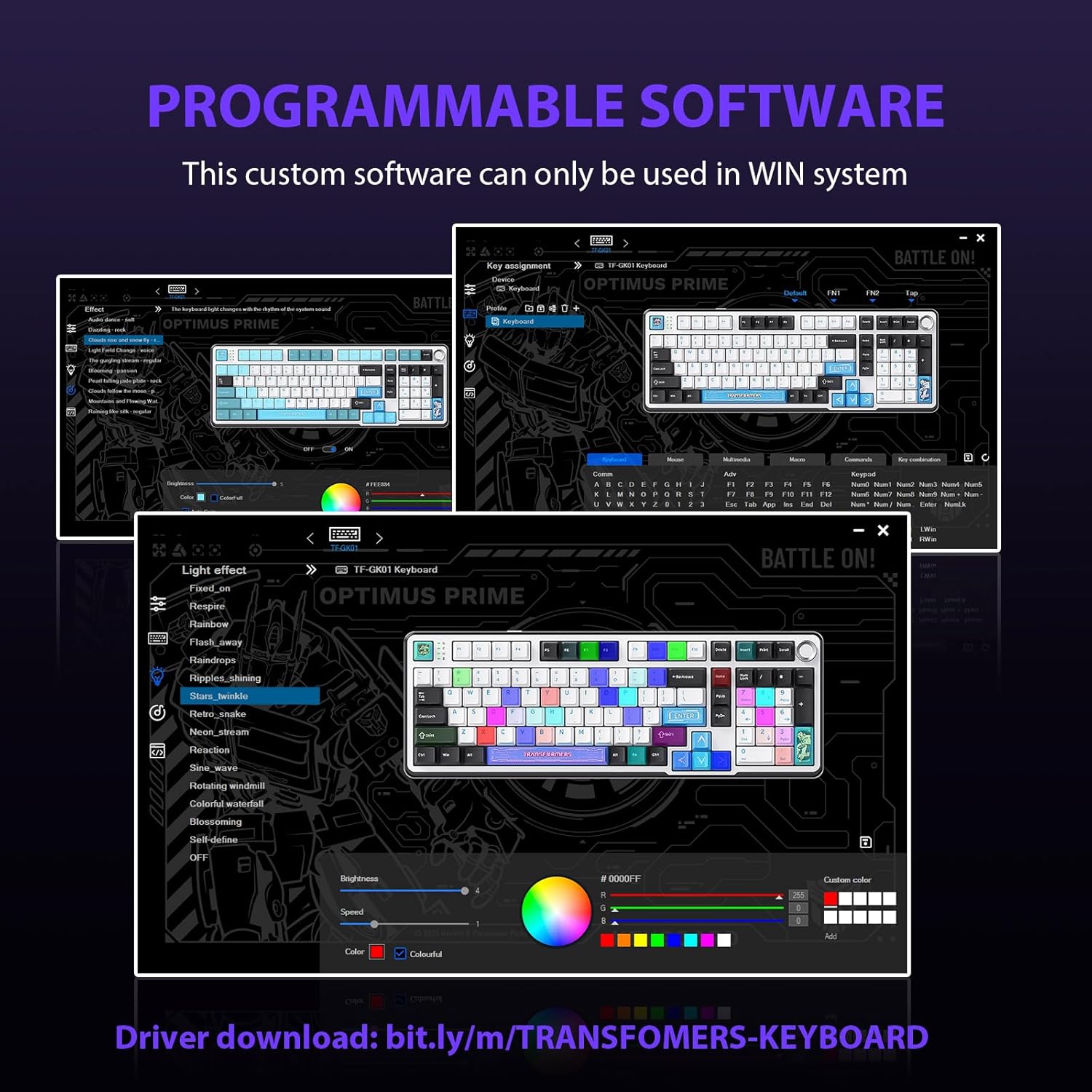
Figure 5.2: Programmable Software Interface.
5.3. Gasket Mounted Structure
The keyboard features a five-layer sound-absorbing and shock-absorbing gasket mounted structure. This design effectively reduces hollow noise and provides a softer, more consistent typing feel by isolating the plate from the case.
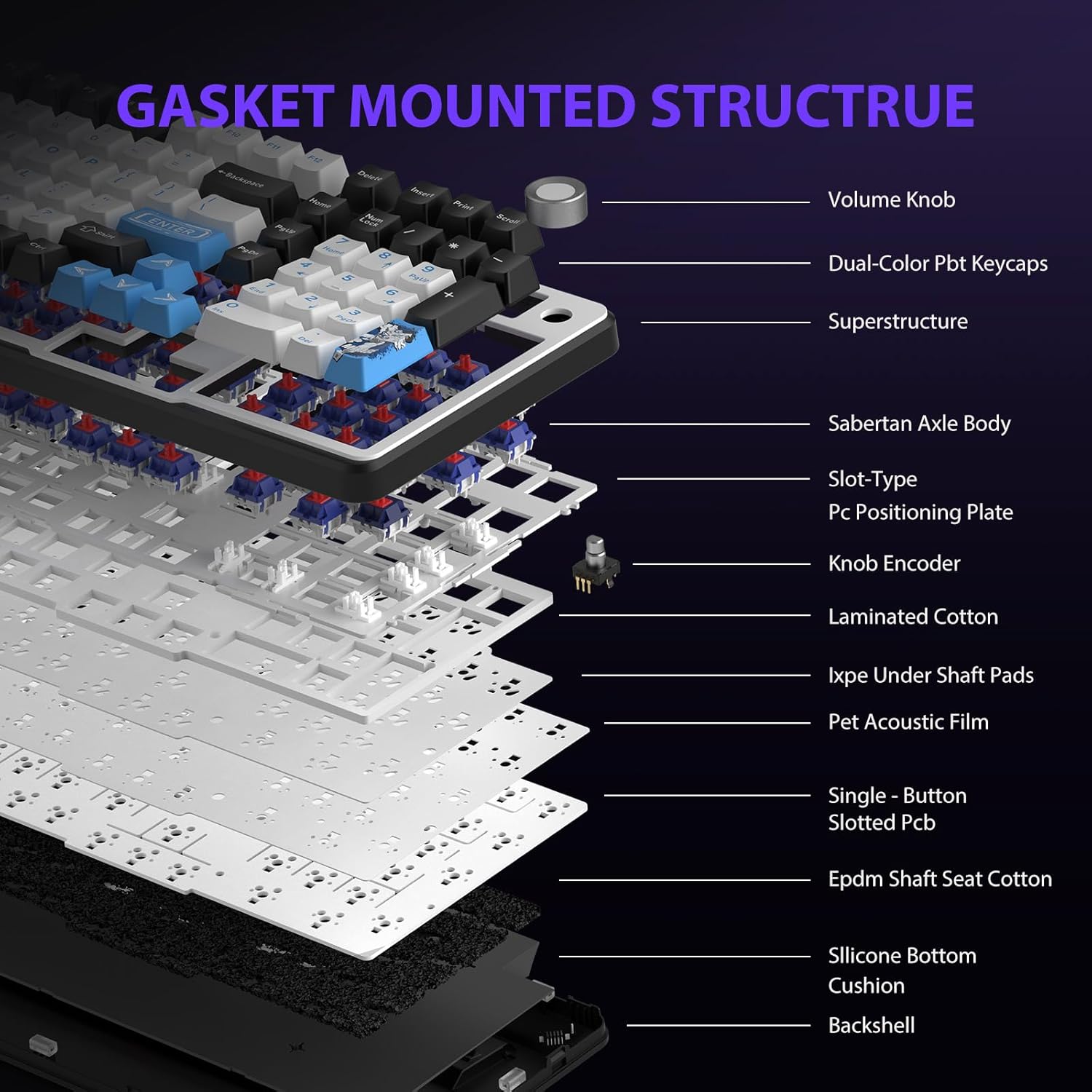
Figure 5.3: Gasket Mounted Structure Components.
6. Správa baterií
The GK01 keyboard is equipped with a 4000mAh rechargeable battery.
- Nabíjení: Connect the keyboard to a USB power source using the provided USB-C cable. The indicator light will show charging status.
- Životnost baterie: A fully charged battery provides extended usage time. Actual battery life may vary based on usage patterns and RGB lighting intensity.
- Šetření energie: The keyboard will enter a power-saving sleep mode after a period of inactivity to conserve battery. Press any key to wake it up.
7. Údržba
7.1. Čištění klávesnice
- Před čištěním odpojte klávesnici od všech zdrojů napájení.
- Použijte měkký hadřík, který nepouští vlákna dampKlávesy a šasi otřete vodou nebo jemným čisticím roztokem.
- Pro odstranění prachu a nečistot mezi klávesami použijte stlačený vzduch nebo malý kartáč.
- Vyhněte se používání agresivních chemikálií nebo abrazivních materiálů.
7.2. Péče o klávesy a spínače
- The PBT keycaps are designed for durability and fade resistance.
- Refer to Section 5.1 for instructions on safely removing and replacing keycaps and switches.
- Ensure the keyboard feet are clean and free of debris for stable placement.

Figure 7.1: Adjustable Keyboard Feet.
8. Řešení problémů
| Problém | Možná příčina | Řešení |
|---|---|---|
| Klávesnice nereaguje v bezdrátovém režimu. | Slabá baterie, vybrán nesprávný režim, adaptér není připojen, Bluetooth není spárovaný. | Charge the keyboard. Ensure the mode switch is set correctly (2.4GHz or BT). Re-insert the 2.4GHz dongle. Re-pair Bluetooth connection. Try wired mode to confirm keyboard functionality. |
| Klávesy se neregistrují nebo se píší dvakrát. | Loose switch, software issue, debris under keycap. | Ensure switches are fully seated. Clean under keycaps. If using programmable software, ensure it's updated or try resetting keyboard settings. |
| RGB backlight not working or stuck. | Podsvícení vypnuté, softwarový konflikt. | Stiskněte Fn + X to toggle backlight. Check programmable software settings. |
| Nelze se připojit přes Bluetooth. | Keyboard not in pairing mode, device Bluetooth off, interference. | Ensure keyboard is in Bluetooth pairing mode (Fn + Q/W/E long press). Ensure device Bluetooth is on and discoverable. Move closer to the device. |
9. Specifikace
| Funkce | Detail |
|---|---|
| Číslo modelu | TF-GK01 |
| Konektivita | Bluetooth 5.0, bezdrátové připojení 2.4 GHz, kabelové připojení USB-C |
| Typ klávesnice | Mechanické |
| Rozložení | 101 Keys (Full-size) |
| Spínače | Pre-lubed Cybertron Linear Switches, Hot-Swappable (3-pin/5-pin compatible) |
| Klíčenky | Heat-sublimated PBT |
| Podsvícení | RGB (16.8 Million Colors, 20 modes, music rhythm effects via driver) |
| Kapacita baterie | 4000 XNUMX mAh |
| Rozměry produktu | 16.15 x 5.65 x 1.63 palce (41.02 x 14.35 x 4.14 cm) |
| Hmotnost položky | 2.24 libry (1.02 kg) |
| Kompatibilní zařízení | Notebook, PC, Smartphone, Tablet |
| Speciální funkce | Anti-Ghosting (all keys), Multimedia Control Knob, Programmable Keys (via software), Rechargeable |
10. Záruka a podpora
For information regarding warranty coverage, technical support, or service inquiries, please refer to the warranty card included with your product or visit the official Transformers Keyboard webmísto.
Výrobce: Transformátory


