Zavedení
Welcome to the user manual for your Motorola Moto G Power smartphone. This guide is designed to help you navigate every feature, option, and capability of your device, whether you are a first-time smartphone user or an experienced enthusiast. The Moto G Power offers robust performance, a vibrant display, and a versatile camera system, all at an accessible price point. To fully utilize its potential, a clear understanding of its functions is essential. This manual provides detailed instructions, practical tips, and expert guidance to enhance your experience.
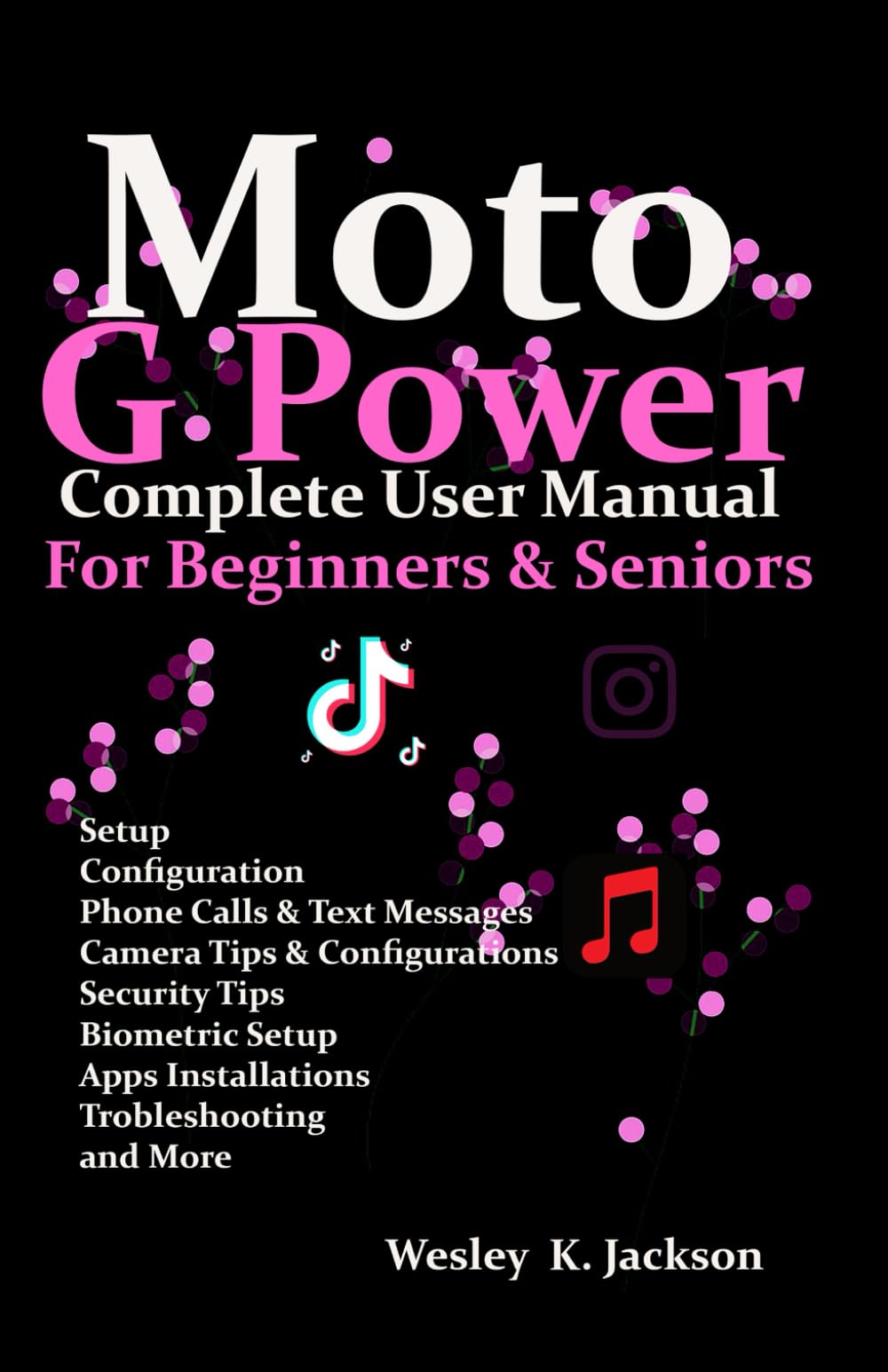
Image: Front cover of the Moto G Power User Manual. This image displays the title of the manual and its primary design.
Začínáme
This section covers the initial setup of your Moto G Power, from unboxing to customizing your home screen.
1. Vybalení a počáteční nabití
- Carefully remove your Moto G Power and its accessories from the packaging.
- Connect the charger to your phone and a power outlet. Allow the device to charge for at least 30 minutes before first use, or until the battery indicator shows sufficient charge.
2. Zapnutí/vypnutí
- To power on, press and hold the Power button on the side of the device until the Motorola logo appears.
- To power off, press and hold the Power button, then tap 'Power off' on the screen.
3. Instalace SIM karty
- Vyhledejte držák SIM karty na boku telefonu.
- Vložte nástroj pro vysunutí SIM karty do malého otvoru v zásobníku a jemně zatlačte, dokud zásobník nevyskočí.
- Vložte kartu (karty) Nano-SIM do slotu zlatými kontakty dolů.
- Opatrně vložte zásobník zpět do telefonu.
4. Průvodce počátečním nastavením
Postupujte podle pokynů na obrazovce a dokončete počáteční nastavení:
- Vyberte svůj jazyk a region.
- Připojte se k síti Wi-Fi.
- Přihlaste se pomocí svého účtu Google nebo si vytvořte nový.
- Review a přijměte obchodní podmínky.
- Nastavení zámku obrazovky (PIN, vzorec, heslo, otisk prstu).
5. Přenos dat
If you are upgrading from an old phone, the setup wizard will guide you through transferring data from your previous device using Google's backup services or a direct cable connection.
6. Přizpůsobení domovské obrazovky
Personalize your home screen by:
- Adding widgets: Long-press on an empty area of the home screen, then tap 'Widgets'.
- Changing wallpaper: Long-press on an empty area, then tap 'Wallpaper & style'.
- Organizing apps: Drag and drop app icons to rearrange them or create folders.
Obsluha vašeho zařízení
Learn how to use the core functionalities of your Moto G Power.
1. Volání a odesílání zpráv
- Volání: Otevřete aplikaci „Telefon“, zadejte číslo nebo vyberte kontakt a poté klepněte na ikonu volání.
- Zprávy: Open the 'Messages' app, tap 'Start chat', enter a contact or number, and type your message.
2. Zvládnutí fotoaparátu
The Moto G Power features a multi-lens camera system designed for various photographic scenarios. This section provides expert advice on how to take great photographs and videos.
- Spuštění fotoaparátu: Tap the Camera app icon or use a Moto Action (e.g., twist your wrist twice).
- Basic Modes: Switch between Photo, Video, Portrait, and Night Vision modes by swiping across the viewnálezce.
- Lupa: Pinch in or out on the screen, or use the zoom slider.
- Soustředit: Klepnutím na obrazovku nastavíte bod ostření.
- Profesionální tipy:
- Use HDR for balanced exposure in high-contrast scenes.
- Experiment with Portrait mode for professional-looking photos with blurred backgrounds.
- Utilize Night Vision in low-light conditions for brighter, clearer images.
3. Správa baterií
Maximize the life of your cellular device's battery with these best practices for fast-charging and energy-saving.
- Optimální nabíjení: Use the charger provided with your device for fast and efficient charging. Avoid extreme temperatures while charging.
- Režim úspory baterie: Enable 'Battery Saver' in Settings > Battery to extend battery life by restricting background activity and visual effects.
- Využití monitoru: Check 'Battery usage' in Settings > Battery to identify apps consuming the most power and manage them accordingly.
- Jas obrazovky: Reduce screen brightness or enable 'Adaptive brightness' to save power.
4. Bezpečnost a soukromí
Achieve security and privacy by establishing fingerprint and face recognition, securing your data, and managing permissions for applications.
- Snímač otisku prstu: Go to Settings > Security > Fingerprint. Follow the instructions to register your fingerprints for quick and secure unlocking.
- Odemknutí obličejem: In Settings > Security > Face Unlock, set up facial recognition for convenient unlocking.
- Zámek obrazovky: Ensure you have a strong PIN, pattern, or password set up as a backup to biometric security.
- Oprávnění aplikace: Pravidelně znovuview and manage app permissions in Settings > Apps > See all apps > [App Name] > Permissions to control what data apps can access.
- Šifrování dat: Your device's data is encrypted by default, providing an additional layer of security.
5. Hidden Features and Shortcuts (Moto Actions)
Unlock secret tricks that can enhance your user experience and increase your productivity.
- Rychlé zachycení: Dvakrát rychle otočte zápěstím, abyste otevřeli fotoaparát.
- Rychlá svítilna: Make two chopping motions with your phone to turn the flashlight on or off.
- Snímek obrazovky se třemi prsty: Dotkněte se a podržte obrazovku třemi prsty pro pořízení snímku obrazovky.
- Zvedněte pro odemčení: Lift your phone to unlock it and see notifications.
- Flip for Do Not Disturb: Place your phone face down to silence notifications and calls.
Údržba
To ensure that your phone continues to function without any interruptions, it is essential to undertake regular maintenance tasks.
1. Aktualizace softwaru
- Regularly check for and install software updates to ensure your device has the latest features, security patches, and performance improvements. Go to Settings > System > System updates.
2. Čištění zařízení
- K jemnému otření obrazovky a těla telefonu použijte měkký hadřík, který nepouští vlákna.
- Vyhněte se používání agresivních chemikálií nebo abrazivních materiálů.
3. Správa úložiště
- Pravidelně znovuview your storage usage in Settings > Storage.
- Smazat nepotřebné fileodinstalujte nepoužívané aplikace nebo přesuňujte velké soubory files to cloud storage or an SD card (if supported).
4. Zálohování a obnovení
- Ensure your data is regularly backed up to your Google account. Go to Settings > System > Backup.
- This allows you to restore your data if you get a new device or need to perform a factory reset.
Odstraňování problémů
This section addresses common issues and provides solutions to help you resolve problems with your Moto G Power.
1. Device Not Responding/Freezing
- Stiskněte a podržte tlačítko napájení po dobu přibližně 10–15 sekund pro vynucení restartu.
2. App Crashing or Not Working
- Clear the app's cache and data: Settings > Apps > See all apps > [App Name] > Storage & cache > Clear cache / Clear storage.
- Odinstalujte a znovu nainstalujte aplikaci.
- Zkontrolujte aktualizace aplikací v Obchodě Google Play.
3. Problémy s připojením (Wi-Fi/Bluetooth/mobilní připojení)
- Toggle Wi-Fi, Bluetooth, or Cellular Data off and on.
- Restartujte telefon.
- Reset network settings: Settings > System > Reset options > Reset Wi-Fi, mobile & Bluetooth.
4. Rychlé vybíjení baterie
- Review 'Battery usage' in Settings to identify problematic apps.
- Enable Battery Saver mode.
- Reduce screen brightness and disable unnecessary features like GPS or always-on display when not in use.
5. Obnovení továrního nastavení (poslední možnost)
If other troubleshooting steps fail, a factory reset can resolve persistent issues. Warning: This will erase all data on your phone. Ensure you have backed up all important information before proceeding.
- Přejděte do Nastavení > Systém > Možnosti resetování > Vymazat všechna data (obnovení továrního nastavení).
- Postupujte podle pokynů na obrazovce.
Specifikace
Detailed technical specifications for the Motorola Moto G Power smartphone are not provided within this manual. Please refer to the official Motorola website or your device's packaging for comprehensive specifications.
Záruka a podpora
Specific warranty information and detailed support contacts are not included in this manual. For warranty details, technical support, or service inquiries, please visit the official Motorola support webnebo kontaktujte svého prodejce.
Další informace

Image: Back cover of the Moto G Power User Manual. This image includes the ISBN barcode: 979-8316428694.
This manual is intended to provide general guidance. Features and functionality may vary based on software version and region.