Introduction to Your Google Pixel 9a
This manual provides detailed, step-by-step instructions to help you navigate your new Google Pixel 9a smartphone with ease. Designed for both first-time Pixel users and those upgrading from a previous model, this guide covers essential functions, customization options, and troubleshooting tips to ensure the best user experience.
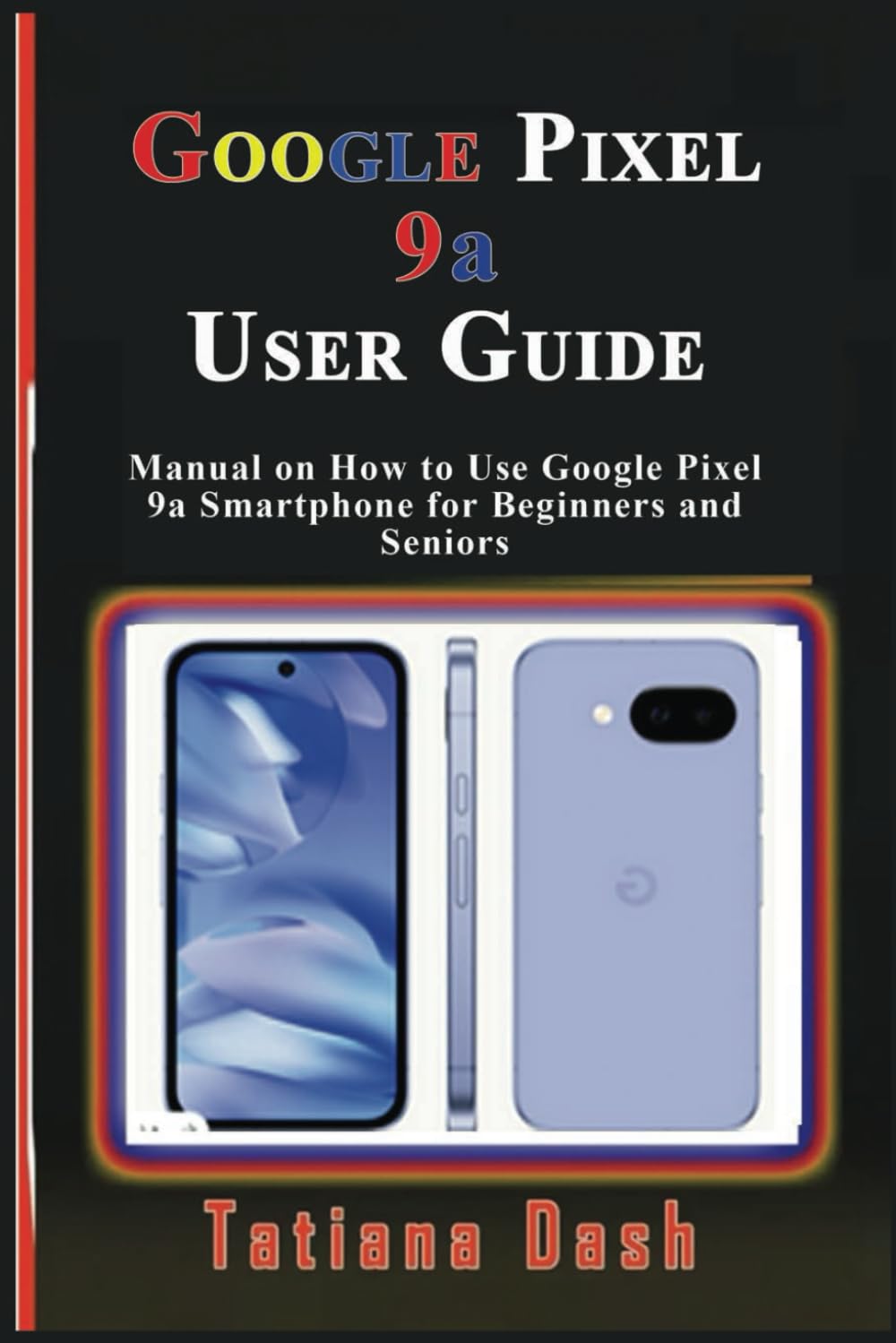
Image: Front cover of the Google Pixel 9a User Guide. This image displays the title and author of the manual.
1. Nastavení zařízení
Begin your Pixel 9a experience by setting up your device and configuring your network settings.
1.1 Počáteční konfigurace zařízení
- Zapnutí: Stiskněte a podržte tlačítko napájení, dokud se nezobrazí logo Google.
- Výběr jazyka: Vyberte si ze seznamu preferovaný jazyk.
- Připojení k Wi-Fi: Select an available Wi-Fi network and enter the password if required.
- Kopírování aplikací a dat: Postupujte podle pokynů na obrazovce a přeneste data ze starého zařízení nebo jej nastavte jako nové.
- Přihlášení k účtu Google: Zadejte přihlašovací údaje k účtu Google nebo si vytvořte nový účet.
1.2 eSIM or SIM Card Settings
- Physical SIM: Insert your nano-SIM card into the SIM tray using the provided SIM ejector tool.
- Aktivace eSIM karty: Přejděte na Nastavení > Síť a internet > SIM karty and follow the instructions to add an eSIM profile.
2. Operating Your Pixel 9a
Familiarize yourself with the core functionalities and interface of your smartphone.
2.1 Mastering the Interface
- Domovská obrazovka: Learn to navigate between home screens, add widgets, and organize apps.
- Navigační gesta: Understand swipe gestures for home, back, and recent apps.
- Rychlé nastavení: Swipe down from the top of the screen to access essential settings like Wi-Fi, Bluetooth, and flashlight.
- Oznámení: Manage and respond to notifications from the notification shade.
2.2 Možnosti přizpůsobení
- tapety: Change your home and lock screen wallpapers via Nastavení > Tapeta a styl. Explore AI wallpapers for unique designs.
- motivy: Apply different themes to alter the overall look and feel of your device.
- Widgety: Add widgets to your home screen for quick access to information and functions.
- Nastavení obrazovky: Adjust brightness, dark theme, night light, and screen timeout in Nastavení > Displej.
2.3 Calls, Messages, & Contacts
- Uskutečňování hovorů: Pomocí aplikace Telefon můžete vytáčet čísla nebo vybírat kontakty.
- Nastavení hlasové schránky: Configure your voicemail service through your carrier's instructions.
- Google Messages: Send and receive text messages, including RCS chats, using the Messages app.
- Správa kontaktů: Add, edit, and organize contacts in the Contacts app. Sync contacts with your Google Account for backup.
2.4 Connectivity Essentials
- Wi-Fi: Připojení k bezdrátovým sítím přes Nastavení > Síť a internet > Internet.
- Mobilní data: Enable or disable mobile data and manage data usage in Nastavení > Síť a internet > SIM karty.
- Bluetooth: Spárování se zařízeními Bluetooth, jako jsou sluchátka nebo reproduktory, přes Nastavení > Připojená zařízení.
- Sdílení v okolí: Podíl files quickly with nearby Android devices.
- Osobní hotspot: Turn your Pixel 9a into a Wi-Fi hotspot to share your mobile data connection.
- USB & Bluetooth Tethering: Share your internet connection with other devices via USB cable or Bluetooth.
2.5 Google Camera & Photos
- Pořizování fotografií: Otevřete aplikaci Fotoaparát a klepněte na tlačítko spouště.
- Režimy fotoaparátu: Explore various modes such as Portrait, Night Sight, Panorama, and Video.
- Fotky Google: Automatically back up your photos and videos to Google Photos for secure storage and easy access across devices.
3. Battery & Performance Optimization
Optimize your device's battery life and overall performance.
- Spořič baterie: Povolte režim úspory baterie v Nastavení > Baterie > Spořič baterie to extend battery life by limiting background activity.
- Adaptivní baterie: This feature learns your usage patterns to prioritize power for apps you use most.
- Spravovat úložiště: Regularly check and free up storage space via Nastavení > Úložiště pro udržení optimálního výkonu.
- Digitální rovnováha: Use Digital Wellbeing features to monitor and manage your screen time and app usage.
4. Privacy & Security
Protect your personal information and secure your device.
- Najít moje zařízení: Set up Find My Device to locate, lock, or erase your phone remotely if it's lost or stolen.
- Bezpečné prohlížení: Ensure Safe Browsing is enabled in your browser settings to protect against malicious webstránky.
- Oprávnění aplikace: Review and manage app permissions in Nastavení > Aplikace > Zobrazit všechny aplikace > [Název aplikace] > Oprávnění.
- Nástěnka ochrany osobních údajů: Access the Privacy Dashboard to see which apps have accessed your location, camera, or microphone recently.
5. Troubleshooting & Updates
Solutions for common issues and information on software updates.
5.1 Běžné problémy a jejich řešení
- Selhání aplikace: Clear app cache/data or reinstall the app.
- Problémy s připojením: Toggle Wi-Fi/Bluetooth off and on, restart your device, or reset network settings.
- Zařízení nereaguje: Perform a soft reset by holding the power button for about 30 seconds.
5.2 Reset zařízení
- Měkký reset: Simply restart your phone.
- Hard Reset (Factory Data Reset): Přejít na Nastavení > Systém > Možnosti resetování > Vymazat všechna data (obnovení továrního nastavení). Varování: Tímto smažete všechna data v zařízení. Nejprve si zálohujte důležité informace.
5.3 Aktualizace softwaru
Your Pixel 9a will receive regular software updates to improve performance, add new features, and enhance security. Check for updates in Nastavení > Systém > Aktualizace systému.
6. Tips, Tricks & Hidden Features
Discover advanced functionalities to enhance your Pixel 9a experience.
- Rychlé klepnutí: Assign custom actions to a double-tap on the back of your phone.
- Rutiny: Automate tasks based on specific conditions (e.g., turn on Wi-Fi when you arrive home).
- Hidden Pixel 9a Features: Explore unique Pixel-exclusive features for photography, AI, and more.
- Comparison to Pixel 8a: Understand the key improvements and differences if you are upgrading from a Pixel 8a.

Image: Back cover of the Google Pixel 9a User Guide. This image shows the ISBN barcode and publishing details.
ISBN-13: 979-8315618027
7. Specifikace
Key technical specifications for the Google Pixel 9a User Guide (Paperback).
| Funkce | Detail |
|---|---|
| ASIN | B0F2MZQW46 |
| Vydavatel | Nezávisle publikováno |
| Datum zveřejnění | 26. března 2025 |
| Jazyk | angličtina |
| Délka tisku | 60 stran |
| ISBN-13 | 979-8315618027 |
| Hmotnost položky | 5 unce |
| Rozměry | 6 x 0.14 x 9 palce |
8. Informace o záruce a podpoře
Information regarding product warranty and customer support is not available in the provided data for this user manual. Please refer to the official Google Pixel 9a documentation or Google's support website for warranty details and assistance.


