1. Úvod
This manual provides detailed instructions for the safe and efficient use of your Techkey MFi Certified 3-in-1 USB 3.0 Flash Drive. Please read this manual thoroughly before using the device to ensure optimal performance and to prevent damage.
The Techkey flash drive is designed for convenient data transfer and storage across various devices, including iPhones, iPads, Android phones, and personal computers. Its multi-interface design and MFi certification ensure broad compatibility and reliable performance.
2. Vlastnosti produktu
- Certifikace MFi: Zajišťuje kompatibilitu a spolehlivý výkon se zařízeními Apple.
- 3-in-1 Interface Design: Equipped with USB, Lightning, and Type-C connectors for universal compatibility.
- Vysokorychlostní USB 3.0: Offers fast read and write speeds for efficient data transfer.
- Kapacita úložiště 256 GB: Poskytuje ample space for photos, videos, documents, and other files.
- Šifrování dat: Supports Touch ID/Passcode encryption for enhanced data security.
- Odolná konstrukce: Made from high-quality metal with dustproof, drop-proof, and anti-magnetic properties.
- Kompaktní a přenosné: Lightweight design with a keychain for easy carrying.
- Automatické ukládání: In-app camera captures automatically save to the drive.
- Přehrávání na cestách: Directly play stored movies and music from the drive.
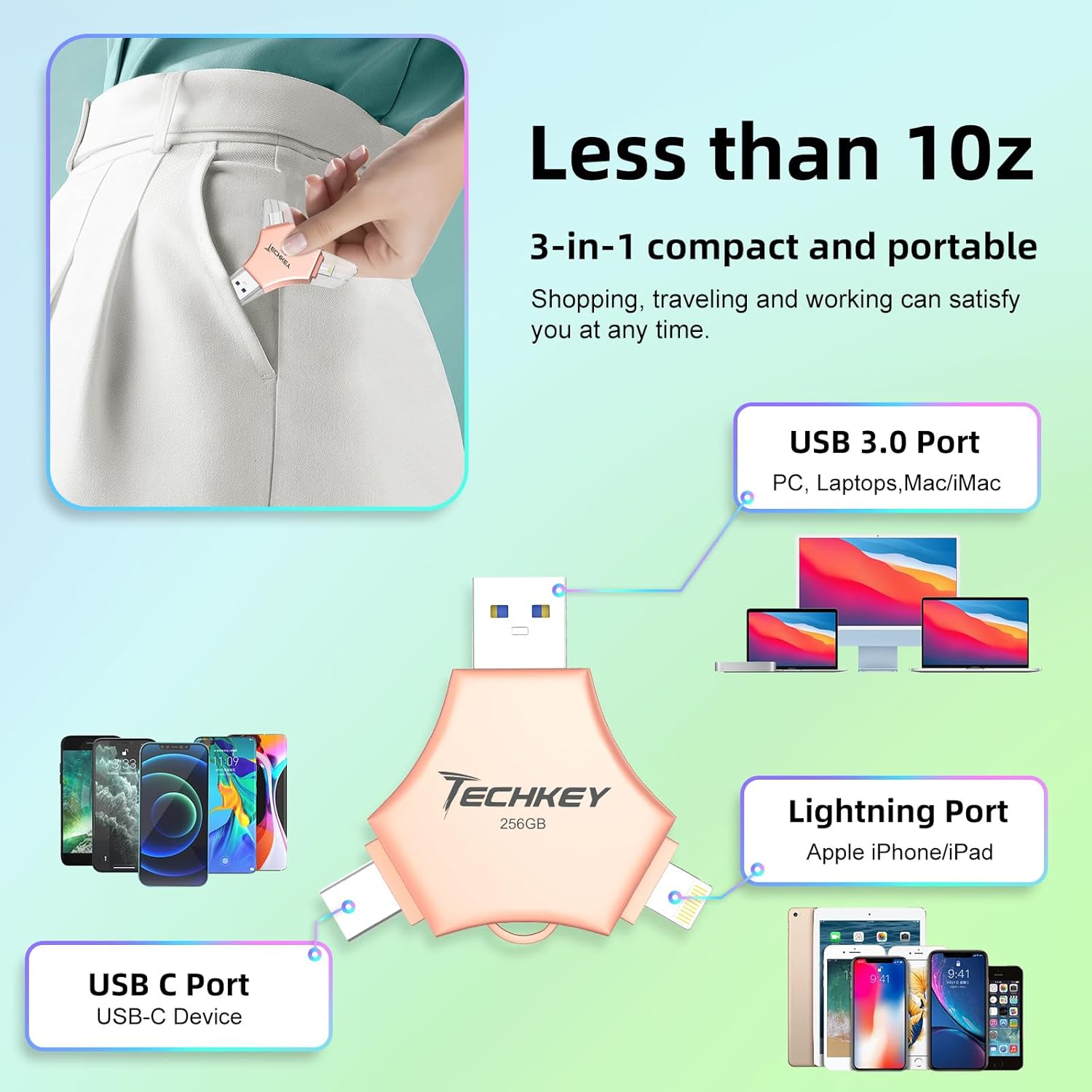
Image: The Techkey 3-in-1 USB Flash Drive showing its USB 3.0, Lightning, and USB-C ports, highlighting its compact and portable design.

Image: A diagram illustrating the three distinct connectors: Lightning for iPhone/iPad, Type-C for iPhone/iPad/Android, and USB for PC.

Image: An illustration of a high-tech chip, symbolizing the advanced technology and MFi certification integrated into the flash drive.

Image: Certificates of authority, indicating the product's compliance with industry standards and quality assurance.
3. Obsah balení
Ověřte, zda jsou v balení přítomny všechny položky:
- Techkey MFi Certified 3-in-1 USB 3.0 Flash Drive (256GB)
- Protective Caps (may include extra)
- Keychain/Lanyard
- Uživatelská příručka (tento dokument)
4. Nastavení
4.1. Počáteční připojení
The Techkey flash drive features three types of connectors: USB, Lightning, and Type-C. Select the appropriate connector for your device.
- Pro zařízení iOS (iPhone/iPad): Insert the Lightning connector into your device's Lightning port.
- Pro zařízení Android: Insert the Type-C connector into your device's USB-C port. Ensure your Android device supports OTG (On-The-Go) functionality.
- Pro PC/Mac: Zasuňte USB konektor do volného USB portu v počítači.
4.2. App Installation (iOS Devices Only)
For iOS devices (iPhone/iPad), the "U-Disk" application is required for full functionality. When you connect the flash drive to an iOS device for the first time, a prompt to download the "U-Disk" app from the App Store should appear. Follow the on-screen instructions to install it.
- If the prompt does not appear, manually search for "U-Disk" in the Apple App Store and install it.
- Android and PC devices do not require a dedicated app for basic file řízení.
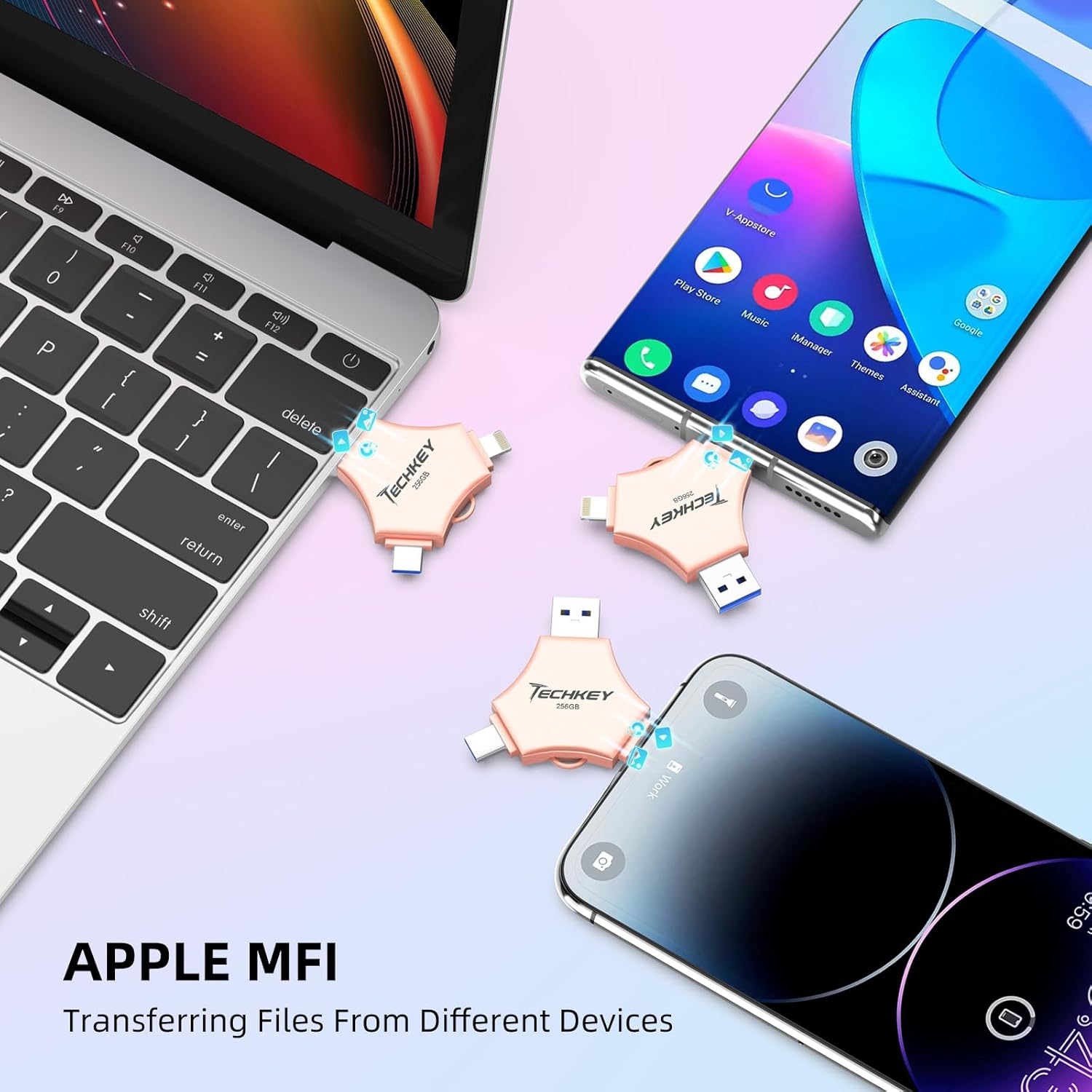
Image: The Techkey flash drive connected to an iPhone and iPad, illustrating its MFi compatibility and ease of use with Apple devices.
5. Návod k obsluze
5.1. Přenos dat
The flash drive supports high-speed data transfer. Actual speeds may vary based on device, file size, and system conditions.
- For iOS Devices (via U-Disk App):
- Connect the flash drive to your iPhone/iPad.
- Otevřete aplikaci „U-Disk“.
- Přejděte na požadované files on your device or within the app.
- Vybrat files and use the app's functions to copy or move them to the flash drive.
- To transfer from the flash drive to your device, select files on the drive and use the app's functions to copy them to your device.
- Pro zařízení Android:
- Connect the flash drive to your Android device.
- Access the flash drive through your device's file manažer (např. „Files," "My Files").
- Kopírovat nebo přesunout files between your device's internal storage/SD card and the flash drive.
- Pro PC/Mac:
- Connect the flash drive to your computer's USB port.
- The drive will appear as a removable storage device (e.g., "USB Drive," "NO NAME").
- Drag and drop files between your computer and the flash drive, or use copy/paste functions.
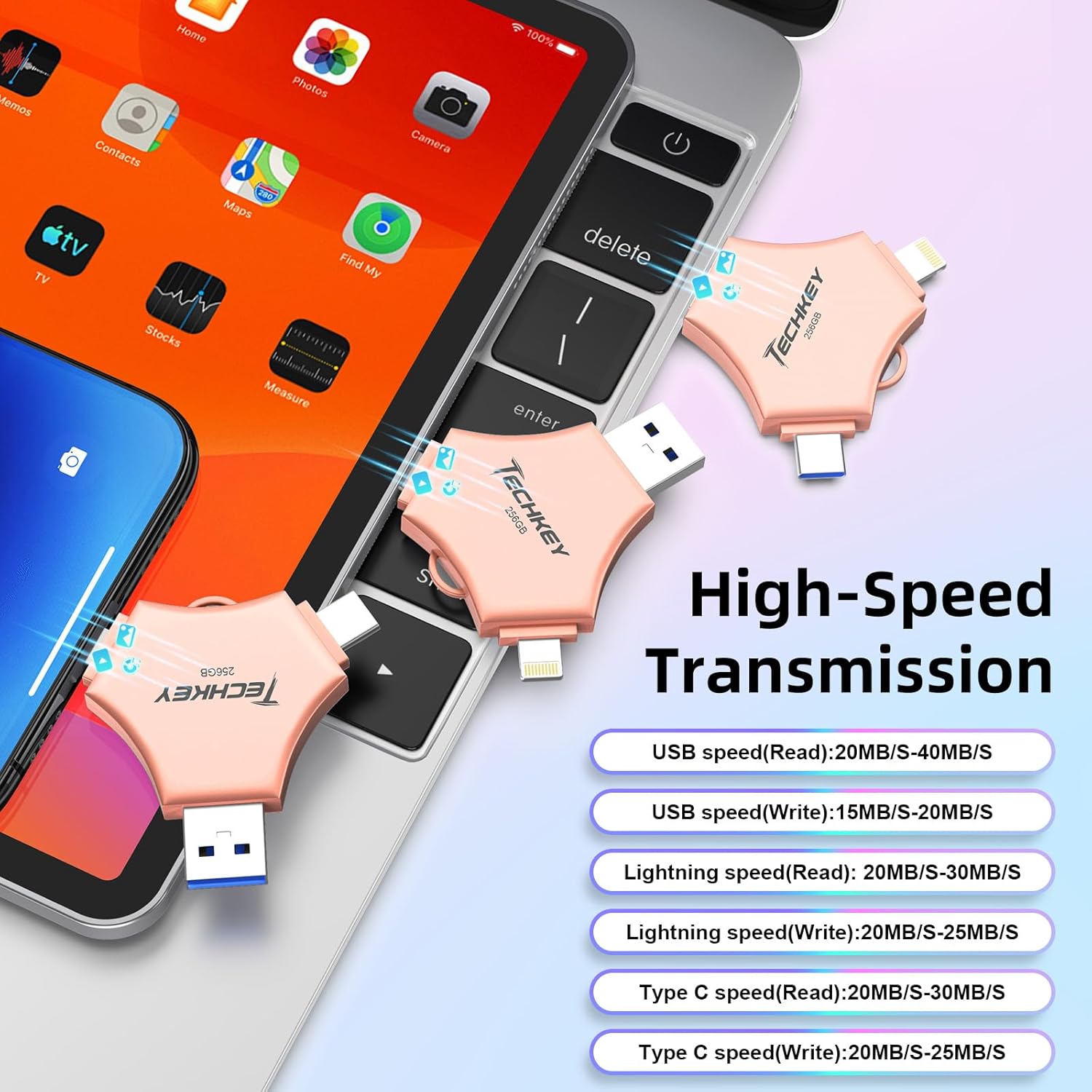
Image: A graphic detailing the high-speed transmission rates for the USB (Read: 20-40MB/s, Write: 15-20MB/s), Lightning (Read: 20-30MB/s, Write: 20-25MB/s), and Type-C (Read: 20-30MB/s, Write: 20-25MB/s) interfaces.
5.2. One-Click Backup (iOS Devices Only)
The "U-Disk" app allows for one-click backup of photos, videos, and contacts from your iOS device to the flash drive.
- Připojte flash disk a otevřete aplikaci „U-Disk“.
- Locate the "One-Click Backup" or similar function within the app.
- Follow the prompts to back up your selected data. This process copies files to the drive, freeing up space on your device. Remember to manually delete files from your device after confirming they are safely backed up on the flash drive.
5.3. Data Encryption
To protect your sensitive data, the "U-Disk" app (for iOS) offers encryption features.
- Otevřete aplikaci „U-Disk“ s připojeným flash diskem.
- Navigate to the security or settings section within the app.
- You can choose to enable Touch ID/Passcode to encrypt the entire flash drive or select specific files for encryption.
- Follow the on-screen instructions to set up and manage your encryption preferences.
5.4. Přehrávání na cestách
You can directly play media files stored on the flash drive without transferring them to your device's internal storage.
- Store your favorite movies, music, or documents on the flash drive.
- Connect the drive to your device (using the "U-Disk" app for iOS).
- Procházet files on the flash drive through the app or file manažer.
- Vyberte médium file to play it directly.

Image: A visual representation of the flash drive supporting various file formats, including MP4, MOV, RM, RMVB for videos; MP3, AIF, WAV, WMA, AAC for music; BMP, JPG, GIF, ICO, TIFF, PNG for pictures; and PDF, WORD, EXCEL, PPT, HTML, TXT for office documents.
6. Údržba
- Správná manipulace: Always hold the flash drive by its body, not by the connectors.
- Chraňte konektory: Use the provided protective caps to cover the connectors when not in use to prevent dust and damage.
- Bezpečné odstranění: Always safely eject the flash drive from your computer (PC/Mac) before physically removing it to prevent data corruption. For mobile devices, ensure no data transfer is active before disconnecting.
- Čištění: K čištění vnější strany disku používejte měkký, suchý hadřík. Nepoužívejte tekuté čisticí prostředky ani abrazivní materiály.
- Skladování: Store the flash drive in a cool, dry place away from extreme temperatures, direct sunlight, and strong magnetic fields.
7. Řešení problémů
7.1. Zařízení nebylo rozpoznáno
- Zkontrolujte připojení: Ensure the flash drive is fully and correctly inserted into the port.
- Try Another Port/Device: Test the flash drive on a different USB port, or a different compatible device (e.g., another computer, phone) to determine if the issue is with the drive or the port.
- Restartovat zařízení: Sometimes, restarting your phone or computer can resolve connection issues.
- Aplikace pro iOS: For iOS devices, confirm the "U-Disk" app is installed and updated.
- Android OTG: For Android, verify your device supports OTG and that OTG functionality is enabled in settings if required.
7.2. Pomalé přenosové rychlosti
- Typ portu USB: Ensure you are using a USB 3.0 port on your computer for optimal speeds. Connecting to a USB 2.0 port will result in slower transfer rates.
- File Velikost/Typ: Přenos mnoha malých filemůže být pomalejší než přenos jednoho velkého file stejné celkové velikosti.
- Device Performance: The speed of your host device (phone, computer) can affect transfer rates.
- Procesy na pozadí: Close unnecessary applications on your device during transfer.
7.3. Data Corruption/Loss
- Bezpečné vyhození: Always safely eject the drive from computers. Avoid disconnecting during active data transfer.
- Kolísání výkonu: Ensure stable power supply to your computer during transfers.
- Fyzické poškození: Inspect the drive for any visible physical damage.
7.4. App Issues (U-Disk)
- Aktualizace aplikace: Ujistěte se, že je aplikace „U-Disk“ aktualizována na nejnovější verzi.
- Přeinstalovat aplikaci: Pokud problémy přetrvávají, zkuste aplikaci odinstalovat a znovu nainstalovat.
- Verze pro iOS: Ujistěte se, že vaše zařízení iOS používá systém iOS 12.1 nebo vyšší.
8. Specifikace
| Značka | Techkey |
| Číslo modelu | 641837950528 |
| Kapacita paměti | 256 GB |
| Technologie připojení | USB, Lightning, USB typu C |
| Rychlost čtení | Až 40 XNUMX MB/s |
| Rychlost zápisu | Až 80 XNUMX MB/s |
| Rozměry produktu (DxŠxV) | 5.43 x 3.94 x 0.04 palce |
| Hmotnost položky | 2.39 unce |
| Speciální funkce | Wear Resistant, MFi Certified, Data Encryption |
| Kompatibilní operační systémy | iOS 12.1 and above, OTG Android, Windows 7 and above, macOS 10.6 and above |
9. Záruka a podpora
This Techkey product comes with a standard manufacturer's warranty. Please refer to the packaging or the official Techkey webkonkrétní záruční podmínky naleznete na webových stránkách.
For technical support, troubleshooting assistance, or warranty claims, please contact Techkey customer service through their official channels. Contact information can typically be found on the product packaging or the manufacturer's webmísto.
Poznámka: Uschovejte si účtenku jako doklad o koupi pro účely záruky.

