1. Úvod
This manual provides essential information for setting up, operating, and maintaining your Philips 24B2U3301 24-inch Full HD monitor. This monitor is designed for business efficiency, offering a 120 Hz refresh rate, SoftBlue technology, Flicker-Free viewing, and a versatile VESA mount compatible stand. Please read this manual thoroughly before using your monitor to ensure proper installation and operation.
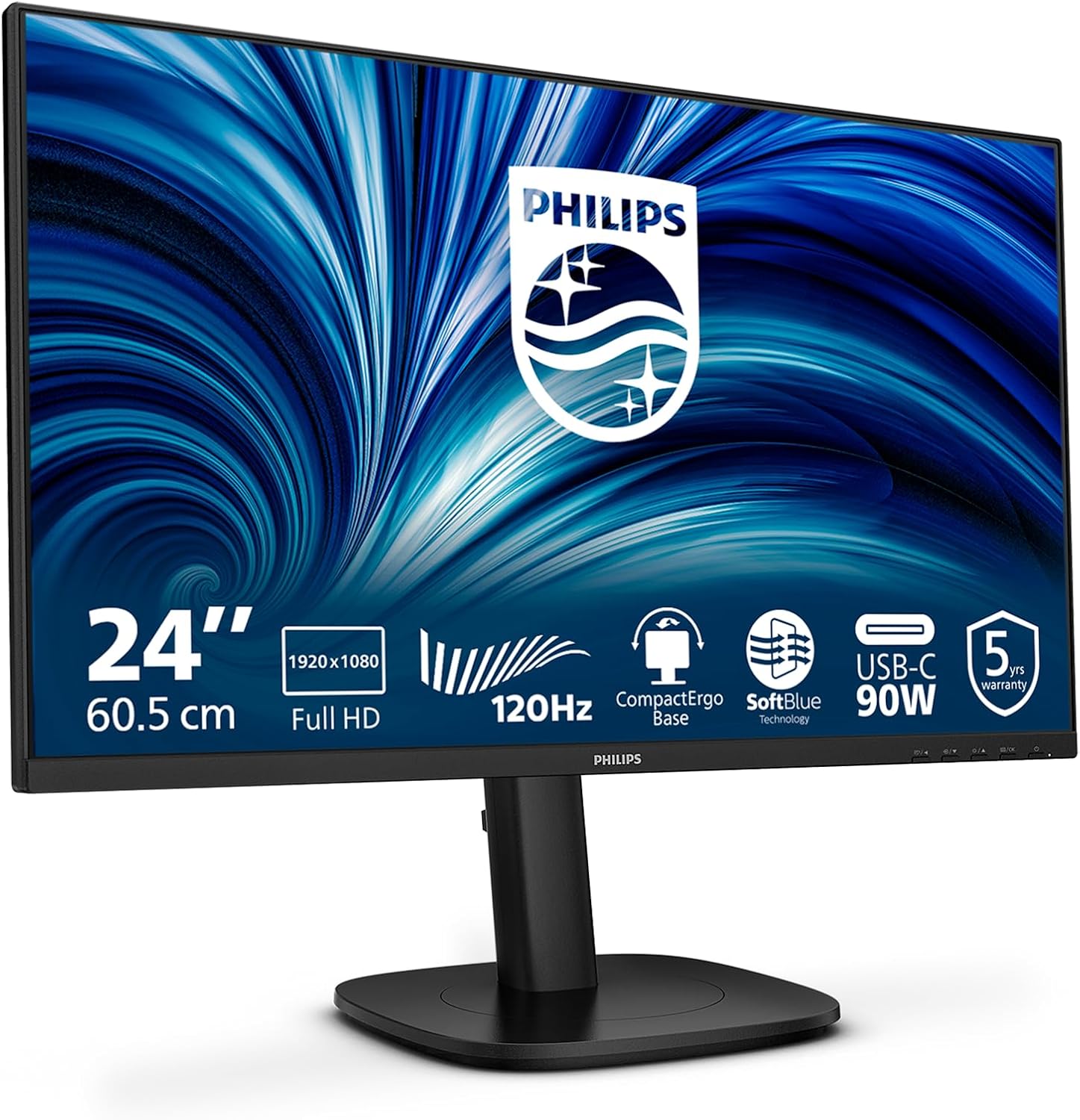
Obrázek 1.1: Přední strana view of the Philips 24B2U3301 monitor, showcasing its sleek design and narrow bezels.
2. Bezpečnostní informace
Dodržujte následující bezpečnostní opatření, abyste zabránili poškození monitoru a zajistili si osobní bezpečnost:
- Monitor vždy umístěte na stabilní a rovný povrch.
- Nezakrývejte ventilační otvory.
- Používejte pouze napájecí adaptér a kabely dodané výrobcem.
- Chraňte monitor před vodou, vlhkostí a extrémními teplotami.
- Do not attempt to open or service the monitor yourself. Refer all servicing to qualified personnel.
- Před čištěním odpojte monitor ze zásuvky.
3. Obsah balení
Ověřte, zda jsou v balení přítomny všechny položky:
- Philips 24B2U3301 Monitor
- Stojan na monitor (základna a krk)
- Napájecí kabel
- HDMI kabel
- Kabel DisplayPort (DP)
- Kabel USB-C na USB-C
- Rychlý průvodce
4. Nastavení
4.1 Sestavení stojanu
- Opatrně vyjměte komponenty monitoru a stojanu z obalu.
- Připevněte krk stojanu k panelu monitoru. Ujistěte se, že bezpečně zacvakne, nebo je upevněn šrouby, pokud jsou součástí dodávky.
- Attach the stand base to the stand neck and tighten the thumb screw at the bottom of the base.

Obrázek 4.1: Ilustrace procesu montáže stojanu monitoru.
4.2 Připojení monitoru
Connect the necessary cables to the monitor and your computer. Refer to the port diagram below for connection points.
- Připojení napájení: Connect the power cable to the monitor's AC input and then to a power outlet.
- Připojení videa: Vyberte jednu z následujících možností:
- HDMI: Connect one end of the HDMI cable to the monitor's HDMI input and the other end to your computer's HDMI output.
- DisplayPort (DP): Connect one end of the DP cable to the monitor's DP input and the other end to your computer's DP output.
- USB-C: Connect the USB-C cable to the monitor's USB-C input and your computer's USB-C port. This single cable can provide video, data, and power delivery (up to 90W).
- Připojení USB hubu: If using HDMI or DP for video, connect a USB-A to USB-B cable (not always included, check package contents) from your computer to the monitor's USB upstream port to enable the monitor's USB hub. If using USB-C, this connection is automatic.
- RJ45 Ethernet: Connect an Ethernet cable from your router/modem to the monitor's RJ45 port to provide network connectivity to your connected laptop via USB-C.
- Audio výstup: Connect external speakers or headphones to the Audio Out jack if desired.

Obrázek 4.2: Zadní strana view monitoru, zvýraznění různých vstupních a výstupních portů.

Image 4.3: Close-up diagram illustrating the HDMI, DisplayPort, USB-C, RJ45, USB Hub, and Audio Out ports.
5. Návod k obsluze
5.1 Zapnutí/vypnutí
Stisknutím tlačítka napájení umístěného na rámečku monitoru monitor zapnete nebo vypnete.
5.2 Nabídka na obrazovce (OSD)
The OSD menu allows you to adjust various monitor settings. Use the control buttons (usually located on the bottom right or rear of the monitor) to navigate the menu.
- Tlačítko nabídky: Otevře nabídku OSD.
- Navigační tlačítka: Used to move up/down or left/right through menu options.
- Tlačítko OK/Vybrat: Potvrdí výběr.
- Tlačítko Konec: Ukončí aktuální nabídku nebo OSD.
5.3 Běžná nastavení OSD
- Obrázek: Upravte jas, kontrast, ostrost a teplotu barev.
- Zvuk: Control volume and mute settings for built-in speakers or audio output.
- Vstup: Manually select the video input source (HDMI, DP, USB-C).
- Nastavení OSD: Upravte jazyk, průhlednost a časový limit OSD.
- Nastavení: Access factory reset options and information about the monitor.
5.4 Ergonomické úpravy
The monitor stand offers multiple adjustments for optimal viewpohodlí:
- Nastavení výšky: Zvedněte nebo snižte monitor až o 130 mm.
- Náklon: Upravte svislý úhel obrazovky (-5° až 30°).
- Otočný: Rotate the monitor horizontally (-/+ 180°).
- Pivot: Otočení obrazovky o 90° pro režim na výšku viewing (-/+ 90°).
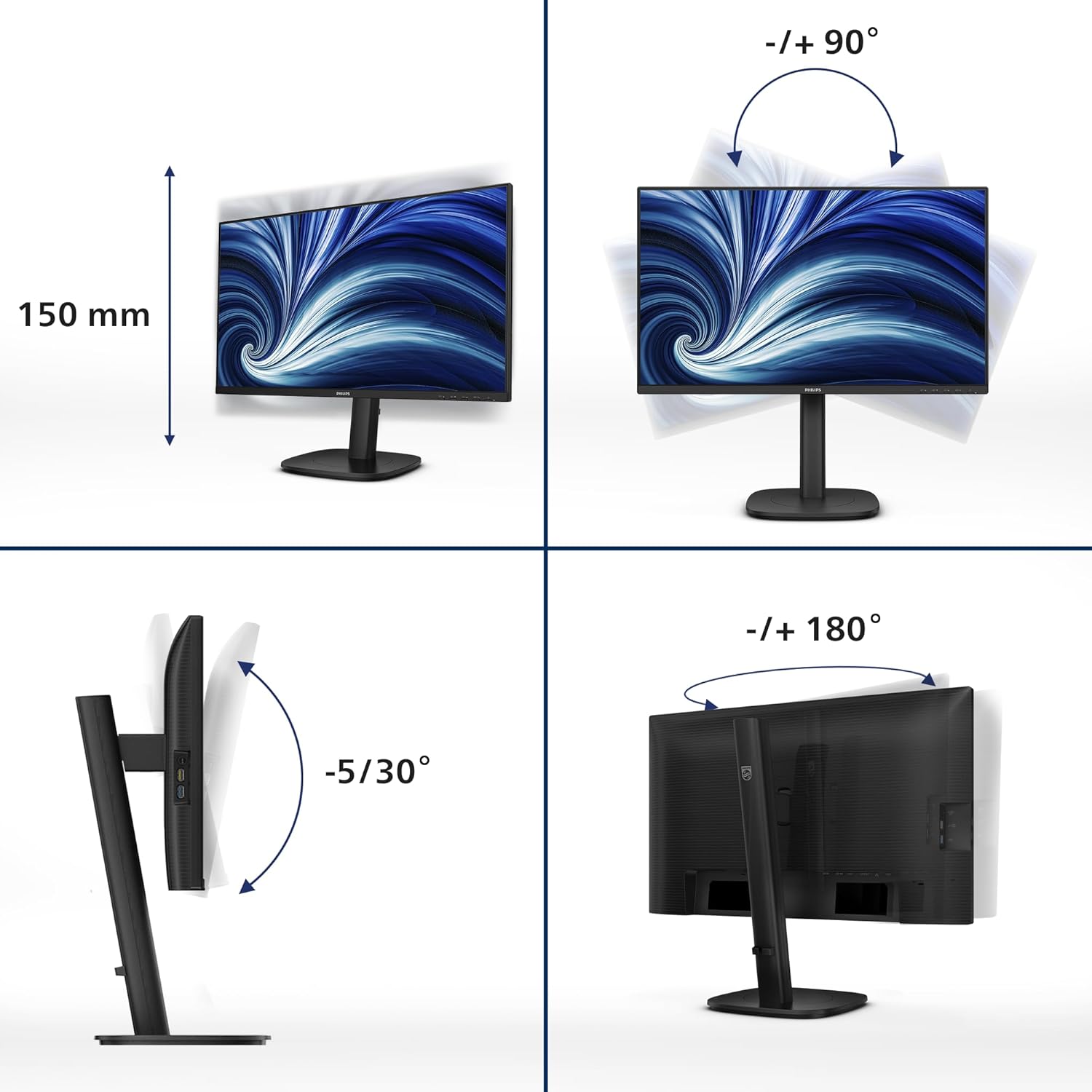
Image 5.1: Demonstrates the monitor's height, tilt, swivel, and pivot adjustments for ergonomic positioning.
6. Klíčové vlastnosti
- Obnovovací frekvence 120Hz: Provides ultra-smooth and brilliant images, reducing motion blur for a more fluid visual experience.
- 1ms MPRT Fast Response: Delivers crisp images and smooth gameplay, minimizing ghosting and blurring in fast-paced scenes.
- SoftBlue Technology: Reduces harmful blue light emissions without compromising color accuracy, helping to minimize eye strain during extended use.
- Technologie Flicker-Free: Regulates brightness and reduces screen flickering, further enhancing eye comfort.
- USB-C s napájením 90 W: A single USB-C cable provides video, data transfer, and powers/charges your compatible laptop (up to 90W).
- USB Hub: Integrated USB hub with multiple ports allows for easy connection of peripherals like keyboards, mice, and external drives.
- Ethernetový port RJ45: Provides a stable wired network connection to your connected laptop via the USB-C cable, eliminating the need for additional adapters.
- DisplayPort výstup: Allows for daisy-chaining multiple monitors from a single DisplayPort connection on your computer.
7. Údržba
7.1 Čištění obrazovky
Čištění obrazovky monitoru:
- Vypněte monitor a odpojte napájecí kabel.
- Jemně otřete obrazovku měkkým hadříkem, který nepouští vlákna.
- Pro odolné skvrny, dampen the cloth lightly with a mild, non-abrasive screen cleaner. Do not spray cleaner directly onto the screen.
7.2 Čištění Casing
Otřete monitor casinměkkým, suchým hadříkem. Nepoužívejte silné čisticí prostředky ani abrazivní čisticí prostředky.
8. Řešení problémů
Pokud se s monitorem setkáte s problémy, podívejte se na následující běžné problémy a jejich řešení:
| Problém | Možné řešení |
|---|---|
| Na obrazovce není žádný obraz |
|
| Obraz je rozmazaný nebo zkreslený |
|
| No sound from speakers/audio out |
|
| Monitor bliká |
|
9. Specifikace
| Funkce | Detail |
|---|---|
| Číslo modelu | 24B2U3301 |
| Velikost obrazovky | 23.8 palce |
| Typ panelu | IPS |
| Rezoluce | 1920 x 1080 (Full HD) |
| Obnovovací frekvence | 120 Hz |
| Doba odezvy | 1 ms (MPRT) |
| Poměr stran | 16:9 |
| Konektivita | 1x HDMI 1.4, 1x DisplayPort 1.4, 1x USB-C (90W PD), 1x DisplayPort Out, 1x USB Hub (USB 3.2 Gen 1), 1x RJ45 Ethernet, 1x Audio Out |
| Ergonomické úpravy | Height (130mm), Tilt (-5°/30°), Swivel (-/+ 180°), Pivot (-/+ 90°) |
| Vestavěné reproduktory | Ano |
| Spotřeba energie | Konkrétní hodnoty naleznete na štítku produktu |
| Rozměry (se stojanem) | 8.98 x 21.34 x 19.65 palce (DxŠxV) |
| Hmotnost (se stojanem) | 12.58 libry |
10. Záruka a podpora
10.1 Informace o záruce
This Philips monitor comes with a 5-letá záruka, ensuring peace of mind regarding its quality and performance. Please retain your proof of purchase for warranty claims.

Image 10.1: The TCO Certified Edge 5 Year Warranty logo, indicating extended product assurance.
10.2 Zákaznická podpora
For technical assistance, warranty service, or further inquiries, please visit the official Philips support website or contact their customer service. You can typically find contact information and support resources on the Philips website or in the documentation included with your monitor.
Online podpora: www.philips.com/support


