1. Co je v krabici
Ověřte, zda jsou v balení přítomny všechny komponenty:
- Bezdrátová mechanická klávesnice
- Bezdrátová myš
- USB přijímač
- Podložka pod myš
- USB-C Cable (for keyboard charging/wired mode)
- 1 AA Battery (for mouse)
2. Konec produktuview
The Taiahiro BK6301 set includes a 98-key mechanical keyboard and an ergonomic wireless mouse, designed for versatile use across gaming and professional tasks. The keyboard features blue mechanical switches for tactile and audible feedback, RGB backlighting, and triple-mode connectivity. The mouse offers adjustable DPI and dual-mode wireless connection.
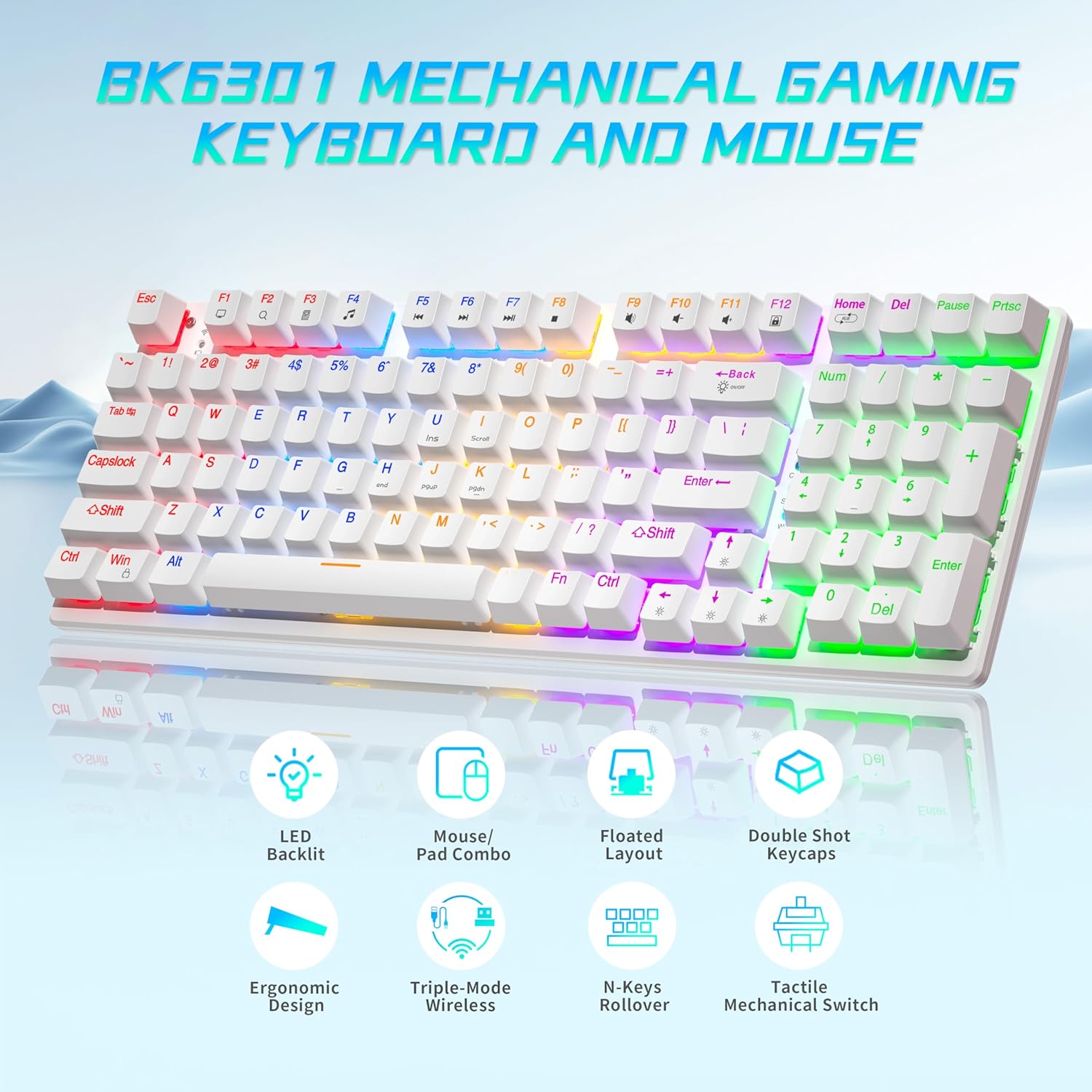
Image: The Taiahiro BK6301 keyboard and mouse combo, showcasing its LED backlit keys, mouse/pad combo, floated layout, double shot keycaps, ergonomic design, triple-mode wireless, N-keys rollover, and tactile mechanical switches.
2.1 Funkce klávesnice
- Rozložení 98 kláves: Full-size keyboard including a numeric keypad.
- Modré mechanické spínače: Provides satisfying tactile and audible feedback for typing and gaming.
- Double Shot Injection Keycaps: Ensures key legends remain clear and legible over time.
- Trojitý režim připojení: Supports USB-C wired, 2.4G wireless, and Bluetooth 5.0 connections.
- RGB podsvícení: 8 different lighting modes with adjustable brightness and breathing speed.
- Anti-Ghosting: Zajišťuje přesnou registraci více současných stisknutí kláves.

Obrázek: Detailní záběr view illustrating the internal structure of the blue mechanical switches, highlighting their 50,000,000 keystroke life, 60±15g key force, and 2.4±0.2mm stroke travel.
2.2 Funkce myši
- Dual-Mode Wireless: Connects via 2.4G wireless or Bluetooth.
- Nastavitelné DPI: Four DPI levels (800/1600/2400/3200) for precision control.
- Ergonomický design: Contoured shape with textured grip for comfortable use.
- Anti-Skid Scroll Wheel: For improved control.

Image: The Taiahiro wireless gaming mouse, featuring its 4 adjustable DPI levels (800/1600/2400/3200) and convenient forward/back buttons.
3. Pokyny k nastavení
3.1 Keyboard Setup
The keyboard supports three connection modes: USB-C wired, 2.4G wireless, and Bluetooth.
- Drátový režim USB-C:
Připojte dodaný kabel USB-C z klávesnice k volnému portu USB v počítači. Klávesnice bude automaticky rozpoznána a připravena k použití. - 2.4G bezdrátový režim:
Locate the USB receiver, typically stored in the mouse's battery compartment. Plug the USB receiver into an available USB port on your computer. The keyboard should connect automatically. - Režim Bluetooth:
Ensure the keyboard is in Bluetooth pairing mode (refer to keyboard specific key combination, usually Fn + a Bluetooth key). On your device (PC, laptop, tablet, phone), go to Bluetooth settings and select the keyboard from the list of available devices to pair.

Image: The Taiahiro keyboard and mouse demonstrating its 3-mode wireless capabilities, connecting to a laptop via USB-C, a monitor via 2.4GHz, and a tablet via Bluetooth.
3.2 Mouse Setup
The mouse supports 2.4G wireless and Bluetooth connections.
- Nainstalujte baterii: The mouse requires one AA battery. Open the battery compartment on the underside of the mouse and insert the included AA battery, ensuring correct polarity.
- Zapnutí: Slide the power switch on the bottom of the mouse to the 'ON' position.
- 2.4G bezdrátový režim:
The USB receiver for the 2.4G connection is stored in the mouse's battery compartment. Remove it and plug it into an available USB port on your computer. The mouse should connect automatically. - Režim Bluetooth:
Ensure the mouse is in Bluetooth pairing mode (refer to mouse specific button, usually a button on the underside). On your device, go to Bluetooth settings and select the mouse from the list of available devices to pair.
Video: A brief demonstration of unboxing the keyboard and mouse, showing the initial setup and connection process.
4. Návod k obsluze
4.1 Keyboard Backlighting Control
The keyboard features 8 RGB backlighting modes. Use the following key combinations to adjust:
- Změnit režim osvětlení: Stiskněte Fn + Home procházet různými světelnými efekty.
- Upravit jas: Stiskněte Fn + ↑ (Up Arrow) pro zvýšení jasu a Fn + ↓ (Down Arrow) ke snížení jasu.
- Upravit rychlost: Stiskněte Fn + ← (Left Arrow) to decrease effect speed, and Fn + → (Right Arrow) pro zvýšení rychlosti efektu.
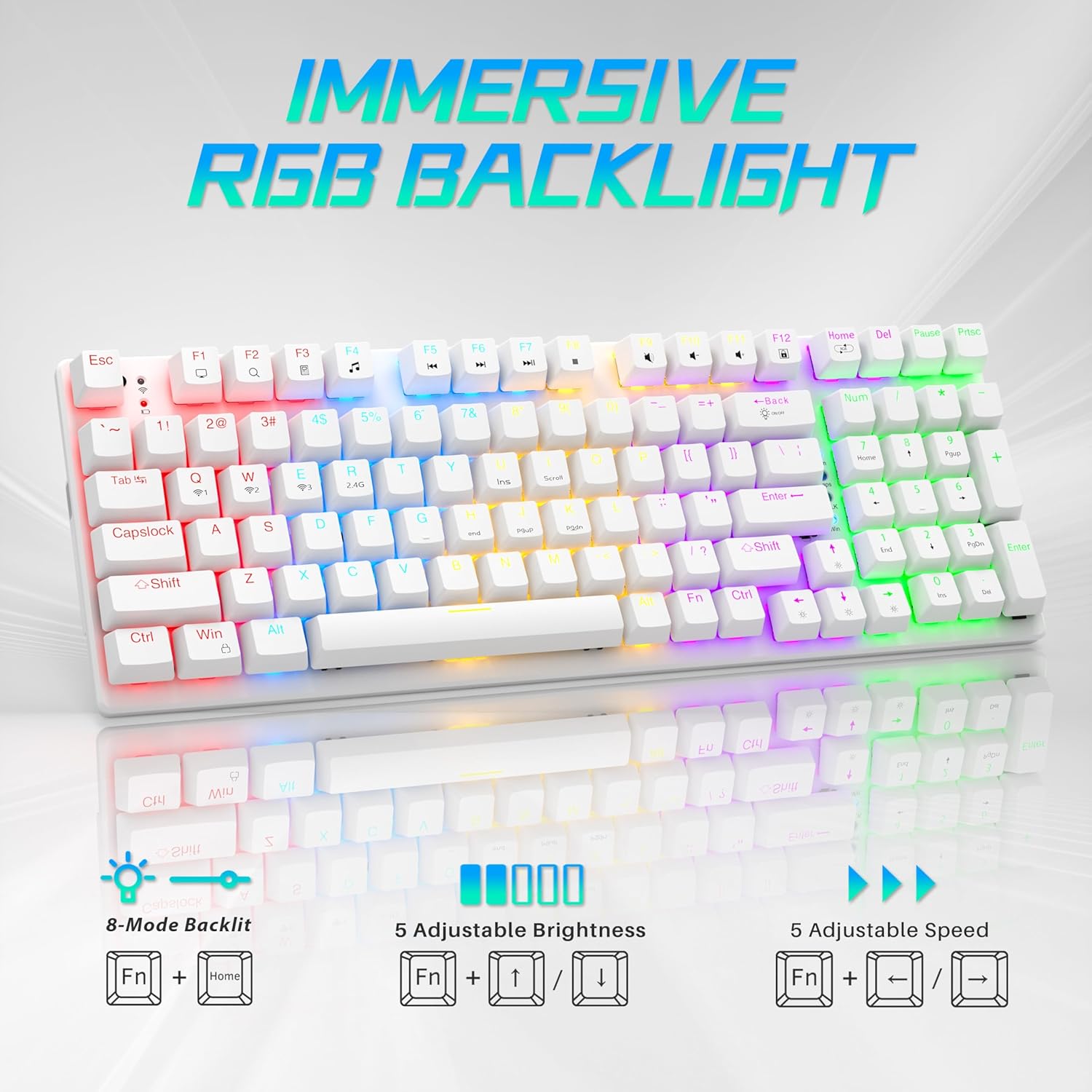
Image: Visual guide to controlling the keyboard's immersive RGB backlight, showing key combinations for 8-mode backlight, 5 adjustable brightness levels, and 5 adjustable speeds.
Video: A demonstration of the keyboard's RGB backlighting in action, highlighting the various lighting effects and colors.
4.2 Nastavení DPI myši
The mouse features 4 adjustable DPI levels for varying cursor sensitivity.
- Change DPI: Press the DPI button located on the top of the mouse, below the scroll wheel, to cycle through the 800, 1600, 2400, and 3200 DPI settings.
5. Údržba
- Čištění: Use a soft, dry cloth to clean the surfaces of the keyboard and mouse. For deeper cleaning, a can of compressed air can remove dust and debris from between keycaps.
- Mouse Battery Replacement: When the mouse's performance degrades, replace the AA battery in the compartment on the underside.
- Demontáž krytky kláves: A keycap puller (often included with mechanical keyboards) can be used to carefully remove keycaps for cleaning or replacement.
Video: Podrobný popisview demonstrating the mouse battery installation, USB receiver storage, and the use of a keycap puller for keyboard maintenance.
6. Řešení problémů
- Zařízení se nepřipojuje:
- Ensure the device is powered on and fully charged (keyboard) or has a fresh battery (mouse).
- Pro bezdrátové připojení 2.4G se ujistěte, že je USB přijímač bezpečně zapojený do funkčního USB portu.
- For Bluetooth, ensure the device is in pairing mode and your computer's Bluetooth is enabled and searching. Try re-pairing the device.
- If using wired mode, ensure the USB-C cable is properly connected.
- Keyboard Backlighting Not Working:
- Ujistěte se, že je klávesnice zapnutá.
- Try adjusting brightness using Fn + ↑.
- Přepínejte mezi režimy osvětlení pomocí Fn + Home.
- Mouse Cursor Jumps or is Unresponsive:
- Vyměňte baterii myši.
- Ujistěte se, že je senzor myši čistý a bez nečistot.
- Try using the mouse on a different surface or the provided mouse pad.
- Re-pair the mouse with your computer.
7. Specifikace
| Funkce | Detail |
|---|---|
| Číslo modelu | BK6301 |
| Technologie připojení | Bezdrátové připojení 2.4 GHz, Bluetooth 5.0, kabelové USB-C |
| Typ klávesnice | Mechanická herní klávesnice |
| Typ přepínače | Modré mechanické spínače |
| Klíčový život | 50 milionů kliknutí |
| Podsvícení | RGB (8 Modes) |
| Úrovně DPI myši | 800/1600/2400/3200 |
| Baterie do myši | 1 AA baterie (součástí balení) |
| Kompatibilní zařízení | Laptop, PC (Windows, macOS, Android) |
| Rozměry produktu (klávesnice) | Přibližně 14.7 cm D x 5.2 cm Š x 1.8 cm V |
| Hmotnost položky | 2.68 libry |

Image: The Taiahiro BK6301 keyboard and mouse with key dimensions labeled for reference.
8. Záruka a podpora
For warranty information, technical support, or any product-related inquiries, please refer to the contact details provided in your product packaging or visit the official Taiahiro webmísto. Uschovejte si doklad o koupi pro případ záručních reklamací.


