1. Přesview
The TECKNET Ergonomic Mouse TK-MS042 is a versatile, rechargeable wireless mouse designed for comfort and multi-device productivity. It features dual Bluetooth 5.0 and 2.4G connectivity, a unique volume control knob, quiet clicks, and adjustable DPI settings to enhance your computing experience.
1.1 Obsah balení
- TECKNET Ergonomic Mouse (TK-MS042)
- USB-A přijímač
- Nabíjecí kabel USB-C
- Uživatelská příručka
1.2 Schéma produktu
Familiarize yourself with the mouse's components:
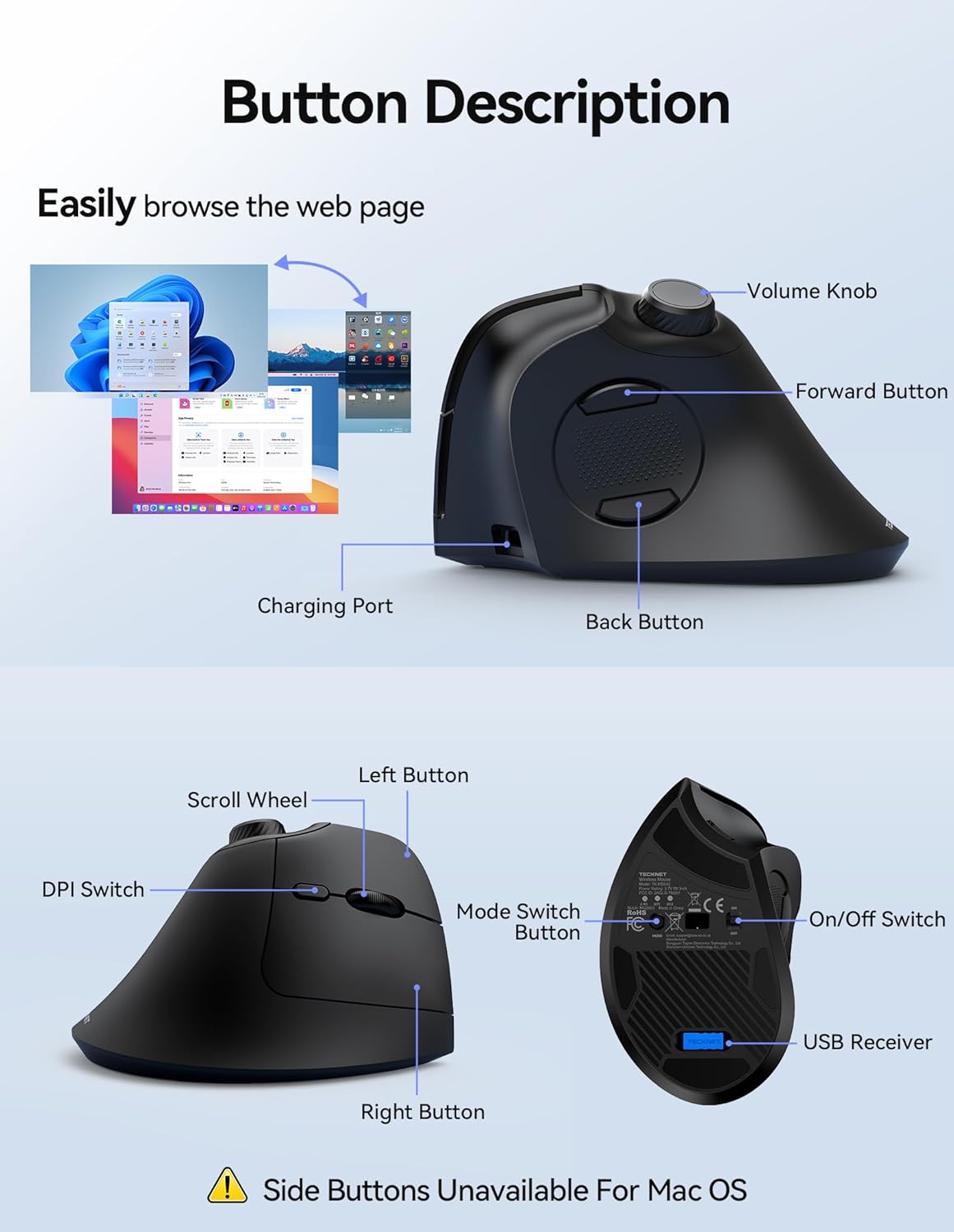
- Knoflík hlasitosti: Adjusts media volume and controls playback (press for play/pause).
- Tlačítko vpřed: Naviguje vpřed web prohlížeče nebo aplikace.
- Tlačítko Zpět: Naviguje zpět web prohlížeče nebo aplikace.
- Nabíjecí port: USB-C port for recharging the mouse.
- Levé tlačítko: Standard left-click function (quiet click).
- Rolovací kolečko: Pro vertikální rolování.
- Přepínač DPI: Cycles through adjustable DPI settings.
- Pravé tlačítko: Standard right-click function (quiet click).
- Tlačítko pro přepnutí režimu: Toggles between 2.4G and Bluetooth channels (BT1, BT2).
- Vypínač: Zapíná nebo vypíná myš.
- Přihrádka pro USB přijímač: Stores the 2.4G USB-A receiver.
2. Nastavení
2.1 Nabíjení myši
The mouse is equipped with a 500mAh rechargeable battery and a USB-C charging port. A full charge takes approximately 2.5 hours and provides up to 60 days of use.
- Connect the included USB-C charging cable to the charging port on the front of the mouse.
- Druhý konec kabelu připojte k USB zdroji napájení (např. k USB portu počítače, USB adaptéru do zásuvky).
- During charging, the scroll wheel area will display a red light. It will turn green once fully charged.

2.2 Připojení přes 2.4G USB přijímač
For a stable and low-latency connection, use the 2.4G USB-A receiver.
- Locate the USB-A receiver in the compartment beneath the bottom cover of the mouse.
- Turn on the mouse using the On/Off switch on the bottom. The first indicator light (2.4G) will briefly flash red.
- Vložte USB-A přijímač do volného USB portu na vašem počítači.
- The computer should automatically detect and install the necessary drivers. The mouse is ready for use when the cursor responds to movement.
2.3 Připojení přes Bluetooth (BT1 / BT2)
The mouse supports two Bluetooth channels (BT1 and BT2) for seamless switching between devices.
- Zapněte myš pomocí vypínače na spodní straně.
- Press the Mode Switch Button on the bottom of the mouse to select either BT1 or BT2. The corresponding indicator light (BT1 or BT2) will flash slowly.
- Press and hold the Mode Switch Button for 3 seconds until the selected Bluetooth indicator light begins to flash rapidly. This indicates the mouse is in pairing mode.
- Na svém zařízení (počítači, smartphonu, tabletu) otevřete nastavení Bluetooth a vyhledejte nová zařízení.
- Select "TK-MS042 BT5.0" from the list of available devices to connect.
- Once connected, the Bluetooth indicator light on the mouse will stop flashing.
- Repeat these steps to connect to a second Bluetooth device using the other Bluetooth channel (BT1 or BT2).

3. Návod k obsluze
3.1 Adjusting DPI
The mouse supports 6 adjustable DPI levels (800/1200/1600/2400/3200/4800) for precise cursor control.
- Press the DPI Switch button located behind the scroll wheel to cycle through the DPI settings.
- The first indicator light on the bottom of the mouse will flash a corresponding number of times to indicate the current DPI level (e.g., 1 flash = 800 DPI, 2 flashes = 1200 DPI, etc.).
- Higher DPI levels result in faster cursor movement, while lower levels provide slower, more precise control.

3.2 Using the Volume Knob
The integrated volume knob provides convenient media control.
- Otáčet po směru hodinových ručiček: Increase media volume.
- Otočit proti směru hodinových ručiček: Decrease media volume.
- Zmáčkni: Play/Pause media playback.

3.3 Přepínání více zařízení
Easily switch between up to three connected devices (one 2.4G and two Bluetooth) using the Mode Switch Button on the bottom of the mouse.
- Press the Mode Switch Button to cycle through the connected channels: 2.4G, BT1, BT2.
- The corresponding indicator light on the bottom of the mouse will illuminate to show the active connection.
3.4 Funkce tichého kliknutí
The mouse is engineered with ultra-quiet button mechanisms, providing soft, tactile clicks without distracting noise. This feature is ideal for quiet environments such as libraries, offices, or late-night work sessions.

3.5 Ergonomický design
The mouse features a 57° tilt design and integrated palm support, promoting a natural and relaxed hand position to help prevent wrist fatigue and carpal tunnel syndrome during extended use.

4. Údržba
4.1 Čištění myši
To maintain optimal performance and hygiene, regularly clean your mouse.
- Použijte měkký hadřík, který nepouští vlákna dampPovrch myši otřete vodou nebo jemným čisticím roztokem.
- Nepoužívejte agresivní chemikálie nebo abrazivní materiály, které by mohly poškodit povrch myši.
- Ensure the optical sensor on the bottom of the mouse is clean and free of dust or debris for accurate tracking.
4.2 Péče o baterii
Chcete -li prodloužit životnost baterie:
- Před prvním použitím myš plně nabijte.
- Vyhněte se častému úplnému vybíjení baterie.
- If not using the mouse for an extended period, turn it off to conserve battery.
5. Řešení problémů
5.1 Cursor Lag or Unresponsive Movement
If you experience cursor lag or the mouse is unresponsive, try the following:
- Zkontrolujte stav baterie: Ensure the mouse is sufficiently charged. Recharge if the battery is low.
- Čistý optický senzor: Inspect the bottom lens for any dirt or debris and clean it gently.
- Kontrola povrchu: Ensure the mouse is used on a non-glass, non-reflective, and non-smooth surface. A mouse pad is recommended.
- Rušení: Přesuňte myš blíže k přijímači/zařízení nebo dále od jiných bezdrátových zařízení, která by mohla způsobovat rušení.
5.2 Connection Loss (2.4G Mode)
If the 2.4G connection is lost:
- Simultaneously press and hold the Left Mouse Button, Scroll Wheel, and Right Mouse Button for approximately 3 seconds. The first indicator light on the bottom of the mouse will rapidly flash red.
- Within 20 seconds, insert the USB-A receiver into your computer's USB port.
- The first indicator light will turn off, indicating successful re-pairing.
5.3 Connection Loss (Bluetooth Mode)
If the Bluetooth connection is lost:
- On your computer/device, remove or uninstall the mouse from the Bluetooth settings/device manager.
- Simultaneously press and hold the Bluetooth pairing button (Mode Switch Button) on the bottom of the mouse for 3 to 5 seconds to clear the pairing history.
- Then, follow the Bluetooth pairing steps (Section 2.3) to reconnect the mouse.
6. Specifikace
| Funkce | Detail |
|---|---|
| Číslo modelu | TK-MS042 |
| Technologie připojení | Bezdrátové připojení 2.4 GHz, Bluetooth 5.0 (BT1, BT2) |
| Detekce pohybu | Optický |
| Nastavitelný DPI | 800/1200/1600/2400/3200/4800 |
| Typ baterie | Dobíjecí (500 mAh) |
| Doba nabíjení | Přibl. 2.5 hodin |
| Pohotovostní doba | Až 60 dní |
| Speciální funkce | Ergonomic Design, Vertical Orientation, Volume Control Knob, Quiet Clicks |
| Rozměry produktu | 4.74 x 2.49 x 0.1 palce |
| Hmotnost položky | 4.3 unce |
7. Záruka a podpora
TECKNET provides a 36-Month Warranty for registered customers. If you encounter any issues while using the product, please contact our dedicated customer service team for prompt and professional assistance. Your satisfaction is our priority.
8. Oficiální produktová videa
8.1 TECKNET Ergonomic Bluetooth Mouse with Volume Knob
Toto video poskytuje podrobný přehledview of the TECKNET Ergonomic Bluetooth Mouse, highlighting its key features including the volume knob and ergonomic design.
8.2 TECKNET Ergonomic Mouse Unboxing Video
Watch this video for an unboxing experience of the TECKNET Ergonomic Mouse, showcasinjeho obsah a první dojmy.


