1. Úvod
Thank you for choosing the Hama WK-300 Multi-Device Wireless Keyboard. This compact office keyboard is designed for wireless control of computers, smartphones, and tablets, offering versatile connectivity via Bluetooth or a 2.4 GHz radio connection with a USB-A receiver. It allows simultaneous connection to up to three devices, providing a seamless experience for various tasks.
2. Bezpečnostní pokyny
- Pokud dojde k poškození zařízení, neotevírejte jej a nepokračujte v jeho provozu.
- Nepokoušejte se sami provádět servis nebo opravy produktu. Veškeré servisní práce přenechejte kvalifikovaným odborníkům.
- Chraňte výrobek před nečistotami, vlhkostí a přehřátím a používejte jej pouze v suchém prostředí.
- Tento výrobek, stejně jako všechny elektrické výrobky, uchovávejte mimo dosah dětí.
- Nepoužívejte výrobek v oblastech, kde není povoleno používání elektronických zařízení.
- Obalový materiál okamžitě zlikvidujte v souladu s místně platnými předpisy.
3. Obsah balení
Please check that the package contains the following items:
- 1 Hama WK-300 Multi-Device Wireless Keyboard
- 1 USB-A Receiver (typically stored in the battery compartment)
- 1 Návod k použití
Poznámka: AAA batteries are required for operation and are not included in the package.
4. Nastavení
4.1 Instalace baterie
- Vyhledejte přihrádku na baterie na spodní straně klávesnice.
- Otevřete kryt bateriového prostoru.
- Vložte jednu baterii AAA a dbejte na správnou polaritu (+/-).
- Bezpečně zavřete kryt bateriového prostoru.
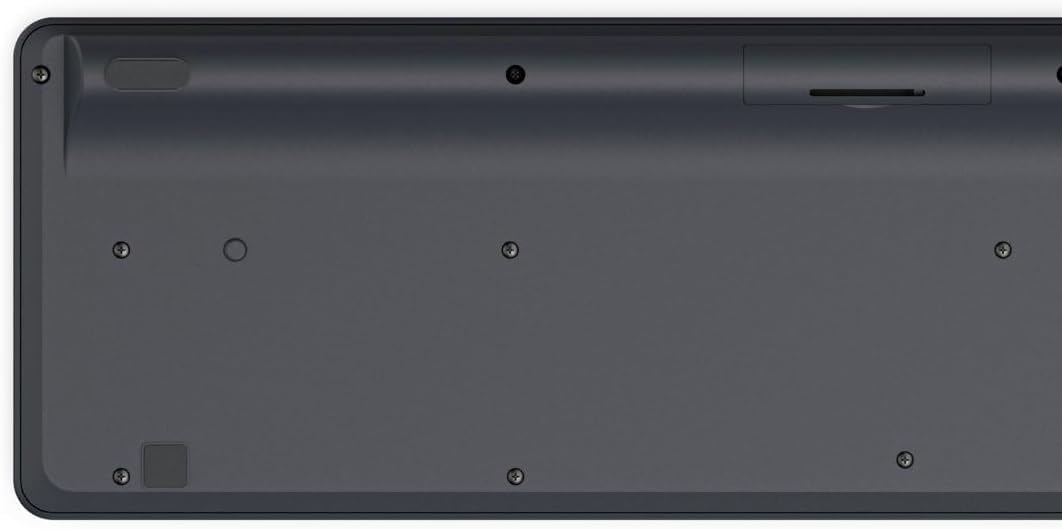
Image: Underside of the Hama WK-300 keyboard, illustrating the battery compartment and the storage slot for the USB receiver.
4.2 Připojení k zařízením
The Hama WK-300 keyboard supports connection to up to three devices simultaneously via 2.4 GHz radio (channel 1) and Bluetooth (channels 2 and 3).
4.2.1 2.4 GHz Radio Connection (Channel 1)
- Remove the USB-A receiver from its storage slot in the battery compartment.
- Plug the USB-A receiver into a free USB port on your computer.
- Switch the keyboard to channel 1 (usually indicated by a switch or button on the keyboard). The keyboard should automatically connect to your computer.
4.2.2 Bluetooth Connection (Channels 2 & 3)
- Switch the keyboard to either channel 2 or channel 3.
- Press and hold the pairing button (refer to keyboard layout for exact location, often combined with the channel switch) until the indicator light flashes, signifying pairing mode.
- On your device (smartphone, tablet, computer), go to Bluetooth settings and search for new devices.
- Select "Hama WK-300" from the list of available devices to complete the pairing process.
4.3 Přepínání mezi zařízeními
To switch between connected devices, simply press the corresponding channel button (1, 2, or 3) on the keyboard. The keyboard will instantly connect to the selected device.
5. Ovládání klávesnice
5.1 Basic Typing Functions
The Hama WK-300 features a QWERTY layout with quiet keys, ensuring a comfortable and undisturbed typing experience. Simply begin typing after connecting to your device.

Obrázek: Shora dolů view of the Hama WK-300 keyboard, highlighting its 90% layout and key functions, including the Fn key for multimedia controls.
5.2 Multimedia Functions (Fn Keys)
The F keys (F1-F12) have secondary assignments for multimedia control. To activate these functions, press and hold the Fn key simultaneously with the desired F key. This allows for quick control of media playback, volume, and other system functions without navigating through system settings.
5.3 AI Assist Button
The dedicated Assist button activates a cross-program AI assistant, enhancing productivity by providing quick access to intelligent features.
5.4 Úspora energie
The keyboard is battery-operated and designed for efficiency, making it ideal for mobile use. It will enter a low-power state after a period of inactivity to conserve battery life.
6. Údržba
6.1 Čištění klávesnice
To clean your keyboard, ensure it is turned off and disconnected from any devices. Use a soft, lint-free cloth slightly dampened with water or a mild cleaning solution. Avoid excessive moisture and abrasive cleaners. Do not immerse the keyboard in water.
6.2 Výměna baterie
When the keyboard's performance diminishes or it stops responding, it may be time to replace the AAA battery. Follow the battery installation steps outlined in Section 4.1.
7. Řešení problémů
- Klávesnice se nepřipojuje: Ensure the keyboard has fresh batteries and is switched to the correct channel (1 for 2.4 GHz, 2 or 3 for Bluetooth). For Bluetooth, ensure the keyboard is in pairing mode and your device's Bluetooth is enabled. For 2.4 GHz, ensure the USB receiver is properly inserted into your device.
- Klávesy nereagují: Check battery level. If using 2.4 GHz, try plugging the USB receiver into a different USB port. If using Bluetooth, try re-pairing the keyboard with your device.
- Přerušované připojení: Ensure there are no strong interference sources nearby (e.g., other wireless devices, large metal objects). Try moving closer to your device.
- Multimediální klávesy nefungují: Ujistěte se, že stisknete tlačítko Fn současně s požadovanou klávesou F.
8. Specifikace
| Značka | Hama |
| Číslo modelu | 182641 |
| Barva | Černý |
| Konektivita | 2.4 GHz Radio (USB-A receiver), Bluetooth (2 channels) |
| Počet zařízení | Až 3 simultánních zařízení |
| Rozložení klávesnice | QWERTY |
| Rozměry produktu (DxŠxV) | 16 x 43.8 x 2.6 centimetrů |
| Hmotnost položky | 447 g |
| Jsou vyžadovány baterie | Baterie 1 AAA (není součástí dodávky) |
9. Záruka
The Hama WK-300 Multi-Device Wireless Keyboard comes with a 5-letá záruka. Please retain your proof of purchase for warranty claims. For detailed warranty terms and conditions, refer to the official Hama webwebu nebo kontaktujte zákaznickou podporu.
10. Podpora
For further assistance, technical support, or to inquire about spare parts, please contact Hama customer service. You can find contact information on the official Hama webweb (www.hama.com) or through your local retailer.


