1. Úvod
The iflytek AINOTE Air 2 is an 8.2-inch digital note-taking tablet designed to enhance productivity through advanced AI features. This device offers a paper-like writing experience, real-time speech-to-text transcription, multilingual translation, and intelligent summarization capabilities. It is suitable for professionals, students, and anyone seeking an efficient digital note-taking solution.

Figure 1: iflytek AINOTE Air 2 Tablet with Folio Case and Stylus
2. Co je v krabici
Po vybalení zkontrolujte, zda jsou všechny položky přítomny:
- iflytek AINOTE Air 2 Paper Tablet
- Stylus Pen
- Black Folio Case
- Nabíjecí kabel USB-C
- Rychlý průvodce
3. Počáteční nastavení
3.1 Zapnutí zařízení
- Press and hold the power button located on the top edge of the device for approximately 3 seconds until the screen illuminates.
- The device will display the iflytek AINOTE logo during startup.
3.2 Stylus Pen Attachment
The stylus pen magnetically attaches to the side of the AINOTE Air 2 tablet for convenient storage and charging (if applicable).
3.3 Language and Region Selection
- Postupujte podle pokynů na obrazovce a vyberte preferovaný jazyk a region.
- Confirm your selections to proceed.
3.4 Síťové připojení
- Vyberte svou síť Wi-Fi ze seznamu dostupných.
- Zadejte heslo, pokud se zobrazí výzva, a klepněte na tlačítko „Připojit“.
- A stable internet connection is recommended for optimal performance of AI features and cloud synchronization.
4. Návod k obsluze
4.1 Note-Taking and Handwriting Conversion
The AINOTE Air 2 provides a natural, paper-like writing experience with its stylus and E Ink screen.
- To create a new note, navigate to the 'Notes' section and tap the '+' icon.
- Use the stylus to write directly on the screen. The device supports 4,096 pressure levels for varied stroke thickness.
- To convert handwritten notes to text, select the desired text using the stylus and choose the 'Convert to Text' option. The device supports conversion to 85 languages.
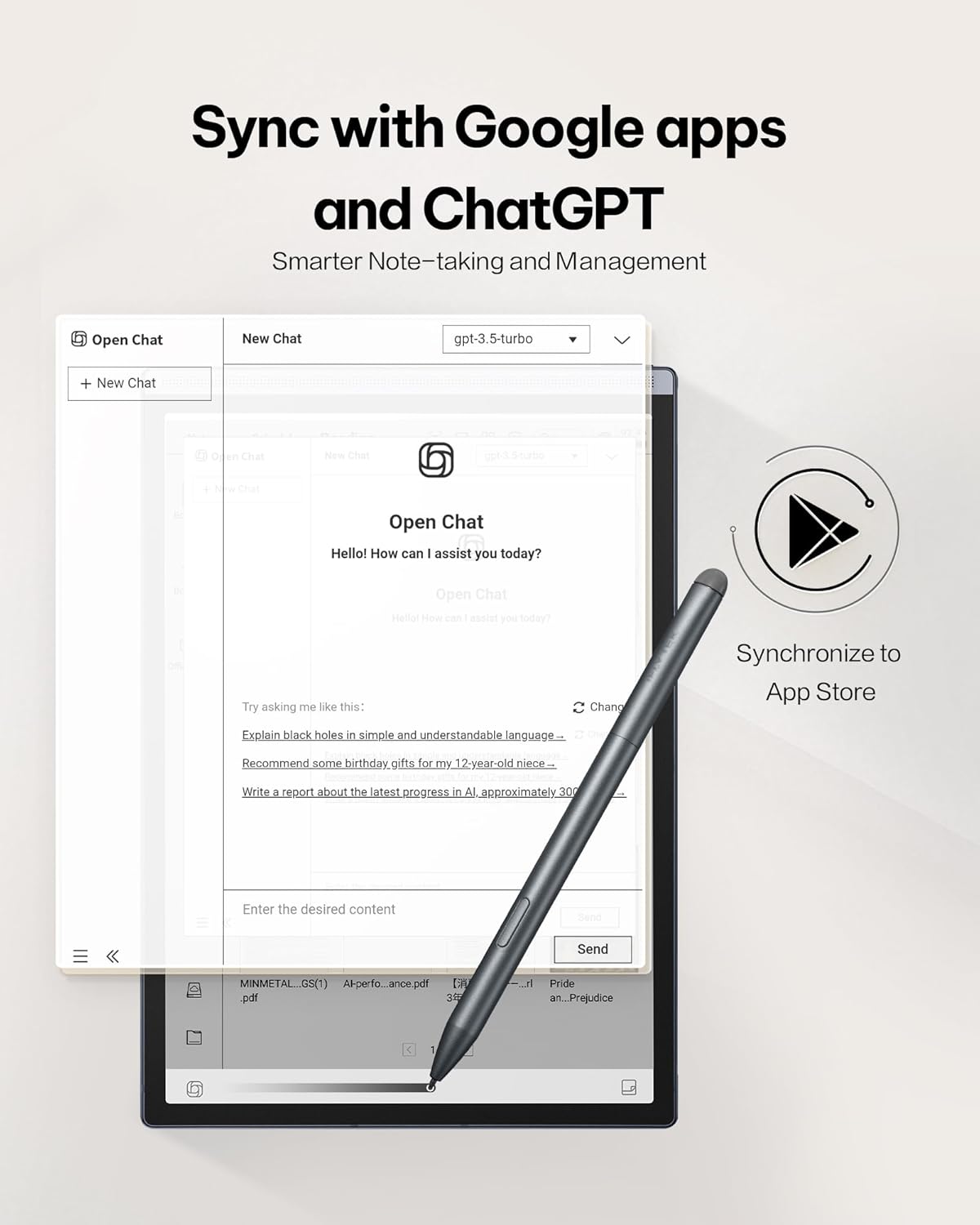
Figure 2: Paper-Like Writing Experience
4.2 Voice-to-Text Transcription
The device can transcribe spoken words into text in real-time, supporting 16 languages.
- In a note or meeting interface, tap the 'Record' button to begin audio capture.
- Speak clearly into the device's microphone. The spoken words will appear as text on the screen.
- To stop recording, tap the 'Finish' button.
Video 1: Demonstration of the iflytek AINOTE Air 2's precise voice-to-text transcription.
4.3 Multilingual Transcription and Translation
The AINOTE Air 2 supports real-time transcription in 16 languages and handwritten note conversion to 85 languages.
- During voice transcription, select the language option to choose from the supported languages.
- For handwritten notes, select the text and choose the translation option to convert to the desired language.
- Poznámka: Voice transcription and handwritten text conversion cannot be used simultaneously. Complete one process before starting the other.

Figure 3: Multilingual Transcription Support
4.4 AI Notetaker and Smart Planner
Leverage AI to organize your notes and manage your schedule efficiently.
- The device can generate meeting summaries from transcribed audio. Access this feature from the recording interface.
- Use intuitive AI features to generate to-do lists and manage schedules automatically from your notes.
Video 2: Guide on activating and utilizing ChatGPT features on the iflytek AINOTE Air 2.
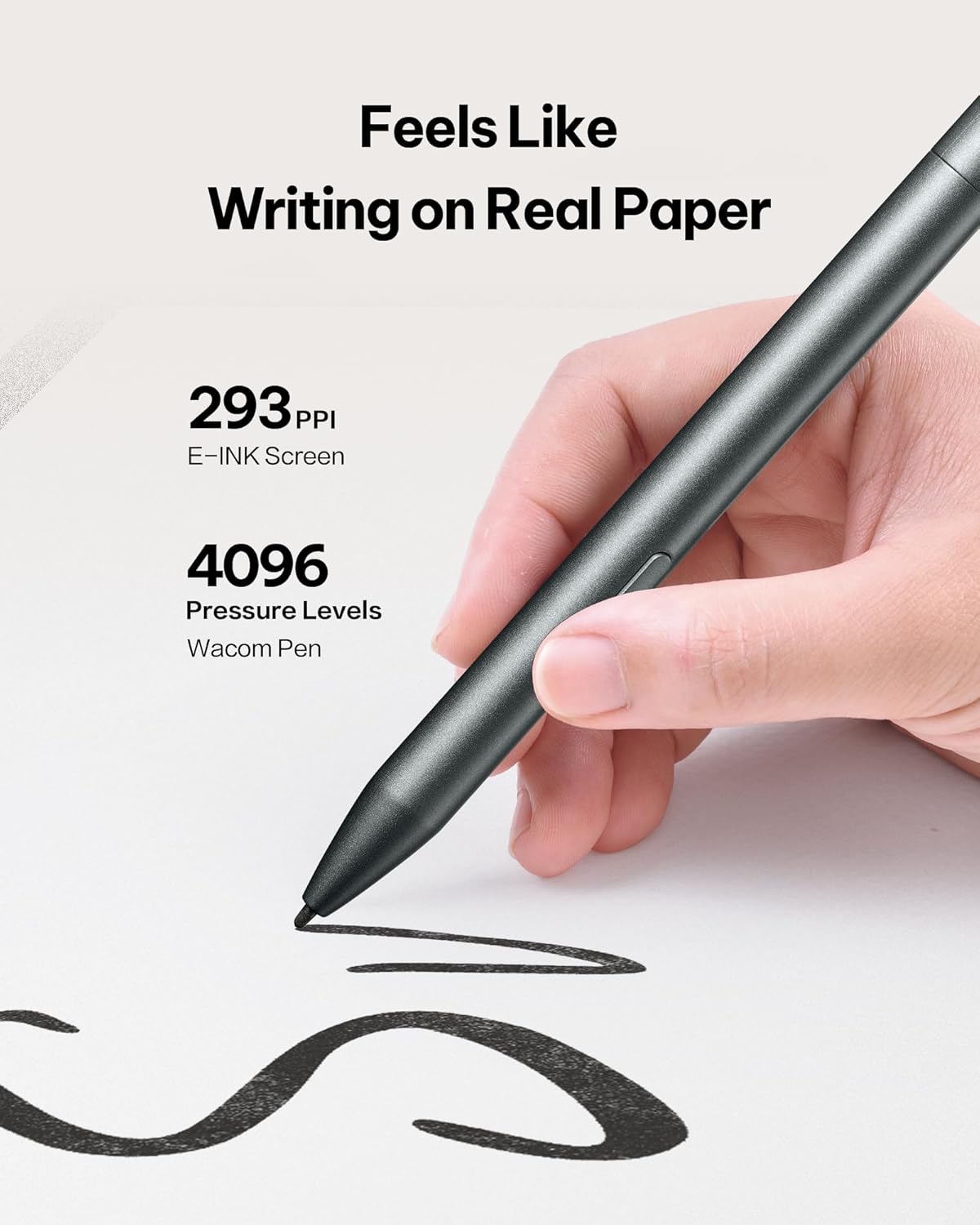
Figure 4: AI Notetaker & Smart Planner
4.5 Reading Documents and E-books
The E Ink display is designed for comfortable reading, similar to physical paper.
- Navigate to the 'Reading' section to access your documents and e-books.
- The dual-color adjustable reading light allows you to customize the display for various lighting conditions, reducing eye strain. Adjust brightness and color temperature via the quick settings menu.
- You can import PDF, EPUB, and other supported formats via Wi-Fi or USB connection.
Video 3: Konecview of the iflytek AINOTE Air 2's reading capabilities and eye-friendly display.

Figure 5: Eye-Friendly Reading with Adjustable Light
4.6 Document Scanning
The integrated 5 MP rear camera can be used for document scanning.
- Open the 'Scanner' application.
- Position the document under the camera and capture the image.
- The device will process the image, allowing you to save it as a PDF or Word document.
5. Údržba
5.1 Čištění zařízení
Pro udržení optimálního výkonu a vzhledu:
- K jemnému otření obrazovky a těla zařízení použijte měkký hadřík, který nepouští vlákna.
- Vyhněte se používání agresivních chemikálií nebo abrazivních materiálů.
5.2 Péče o baterii
The AINOTE Air 2 has an average battery life of 5 weeks. To prolong battery life:
- Nabijte zařízení pomocí dodaného kabelu USB-C.
- Vyhněte se extrémním teplotám.
5.3 Aktualizace softwaru
Regular software updates are released to improve functionality and performance.
- Připojte své zařízení k Wi-Fi.
- Navigate to 'Settings' > 'System Updates' to check for and install available updates.
6. Řešení problémů
6.1 Zařízení nereaguje
- Proveďte měkký reset stisknutím a podržením tlačítka napájení po dobu 10-15 sekund.
- If the issue persists, ensure the device is charged.
6.2 Handwriting Not Registering
- Ensure the stylus tip is clean and not damaged.
- Verify the stylus is properly connected or charged (if applicable).
6.3 Problémy s připojením k Wi-Fi
- Restart your Wi-Fi router and the AINOTE Air 2.
- Zkontrolujte, zda se ostatní zařízení mohou připojit ke stejné síti Wi-Fi.
6.4 Obnovení továrního nastavení
If other troubleshooting steps fail, a factory reset may resolve software-related issues. Warning: This will erase all data on your device. Back up important files před pokračováním.
- Navigate to 'Settings' > 'System' > 'Reset options'.
- Select 'Erase all data (factory reset)' and confirm.
7. Specifikace
| Funkce | Detail |
|---|---|
| Název modelu | AINOTE Air 2 |
| Velikost obrazovky | 8.2 palce |
| Rozlišení displeje | 1440 x 1920 pixelů |
| Procesor | 1.8 GHz Qualcomm |
| Kapacita paměti | 32 GB |
| Velikost paměti Flash | 4 GB |
| Operační systém | Android |
| Bezdrátový typ | 802.11 g |
| Průměrná životnost baterie | 5 týden |
| Hmotnost položky | 1.56 libry |
| Rozměry produktu | 7.6 x 5.4 x 0.25 palce |
| Zadní WebRozlišení vačky | 5 MP |
8. Záruka a podpora
8.1 Informace o záruce
The iflytek AINOTE Air 2 Bundle comes with a 1letá omezená záruka from the date of purchase, covering manufacturing defects. This warranty does not cover damage caused by misuse, accidents, or unauthorized modifications.
8.2 Zákaznická podpora
For technical assistance, troubleshooting, or warranty claims, please contact iflytek customer support:
- Online podpora: Visit the official iflytek website for FAQs, user guides, and online chat support.
- E-mailová podpora: Refer to your product packaging or quick start guide for the specific email address.
Před kontaktováním podpory si prosím připravte model produktu a datum zakoupení.


