1. Úvod
This manual provides detailed instructions for the setup, operation, maintenance, and troubleshooting of your Keychron Q6 HE QMK Wireless Custom Mechanical Keyboard. Please read this guide thoroughly to ensure optimal performance and longevity of your device.
The Keychron Q6 HE is a full-size layout wireless QMK custom keyboard featuring Hall Effect Gateron 2.0 magnetic switches, offering advanced customization and a premium typing experience.
2. Obsah balení
Ověřte, zda jsou v balení přítomny všechny položky:
- Keychron Q6 HE Keyboard
- Keyboard PCB
- Věc
- Hliníková deska
- Keycaps (Mac & Windows compatible)
- Kabel USB-C na USB-C
- Adaptér USB-A na USB-C
- Stahovák spínačů
- Stahovač klíčů
- Uživatelská příručka

Image: Keychron Q6 HE keyboard with included accessories, showcasing the full package contents.
3. Nastavení
3.1 Počáteční připojení
The Keychron Q6 HE supports three connection modes: 2.4 GHz Wireless, Bluetooth 5.1, and Wired (USB-C).
3.1.1 Kabelové připojení
- Připojte dodaný kabel USB-C k portu USB-C na klávesnici.
- Připojte druhý konec kabelu k USB portu počítače.
- Ensure the mode switch on the back of the keyboard is set to 'Cable' mode.
- Klávesnice bude automaticky rozpoznána vaším operačním systémem.
3.1.2 Bezdrátové připojení 2.4 GHz
- Locate the 2.4 GHz receiver (dongle) included with your keyboard.
- Zapojte přijímač 2.4 GHz do volného portu USB na počítači.
- Set the mode switch on the back of the keyboard to '2.4G' mode.
- The keyboard should automatically connect to the receiver. If not, press and hold the 'Fn' + '4' keys for 4 seconds to initiate pairing.
3.1.3 Připojení Bluetooth
- Set the mode switch on the back of the keyboard to 'Bluetooth' mode.
- To enter pairing mode, press and hold 'Fn' + '1' (for device 1), 'Fn' + '2' (for device 2), or 'Fn' + '3' (for device 3) for 4 seconds until the indicator light flashes rapidly.
- On your computer, smartphone, or tablet, enable Bluetooth and search for 'Keychron Q6 HE'.
- Vyberte klávesnici, kterou chcete spárovat. Po připojení kontrolka přestane blikat.
- You can switch between paired Bluetooth devices by pressing 'Fn' + '1', 'Fn' + '2', or 'Fn' + '3' briefly.
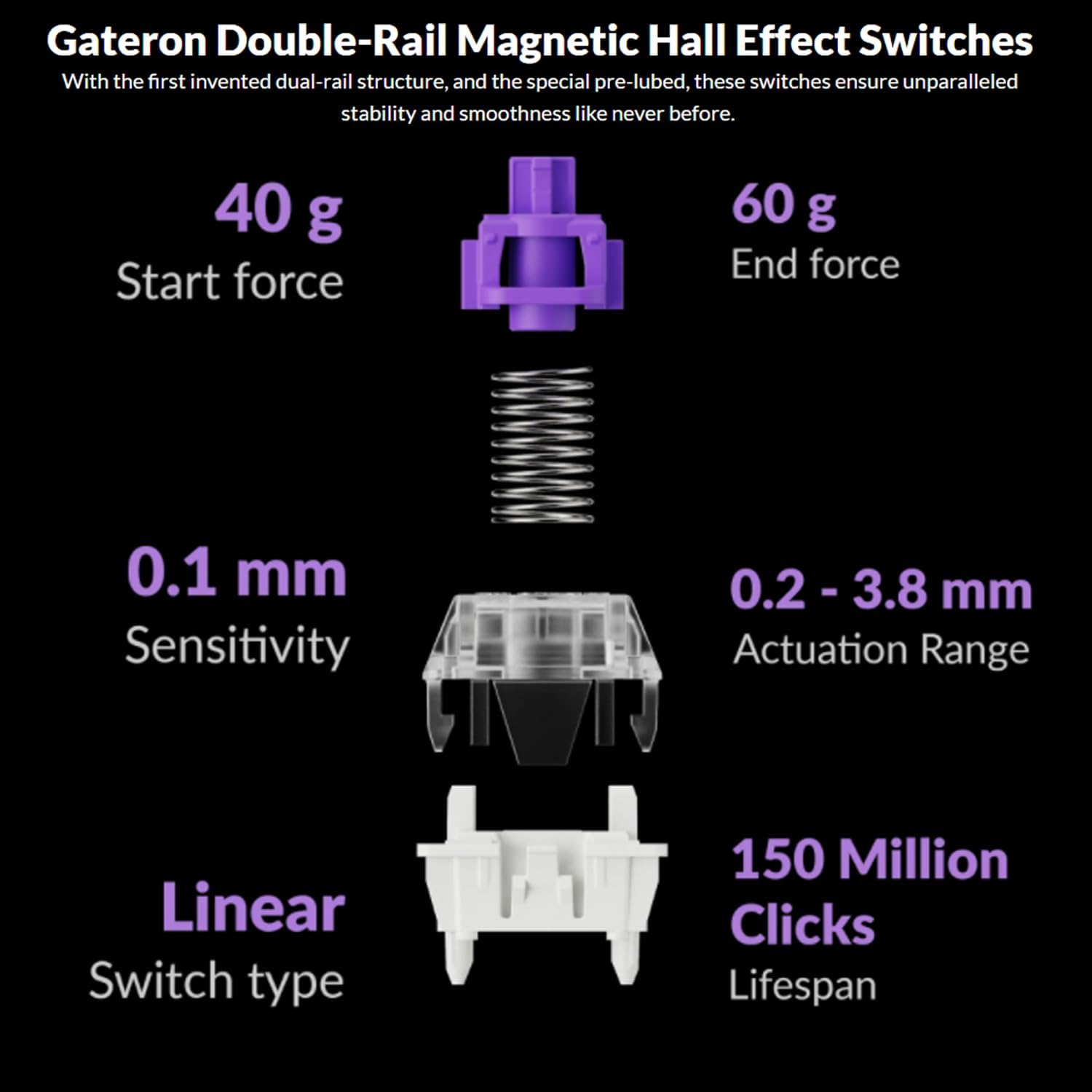
Image: The Keychron Q6 HE keyboard connected to a computer and a tablet, demonstrating its multi-device connectivity.
3.2 Přepínač operačního systému
The keyboard has a switch to toggle between Mac and Windows layouts. Ensure this switch, located on the back of the keyboard, is set to your current operating system for correct key mapping.
3.3 Nabíjení baterie
The keyboard is equipped with a 4000 mAh Lithium Ion battery. Connect the USB-C cable to the keyboard and a power source (computer USB port or USB wall adapter) to charge. The charging indicator light will show the charging status.
4. Návod k obsluze
4.1 Základní funkce kláves
The Q6 HE features a standard 100% layout. All keys function as labeled. Use the 'Fn' key in combination with other keys for secondary functions (e.g., media controls, backlight adjustments).
4.2 Programovatelný knoflík
The rotary knob on the top right of the keyboard is programmable. By default, it controls volume (rotate) and media play/pause (press). Its functions can be customized using the Keychron Launcher web aplikace
4.3 Gateron Magnetic Hall Effect Switches
The Q6 HE utilizes Gateron Double-Rail Magnetic Hall Effect Switches, which allow for dynamic customization of key behavior.

Image: Diagram illustrating the adjustable actuation points of the magnetic switches, ranging from 0.5mm to 3.5mm.
4.3.1 Adjustable Actuation Points
The actuation point (the distance a key needs to travel to register a press) can be adjusted from 0.1 mm to 3.8 mm using the Keychron Launcher web app. This allows for personalized typing and gaming sensitivity.
4.3.2 Rychlé spouštění
Rapid Trigger functionality allows a key to reactivate instantly upon reset, without needing to return to its original position. This feature is highly beneficial for competitive gaming and can be configured via the Keychron Launcher.

Image: Detailed breakdown of Gateron Double-Rail Magnetic Hall Effect Switches, showing components and specifications like start force, end force, sensitivity, actuation range, switch type, and lifespan.
4.4 RGB podsvícení
The keyboard features south-facing RGB LED lights. You can cycle through various lighting effects and adjust brightness using 'Fn' key combinations or through the Keychron Launcher web aplikace
4.5 Keychron Launcher Web App
The Keychron Launcher is a web-based application for advanced customization. It allows you to:
- Přemapovat klávesy
- Adjust actuation points for magnetic switches
- Create personalized macro commands
- Set shortcuts and key combinations
- Customize RGB lighting effects

Obrázek: Snímek obrazovky spouštěče Keychron web app interface, showing options for key remapping, actuation point adjustment, and macro creation.
5. Údržba
5.1 Čištění klávesnice
Čištění klávesnice:
- Disconnect the keyboard from all power sources and devices.
- Použijte měkký hadřík, který nepouští vlákna dampKlávesy a pouzdro otřete vodou nebo jemným čisticím roztokem.
- Pro důkladnější čištění použijte k odstranění krytů kláves dodaný stahovák a spodní část vyčistěte stlačeným vzduchem nebo malým kartáčkem.
- Nestříkejte tekutiny přímo na klávesnici.
5.2 Přepínače vyměnitelné za provozu
The Q6 HE features hot-swappable magnetic switches, allowing you to replace individual switches without soldering.

Obrázek: Detail view of the Keychron Q6 HE keyboard with several keycaps and switches removed, highlighting the hot-swappable magnetic switch design.
5.2.1 Výměna spínačů
- Use the switch puller to carefully remove the desired switch. Grip the switch firmly and pull straight up.
- Zarovnejte piny nového spínače s otvory na desce plošných spojů.
- Gently press the new switch into place until it clicks. Ensure it is seated correctly and not bent.
5.3 Péče o baterii
Chcete -li prodloužit životnost baterie:
- Vyhněte se častému úplnému vybíjení baterie.
- Pokud klávesnici delší dobu nepoužíváte, skladujte ji na chladném a suchém místě.
- Nevystavujte klávesnici extrémním teplotám.
6. Řešení problémů
6.1 Klávesnice nereaguje
- Kabelový režim: Ujistěte se, že je kabel USB-C bezpečně připojen ke klávesnici i k počítači. Zkuste jiný port USB nebo kabel.
- Režim 2.4 GHz: Verify the 2.4 GHz receiver is plugged in and the keyboard is set to '2.4G' mode. Re-pair by holding 'Fn' + '4' for 4 seconds.
- Režim Bluetooth: Check if Bluetooth is enabled on your device and the keyboard is paired. Re-pair if necessary by holding 'Fn' + '1/2/3' for 4 seconds.
- Baterie: Ensure the keyboard battery is charged. Connect it to a power source.
6.2 Klávesy se neregistrují nebo se píší dvakrát
- Akční bod: Adjust the actuation point for the affected keys using the Keychron Launcher. A higher actuation point (e.g., 2.0mm or 3.0mm) can help prevent accidental presses or double typing.
- Problém s přepínačem: If a specific key consistently malfunctions, the magnetic switch might be faulty. Consider replacing the hot-swappable switch.
- Firmware: Ensure your keyboard firmware is up to date via the Keychron Launcher.
6.3 RGB Backlight Issues
- Jas: Adjust backlight brightness using 'Fn' key combinations.
- Efekty: Cycle through different RGB effects using 'Fn' key combinations.
- Software: Use the Keychron Launcher to customize and troubleshoot RGB settings.
7. Specifikace
| Číslo modelu | Q6H-P1 |
| Značka | Keychron |
| Technologie připojení | Bezdrátové připojení 2.4 GHz, Bluetooth 5.1, kabelové USB-C |
| Popis klávesnice | Full-size, Ergonomic |
| Speciální funkce | Hall Effect Magnetic Switches, Programmable Knob, Large Battery Capacity, Hot-Swappable |
| Kompatibilní zařízení | PC, Mac, Smartphone, Tablet, Gaming Console |
| Podsvícení klávesnice | RGB (orientace na jih) |
| Materiál | 6063 Aluminum (Case) |
| Baterie | 4000 mAh lithium-iontová (součástí balení) |
| Hmotnost položky | 6.49 libry (přibližně 2.94 kg) |
| Rozměry balení | 19 x 8.5 x 3 palce |

Image: An exploded diagram showing the internal layers and components of the Keychron Q6 HE keyboard, including keycaps, knob, magnetic switches, top case, sound absorbing foam, gaskets, plate, PCB, latex bottom pad, bottom case PET film, bottom case acoustic foam, battery, and silicone gaskets.
8. Informace o záruce
Keychron products typically come with a limited manufacturer's warranty. For specific warranty terms, conditions, and duration, please refer to the official Keychron webwebu nebo záruční kartu dodanou s vaším produktem. Uschovejte si doklad o koupi pro případ reklamace.
9. Podpora
For further assistance, technical support, or to download the latest firmware and software, please visit the official Keychron webmísto:
You can also visit the Keychron store on Amazon for product information and customer service:


