Zavedení
This manual provides detailed instructions for the setup, operation, and maintenance of your Taiahiro Wireless Gaming Keyboard and Mouse Combo. This combo features a 98-key RGB backlit mechanical keyboard with blue switches and an ergonomic wireless gaming mouse, offering versatile connectivity options (USB-C, 2.4G, Bluetooth 5.0) for various devices.
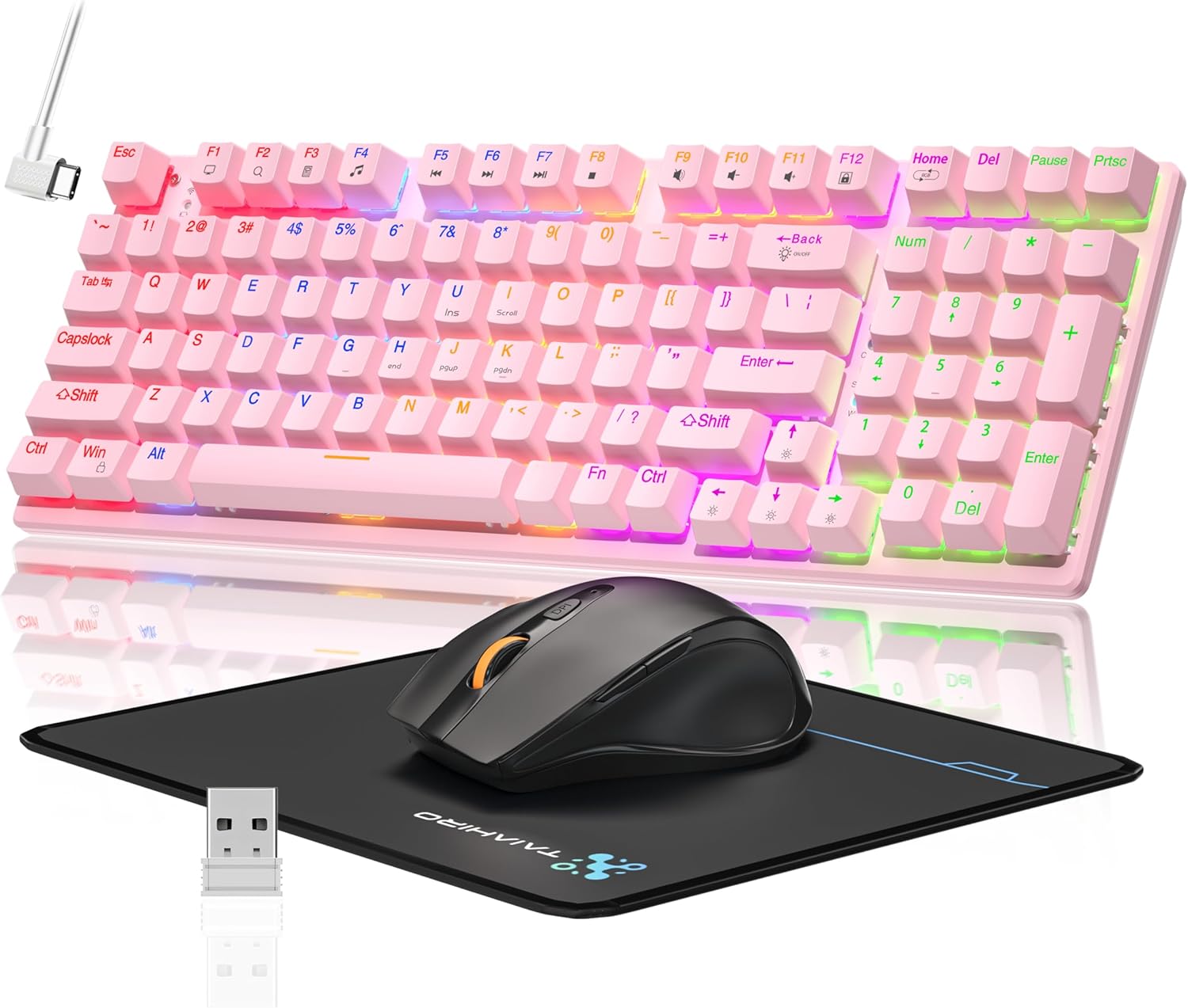
Image: The Taiahiro Wireless Gaming Keyboard and Mouse Combo, featuring a pink 98-key mechanical keyboard with RGB backlighting, a black ergonomic mouse, and a mouse pad. A USB receiver is also visible.
Obsah balení
- Bezdrátová mechanická klávesnice
- Bezdrátová herní myš
- USB-C kabel
- 2.4G USB přijímač
- Podložka pod myš
- Uživatelská příručka (tento dokument)
Nastavení
Nastavení klávesnice
The keyboard supports three connectivity modes: USB-C wired, 2.4G wireless, and Bluetooth 5.0.
- Kabelové připojení USB-C: Connect the provided USB-C cable from the keyboard to an available USB port on your computer. The keyboard will be recognized automatically.
- Bezdrátové připojení 2.4G:
- Locate the 2.4G USB receiver, typically stored in the mouse or keyboard compartment.
- Zapojte 2.4G USB přijímač do volného USB portu v počítači.
- Ensure the keyboard's mode switch (usually on the back or side) is set to 2.4G mode.
- Klávesnice by se měla připojit automaticky.
- Připojení Bluetooth 5.0:
- Ujistěte se, že je přepínač režimů klávesnice nastaven na režim Bluetooth.
- Na svém zařízení (počítač, notebook, tablet, chytrý telefon) povolte Bluetooth a vyhledejte nová zařízení.
- Select "Taiahiro Keyboard" (or similar name) from the list of available devices.
- Dokončete párování podle pokynů na obrazovce.

Image: A pink mechanical keyboard connected to various devices (monitor, laptop, tablet) illustrating its triple-mode connectivity via Bluetooth, 2.4GHz, and USB-C.
Nastavení myši
The mouse supports 2.4G wireless and Bluetooth connectivity.
- Bezdrátové připojení 2.4G:
- Insert 1 AA battery (not included) into the mouse.
- Plug the 2.4G USB receiver (shared with keyboard) into an available USB port on your computer.
- Ensure the mouse's power switch is turned ON.
- Myš by se měla připojit automaticky.
- Připojení Bluetooth:
- Insert 1 AA battery (not included) into the mouse.
- Ensure the mouse's power switch is turned ON and set to Bluetooth mode.
- Na svém zařízení povolte Bluetooth a vyhledejte nová zařízení.
- Select "Taiahiro Mouse" (or similar name) from the list of available devices.
- Dokončete párování podle pokynů na obrazovce.

Image: A wireless gaming mouse highlighting its 4 adjustable DPI levels and showing the battery compartment with a tiny USB receiver and space for a 1AA battery.
Návod k obsluze
Funkce klávesnice
- RGB podsvícení: The keyboard features 8 different RGB lighting modes.
- Stiskněte Fn + Home pro přepínání režimů osvětlení.
- Stiskněte Fn + ↑/↓ to adjust brightness (5 levels).
- Stiskněte Fn + ←/→ to adjust breathing speed (5 levels).
- Multimediální klávesy: Použijte Fn key in combination with F-keys for multimedia controls (e.g., Fn+F1 for media player, Fn+F2 for volume down, etc.). Refer to the keycap legends for specific functions.
- Nastavitelné nožičky: The keyboard has adjustable feet on the underside to change the typing angle for ergonomic comfort.
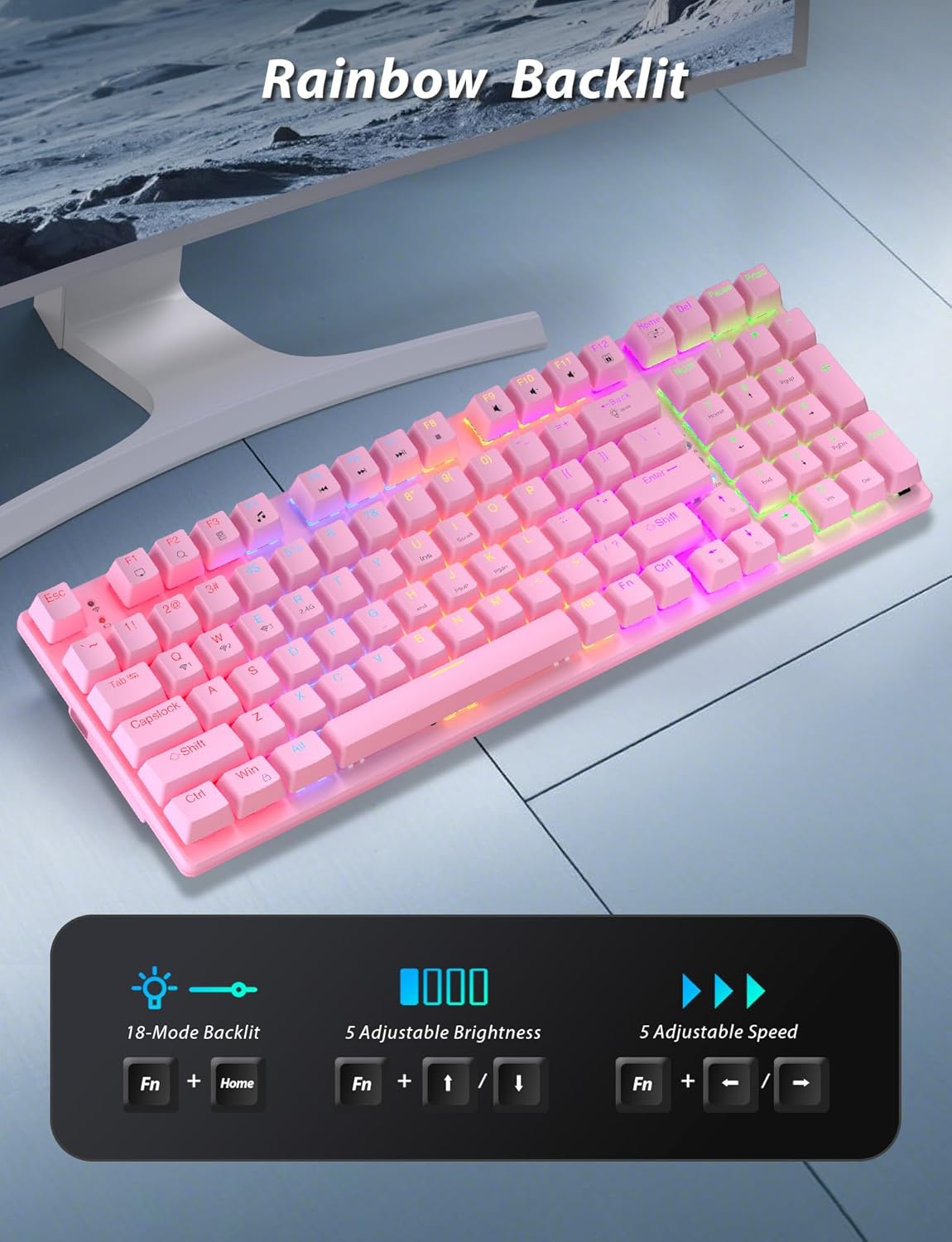
Image: A pink mechanical keyboard displaying its rainbow backlit keys, with an overlay showing the key combinations (Fn + Home, Fn + ↑/↓, Fn + ←/→) for controlling 8 modes, 5 adjustable brightness levels, and 5 adjustable speeds.

Obrázek: Detailní záběr view of the side of the pink mechanical keyboard, showing its ergonomic sloped design and the adjustable feet extended for comfortable typing. The accompanying mouse is also shown on a mousepad.
Funkce myši
- Nastavení DPI: The mouse features 4 adjustable DPI levels (800/1600/2400/3200). Press the DPI button (usually located behind the scroll wheel) to cycle through the sensitivity settings.
- Ergonomický design: The contoured shape of the mouse is designed to fit comfortably in your hand, reducing fatigue during extended use.
- Anti-skid Scroll Wheel: Provides precise scrolling control.
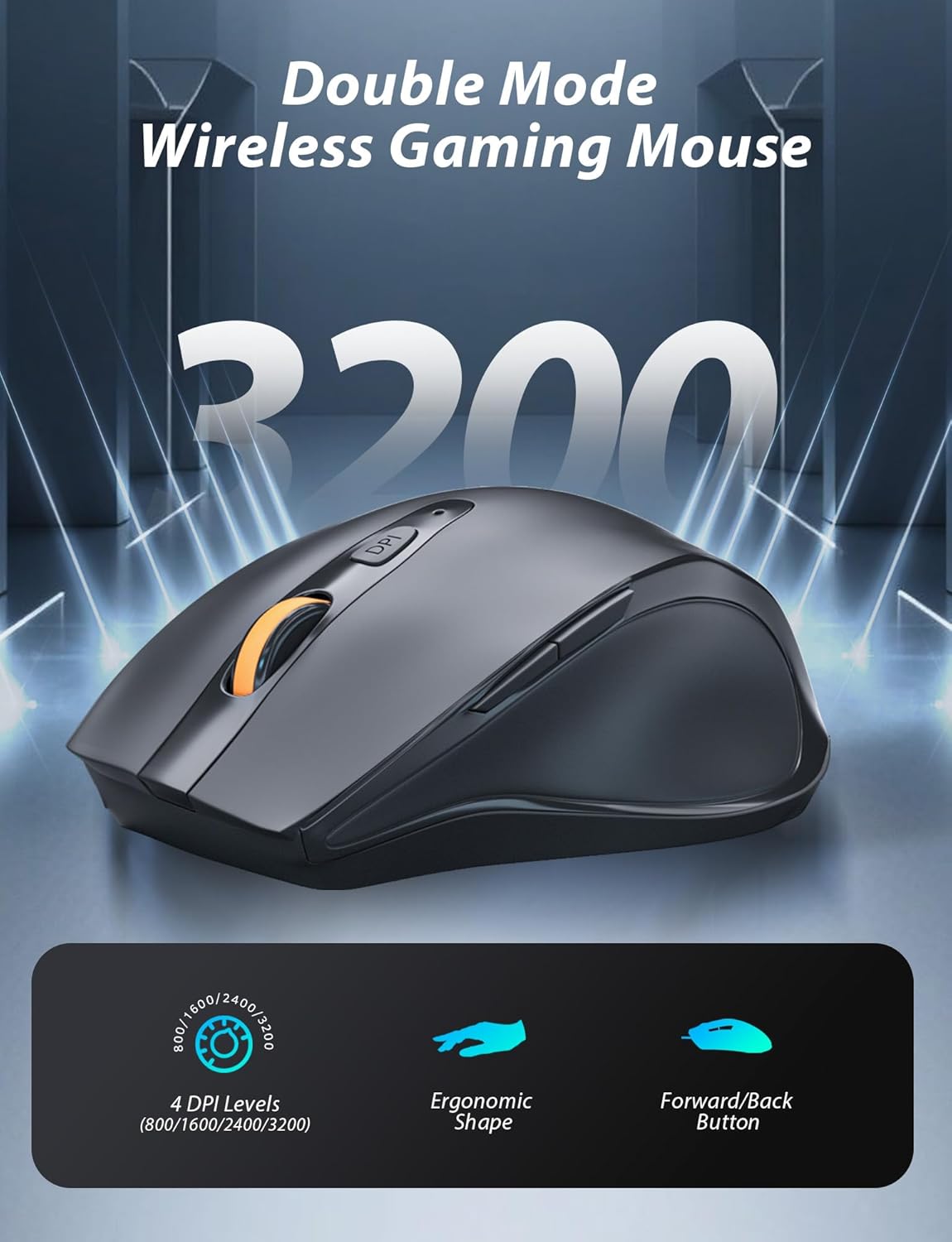
Image: A wireless gaming mouse with a prominent scroll wheel and DPI button, illustrating its 4 adjustable DPI levels (800/1600/2400/3200), ergonomic shape, and forward/back buttons.
Údržba
- Čištění: K čištění povrchů klávesnice a myši používejte měkký, suchý hadřík. Pro důkladnější čištění použijte lehceamp cloth can be used, ensuring no liquid enters the internal components. Avoid harsh chemicals or abrasive materials.
- Výměna baterie: For the mouse, replace the AA battery when performance degrades. For the keyboard, recharge via the USB-C cable when the battery indicator shows low power.
- Skladování: Pokud se kombinovaný přípravek delší dobu nepoužívá, skladujte jej na chladném a suchém místě mimo dosah přímého slunečního záření a extrémních teplot.
Odstraňování problémů
| Problém | Řešení |
|---|---|
| Keyboard/Mouse not connecting via 2.4G. |
|
| Klávesnice/myš se nepřipojuje přes Bluetooth. |
|
| RGB podsvícení nefunguje nebo je slabé. |
|
| Kurzor myši je nepravidelný nebo nereaguje. |
|
Specifikace
| Funkce | Detail |
|---|---|
| Číslo modelu | BK6301 |
| Typ klávesnice | 98klávesová mechanická klávesnice |
| Typ přepínače | Modré spínače |
| Připojení klávesnice | USB-C (Wired), 2.4G Wireless, Bluetooth 5.0 |
| Připojení myši | Bezdrátové 2.4G, Bluetooth |
| Úrovně DPI myši | 800/1600/2400/3200 |
| Podsvícení | RGB (8 Modes, 5 Brightness, 5 Speed) |
| Kompatibilní zařízení | PC, Laptop, Smartphone, Tablet (Windows, macOS, Android) |
| Keyboard Key Life | 50 milionů kliknutí |
| Rozměry klávesnice | Approx. 14.96 x 5.51 x 3.15 inches (from Package Dimensions) |
| Hmotnost položky | 2.72 pounds (combo weight) |
| Baterie do myši | 1 x AA baterie (není součástí balení) |
| Baterie klávesnice | 1 x C battery (included) Note: This seems unusual for a keyboard, usually Li-ion. Based on input "1 C batteries required. (included)". Will state as per input. |

Obrázek: Detailní záběr view of the mechanical blue switches on the keyboard, showing the keycap removed and the switch mechanism, along with specifications like 50,000,000 keystrokes life, key force, and stroke travel.
Záruka a podpora
Taiahiro products are designed for reliability and performance. For warranty information or technical support, please refer to the contact details provided on the product packaging or visit the official Taiahiro webmísto. Uschovejte si doklad o koupi pro případ záručních reklamací.
For further assistance, you may contact Taiahiro customer service through their official channels. Please provide your product model number (BK6301) and a detailed description of the issue when seeking support.


