1. Konec produktuview
The Google Nest Cam with Floodlight is an advanced outdoor security camera system designed to enhance the safety and monitoring of your home's exterior. It integrates a high-definition camera with powerful LED floodlights, providing clear visibility and intelligent detection capabilities.
This system is engineered to differentiate between people, animals, and vehicles, sending precise alerts directly to your Google Home app. The floodlights automatically activate upon detecting important activity, illuminating the area for improved visibility and deterrence. Users can access live HD video, review recorded events, and communicate via the built-in two-way audio feature.

Figure 1: Google Nest Cam with Floodlight and included replacement cable.
2. Co je v krabici
Před zahájením instalace ověřte, zda jsou všechny komponenty přítomny:
- Nest kamera
- Floodlight Unit
- Náhradní kabel
- Montážní deska
- Napájecí adaptér
3. Nastavení a instalace
3.1 Předinstalační požadavky
- Zdroj napájení: The Nest Cam with Floodlight is designed to replace an existing outdoor light fixture and requires hardwiring to a circuit. It is not powered by battery for the floodlight function. If no existing wiring is available, professional installation is recommended.
- Wi-Fi připojení: A stable 2.4 GHz or 5 GHz Wi-Fi network is required for full functionality, including mobile notifications, remote control, and video streaming.
- Účet Google: A free Google Account is necessary to use the Google Home app, which is required to set up and manage your Nest Cam with Floodlight. This device is not compatible with the legacy Nest app.
3.2 kroky instalace
- Vypnout napájení: Before beginning any electrical work, ensure the power to the existing light fixture's circuit is turned off at the circuit breaker.
- Odebrat stávající zařízení: Carefully remove your old outdoor light fixture from its mounting location.
- Montáž montážní desky: Secure the Nest Cam Floodlight mounting plate to the junction box using the provided screws. Ensure it is firmly attached.
- Kabelová připojení: Connect the electrical wires from your home's circuit to the corresponding wires on the Nest Cam Floodlight. Typically, this involves connecting live, neutral, and ground wires. If unsure, consult a qualified electrician.
- Attach Floodlight Unit: Secure the floodlight unit to the mounting plate.
- Attach Nest Cam: Connect the Nest Cam to the floodlight unit. The floodlight provides power to the camera.
- Obnovit napájení: Once all connections are secure and the unit is mounted, restore power at the circuit breaker.
- Nastavení aplikace: Download the Google Home app on your smartphone or tablet. Follow the in-app instructions to add your new Nest Cam with Floodlight. This will involve scanning a QR code on the device and connecting it to your Wi-Fi network.

Figure 2: Nest Cam with Floodlight installed and operating at night.
4. Návod k obsluze
4.1 Funkce aplikace Google Home
The Google Home app is your central control hub for the Nest Cam with Floodlight. Through the app, you can:
- Live HD Video: View a real-time, 1080p HDR video feed of your camera's view, day or night, with night vision capabilities.
- Inteligentní upozornění: Receive notifications for detected people, animals, and vehicles. The system's intelligence helps reduce irrelevant alerts.
- Floodlight Control: Manually turn the floodlights on or off, adjust their brightness, and set customized routines for automatic activation based on motion or time of day.
- Obousměrný zvuk: Use the built-in speaker and microphone to talk to visitors or deter unwanted guests from your location.
- Event Video History: Access up to 3 hours of free event video history. For extended recording, a Nest Aware or Nest Aware Plus subscription is available (sold separately), offering up to 10 days of 24/7 recording and 60 days of event video history.
- Offline úložiště: In the event of a Wi-Fi outage or power loss, the Nest Cam can store up to an hour of recorded events locally, which will upload to the cloud once connectivity is restored.
- Familiar Face Alerts: With a Nest Aware subscription, the camera can recognize familiar faces and send specific alerts (feature availability may vary by region).
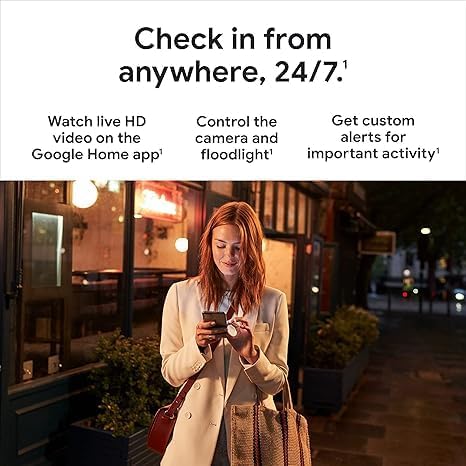
Obrázek 3: Přample of intelligent alerts in the Google Home app.
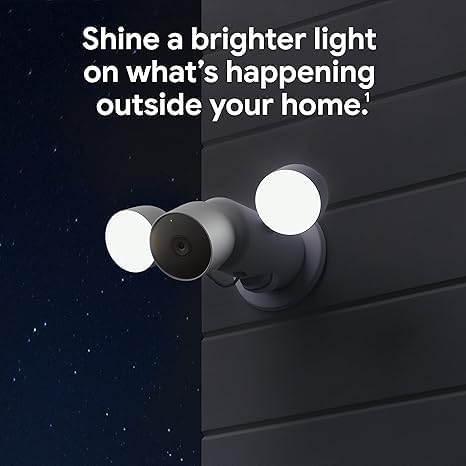
Figure 4: Monitoring your home remotely via the Google Home app.
5. Údržba
To ensure optimal performance and longevity of your Nest Cam with Floodlight, consider the following maintenance tips:
- Cleaning Lenses and Lights: Periodically wipe the camera lens and floodlight surfaces with a soft, damp hadříkem odstraňte prach, nečistoty nebo skvrny od vody, které by mohly zablokovat view or dim the lights. Avoid abrasive cleaners.
- Ochrana proti počasí: While the device is waterproof, ensure its mounting location provides adequate protection from direct, prolonged exposure to extreme weather conditions if possible, to minimize wear and tear.
- Aktualizace softwaru: Keep your Google Home app updated to the latest version to ensure access to new features, security enhancements, and bug fixes for your Nest Cam.
6. Řešení problémů
If you encounter issues with your Nest Cam with Floodlight, try the following steps:
- Žádné napájení/světla se nezapínají:
- Zkontrolujte jistič, abyste se ujistili, že je do svítidla přivedeno napájení.
- Verify all electrical connections are secure. If unsure, consult an electrician.
- Odpojení Wi-Fi:
- Ujistěte se, že je vaše domácí Wi-Fi síť aktivní a funguje správně.
- Restartujte Wi-Fi router.
- Check the signal strength in the Google Home app; consider relocating your router or using a Wi-Fi extender if the signal is weak.
- Alerts Not Received/Incorrect Alerts:
- Verify notification settings within the Google Home app are correctly configured.
- Adjust activity zones in the app to focus on areas of interest and reduce false alerts.
- Ujistěte se, že je objektiv fotoaparátu čistý a ničím nerušený.
- Špatná kvalita videa:
- Check your internet upload speed; a stable and sufficient speed is crucial for HD video streaming.
- Vyčistěte čočku fotoaparátu.
- Problémy s obousměrným zvukem:
- Ensure microphone and speaker permissions are enabled for the Google Home app on your mobile device.
- Zkontrolujte nastavení hlasitosti v aplikaci.
For further assistance, refer to the help section within the Google Home app or visit the official Google Nest support webmísto.
7. Specifikace
| Funkce | Detail |
|---|---|
| Název modelu | Google Nest Cam; Floodlight |
| Číslo modelu | G3AL9; GPLE9 |
| Vnitřní/venkovní použití | Venkovní |
| Kompatibilní zařízení | Chytrý telefon, tablet, televize |
| Zdroj napájení | Hardwired (replaces existing light fixture) |
| Protokol připojení | Wi-Fi |
| Typ ovladače | Amazon Alexa, Google Assistant, Nest (via Google Home app) |
| Typ montáže | Držák na zeď |
| Rozlišení záznamu videa | 1080p HDR |
| Barva | Bílý |
| Rozsah nočního vidění | 20 stop |
| Snímková frekvence | 30 snímků za sekundu |
| svtage | 240 voltů |
| Wattage | 24 watthodin |
| Úroveň odolnosti proti vodě | Vodotěsný |
| Hmotnost položky | 3.4 libry (přibližně 1.54 kg) |
| Optický zoom | 6x |
| Kódování videa | H.264 |
| Technologie nízkého osvětlení | Noční barva |
| Typ upozornění | Motion Only (with intelligent detection for people, animals, vehicles) |
| Typ světelného zdroje | LED |
| UPC | 197051800250 |
| Rozměry produktu (D x Š x V) | 6.5 x 12.4 x 3.66 palce |
8. Záruka a podpora
For information regarding product warranty, please refer to the warranty documentation included with your purchase or visit the official Google Nest support website. Google provides comprehensive support resources, including FAQs, troubleshooting guides, and contact options for technical assistance.
You can also find extensive support and community forums through the Google Home app's help section, which offers direct access to product-specific information and troubleshooting steps.
Online podpora: support.google.com/nest


