1. Úvod
This manual provides detailed instructions for the setup, operation, maintenance, and troubleshooting of your Phomemo D520BT Bluetooth Thermal Label Printer. Please read this manual thoroughly before using the device to ensure proper functionality and to extend the product's lifespan.

Figure 1: Phomemo D520BT printer in purple, printing a shipping label, with a smartphone displaying a label design connected via Bluetooth. This image illustrates the printer's compact design and wireless printing capability.
2. Obsah balení
Ověřte, zda jsou všechny níže uvedené položky součástí balení. Pokud některé položky chybí nebo jsou poškozené, kontaktujte zákaznickou podporu.
- Phomemo D520BT Thermal Printer
- Roll Label (sample)
- Rychlý průvodce
- Uživatelská příručka (tento dokument)
- Napájecí kabel
- USB kabel
- Adaptér typu C
- Napájecí adaptér

Figure 2: All components included in the Phomemo D520BT product package.
3. Průvodce nastavením
3.1 Vybalení
- Opatrně vyjměte tiskárnu a veškeré příslušenství z obalu.
- Remove any protective films or packing materials from the printer.
3.2 Načítání štítků
The Phomemo D520BT supports both roll paper and folding paper labels.
- Open the printer cover by gently lifting it.
- For Roll Paper: Place the label roll into the internal paper holder, ensuring the labels feed from the bottom and the printing side faces upwards. Guide the first label through the output slot until it is slightly visible.
- For Folding Paper: Place the stack of folding labels behind the printer, ensuring the labels feed smoothly into the rear input slot and the printing side faces upwards. Guide the first label through the output slot until it is slightly visible.
- Pevně zavřete kryt tiskárny.

Figure 3: The Phomemo D520BT printer supports both folding paper and roll paper labels.
3.3 Připojení tiskárny
The D520BT offers both USB and Bluetooth connectivity.
3.3.1 USB Connection (Windows, Mac, Chrome OS, Linux)
- Connect one end of the USB cable to the printer and the other end to your computer.
- Připojte napájecí adaptér k tiskárně a zapojte jej do elektrické zásuvky.
- Zapněte tiskárnu.
- Install the necessary printer drivers for your operating system. Drivers can typically be found on the official Phomemo webmísto.
3.3.2 Bluetooth Connection (Android, iOS, iPad)
- Připojte napájecí adaptér k tiskárně a zapojte jej do elektrické zásuvky.
- Zapněte tiskárnu.
- Stáhněte a nainstalujte “Labelife” aplikaci z obchodu s aplikacemi ve vašem zařízení.
- Open the Labelife app and follow the in-app instructions to pair your device with the D520BT printer via Bluetooth.

Figure 4: The Phomemo D520BT supports both Bluetooth and USB connectivity for various devices and operating systems.
4. Návod k obsluze
4.1 Zapnutí/vypnutí
- Zapnutí: Press the power button located on the printer. The indicator light will illuminate.
- Vypnout: Stiskněte a podržte tlačítko napájení, dokud kontrolka nezhasne.
4.2 Tisk štítku
- Ensure the printer is powered on and connected to your device (computer via USB or mobile device via Bluetooth).
- Otevřete dokument nebo aplikaci, ze které chcete tisknout.
- Select the Phomemo D520BT as your printer.
- Adjust print settings as needed (e.g., label size, orientation). The printer supports a width range of 1 to 4.6 inches.
- Spusťte příkaz pro tisk.
The Labelife app provides various free templates for customizing shipping labels, address labels, barcode labels, and thank-you stickers.
4.3 Klíčové vlastnosti
- Vysokorychlostní tisk: The D520BT can print up to 72 labels per minute (150mm/s), suitable for high-volume printing tasks.
- Vysoké rozlišení: Prints at 203 DPI, ensuring sharp and precise details on each label.
- Wide Printing Range: Supports label widths from 1 inch to 4.6 inches, accommodating various label types including 4x6 inch shipping labels.
- Bezinkoustová termální technologie: Utilizes direct thermal printing, eliminating the need for ink or toner cartridges.
- Prostorově úsporný design: Features a built-in paper holder, reducing the need for external label racks and optimizing desktop space.
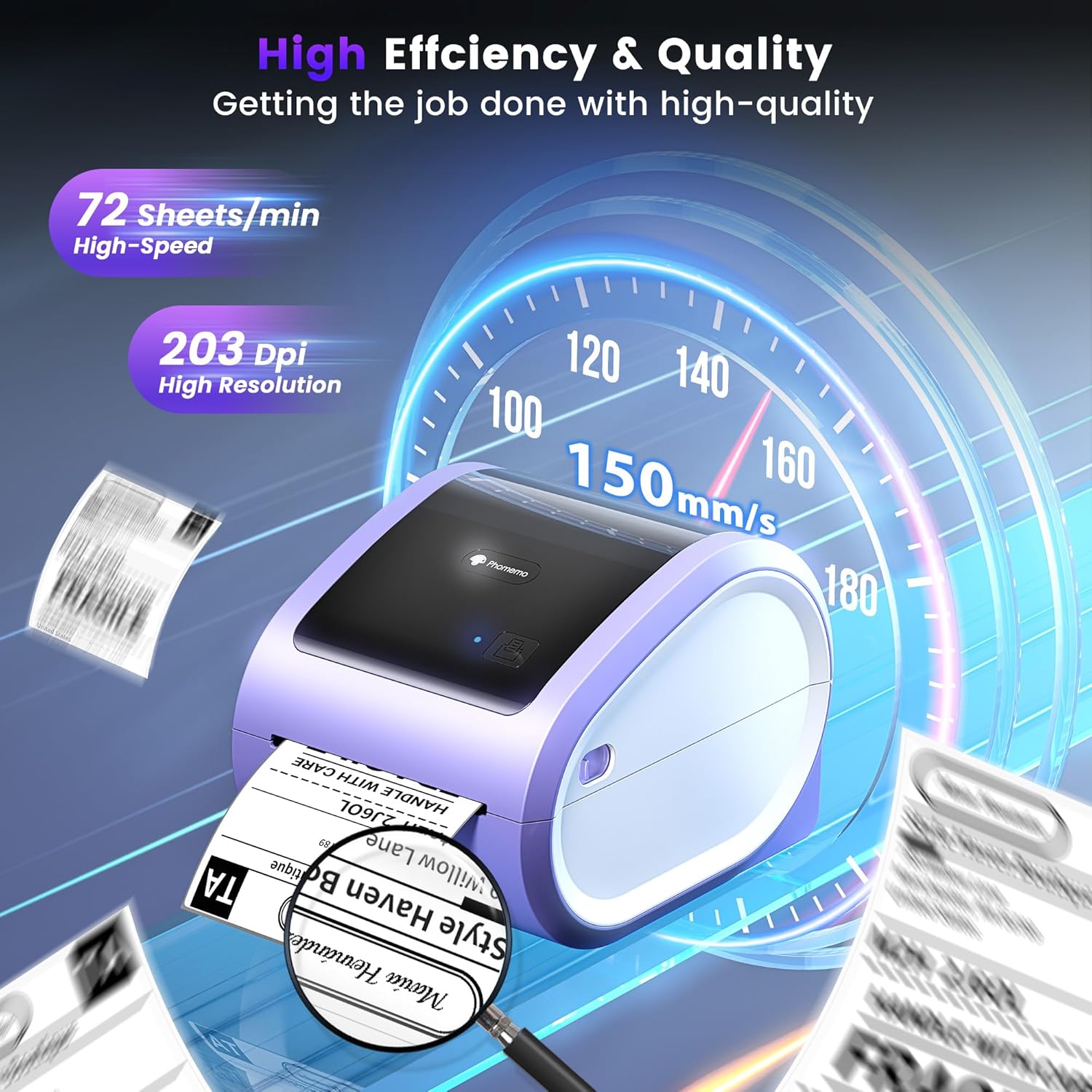
Figure 5: The Phomemo D520BT offers high efficiency and quality with a print speed of 150mm/s and 203 DPI resolution.

Figure 6: The Phomemo D520BT is compatible with various label sizes, from 1 inch to 4.6 inches wide.

Figure 7: The Phomemo D520BT supports multi-scenario applications for various labeling needs.

Figure 8: The Phomemo D520BT is compatible with all major shipping and sales platforms.
5. Údržba
5.1 Čištění tiskové hlavy
Regular cleaning of the print head ensures optimal print quality and extends the printer's life.
- Vypněte tiskárnu a odpojte napájecí kabel.
- Otevřete kryt tiskárny.
- Gently wipe the print head with an alcohol swab or a soft, lint-free cloth lightly dampzakončené isopropylalkoholem.
- Před zavřením krytu a zapnutím tiskárny nechte tiskovou hlavu zcela vyschnout.
5.2 Skladování
Store the printer in a cool, dry place away from direct sunlight and extreme temperatures. Avoid exposing the printer to dust or moisture.
6. Řešení problémů
If you encounter issues with your Phomemo D520BT printer, refer to the following common problems and solutions:
- Tiskárna se nezapíná:
- Ujistěte se, že je napájecí adaptér bezpečně připojen k tiskárně i k funkční zásuvce.
- Zkontrolujte, zda bylo tlačítko napájení pevně stisknuto.
- Labels not printing or feeding incorrectly:
- Verify that labels are loaded correctly with the printing side facing up.
- Ujistěte se, že v dráze štítku nejsou žádné překážky.
- Check if the label roll or stack is depleted.
- Poor print quality (faded, streaky, or blank labels):
- Vyčistěte tiskovou hlavu podle popisu v části 5.1.
- Ujistěte se, že používáte vysoce kvalitní termoštítky.
- Check print density settings in your printer preferences.
- Problémy s připojením Bluetooth:
- Ensure Bluetooth is enabled on your mobile device and the printer.
- Restartujte tiskárnu i mobilní zařízení.
- Ensure you are within the Bluetooth range.
- Re-pair the printer through the Labelife app.
- Problémy s připojením USB:
- Verify the USB cable is securely connected to both the printer and the computer.
- Ensure the correct printer drivers are installed.
- Zkuste jiný port USB nebo kabel.
For further assistance, refer to the detailed video tutorials and user manuals available online, or contact Phomemo customer support.
7. Specifikace
| Funkce | Specifikace |
|---|---|
| Značka | Phomemo |
| Název modelu | D520BT |
| Technologie připojení | Bluetooth, USB |
| Technologie tisku | Tepelný |
| Speciální funkce | Portable, Built-in Holder |
| Tiskový výstup | Monochromatický |
| Maximální rychlost tisku | 150 mm/s (72 labels/min) |
| Rozlišení tisku | 203 DPI |
| Maximální šířka tisku | 4.6 palců |
| Hmotnost položky | 2.4 libry |
| Rozměry produktu | 10.31"H x 10.31"Š x 7.87"V |
8. Záruka a podpora
Phomemo provides customer support to assist with any questions or issues you may encounter. For detailed warranty information, please refer to the warranty card included with your product or visit the official Phomemo website. Our customer support team is available via phone, email, or remote support.
For additional resources, including video tutorials and updated user manuals, please visit the Phomemo support page.


