1. Úvod
This manual provides detailed instructions for the setup, operation, and maintenance of your Phomemo WiFi Thermal Label Printer Model 249. This printer is designed for efficient and versatile label printing, compatible with various operating systems and e-commerce platforms. Please read this manual thoroughly to ensure proper use and to maximize the printer's performance.
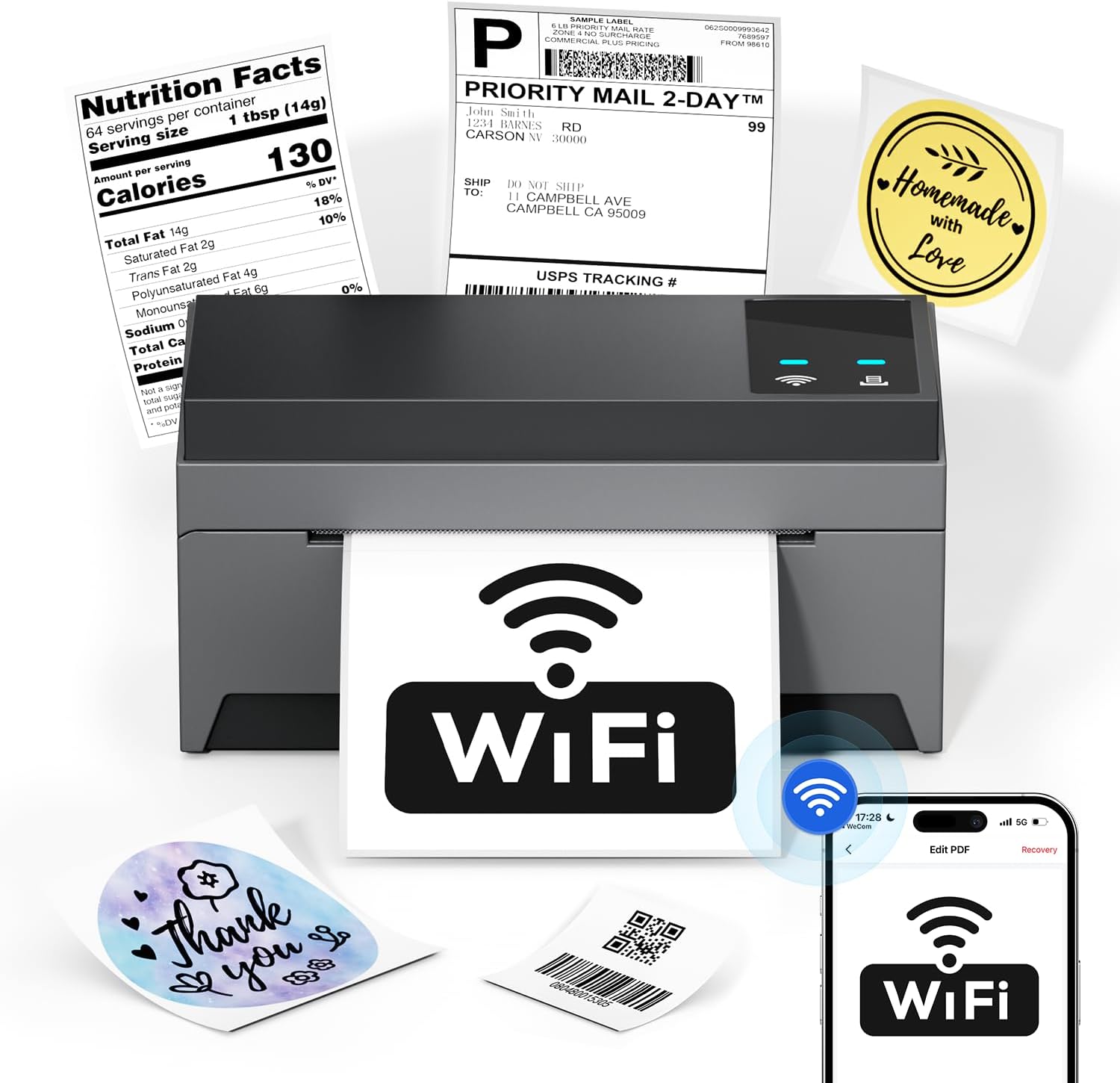
Image: The Phomemo Model 249 printer in operation, demonstrating its capability to print diverse label types such as shipping labels, product information, and custom designs.
2. Obsah balení
Ověřte, zda jsou v balení obsaženy všechny níže uvedené položky:
- 1 Phomemo 249 WiFi label printer
- 1 USB-C Data cable
- 1 Power cord (US/UK/EU) with Adapters
- 10 pcs 4x6 shipping labels
- 1 Rychlý průvodce
- 1 USB-C adaptér

Image: All components included in the Phomemo 249 printer package, neatly arranged on a wooden desk.
3. Průvodce nastavením
3.1 Fyzické nastavení
- Připojte napájení: Plug the power cord into the printer and then into a power outlet.
- Načíst štítky: Open the printer cover. Insert the thermal labels with the printable side facing up. Adjust the label guides to fit the width of your labels. Close the cover.
3.2 Instalace softwaru
The Phomemo 249 printer can be operated via the Labelife mobile app or a Printer Setting Tool for computers.
For Mobile Devices (iOS & Android) - Labelife App
- Stáhnout aplikaci: Scan the QR code or search for "Labelife" in the App Store (iOS) or Google Play Store (Android).
Download Labelife App - Povolit připojení: Turn on Bluetooth and WiFi on your mobile device.
- Připojit tiskárnu: Open the Labelife app. Select the "Internet Connection" option and choose your printer from the list (e.g., PM-249-WF).
- Konfigurace WiFi: Enter your WiFi password to connect the printer to your network.

Image: Visual guide demonstrating the steps to connect the printer using the Labelife mobile application.
For Computers (MacOS & Windows) - Printer Setting Tool
- Nástroj pro stahování: Navštivte oficiální stránky Phomemo website or the link provided in your quick guide to download the Printer Setting Tool for your operating system (Windows or MacOS).
- USB Connection (Initial Setup): Connect your computer to the printer using the provided USB-C cable. This is often required for the initial WiFi configuration from a computer.
- Konfigurace WiFi: Use the Printer Setting Tool to select your WiFi network and enter the password. Once configured, the printer will automatically connect to WiFi for future use, eliminating the need for repeated USB connections unless the WiFi settings change.

Image: Instructions for setting up the printer's WiFi connection using the Printer Setting Tool on a computer.
3.3 Možnosti připojení
- WiFi (5GHz): Supports fast and reliable wireless printing from Android, iOS, Mac, Windows, and Linux devices. Up to 10 devices can connect simultaneously.
- USB: Provides a direct wired connection for all computer systems, including Chrome OS.
- Bluetooth: Note that Bluetooth is for auxiliary WiFi connection setup only and does not support direct printing.

Image: Visual representation of the printer's versatile connectivity via WiFi and USB, compatible with various operating systems.
4. Návod k obsluze
4.1 Proces tisku
Once your printer is connected and labels are loaded, you can initiate printing from your chosen device:
- Připravte si dokument: Open the label file (e.g., PDF, image) on your computer or mobile device.
- Vyberte tiskárnu: In your application's print dialog, select the Phomemo 249 printer.
- Upravit nastavení: Ensure the label size and orientation are correctly set to match your physical labels.
- Vytisknout: Confirm settings and send the print job to the printer.
4.2 Labelife App Features
The Labelife app provides tools for creating and customizing labels:
- Access a library of free label styles.
- Design custom shipping labels, product tags, and other personalized labels.
- Importovat PDF files pro tisk.
- Edit labels with various fonts, shapes, and barcodes.
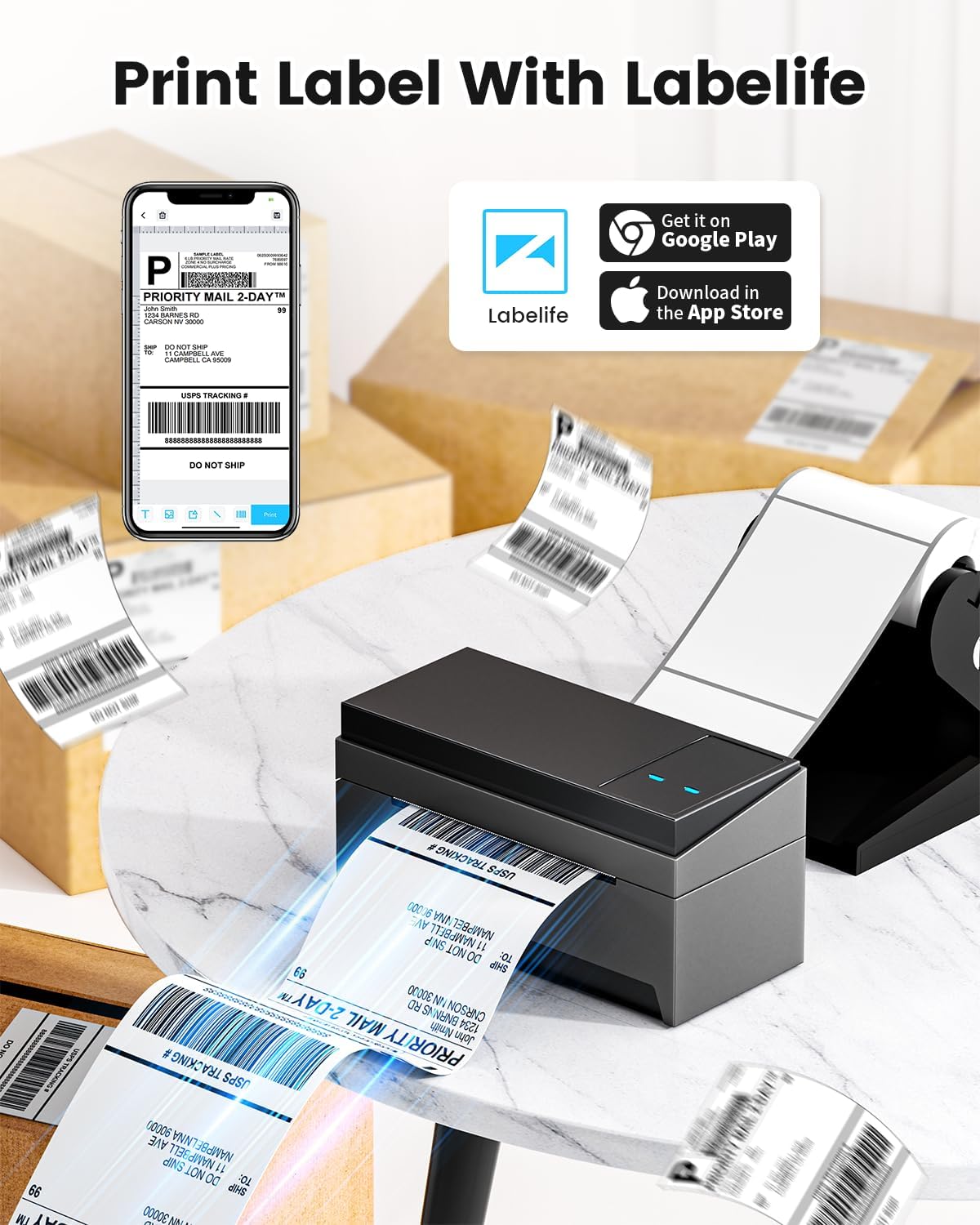
Image: A smartphone displaying the Labelife app, ready to print a shipping label, with the Phomemo printer in the background.
4.3 Podporované platformy
The Phomemo 249 printer is compatible with a wide range of e-commerce and logistics platforms, ensuring accurate label generation for your needs:
- eBay
- Amazonka
- Walmart
- Shopify
- USPS
- Etsy
- PayPal
- FedEx
- DHL
- UPS
- A mnoho dalších.
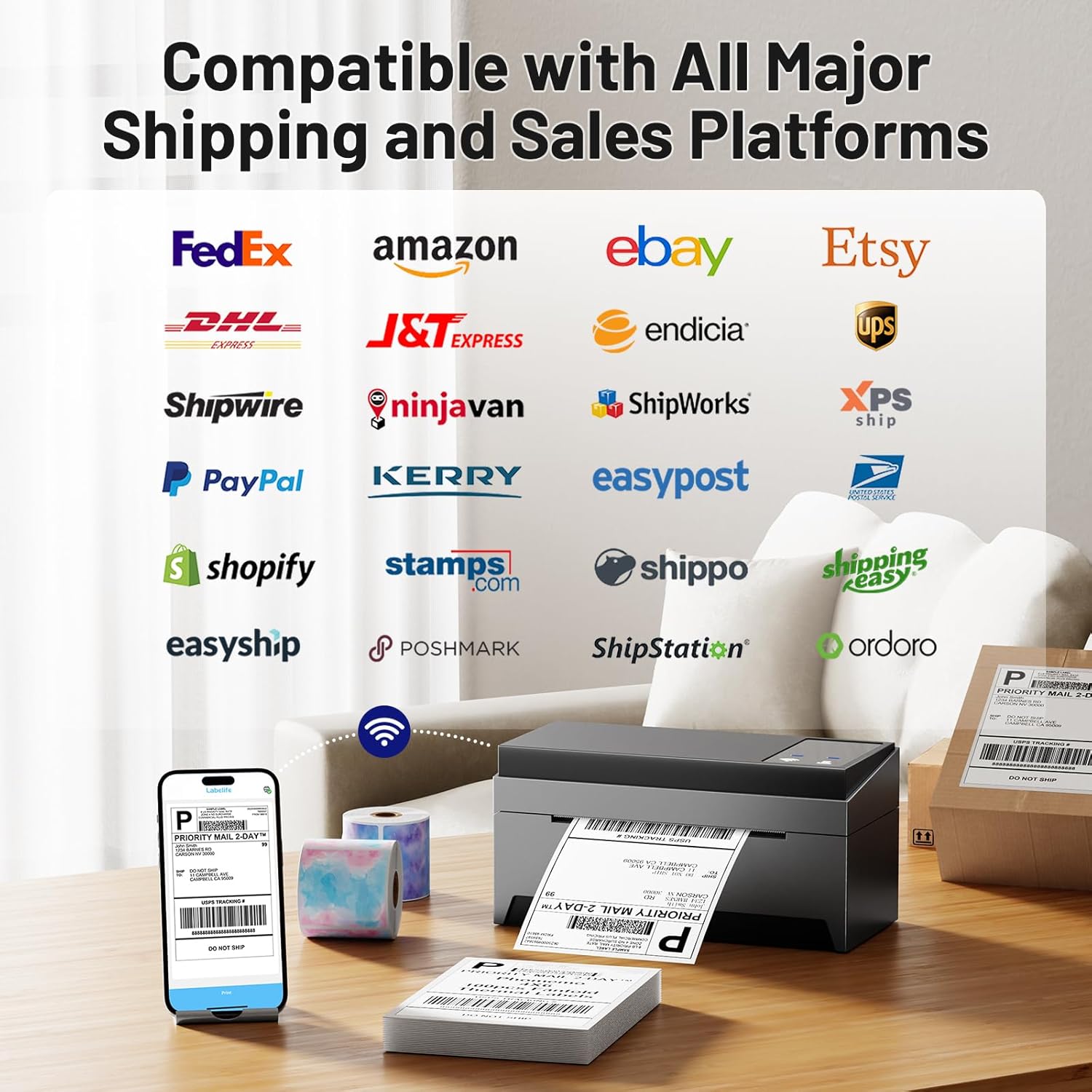
Image: A collage of logos from major e-commerce and logistics platforms, highlighting the printer's broad compatibility.
4.4 Label Types and Sizes
The printer supports various label sizes and types, with a printing range from 1 inch to 4.6 inches in width. This includes standard 4x6 inch shipping labels, smaller product labels, and custom shapes.
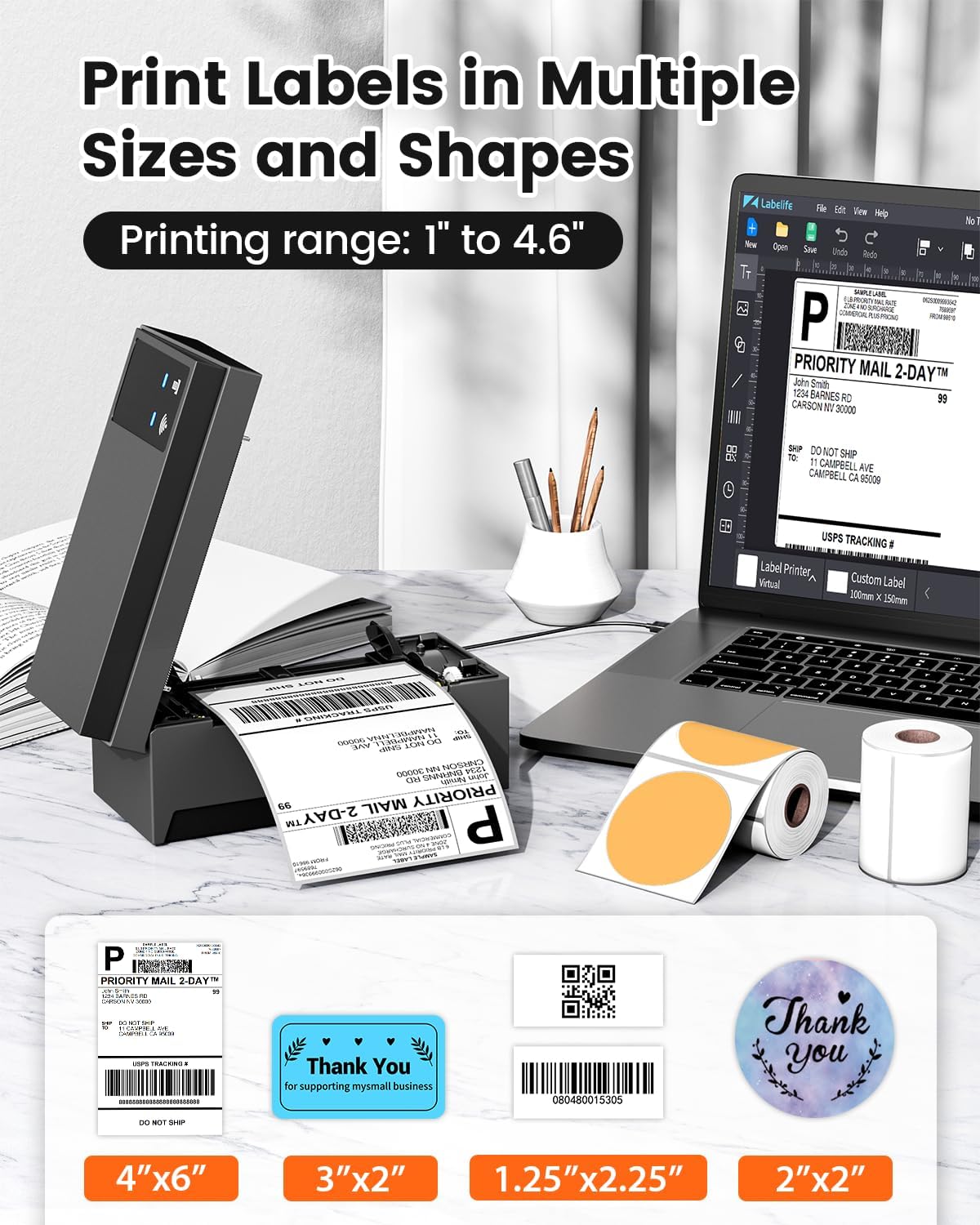
Image: A display of various label sizes and shapes, such as 4x6 inch, 3x2 inch, and round labels, demonstrating the printer's versatility.
5. Údržba
5.1 Čištění tiskové hlavy
Pro zachování kvality tisku pravidelně čistěte tiskovou hlavu:
- Vypněte tiskárnu a odpojte ji od zdroje napájení.
- Otevřete kryt tiskárny.
- Jemně otřete tiskovou hlavu vatovým tamponem, lehceamps alkoholem.
- Před zavřením krytu a opětovným zapnutím tiskárny nechte tiskovou hlavu zcela vyschnout.
5.2 Obecná péče
- Tiskárnu uchovávejte v čistém a bezprašném prostředí.
- Nevystavujte tiskárnu přímému slunečnímu záření nebo extrémním teplotám.
- Používejte pouze vysoce kvalitní termální štítky, abyste zabránili poškození tiskové hlavy.
6. Řešení problémů
If you encounter issues with your Phomemo 249 printer, refer to the following common problems and solutions:
| Problém | Možná příčina | Řešení |
|---|---|---|
| Printer not connecting via WiFi | Incorrect WiFi password, printer not on the same network, Bluetooth not enabled (for app setup). | Ensure correct WiFi password. Verify printer and device are on the same 5GHz network. For app setup, enable Bluetooth. Re-run WiFi configuration via Labelife app or Printer Setting Tool. |
| Tiskárna tiskne prázdné štítky | Incorrect label loading, print head dirty, software settings. | Ensure labels are loaded with the printable side up. Clean the print head (refer to Section 5.1). Check print settings in your software (e.g., ensure image is not set to print in color if it's a monochrome thermal printer). Restart printer and device. |
| Labels are faded or unclear | Low quality labels, dirty print head, incorrect print density settings. | Use high-quality thermal labels. Clean the print head. Adjust print density settings in your printer driver or app. |
| Printer not detected by computer via USB | Faulty USB cable, driver not installed correctly, incorrect USB port. | Try a different USB cable or port. Reinstall the printer driver. Ensure the USB-C adapter is correctly used if needed. |
For further assistance, please contact customer support (refer to Section 8).
7. Specifikace
Key technical specifications for the Phomemo WiFi Thermal Label Printer Model 249:
| Funkce | Specifikace |
|---|---|
| Název modelu | 249 |
| Značka | Phomemo |
| Technologie připojení | USB, Wi-Fi (5GHz) |
| Technologie tisku | Tepelný |
| Tiskový výstup | Monochromatický |
| Maximální rozlišení tisku | 203 dpi |
| Maximální rychlost tisku (černobíle) | 72 stran za minutu (ppm) |
| Maximální velikost média | 4x6 palce |
| Velikost listu | 4x6 palců |
| Maximální vstupní kapacita listu | 100 |
| Kompatibilní zařízení | Notebooky, počítače, chytré telefony, tablety |
| Hardwarové rozhraní | USB typ C |
| Rozměry produktu | 9 x 14 x 19 palce |
| Hmotnost položky | 3.03 libry |
| Typ inkoustu do tiskárny | Bez inkoustu (termální) |
| Speciální funkce | Decal-Printing |
8. Informace o záruce
The Phomemo WiFi Thermal Label Printer Model 249 comes with a omezená záruka. Please refer to the warranty card included in your package or contact customer support for specific terms and conditions.
9. Zákaznická podpora
For any questions, technical assistance, or support, please contact the Phomemo professional support team:
- Telefonická podpora: Available 9:00 AM - 5:00 PM EST, Monday - Friday.
- E-mailová podpora: Available for inquiries.
- Živý chat: Available 7:30 PM - 4:30 AM EST, Monday - Friday.
- Remote Desktop Assistance: Offered for complex issues.
Detailed video tutorials and additional manuals are also available to assist with setup and operation.


