Uživatelská příručka k digitálnímu budíku Mesqool 7" pro osoby s demencí
Model: CR1029 | Značka: Mesqool
Zavedení
This manual provides detailed instructions for the Mesqool 7-inch Digital Dementia Alarm Clock, designed to assist seniors and individuals with memory loss in maintaining daily routines. Its large, clear display and customizable features aim to enhance daily orientation and independence.
Nastavení
Unpacking and Initial Power-Up
Carefully remove the clock and all accessories from the packaging. Ensure the package contains the clock unit, power adapter, and this user manual.

Image: The Mesqool 7-inch Digital Dementia Alarm Clock, showcasing its large, clear display with time, date, and day information. The clock is black with a white display.
Připojení napájení
Plug the provided power adapter into the DC IN port on the back of the clock. Connect the other end of the adapter to a standard electrical outlet. The clock will power on automatically.
Battery Backup (Not Included)
The clock supports two AAA backup batteries (not included) to preserve settings during power outages. These batteries do not power the clock for regular operation; continuous corded power is required.

Obrázek: Zadní view of the clock, highlighting the battery compartment for AAA backup batteries.
Návod k obsluze
Navigace v nabídce
Use the buttons on the side of the clock to navigate through the menu options. The display is designed for easy readability.
Nastavení času a data
- Přejděte do nabídky „Nastavení“.
- Select 'Date & Time' to adjust the current time, date, and year.
- Vyberte si mezi 12hodinovým nebo 24hodinovým formátem.
- Select your preferred date display format (MM/DD/YYYY or DD/MM/YYYY).
Automatic Daylight Saving Time (DST)
The clock features an automatic DST function, adjusting the time automatically from March to November.

Image: Visual representation of the clock's automatic Daylight Saving Time adjustment feature.
Setting Alarms and Reminders
The clock offers 23 pre-set reminders and allows for fully customizable alarms. You can set alarms for specific days (weekdays only, weekends, or any combination) and create one-time reminders for special dates.

Image: The clock displaying a medication reminder, illustrating its utility for managing daily schedules.

Image: The clock's screen showing a keyboard for inputting personalized reminder messages.
Alarm Ringtones and Volume
Choose from 18 unique alarm sounds and adjust the volume across 9 levels to suit individual preferences.
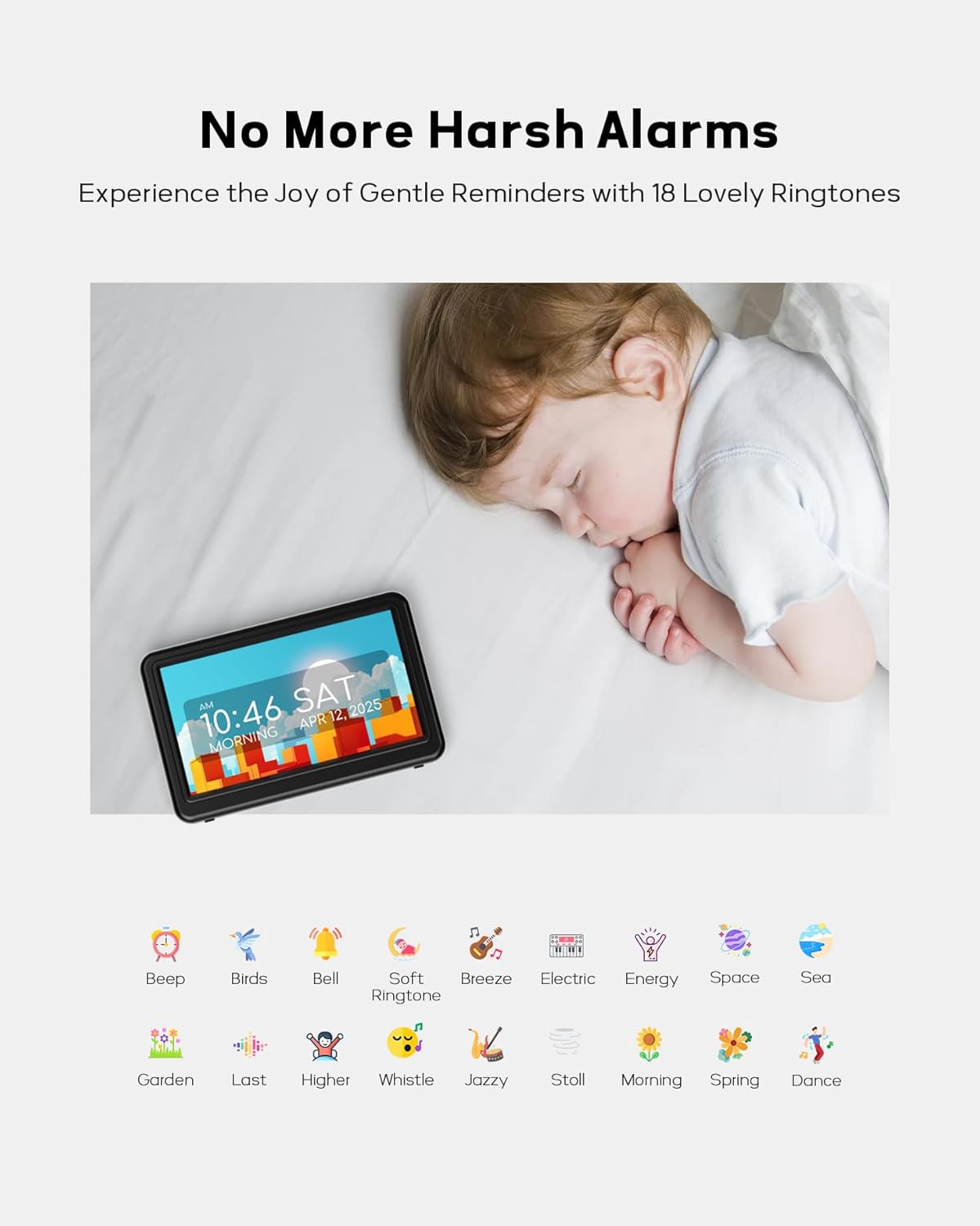
Image: Icons representing the 18 available gentle ringtones, emphasizing the clock's non-disruptive alarm options.
Display Themes and Colors
Personalize the clock's appearance with 12 unique display themes and 9 font colors, including text time, analog clock, classic, and minimalist styles.

Image: A selection of the 12 available display themes and 9 font colors for customization.
Nastavitelný jas
Set different brightness levels for daytime and nighttime, or adjust manually as needed. The clock can automatically dim to 10% at night for better sleep.

Image: The clock in a dimmed night mode and its brightness settings menu.
Digital Picture Frame Function
Insert a USB flash drive or SD card (up to 64GB, not included) to display personal photos on the screen, turning the clock into a digital photo frame.

Image: The clock functioning as a digital picture frame, displaying a personal photo.
Jazyková podpora
The clock supports 6 languages: English, German, French, Italian, Spanish, and Japanese.

Image: The clock screen showing greetings in multiple languages, indicating multi-language support.
Údržba
Čištění
To clean the clock, gently wipe the display and casing with a soft, dry cloth. Do not use abrasive cleaners or solvents, as they may damage the surface.
Skladování
If storing the clock for an extended period, disconnect it from the power source and remove any AAA backup batteries. Store in a cool, dry place.
Odstraňování problémů
| Problém | Možná příčina | Řešení |
|---|---|---|
| Hodiny se nezapínají. | Chybí připojení k napájení nebo vadný adaptér. | Ensure the power adapter is securely plugged into the clock and a working electrical outlet. Test the outlet with another device. |
| Displej je příliš tmavý nebo příliš jasný. | Brightness settings need adjustment. | Access the 'Brightness' settings in the menu to adjust manually or configure day/night brightness levels. |
| Alarmy se nespouští. | Alarm is disabled, volume is too low, or incorrect settings. | Check alarm settings to ensure it is enabled and set for the correct time/days. Increase alarm volume. |
| Fotografie z USB/SD karty se nezobrazují. | Incompatible format, card not inserted correctly, or card capacity exceeded. | Ensure photos are in a compatible format (e.g., JPEG). Reinsert the USB drive/SD card. Verify card capacity is not over 64GB. |
Specifikace
- Značka: Mesqool
- Model: CR1029
- Typ displeje: LCD
- Velikost obrazovky: 7 palců
- Rezoluce: 1024x600 IPS
- Barva: 7" Hd Black
- Rozměry produktu: 5 cm Š x 5 cm V
- Hmotnost položky: 11.7 unce
- Zdroj napájení: Elektrický kabel
- Bateriová záloha: Vyžaduje 2 x AAA baterie (nejsou součástí balení)
- Alarm Quantity: 23 pre-set, customizable
- Vyzváněcí tóny: 18 unique sounds
- Úrovně hlasitosti: 9
- Témata zobrazení: 12 unique themes
- Font Colors: 9
- Jazyková podpora: 6 languages (English, German, French, Italian, Spanish, Japanese)
- Digital Picture Frame: Supports USB flash drive or SD card (up to 64GB, not included)
- Speciální funkce: Adjustable Brightness, Auto DST
- Typ montáže: Stolní deska
- Materiál: Plast
Záruka a podpora
Informace o záruce
This Mesqool product comes with an extended warranty. For specific details regarding the warranty period and coverage, please refer to the warranty card included in your product packaging or contact Mesqool customer service.
Zákaznická podpora
For any questions, technical assistance, or warranty claims, please contact Mesqool customer support through the following channels:
- Webmísto: Visit the official Mesqool webweb s podpůrnými zdroji a kontaktními informacemi.
- E-mail: Refer to your product packaging or the Mesqool webweb pro e-mailovou adresu zákaznického servisu.
- Internetový obchod: Můžete také navštívit Mesqool Store on Amazon for product information and support options.
Please have your product model number (CR1029) and purchase date ready when contacting support.


