Zavedení
This manual provides essential information for setting up, operating, maintaining, and troubleshooting your Apple iPhone 16 Pro Max. Please read this guide thoroughly to ensure optimal use of your device.
1. Počáteční nastavení
1.1 Zapnutí a základní konfigurace
- Zapnutí: Stiskněte a podržte boční tlačítko, dokud se nezobrazí logo Apple.
- Obrazovka s pozdravem: Přejeďte prstem nahoru ze spodní části obrazovky.
- Jazyk a region: Vyberte preferovaný jazyk a region.
- Rychlý start: If you have another iPhone or iPad, you can use Quick Start to set up your new device automatically. Bring your old device near your new iPhone and follow the on-screen instructions.
- Ruční nastavení: If not using Quick Start, tap "Set Up Manually."
- Síť Wi-Fi: Připojte se k síti Wi-Fi.
- Data a soukromí: Review the Data & Privacy information.
- Face ID/Touch ID & Passcode: Set up Face ID (facial recognition) or Touch ID (fingerprint sensor) and create a passcode for security.
- Transfer Your Apps & Data: Choose how to transfer data from an old device (iCloud Backup, Mac/PC, Android) or set up as a new iPhone.
- Apple ID: Sign in with your Apple ID or create a new one. This is essential for App Store, iCloud, and other Apple services.
- Siri: Configure Siri, Apple's voice assistant.
- Čas obrazovky: Set up Screen Time to monitor and manage device usage.
- Analýza aplikací: Vyberte, zda chcete sdílet analytické údaje o aplikacích se společností Apple.
- Zobrazení věrných tónů: Enable or disable True Tone.
- Display Zoom: Select your preferred display zoom setting.
- Vítejte: Tap "Get Started" to begin using your iPhone.
1.2 Vložení SIM karty
Locate the SIM tray on the side of your iPhone. Use the SIM eject tool (or a small paperclip) to open the tray. Place your nano-SIM card into the tray with the gold contacts facing down and the clipped corner aligned. Gently push the tray back into the iPhone until it clicks into place.
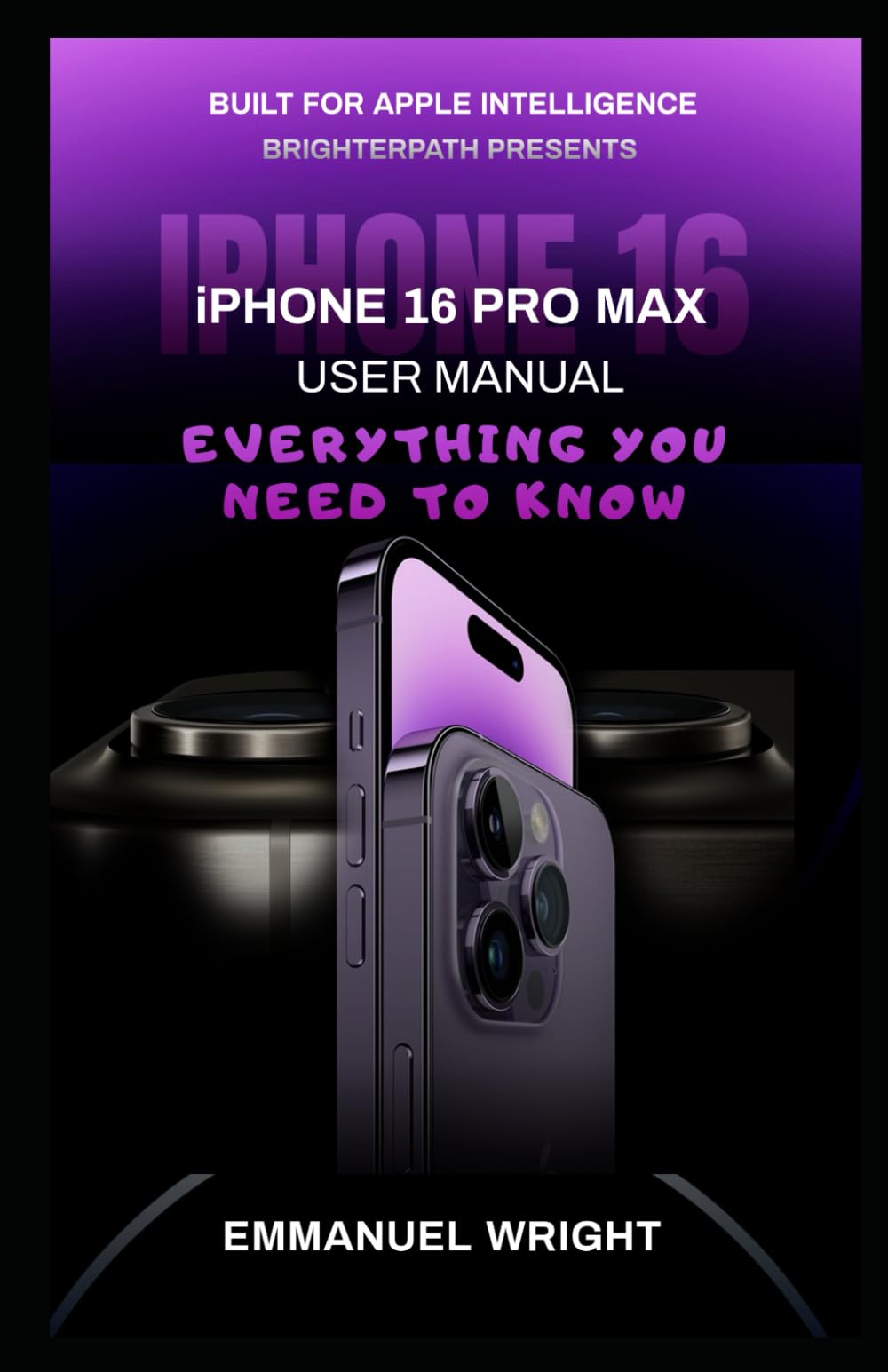
Obrázek: Přední strana view of the iPhone 16 Pro Max, illustrating the device's display. This image shows the general appearance of the device.
2. Operating Your iPhone 16 Pro Max
2.1 Základní navigace a gesta
- Domovská obrazovka: Přejetím prstu od spodního okraje obrazovky nahoru přejdete na domovskou obrazovku.
- Přepínač aplikací: Přejeďte prstem od spodního okraje nahoru a pozastavte se uprostřed obrazovky. view otevřené aplikace.
- Ovládací centrum: Swipe down from the top-right corner to access Control Center for quick settings.
- Centrum oznámení: Přejeďte prstem dolů od horního středu obrazovky k view oznámení.
- Hledání v centru pozornosti: Swipe down on the Home Screen to access Spotlight Search.
2.2 Volání a odesílání zpráv
- Telefonní aplikace: Tap the Phone icon to make calls. Use the Keypad, Recents, Contacts, or Favorites.
- Aplikace Zprávy: Tap the Messages icon to send and receive text messages (SMS/MMS) and iMessages.
- FaceTime: Use FaceTime for video and audio calls over Wi-Fi or cellular data.
2.3 Funkce fotoaparátu
The iPhone 16 Pro Max features an advanced camera system. Open the Camera app to access various modes:
- Fotografie: Standard photo mode.
- Portrét: Vytváří efekt hloubky ostrosti.
- Video: Nahrávejte vysoce kvalitní videa.
- Filmový režim: Records videos with a shallow depth of field and smooth focus transitions.
- ProRes Video: For professional-grade video recording.
- Makrofotografie: Capture extreme close-ups.
Obrázek: Zpět view of the iPhone 16 Pro Max, highlighting the multi-lens camera system. This image shows the rear design and camera module.
2.4 Siri
Siri is your intelligent personal assistant. Activate Siri by saying "Hey Siri" or by pressing and holding the Side button. You can ask Siri to send messages, make calls, set reminders, get directions, and much more.
NIKDY Přizpůsobení
- Widgety: Přidejte si widgety na domovskou obrazovku nebo do sekce Dnes View pro rychlý přístup k informacím.
- tapety: Change your wallpaper in Settings > Wallpaper.
- Shortcuts App: Automate tasks and create custom workflows.
3. Údržba
3.1 Optimalizace baterie
Chcete-li maximalizovat životnost baterie:
- Enable Low Power Mode (Settings > Battery).
- Adjust screen brightness or enable Auto-Brightness.
- Limit background app refresh (Settings > General > Background App Refresh).
- Turn off Location Services for apps that don't require it.
3.2 Aktualizace softwaru
Keep your iPhone's software up to date for the latest features and security enhancements. Go to Settings > General > Software Update.
3.3 Správa úložiště
Monitor and manage your iPhone's storage in Settings > General > iPhone Storage. Delete unused apps, photos, and videos to free up space.
3.4 Čištění vašeho zařízení
Use a soft, lint-free cloth to clean your iPhone. Avoid abrasive materials or harsh chemicals. For stubborn smudges, slightly dampen the cloth with water. Do not submerge your iPhone in cleaning solutions.
4. Odstraňování běžných problémů
4.1 Zařízení nereaguje
If your iPhone is frozen or unresponsive, perform a force restart:
- Stiskněte a rychle uvolněte tlačítko pro zvýšení hlasitosti.
- Stiskněte a rychle uvolněte tlačítko pro snížení hlasitosti.
- Stiskněte a podržte boční tlačítko, dokud se nezobrazí logo Apple.
4.2 App Crashing or Not Working
- Zavřete a znovu otevřete aplikaci.
- Zkontrolujte aktualizace aplikací v App Storu.
- Restartujte iPhone.
- Smažte a znovu nainstalujte aplikaci.
4.3 Problémy s připojením k síti
- Wi-Fi: Turn Wi-Fi off and on again in Control Center or Settings. Forget the network and reconnect.
- Mobilní data: Ensure cellular data is enabled. Check with your carrier for service outages.
- Režim Letadlo: Toggle Airplane Mode on and off (Settings or Control Center).
- Obnovit nastavení sítě: Go to Settings > General > Transfer or Reset iPhone > Reset > Reset Network Settings. This will reset Wi-Fi passwords and cellular settings.
4.4 Obnovení továrního nastavení
As a last resort, you can erase all content and settings. Warning: This will delete all data on your iPhone. Ensure you have a backup before proceeding. Přejděte do Nastavení > Obecné > Přenést nebo resetovat iPhone > Vymazat veškerý obsah a nastavení.
5. Specifikace
The following are illustrative specifications for the iPhone 16 Pro Max. For the most accurate and up-to-date technical details, please refer to Apple's official product page.
| Zobrazit | 6.7-inch Super Retina XDR display with ProMotion |
| Procesor | A-series Bionic Chip (e.g., A18 Bionic) |
| Možnosti úložiště | 128 GB, 256 GB, 512 GB, 1 TB |
| Zadní kamerový systém | Pro camera system with Main, Ultra Wide, and Telephoto lenses (e.g., 48MP Main, 12MP Ultra Wide, 12MP Telephoto) |
| Přední kamera | TrueDepth front camera with Autofocus |
| Operační systém | iOS (latest version at release) |
| Životnost baterie | Up to 29 hours video playback (approximate) |
| Konektivita | 5G, Wi-Fi 6E, Bluetooth 5.3, Ultra Wideband chip |
| Voděodolnost | IP68 rating (maximum depth of 6 meters up to 30 minutes) |
| Zabezpečení | ID obličeje |
Please note: These specifications are based on typical high-end iPhone models and are provided for illustrative purposes. Actual specifications may vary.
6. Informace o záruce
Your iPhone 16 Pro Max is covered by Apple's standard one-year limited warranty, which covers manufacturing defects. This warranty does not cover accidental damage or unauthorized modifications. You may also have additional consumer rights under local laws.
To check your warranty status, go to Settings > General > About, and tap on "Limited Warranty" or "AppleCare+." You can also visit Apple's official website and enter your device's serial number.
Zvažte nákupasing AppleCare+ for extended coverage and accidental damage protection.
7. Zákaznická podpora
For further assistance with your iPhone 16 Pro Max, please utilize the following resources:
- Podpora Apple Webmísto: Návštěva support.apple.com for comprehensive articles, guides, and troubleshooting steps.
- Apple Store: Schedule an appointment at an Apple Store for in-person technical support.
- Aplikace Apple Support: Download the Apple Support app from the App Store for personalized support options.
- Contact Apple: Find contact numbers for Apple Support in your region on the official support webmísto.


