1. Úvod
This manual provides essential information for the proper setup, operation, and maintenance of your Packard Bell airFrame 24 Inch FHD Monitor and Wireless Keyboard & Mouse Bundle. Please read this manual thoroughly before using the product to ensure optimal performance and safety.
The Packard Bell airFrame Series monitors are designed to deliver high-quality visuals and responsive performance for various applications, including gaming, office work, and educational use. This bundle includes two 24-inch FHD monitors, a wireless keyboard, and a wireless mouse.
2. Obsah balení
Ověřte, zda jsou v balení přítomny všechny položky:
- 2x Packard Bell airFrame 24 Inch FHD Monitors
- 2x Monitor Stands
- 1x bezdrátová klávesnice
- 1x bezdrátová myš
- 1x USB Receiver (for keyboard and mouse)
- 2x HDMI kabel
- 2x napájecí adaptér
- 1x Uživatelská příručka (tento dokument)

Image: Contents of the Packard Bell 2X 24 Inch FHD Monitor and Wireless Keyboard & Mouse Bundle.
3. Pokyny k nastavení
3.1 Sestavení monitoru
- Opatrně vyjměte komponenty monitoru a stojanu z obalu.
- Attach the stand base to the stand neck. Secure with the provided screw if applicable.
- Attach the assembled stand to the back of the monitor. Ensure it clicks securely into place or is fastened with screws.
- Umístěte monitor na stabilní rovný povrch.

Image: The monitor stand allows for ergonomic tilt adjustment, ranging from -5 degrees forward to +15 degrees backward.
Volitelné: Instalace držáku VESA
The airFrame 24 monitor is VESA mount compatible. To mount the monitor on a wall or desk arm:
- Odstraňte stojan z monitoru.
- Attach the VESA-compatible mounting bracket (not included) to the back of the monitor using the appropriate screws.
- Pro bezpečnou instalaci postupujte podle pokynů dodaných s držákem VESA.
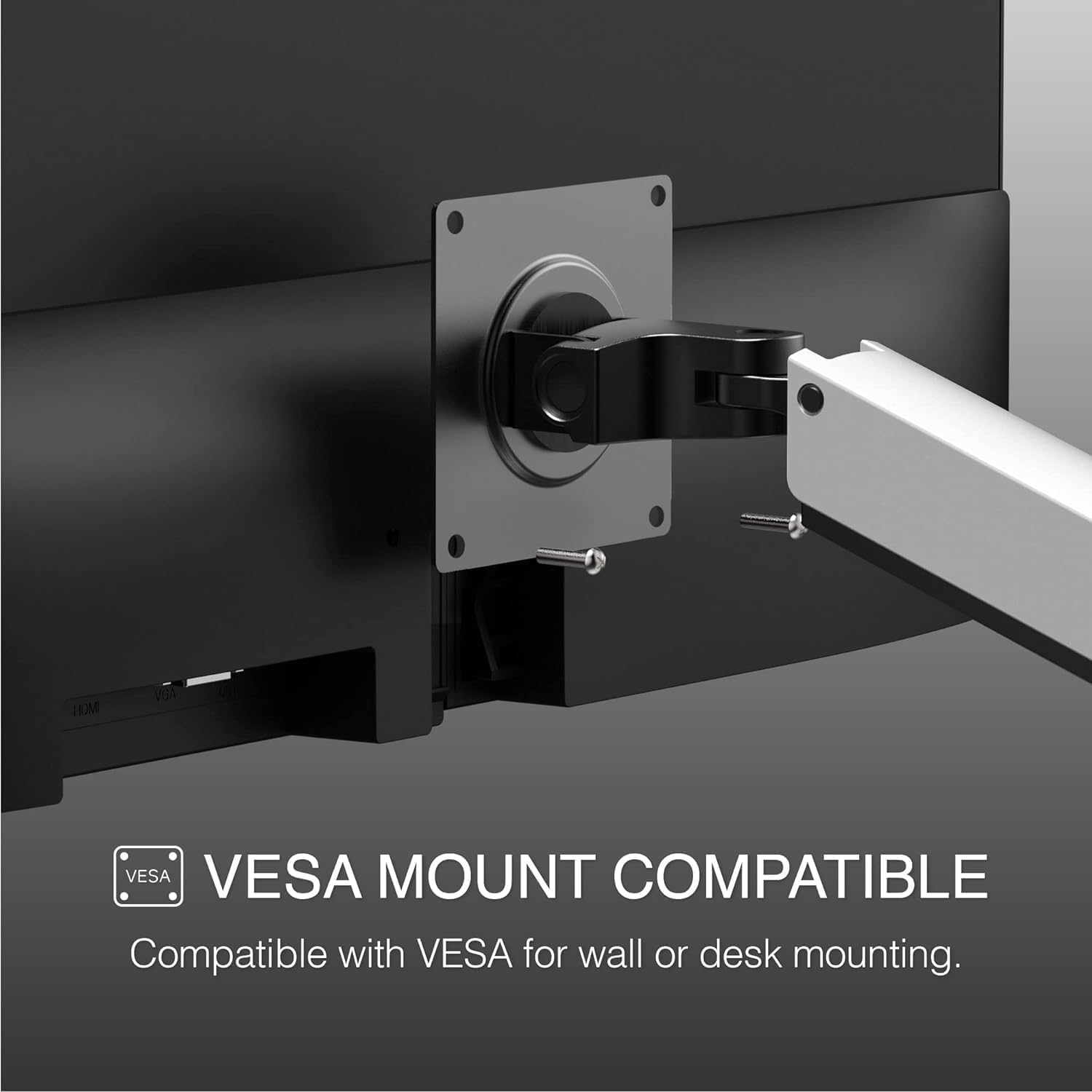
Image: The monitor features VESA mount compatibility for alternative mounting solutions.
3.2 Connecting the Monitors
- Připojte jeden konec kabelu HDMI k portu HDMI na monitoru.
- Connect the other end of the HDMI cable to the HDMI port on your computer or other video source.
- Repeat for the second monitor if using a dual-monitor setup.
- Connect the power adapter to the monitor's power input and then plug the adapter into a power outlet.
- Stisknutím tlačítka napájení na monitoru jej zapněte.
3.3 Wireless Keyboard and Mouse Setup
- Locate the USB receiver for the wireless keyboard and mouse. It is typically stored in the battery compartment of the mouse.
- Vložte USB přijímač do volného USB portu na vašem počítači.
- Install batteries (not included) into the keyboard and mouse if they are not pre-installed. Ensure correct polarity.
- Turn on the keyboard and mouse using their respective power switches (if available).
- The keyboard and mouse should automatically connect to your computer. If not, refer to the troubleshooting section.
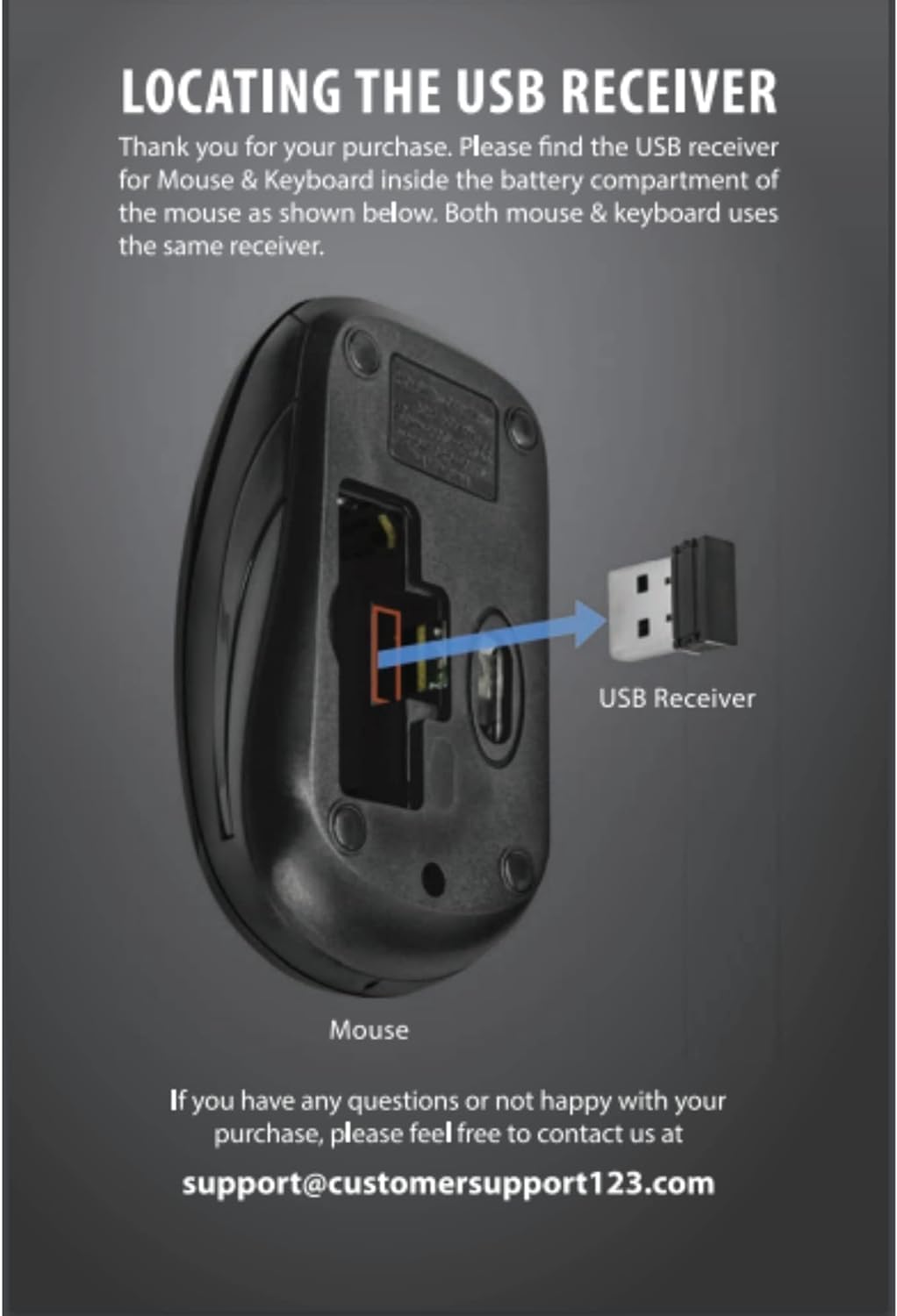
Image: The USB receiver for the wireless keyboard and mouse is located within the mouse's battery compartment.

Image: The included wireless keyboard and mouse peripherals.
4. Návod k obsluze
4.1 Ovládací prvky monitoru
The monitor features intuitive controls, typically located on the back or bottom right side, for adjusting settings. Common controls include:
- Vypínač: Zapíná nebo vypíná monitor.
- Tlačítko nabídky: Přístup k nabídce na obrazovce (OSD).
- Navigační tlačítka: Used to navigate through OSD menu options and adjust values.
- Tlačítko pro výběr vstupu: Switches between available input sources (HDMI, VGA).
4.2 Nabídka na obrazovce (OSD)
Nabídka OSD umožňuje přizpůsobit různá nastavení zobrazení:
- Jas/kontrast: Adjusts the overall luminance and contrast of the display.
- Nastavení barev: Upravuje teplotu barev, odstín a sytost.
- Vstupní zdroj: Manually selects the video input.
- Režim obrazu: Pre-set display modes for different content types (e.g., Standard, Game, Movie).
- Poměr stran: Adjusts the display's aspect ratio (e.g., 16:9, 4:3).
- Zvuk: Controls volume and mute for built-in speakers (if available) or audio output.

Image: The monitor provides a 1920x1080 Full High Definition resolution for clear visuals.

Image: The monitor offers a 178-degree wide viewing angle, ensuring consistent image quality from various perspectives.

Image: The monitor features an edge-to-edge screen with an ultra-thin bezel for an immersive viewzkušenosti.
4.3 Keyboard and Mouse Usage
The wireless keyboard and mouse operate like standard peripherals. Ensure they are within range of the USB receiver for optimal performance. If experiencing lag or disconnections, check battery levels and ensure no obstructions are blocking the signal.
5. Údržba
5.1 Čištění monitoru
- Před čištěním vždy monitor vypněte a odpojte ze zásuvky.
- Lehce používejte měkký hadřík, který nepouští vlákna dampvodou nebo neabrazivním čističem obrazovek.
- Nestříkejte čisticí prostředek přímo na obrazovku.
- Nepoužívejte alkohol, amoniak ani abrazivní čisticí prostředky, protože mohou poškodit povrch obrazovky.
5.2 Cleaning Peripherals
- Use a soft, dry cloth to wipe down the keyboard and mouse.
- Pro odolnou špínu lehce potřeteampened cloth with mild soap solution can be used, ensuring no liquid enters the devices.
- K odstranění prachu a nečistot z prostoru mezi klávesami na klávesnici použijte stlačený vzduch.
5.3 Výměna baterie
When the wireless keyboard or mouse batteries are low, replace them with new ones of the same type. Refer to the battery compartment for specific battery requirements (e.g., AA, AAA).
6. Řešení problémů
6.1 Monitor Issues
- Bez napájení:
- Ujistěte se, že je napájecí kabel bezpečně připojen k monitoru a do elektrické zásuvky.
- Zkontrolujte, zda je elektrická zásuvka funkční.
- Bez signálu:
- Check that the HDMI cable is securely connected to both the monitor and the computer.
- Ujistěte se, že je v nabídce OSD monitoru vybrán správný vstupní zdroj.
- Verify the computer's display output is active.
- Blikající/zkreslený obraz:
- Zkontrolujte kabelové připojení.
- Adjust resolution and refresh rate settings on your computer.
- Test with a different cable or video source if possible.
6.2 Keyboard and Mouse Issues
- Žádná odpověď:
- Ensure the USB receiver is properly plugged into a working USB port.
- Zkontrolujte stav baterie a v případě potřeby ji vyměňte.
- Ensure the keyboard/mouse power switch is in the "On" position.
- Zkuste zapojit USB přijímač do jiného USB portu.
- Lag/Intermittent Connection:
- Reduce the distance between the peripherals and the USB receiver.
- Remove any potential sources of interference (e.g., other wireless devices, large metal objects).
7. Specifikace
| Funkce | Specifikace |
|---|---|
| Značka | Packard Bell |
| Číslo modelu | airFrame 24 |
| Velikost obrazovky | 24 palce |
| Rezoluce | 1920 × 1080 (FHD 1080p) |
| Obnovovací frekvence | 75 Hz |
| Doba odezvy | 5 ms |
| Poměr stran | 16:9 |
| Viewúhel | 178 stupňů |
| Nastavení sklonu | -5° až +15° |
| Kompatibilita VESA | Ano |
| Konektivita | hdmi, vga |
| svtage | 120 voltů (AC) |
| Barva | Full Color Range |
8. Záruka a podpora
For warranty information and technical support, please refer to the documentation included with your purchase or visit the official Packard Bell webUschovejte si doklad o koupi pro případ reklamace.
For general inquiries or assistance, you may contact customer support at support@customersupport123.com.