Zavedení
This manual provides comprehensive instructions for the setup, operation, and maintenance of your Phomemo D520BT Bluetooth Thermal Printer. Designed for efficiency and ease of use, this printer is ideal for small businesses and home offices, supporting various label types and offering dual connectivity options.
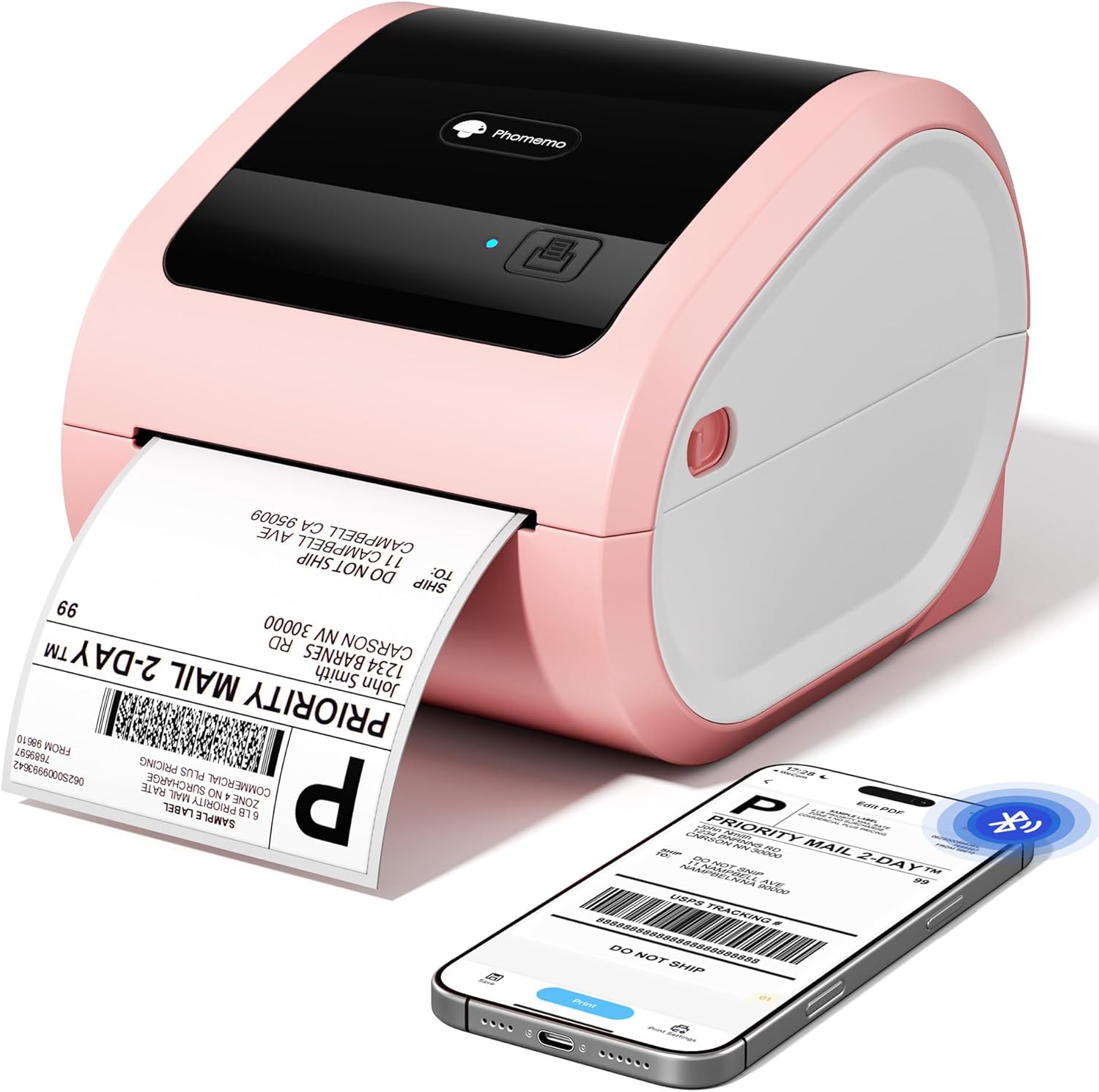
Image: The Phomemo D520BT thermal printer in pink, actively printing a shipping label. A smartphone nearby displays a digital label design, highlighting its wireless capabilities.
Co je v krabici
Upon unboxing your Phomemo D520BT printer, you should find the following components:
- D520BT Thermal Label Printer
- 30 sheets 4X6 thermal label paper
- Napájecí adaptér a kabel
- Type C Adapter and Use Cable
- Uživatelská příručka

Image: A visual representation of all items included in the Phomemo D520BT package: the printer unit, a roll of labels, a quick start guide, power cables, and adapters.
Vlastnosti produktu
- Space-Saving Internal Paper Holder: Features a built-in paper holder, eliminating the need for an external label rack and optimizing desktop space.
- Wide Printing Range and High Speed: Supports printing widths of 1-4.6 inches and speeds up to 72 labels per minute (150mm/s), suitable for various tasks and high-volume needs.
- Duální možnosti připojení: Offers both USB and Bluetooth connectivity for compatibility with Android, iOS, Windows, Mac, Chrome OS, and Linux systems.
- Ink-Free Thermal Printing Technology: Utilizes thermal printing to reduce ink costs, providing efficient, high-quality prints with 203 dpi resolution.
- Comprehensive App Support and Easy Setup: Comes with the "Labelife" app, offering free templates for customizing labels. Includes detailed video tutorials and user manuals for quick setup.

Image: The Phomemo D520BT printer showcasing its high efficiency and print quality, emphasizing a speed of 72 sheets per minute and a resolution of 203 DPI.
Průvodce nastavením
1. Physical Setup and Paper Loading
- Connect the power adapter and cord to the printer and a power outlet.
- Press the "Open Button" on the side of the printer to open the cover.
- Adjust the gray paper guides inside the printer to match the width of your labels.
- Insert the thermal labels (either fanfold or roll paper) into the paper bin, ensuring the printable side is facing up and the labels are straight and smooth.
- Pevně zavřete kryt tiskárny.
- Press the feed button (square icon) to allow the printer to automatically detect and align the labels.

Image: The Phomemo D520BT printer demonstrating its upgraded built-in paper bin, capable of supporting both fanfold and roll labels, with automatic location detection and adjustable guide rolls.
2. Nastavení připojení
The Phomemo D520BT offers both Bluetooth and USB connectivity.

Image: The Phomemo D520BT label printer illustrating its dual connectivity, with a Bluetooth connection to a smartphone and a USB connection to a laptop, enabling versatile use across different devices.
Bluetooth Connection (for Android/iOS)
- Download the "Labelife" app from your device's app store.
- Povolte Bluetooth na svém smartphonu nebo tabletu.
- Open the "Labelife" app and follow the in-app instructions to pair with your D520BT printer.

Image: A smartphone screen displaying the "Labelife" app, illustrating the process of downloading, importing PDFs, selecting label sizes, and connecting to the Phomemo D520BT printer via Bluetooth for easy printing.
USB Connection (for Windows/Mac/Chrome OS/Linux)
- Připojte tiskárnu k počítači pomocí dodaného kabelu USB.
- Install the printer driver from the official Phomemo website or the included user guide.
- Dokončete instalaci ovladače podle pokynů na obrazovce.
Instalace ovladače pro Windows:
Video: Official Phomemo guide on installing the D520BT thermal printer driver and setting it up for use on Windows operating systems.
Mac OS Driver Installation:
Video: Official Phomemo guide on installing the D520BT thermal printer driver and setting it up for use on Mac OS operating systems.
Návod k obsluze
1. Printing from the Labelife App (Mobile)
- Ujistěte se, že je tiskárna připojena k mobilnímu zařízení přes Bluetooth.
- Open the "Labelife" app.
- Select an existing template or create a new label design.
- Customize text, images, barcodes, and other elements as needed.
- Předview your label to ensure correct layout and size.
- Adjust print density and speed in the app settings if desired.
- Tap "Print" to send the label to your D520BT printer.
2. Printing from PC (Windows/Mac)
- Ensure your printer is connected via USB to your computer and the driver is installed.
- Otevřete dokument nebo štítek file you wish to print (e.g., PDF shipping label).
- V nabídce aplikace vyberte možnost „Tisk“.
- Choose "Phomemo D520BT" (or similar name) as your printer.
- In the printer preferences/properties, verify the label size (e.g., 4x6 inches). If your specific size is not listed, you may need to create a custom size.
- Adjust print settings such as darkness and speed if available in the driver options.
- Kliknutím na tlačítko „Tisk“ odešlete úlohu do tiskárny.

Image: The Phomemo D520BT label printer illustrating its compatibility with multi-size labels, ranging from small 2x1 inch labels to larger 4x6 inch shipping labels, suitable for diverse applications.
Údržba
- Čištění tiskové hlavy: Regularly clean the print head with an alcohol wipe to ensure optimal print quality. Ensure the printer is off and cooled down before cleaning.
- Čištění válce: Použijte měkký, damp cloth to gently clean the paper roller to prevent paper jams and maintain smooth feeding.
- Skladování: Tiskárnu skladujte na chladném a suchém místě mimo dosah přímého slunečního záření a extrémních teplot.
- Úložiště štítků: Store thermal labels in a cool, dark place to preserve their quality and prevent premature fading.
Odstraňování problémů
- Tiskárna se nepřipojuje:
- Ensure the printer is powered on and the power light is solid blue.
- For Bluetooth, check that Bluetooth is enabled on your device and the printer is paired in the "Labelife" app.
- For USB, ensure the cable is securely connected and the correct driver is installed on your computer. Try a different USB port or cable.
- Poor Print Quality (Faint/Blurry):
- Adjust the print density setting in your app or printer driver to a higher value.
- Vyčistěte tiskovou hlavu podle pokynů v části Údržba.
- Ujistěte se, že používáte vysoce kvalitní termoštítky.
- Labels Not Feeding Correctly/Jams:
- Ensure labels are loaded correctly, facing up, and aligned with the paper guides.
- Clean the paper roller.
- Zkontrolujte, zda v dráze papíru nejsou nějaké překážky.
- Press the feed button to re-calibrate the labels.
- Incorrect Label Size/Layout:
- Verify the label size settings in your printing application or printer driver match the physical labels being used.
- Use the "Labelife" app's customization features to adjust the layout.
Specifikace
| Funkce | Detail |
|---|---|
| Značka | Phomemo |
| Model | D520BT |
| Technologie tisku | Tepelný |
| Technologie připojení | Bluetooth, USB |
| Maximální velikost média | 4 x 6 palce |
| Podporované velikosti médií | 1-4.6 inches width (various sizes including 4x6 inches) |
| Maximální rozlišení černobílého tisku | 203 dpi |
| Maximální rychlost tisku (černobíle) | 72 ppm (150 mm/s) |
| Maximální vstupní kapacita listu | 500 sheets (fanfold) |
| Kompatibilní zařízení | Notebooky, počítače, chytré telefony, tablety |
| Rozměry produktu | 9.06 x 7.68 x 6.85 palce |
| Hmotnost položky | 2.43 libry |
| Tiskový výstup | Monochromatický |
Záruka a podpora
The Phomemo D520BT Thermal Printer comes with a limited warranty. For specific details regarding warranty coverage and duration, please refer to the warranty card included in your product packaging or contact Phomemo customer support.
For further assistance, including detailed video tutorials and remote support, please refer to the contact information provided in your user manual or on the official Phomemo webmísto.


