1. Nastavení
1.1 Obsah balení
Ujistěte se, že v balení jsou přítomny všechny položky:
- Keychron M6 Wireless Gaming Optical Mouse
- Kabel USB typu C na typ A.
- USB Type-C 2.4 GHz Receiver
- USB Type-A 2.4 GHz Receiver
- Uživatelská příručka
1.2 Nabíjení myši
Before first use, fully charge the mouse using the provided USB Type-C to Type-A cable. Connect the Type-C end to the mouse and the Type-A end to a USB port on your computer or a USB power adapter. The LED indicator will show charging status.
1.3 Připojení myši
The Keychron M6 supports three connection modes: 2.4 GHz wireless, Bluetooth 5.1, and wired USB.
Bezdrátové připojení 2.4 GHz
For optimal performance, use the 2.4 GHz wireless connection. This mode offers low latency and quick response.
- Locate the mode switch on the bottom of the mouse and set it to 'G' (Gaming/2.4 GHz).
- Plug either the USB Type-C 2.4 GHz receiver or the USB Type-A 2.4 GHz receiver into an available USB port on your computer.
- The mouse should automatically connect. If not, press the pairing button on the bottom of the mouse.

Image: Keychron M6 mouse shown with its two types of 2.4 GHz wireless receivers, USB-C and USB-A, illustrating the wireless connectivity options.
Připojení Bluetooth 5.1
For general use and multi-device connectivity, use Bluetooth.
- Locate the mode switch on the bottom of the mouse and set it to 'B' (Bluetooth).
- Press and hold the Bluetooth pairing button on the bottom of the mouse until the LED indicator starts blinking rapidly.
- On your computer or device, go to Bluetooth settings and select 'Keychron M6' from the list of available devices to pair.
- The mouse supports up to 3 Bluetooth devices. Use the '1', '2', '3' buttons on the bottom to switch between paired devices.
Kabelové připojení USB
For a stable, zero-latency connection, use the wired mode.
- Connect the provided USB Type-C to Type-A cable to the mouse and your computer.
- Locate the mode switch on the bottom of the mouse and set it to 'OFF'. The mouse will automatically switch to wired mode.
1.4 Initial Software Setup (Keychron Engine)
To unlock full customization, download and install the Keychron Engine software from the official Keychron website. This software allows you to modify key assignments, set shortcuts, adjust RGB lighting effects, and create dedicated macros.
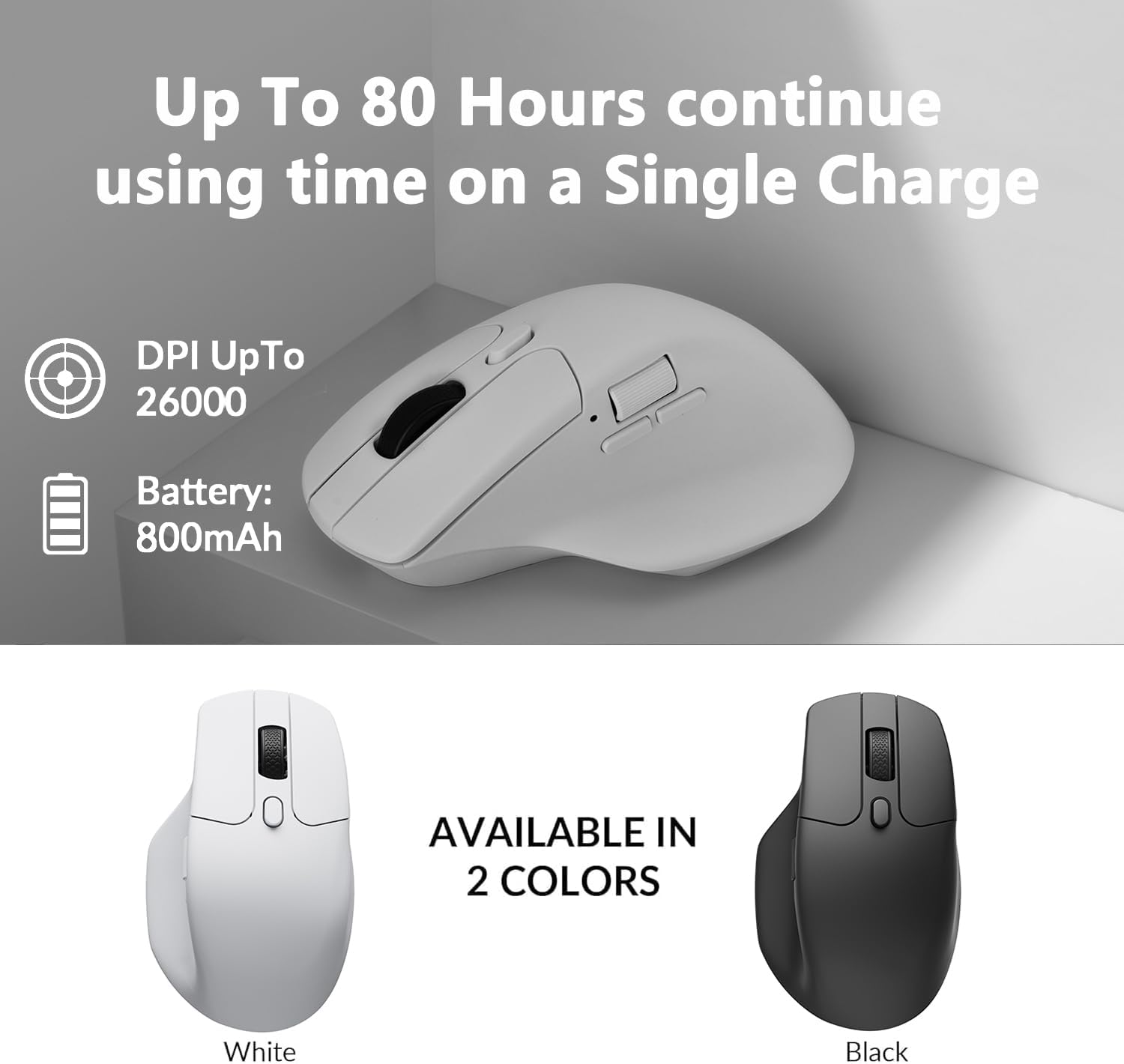
Image: Screenshot of the Keychron Engine software interface, demonstrating the customization capabilities for the M6 mouse, including button remapping and profile řízení.
2. Ovládání myši
2.1 Základní funkce
The Keychron M6 features standard left and right click buttons, a scroll wheel, and additional programmable buttons for enhanced productivity and gaming.
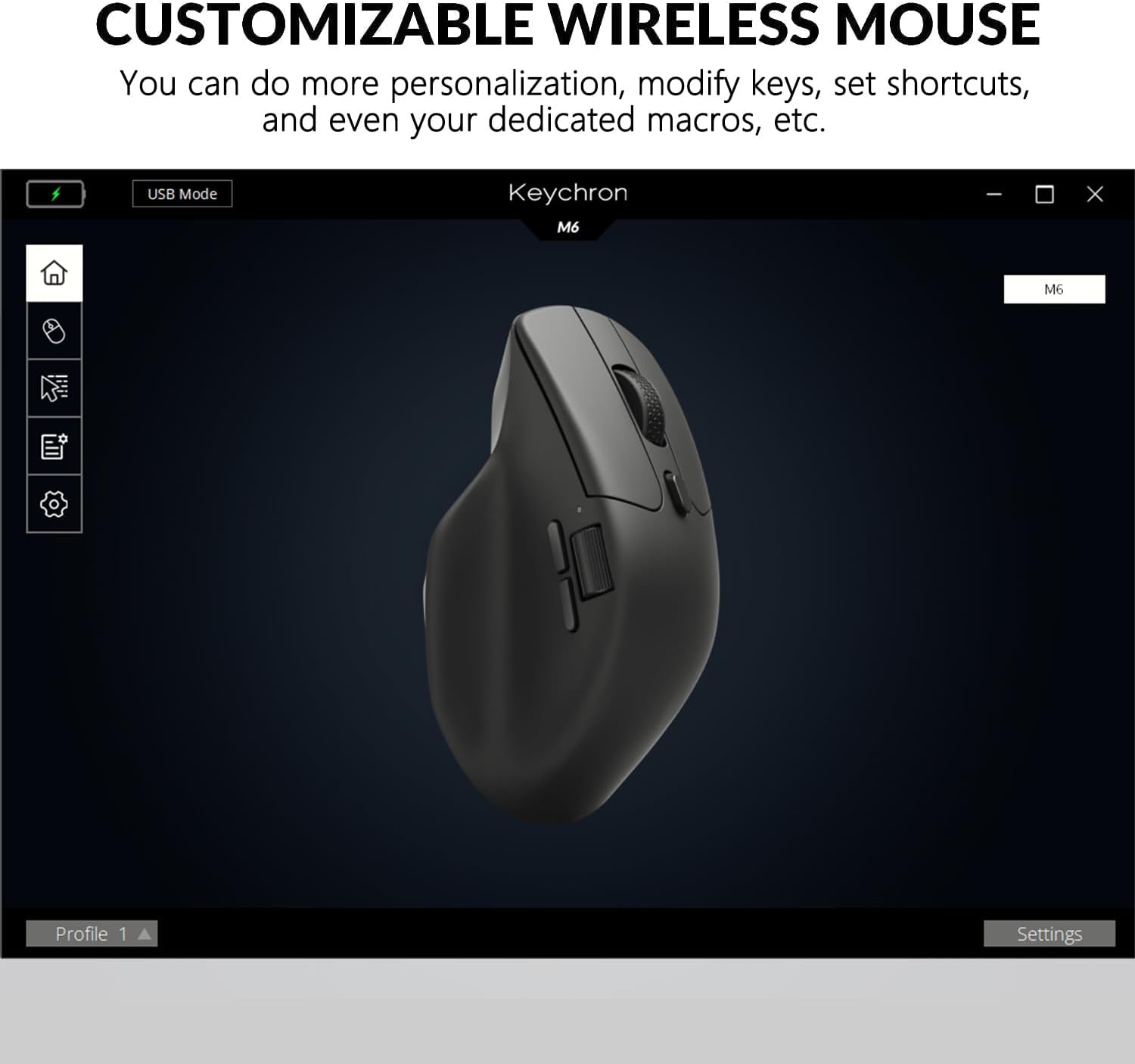
Image: The Keychron M6 mouse positioned on a wooden desk alongside a mechanical keyboard, illustrating its ergonomic design in a typical workspace setup.
2.2 Nastavení DPI
The M6 features a PixArt 3395 sensor with up to 26,000 DPI. You can adjust the DPI (Dots Per Inch) sensitivity directly from the mouse without software.
- Locate the 'DPI' button on the bottom of the mouse.
- Press the 'DPI' button to cycle through preset DPI levels. The LED indicator will change color to indicate the current DPI setting.
2.3 Report Rate Adjustment
The report rate (polling rate) determines how often the mouse reports its position to the computer. The M6 supports 125 Hz, 500 Hz, and 1000 Hz polling rates in 2.4 GHz / Wired mode.
- Locate the 'Report Rate' button on the bottom of the mouse.
- Press the 'Report Rate' button to switch between the available polling rates. The light indicator will change color according to the table below.
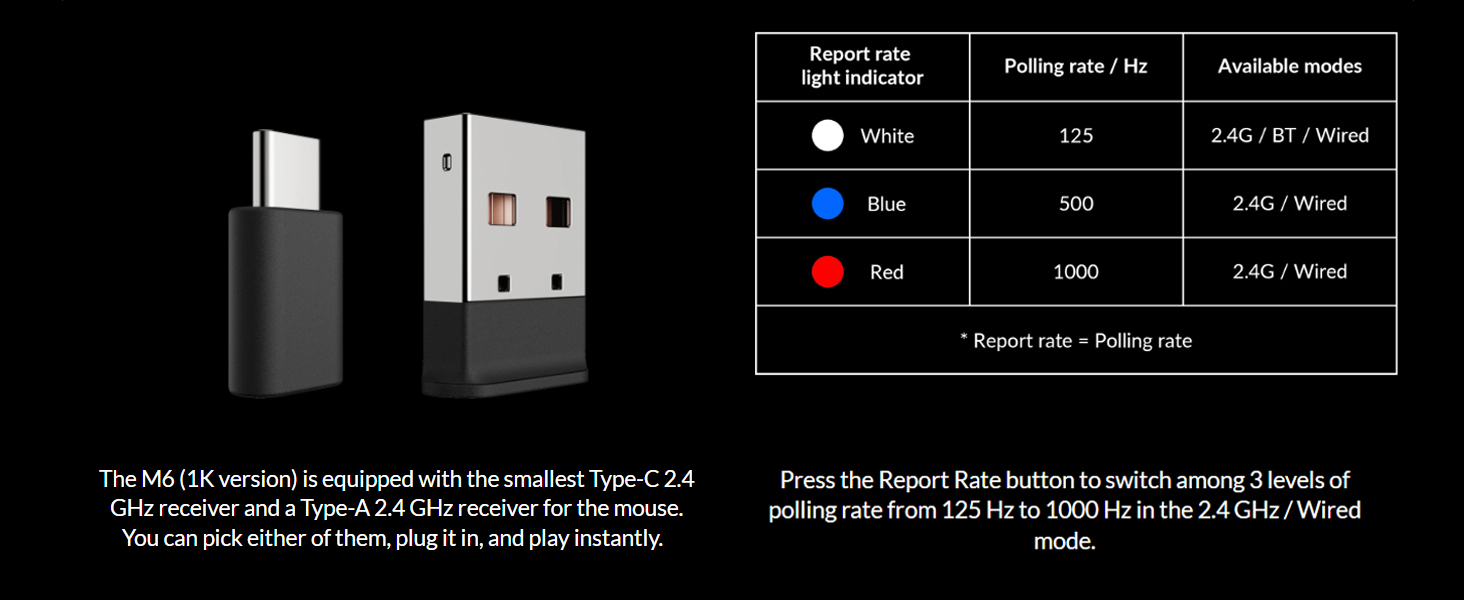
Image: A visual guide detailing the report rate light indicators (White for 125 Hz, Blue for 500 Hz, Red for 1000 Hz) and their corresponding polling rates and available connection modes.
2.4 Thumb Wheel and Tilt Wheel Functionality
The Keychron M6 features both a vertical scroll wheel and a horizontal thumb wheel, along with tilt-click functionality on the main scroll wheel, providing multiple ways of scrolling and navigation.

Obrázek: Detailní záběr view of the Keychron M6 mouse highlighting the horizontal thumb wheel, indicating its side-scrolling capability.
3. Údržba
3.1 Čištění myši
To maintain optimal performance and appearance, regularly clean your Keychron M6 mouse.
- Použijte měkký hadřík, který nepouští vlákna dampvodou nebo jemným čisticím roztokem.
- Vyhněte se používání agresivních chemikálií, abrazivních čisticích prostředků nebo rozpouštědel.
- Nedovolte, aby se do žádných otvorů dostala vlhkost.
- For optical sensor, use a cotton swab to gently clean the lens.
3.2 Informace o baterii
The Keychron M6 is equipped with an 800mAh Lithium Polymer battery, providing up to 80 hours of continuous use on a single charge.
- To preserve battery life, turn off the mouse when not in use for extended periods.
- Avoid exposing the mouse to extreme temperatures.
- Pokud myš nebudete delší dobu používat, nabijte ji před uskladněním přibližně na 50 %.
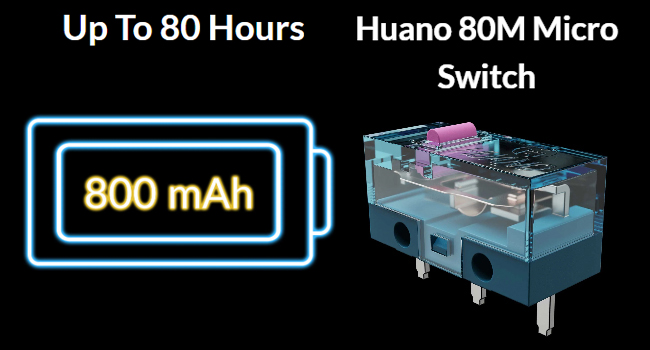
Image: Visual representation of the 800mAh battery capacity and the Huano 80M Micro Switch components within the mouse, highlighting key internal features.
4. Řešení problémů
4.1 Problémy s připojením
- Připojení 2.4 GHz: Ensure the receiver is securely plugged in and the mouse is set to 'G' mode. Try a different USB port. Re-pair by pressing the pairing button on the mouse.
- Připojení Bluetooth: Ensure Bluetooth is enabled on your device. Delete previous pairings and re-pair the mouse. Check if the mouse is set to 'B' mode and the correct Bluetooth channel (1, 2, or 3) is selected.
- Kabelové připojení: Ensure the cable is securely connected to both the mouse and the computer, and the mouse is set to 'OFF' mode. Try a different USB port or cable.
4.2 DPI/Report Rate Not Changing
- Ensure you are pressing the correct 'DPI' or 'Report Rate' button on the bottom of the mouse.
- Check the LED indicator for feedback. If no change, try restarting the mouse or your computer.
- For report rate, ensure you are in 2.4 GHz or wired mode, as Bluetooth mode may have different limitations.
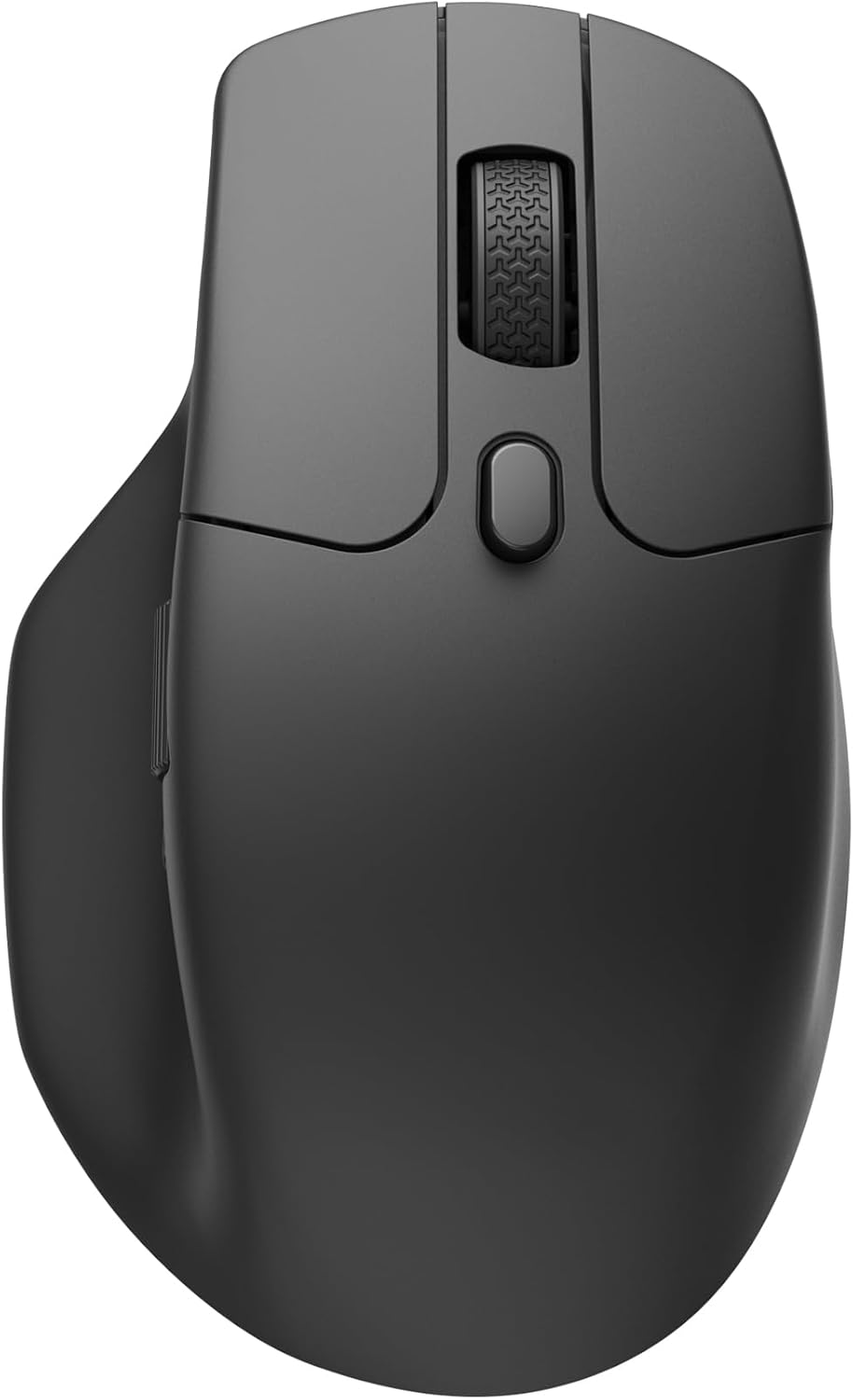
Image: The underside of the Keychron M6 mouse, clearly showing the DPI and Report Rate adjustment buttons, along with the G/OFF/B mode switch.
4.3 Scroll Wheel Issues
- If the scroll wheel feels clunky or is unresponsive, ensure no debris is lodged in the mechanism. Gently clean around the scroll wheel.
- If issues persist, try updating the mouse firmware via the Keychron Engine software.
5. Specifikace
| Funkce | Specifikace |
|---|---|
| Číslo modelu | M6-A1-Mouse |
| Rozměry produktu | 4.8 x 2.95 x 1.97 palce (122.5 x 75.4 x 50.0 mm) |
| Hmotnost položky | 2.75 unce (78 g) |
| Senzor | Optický senzor PixArt 3395 |
| DPI | Až 26,000 XNUMX DPI |
| IPS | Až 650 IPS |
| Technologie připojení | Tri-Mode: 2.4 GHz Wireless, Bluetooth 5.1, USB Wired |
| Míra hlasování | 125 Hz, 500 Hz, 1000 Hz (2.4 GHz / Wired) |
| Baterie | 1 lithium-polymerová baterie (800 mAh) |
| Životnost baterie | Až 80 hodin (nepřetržité používání) |
| Speciální funkce | Ergonomic, Lightweight, Programmable Macro Buttons, Thumb Wheel, Tilt Wheel |
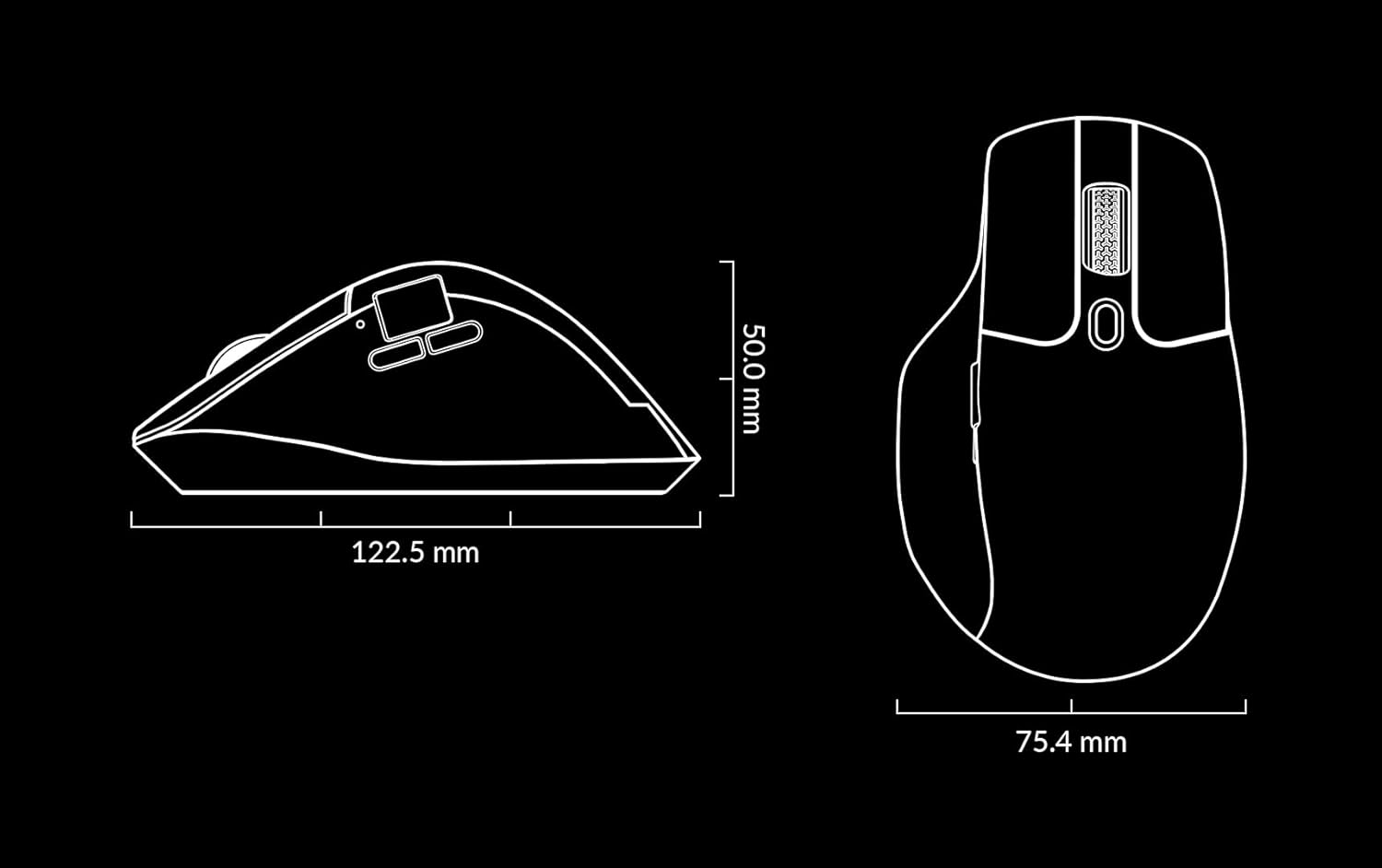
Image: Technical diagram illustrating the precise dimensions of the Keychron M6 mouse in millimeters, providing a clear understanding of its physical size.
6. Záruka a podpora
6.1 Informace o záruce
Keychron products are covered by a limited warranty from the date of purchase. This warranty covers manufacturing defects and workmanship. Please refer to the official Keychron website or your purchase documentation for specific warranty terms and conditions, as they may vary by region.
6.2 Zákaznická podpora
Pro technickou pomoc, řešení problémů nebo reklamaci kontaktujte zákaznickou podporu Keychron prostřednictvím jejich oficiálních website. You can find FAQs, driver downloads, and contact information at www.keychron.com.


