1. Úvod
This manual provides detailed instructions for the safe and efficient operation of your VGKE Mini Projector, model TS-6. Please read this manual thoroughly before using the projector and retain it for future reference.
The VGKE Mini Projector TS-6 is a portable Full HD projector designed for home entertainment, offering versatile connectivity options including WiFi and Bluetooth for seamless integration with various devices.
2. Konec produktuview
2.1 Klíčové vlastnosti
- Full HD 1080p Native Resolution (Supports 4K Sources)
- Built-in WiFi 6 for fast wireless connectivity
- Bluetooth 5.2 for external audio devices
- Portable design with a retractable stand
- 90-degree flip adjustment for ceiling projection
- Electric Focus and Keystone Correction (Auto Keystone 15° Vertical Only, 4-Direction, 4-Point Correction)
- 60-100% Zoom function
- Wide compatibility with Android, iOS, Laptops, TV Sticks, HDMI, and USB devices

Figure 1: VGKE Mini Projector TS-6. This image displays the compact and portable design of the projector.

Figure 2: Key features of the VGKE Mini Projector, including high brightness, Full HD resolution, 4K source support, and a retractable stand.
2.2 Obsah balení
Zkontrolujte prosím balení, zda neobsahuje následující položky:
- VGKE Mini Projector TS-6
- Napájecí adaptér
- Dálkové ovládání
- Uživatelská příručka
- Kabel HDMI (může se lišit v závislosti na regionu/balení)
3. Nastavení
3.1 Umístění
Position the projector on a stable, flat surface. Ensure adequate ventilation around the device. The projector features a 90-degree flip adjustment, allowing for flexible placement, including ceiling projection.

Figure 3: Projector demonstrating 90-degree flip adjustment for versatile projection angles, including ceiling projection.
3.2 Připojení napájení
- Připojte napájecí adaptér ke vstupnímu portu projektoru.
- Zapojte napájecí adaptér do elektrické zásuvky.
- Stisknutím tlačítka napájení na projektoru nebo dálkovém ovladači zapněte zařízení.
3.3 Initial Focus and Keystone Adjustment
Upon initial power-on, adjust the focus and keystone to achieve a clear, rectangular image.
- Elektrické ostření: Use the remote control to adjust the focus until the image is sharp.
- Korekce lichoběžníkového zkreslení: The projector supports auto 15° vertical keystone correction. Manual 4-direction and 4-point correction are also available via the settings menu for precise image alignment.

Figure 4: Illustration of the Electric Focus and various Keystone Correction options available on the projector.
4. Návod k obsluze
4.1 Připojení zařízení
Projektor nabízí několik možností připojení:
- HDMI: Connect laptops, TV sticks, gaming consoles (Switch/PS5), or TV boxes via the HDMI ports.
- USB: Insert USB sticks or external storage devices into the USB ports for media playback.
- Zvukový port: Připojte sluchátka nebo externí reproduktory.
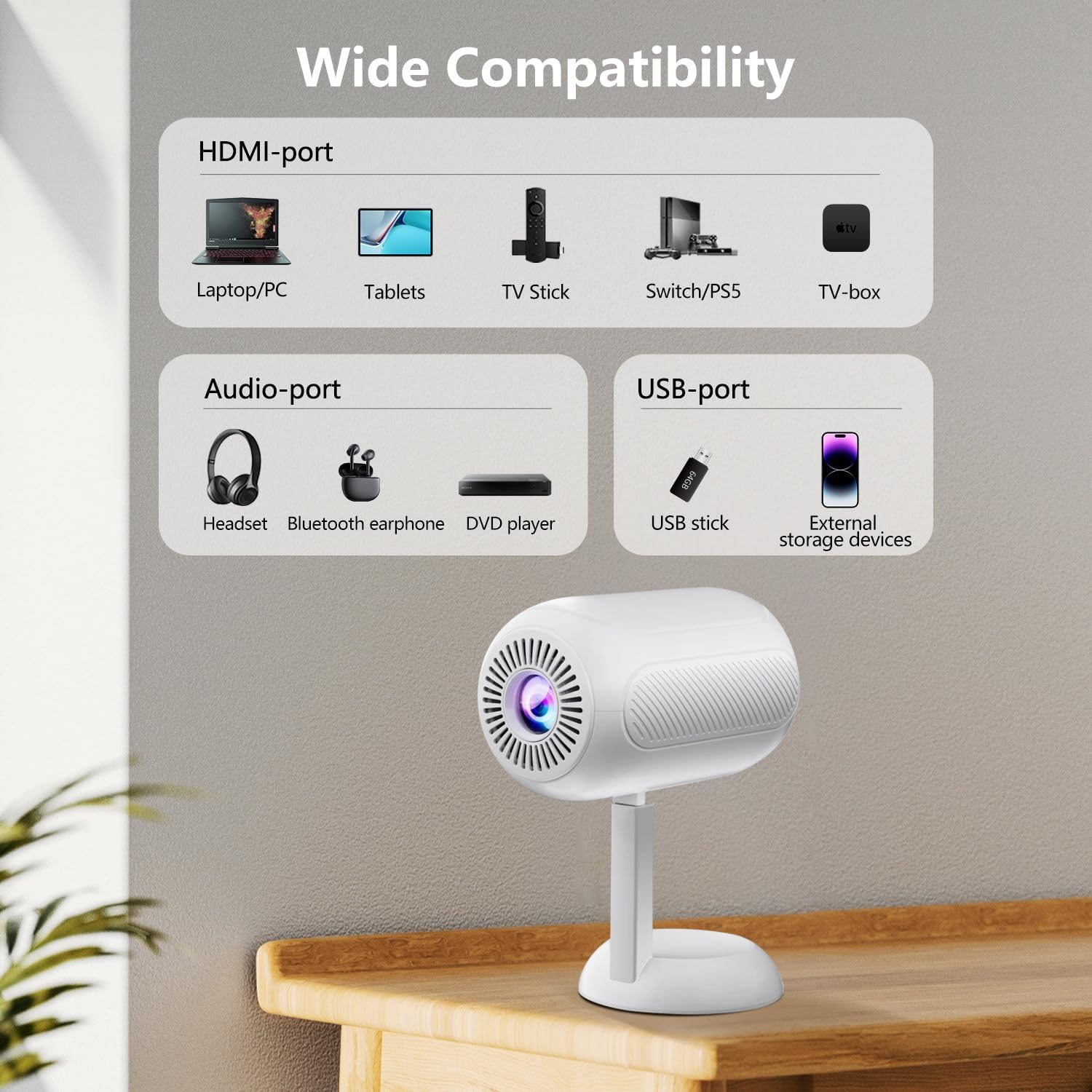
Obrázek 5: Přesview of the projector's connectivity ports, including HDMI, USB, and Audio ports.
4.2 Bezdrátové připojení (WiFi a Bluetooth)
The projector supports WiFi 6 and Bluetooth 5.2 for wireless connections.
- WiFi připojení:
- Přejděte do nabídky nastavení projektoru.
- Vyberte „Síť“ nebo „Nastavení WiFi“.
- Vyberte požadovanou síť WiFi a zadejte heslo.
- Once connected, you can use screen mirroring features.
- Připojení Bluetooth:
- Go to the projector's settings menu.
- Select "Bluetooth Settings".
- Povolte Bluetooth a vyhledejte dostupná zařízení.
- Vyberte Bluetooth reproduktor nebo sluchátka, která chcete spárovat.

Figure 6: The projector connected wirelessly via WiFi and Bluetooth, demonstrating compatibility with iOS, Android, and Windows devices.
4.3 Zrcadlení obrazovky
The projector supports screen mirroring from Android, iOS, and Windows devices. Ensure your device and the projector are connected to the same WiFi network.
- Pro zařízení se systémem iOS:
- On the projector, select the "iOS Cast" or "Screen Mirroring" option.
- On your iOS device, open Control Center and tap "Screen Mirroring".
- Vyberte projektor ze seznamu dostupných zařízení.
- Pro zařízení Android:
- On the projector, select the "Android Cast" or "Screen Mirroring" option.
- On your Android device, enable "Wireless Display," "Smart View," or "Cast" (names may vary by device).
- Vyberte projektor ze seznamu dostupných zařízení.
Poznámka: Due to HDCP copyright protocols, certain streaming services (e.g., Netflix, Disney+, Prime Video, Hulu) may not support direct screen mirroring. For these services, it is recommended to use a TV Stick (e.g., Amazon Fire Stick, Roku) connected via HDMI.
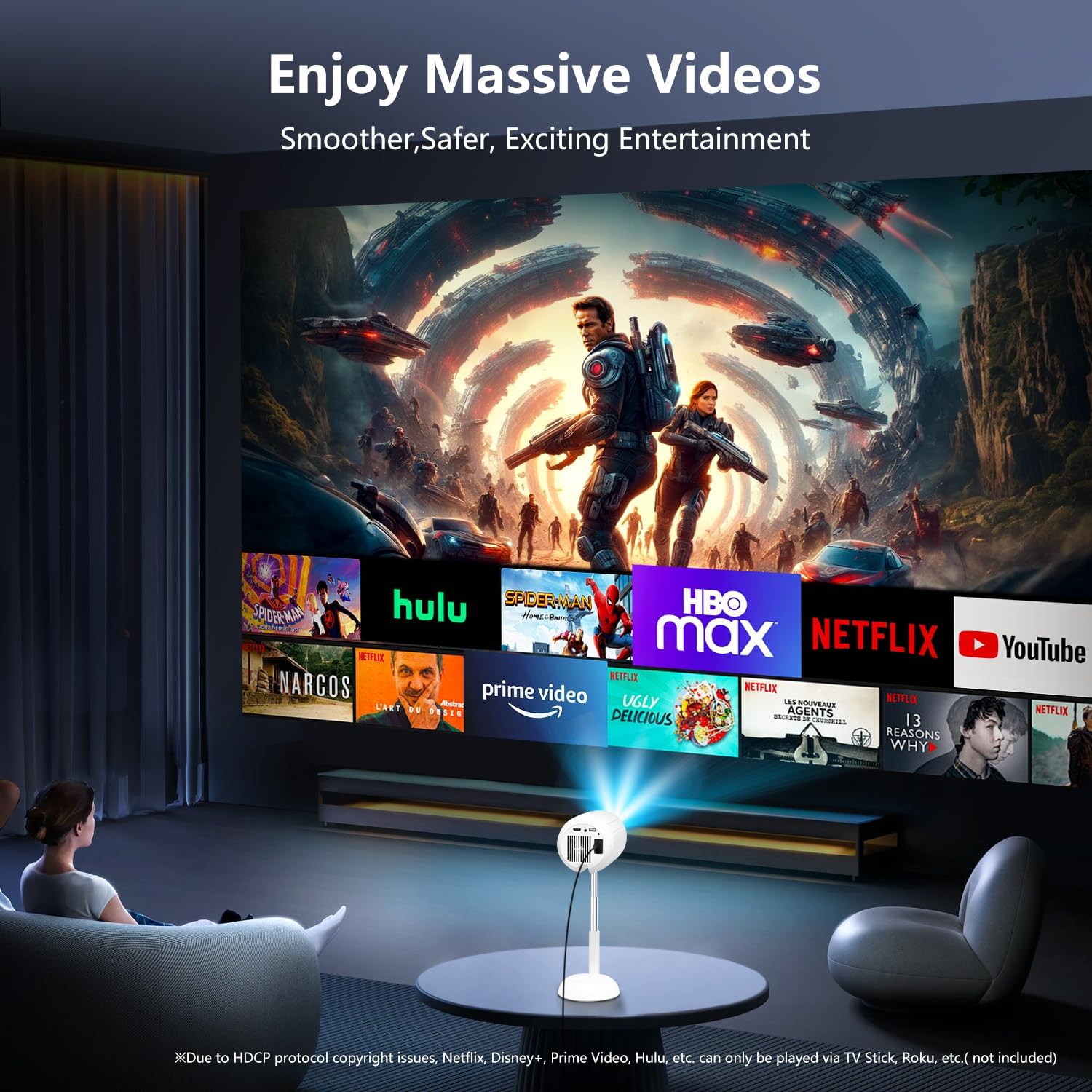
Figure 7: The projector displaying content from various streaming services, highlighting the use of external devices for copyrighted content.
5. Údržba
5.1 Čištění objektivu
K jemnému otření čočky projektoru použijte měkký hadřík bez žmolků, speciálně určený pro optické čočky. Nepoužívejte abrazivní čisticí prostředky ani nadměrnou sílu, mohlo by dojít k poškrábání čočky.
5.2 Čištění těla projektoru
Wipe the exterior of the projector with a soft, dry cloth. Do not use liquid cleaners or solvents, as they may damage the finish.
5.3 Větrání
Abyste zabránili přehřátí, ujistěte se, že větrací otvory jsou čisté, bez prachu a překážek. Během provozu neblokujte větrací otvory.
6. Řešení problémů
| Problém | Možná příčina | Řešení |
|---|---|---|
| Není zobrazen žádný obrázek | Power cable disconnected; incorrect input source; device not connected properly. | Check power connection; select correct input source (HDMI, USB, etc.); ensure cables are securely connected. |
| Rozmazaný obraz | Out of focus; incorrect keystone adjustment. | Adjust electric focus using the remote; perform keystone correction. |
| Žádný zvuk | Volume too low; external audio device not connected/paired; projector muted. | Increase volume; connect/pair Bluetooth device; unmute projector. |
| Nefunguje zrcadlení obrazovky | Devices not on same WiFi network; HDCP restrictions; WiFi signal weak. | Ensure both devices are on the same WiFi; use HDMI for restricted content; check WiFi signal strength. |
7. Specifikace
| Funkce | Detail |
|---|---|
| Značka | VGKE |
| Číslo modelu | TS-6 |
| Rozlišení displeje | 1920 x 1080 (Full HD) |
| Technologie připojení | Bluetooth, HDMI, USB, Wi-Fi |
| Speciální funkce | Built-In Wi-Fi, Bluetooth |
| Rozměry produktu | 4.93 x 4.93 x 8.45 palce |
| Hmotnost položky | 2.88 libry |
| Doporučená použití | Domácí kino |
8. Záruka a podpora
For warranty information and technical support, please refer to the contact details provided on the VGKE official webnebo v dokumentaci k nákupu. Uschovejte si doklad o koupi pro případ reklamace.
For further assistance, you may contact VGKE customer service through their official channels.


