Zavedení
This manual provides detailed instructions for the setup, operation, and maintenance of your CITLLA L570 Wireless Bluetooth Mouse. Please read this manual thoroughly before using the product to ensure proper functionality and to maximize your user experience.

Obrázek: Nahoře view of the CITLLA L570 Wireless Bluetooth Mouse.

Image: User operating the CITLLA L570 mouse.
Obsah balení
Ověřte, zda jsou v balení přítomny všechny položky:
- CITLLA L570 Wireless Bluetooth Mouse
- USB-A Receiver (stored inside the mouse)
- Nabíjecí kabel typu C.
- Uživatelská příručka (tento dokument)
Konec produktuview
Familiarize yourself with the components and key features of your CITLLA L570 mouse.

Obrázek: Overview of the CITLLA L570 mouse features.

Image: CITLLA L570 mouse alongside a keyboard.
Klíčové vlastnosti:
- 4-Way Scroll Wheel: Provides both vertical high-speed scrolling and horizontal tilt scrolling.
- Nastavitelné DPI: Four levels (1000/1600/2400/3000) for precise control.
- Připojení více zařízení: Connects to up to three devices via one 2.4G USB-A receiver and two Bluetooth channels.
- Dobíjecí baterie: Built-in high-capacity lithium battery with Type-C charging.
- Tiché kliknutí: Designed for a quiet working environment.
- Tlačítka vpřed/zpět: Located on the side for enhanced navigation.
Nastavení
The CITLLA L570 mouse offers flexible connectivity options. Choose between 2.4G wireless or Bluetooth connections.
1. 2.4G USB-A Receiver Connection
- Locate the USB-A receiver. It is typically stored in a compartment on the underside of the mouse.
- Insert the USB-A receiver into an available USB port on your computer or device.
- Zapněte myš pomocí vypínače umístěného na spodní straně.
- Press the device switch button (usually on the top or bottom of the mouse) to select the 2.4G mode (indicated by a specific LED color or number, refer to the mouse's physical markings). The mouse should connect automatically.
2. Připojení Bluetooth (BT1 / BT2)
Myš podporuje dvě nezávislá připojení Bluetooth (BT1 a BT2).
- Zapněte myš pomocí vypínače.
- Press the device switch button to select either Bluetooth 1 (BT1) or Bluetooth 2 (BT2) mode. The corresponding indicator light will flash.
- For initial pairing, hold down the device switch button for three seconds until the indicator light flashes rapidly. This indicates the mouse is in pairing mode.
- On your device (computer, tablet, smartphone), navigate to the Bluetooth settings.
- Hledat new devices. The mouse should appear as "CITLLA L570" or a similar name.
- Select the mouse to pair. Once connected, the indicator light will stop flashing and remain solid for a few seconds before turning off.
To connect to a second Bluetooth device, repeat steps 2-6, selecting the other Bluetooth channel (BT2).

Image: Multi-device connectivity of the CITLLA L570 mouse.
Návod k obsluze
1. Nastavení DPI
The mouse features 4 adjustable DPI settings to suit various tasks and preferences.
- 1000 DPI: Suitable for design work requiring high precision.
- 1600 DPI: Ideal for general study and browsing.
- 2400 DPI: Recommended for work and productivity tasks.
- 3000 DPI: Optimal for gaming or fast-paced activities.
Chcete-li změnit nastavení DPI, stiskněte tlačítko Tlačítko DPI located below the scroll wheel. Each press cycles through the available DPI levels.

Image: DPI adjustment settings and their recommended uses.
2. 4-Way Scroll Wheel
The innovative scroll wheel provides enhanced navigation capabilities:
- Vertical Scrolling: Scroll the wheel up or down for standard vertical navigation. The smart fly scroll feature allows for super-fast scrolling on long web stránky.
- Horizontální rolování: Tilt the scroll wheel to the left or right to enable horizontal scrolling, useful for wide documents or spreadsheets.
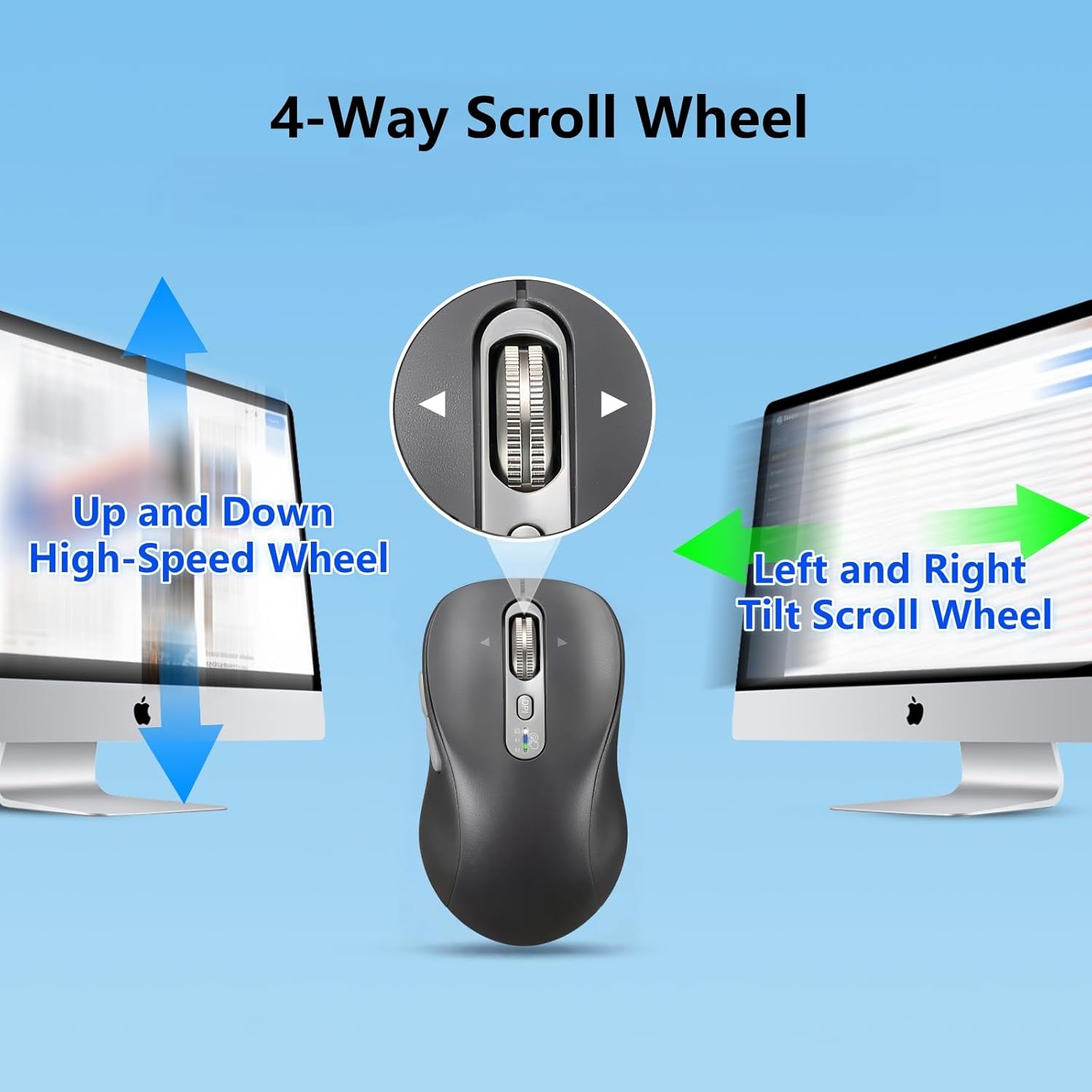
Image: Explanation of the 4-way scroll wheel functionality.
3. Přepínání více zařízení
To switch between connected devices (2.4G, BT1, BT2), simply press the device switch button. The indicator light will show which channel is currently active.

Image: Mouse used with multiple devices.
4. Nabíjení
The CITLLA L570 mouse is equipped with a rechargeable battery.
- Connect the provided Type-C charging cable to the charging port on the front of the mouse and to a USB power source.
- A full charge typically takes 1.5-2 hours and can provide approximately 60 days of normal use.
- The low power indicator light will illuminate when the remaining power is sufficient for less than 7 days of use, providing ampčas na dobití.

Image: Mouse charging via Type-C cable.

Image: Mouse connected for charging.
Kompatibilita
The CITLLA L570 mouse is designed for broad compatibility across various operating systems and devices.
- Operační systémy: Windows (8/10/11 and later), Mac OS (10.15 and later; USB connection supports 10.10 and later), Chrome OS (11 and later; USB connection supports 9 and later), iOS (13.4 and later), Android (5.0 and later), Linux (10 and later; USB connection supports 8 and later).
- Zařízení: Desktops, Laptops, Tablets, Smartphones, All-in-one PCs.

Image: Operating system compatibility icons.

Image: Specific system version compatibility details.
Údržba
To ensure the longevity and optimal performance of your CITLLA L570 mouse, follow these maintenance guidelines:
- Čištění: K otření povrchu myši použijte měkký, suchý hadřík. V případě odolných nečistot použijte lehceamp Lze použít hadřík, ale dbejte na to, aby se do vnitřních součástí nedostala vlhkost. Nepoužívejte agresivní chemikálie ani abrazivní čisticí prostředky.
- Skladování: Pokud myš delší dobu nepoužíváte, skladujte ji na chladném a suchém místě.
- Péče o baterie: Avoid fully discharging the battery frequently. Charge the mouse when the low power indicator appears. Do not expose the battery to extreme temperatures.
- Přijímač: Keep the USB-A receiver in its designated storage slot within the mouse when not in use to prevent loss.
Odstraňování problémů
| Problém | Řešení |
|---|---|
| Myš nereaguje (2.4G) |
|
| Myš nereaguje (Bluetooth) |
|
| Pohyb kurzoru je nepravidelný nebo pomalý |
|
| Rolovací kolečko nefunguje |
|
| Indikátor slabé baterie svítí neustále |
|
Specifikace
| Funkce | Detail |
|---|---|
| Číslo modelu | L570 |
| Technologie připojení | 2.4G USB-A Receiver, Bluetooth 1, Bluetooth 2 |
| Nastavení DPI | 1000/1600/2400/3000 |
| Detekce pohybu | Optický |
| Speciální funkce | 4-Way Scrolling, Forward/Back buttons, Multi-Device (3 devices), Quiet Clicks (10 million click lifespan), Rechargeable (Type-C charging) |
| Typ baterie | High-capacity Lithium Battery (500mAh) |
| Nabíjecí port | Typ-C |
| Životnost baterie (přibližně) | 60 days after 1-hour charge |
| Hmotnost položky | 5.6 unce |
| Rozměry | 5.59 x 3.11 x 2.13 palce |
Záruka a podpora
CITLLA products are manufactured with quality and reliability in mind. For warranty information or technical support, please refer to the contact details provided with your purchase or visit the official CITLLA webmísto.
Pro další pomoc můžete také kontaktovat prodejce přímo prostřednictvím platformy, kde byl produkt zakoupen.
Výrobce: CITLLA
Značková prodejna: Visit the CITLLA Store on Amazon


