1. Konec produktuview a klíčové vlastnosti
The Plugable USBC-PDMON is a 15.6-inch Full HD (1920x1080) IPS portable monitor designed for enhanced productivity on the go. It features 100W Power Delivery pass-through charging and a 3x USB-C 10Gbps hub, making it a versatile solution for expanding your workspace.

Image: The Plugable USBC-PDMON portable monitor in use, showcasing its slim design and the protective case functioning as a stand.
Klíčové vlastnosti:
- 15.6-inch Full HD (1920x1080) IPS Display: Provides crisp, clear visuals with wide viewing angles and up to 300 nits brightness.
- 100W Power Delivery Pass-Through: Allows charging of your laptop, smartphone, or tablet (up to 85W output) while using the monitor.
- Integrated 3x USB-C 10Gbps Hub: Expands connectivity with two 10Gbps USB-C ports for data transfer or connecting peripherals.
- Přenosný a lehký: Weighing 1.85lbs (with cover), it's ideal for travel and mobile workstations.
- Protective Case/Stand: The included cover protects the screen and conveniently folds into a stand for various viewing úhly.
- Univerzální kompatibilita: Works with Mac, Windows, Chrome, iPad, iPhone, and Android devices equipped with full-featured USB-C or Thunderbolt ports.
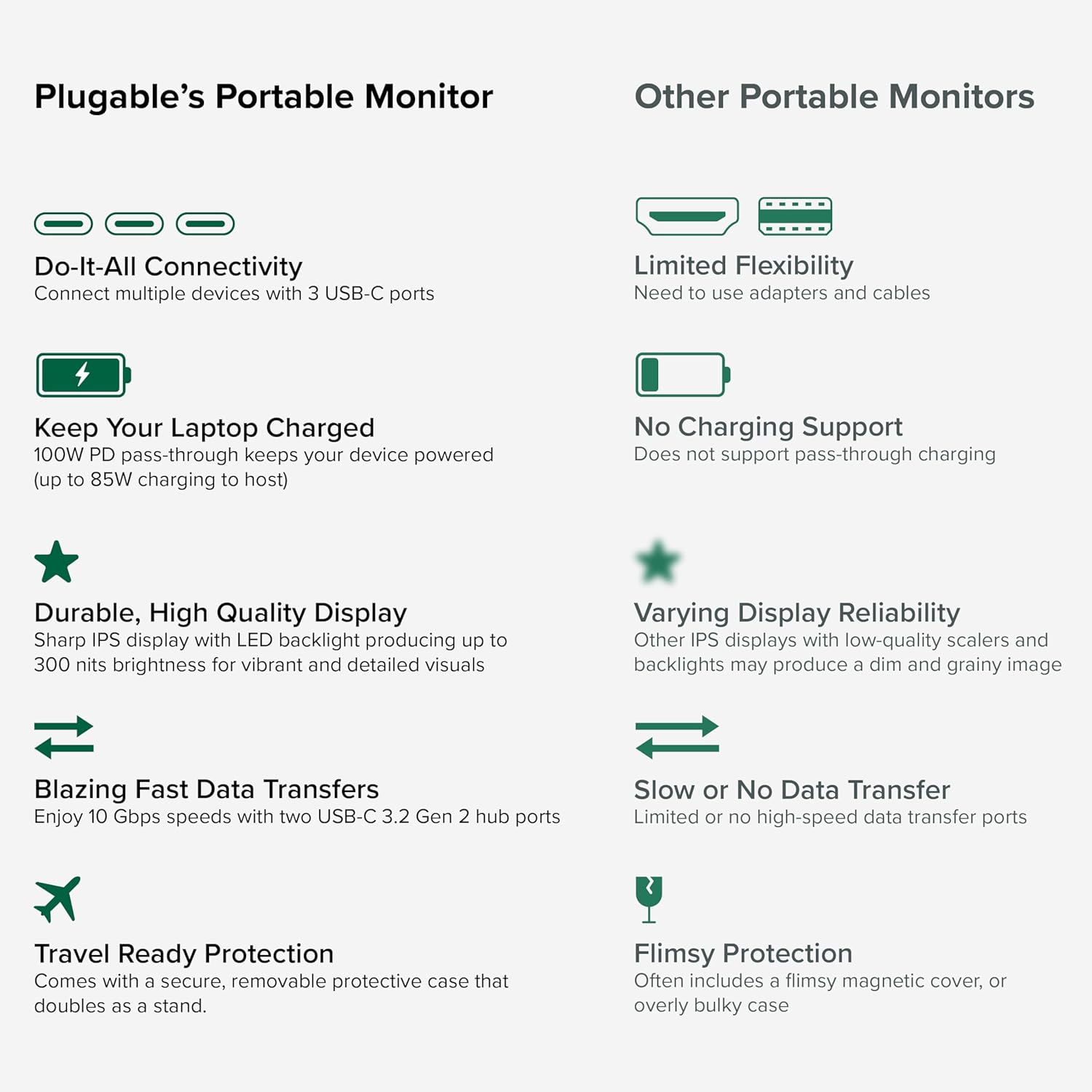
Image: A comparison highlighting the superior connectivity, charging support, display quality, data transfer speeds, and travel-ready protection of the Plugable monitor.
2. Co je zahrnuto
Zkontrolujte prosím obsah balení, abyste se ujistili, že jsou přítomny všechny položky:
- 1920x1080 IPS Travel Display with Protective Case/Stand
- 1 Meter USB-C Host Cable
- Rychlý průvodce
3. Průvodce nastavením
Follow these steps to set up your Plugable portable monitor:
- Rozbalte monitor: Carefully remove the monitor and its accessories from the packaging.
- Umístěte stojan: The protective cover doubles as a stand. Fold the cover to create a stable base for the monitor. The built-in magnets will help secure it in place.
- Připojte se k vašemu zařízení: Use the included 1-meter USB-C host cable to connect the monitor to your laptop, smartphone, or tablet. Ensure your device has a full-featured USB-C port that supports video output (DisplayPort Alternate Mode) and Power Delivery.
- Power the Monitor (Optional/Recommended): For optimal performance and to utilize the pass-through charging feature, connect a USB-C power adapter (not included) to the monitor's dedicated power input port. This will also allow the monitor to charge your host device (up to 85W).
- Konfigurace displeje: Your device should automatically detect the monitor. You may need to adjust display settings (e.g., extend, mirror, resolution) in your operating system's display settings.

Image: Visual instructions on how to correctly fold the protective cover to form a stable stand for the monitor.

Image: An illustration demonstrating the power flow when the monitor is used as a hub, providing 85W charging to the connected laptop from a 100W input.
Kompatibilita:
The monitor is compatible with a wide range of operating systems and devices:
- Podporované platformy: Mac, Windows, Chrome OS, Android.
- Připojení k hostiteli: USB-C, USB4, Thunderbolt.
- Kompatibilní systémy: MacBooks, Dell XPS, Lenovo ThinkPad, Apple iPhone 15/16+, Samsung Galaxy S24, Google Pixel 8, iPads with USB-C, Samsung Galaxy Tab, Lenovo Tab.

Image: A visual guide to the monitor's broad compatibility across different operating systems and popular devices like laptops, phones, and tablets.
4. Návod k obsluze
Once connected, your Plugable portable monitor is ready for use. Here are some operational tips:
Režimy zobrazení:
- Extend Display: Use this mode to expand your desktop workspace across both your primary device and the portable monitor.
- Zrcadlový displej: This mode duplicates your primary device's screen onto the portable monitor, useful for presentations or sharing content.
Ovládání monitoru:
The monitor features control buttons on the side for adjustments:
- Brightness Up/Down: Upravte jas obrazovky podle svých preferencí.
- Barevný režim: Cycle through preset color modes (Cool, Normal, Warm, sRGB, and User) to optimize visual appearance.
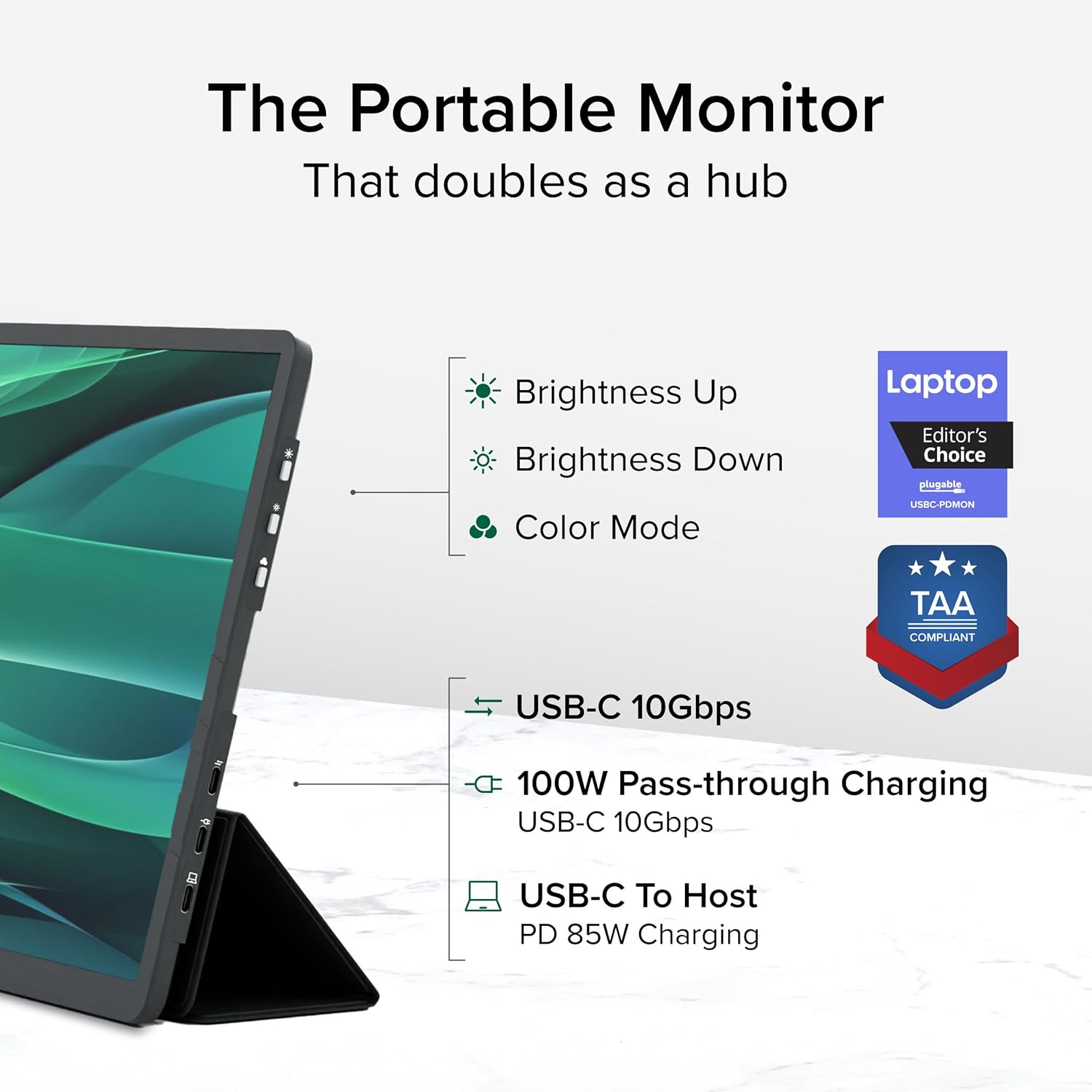
Obrázek: Podrobný view of the monitor's side, indicating the location of the brightness controls, color mode button, and the three USB-C ports for host connection, power delivery, and data hub functionality.
USB-C Hub Functionality:
The monitor acts as a hub, providing additional USB-C ports for your peripherals:
- Connect USB-C devices such as external drives, keyboards, or mice to the available 10Gbps USB-C ports on the monitor.
5. Údržba
To ensure the longevity and optimal performance of your Plugable portable monitor, follow these maintenance guidelines:
- Čištění obrazovky: Lehce používejte měkký hadřík, který nepouští vlákna dampened with water or a screen-cleaning solution. Avoid harsh chemicals, abrasive materials, or direct spraying onto the screen.
- Čištění těla: Otřete vnější povrch monitoru měkkým, suchým hadříkem.
- Skladování: When not in use, always use the protective cover to prevent scratches and damage to the screen. Store in a cool, dry place away from direct sunlight and extreme temperatures.
- Zacházení: S monitorem zacházejte opatrně. Nevystavujte jej pádu ani silným nárazům.
6. Řešení problémů
If you encounter issues with your Plugable portable monitor, refer to the following common problems and solutions:
No Display or "No Signal" Message:
- Zkontrolujte kabelové připojení: Ensure the USB-C cable is securely connected to both the monitor and your host device. Try unplugging and re-plugging the cable.
- Verify USB-C Port Capability: Confirm that your device's USB-C port supports video output (DisplayPort Alternate Mode). Not all USB-C ports have this capability.
- Externí napájení: If your host device cannot provide sufficient power, connect an external USB-C power adapter to the monitor's power input port.
- Restartujte zařízení: Try restarting your laptop, smartphone, or tablet.
Blikání nebo nestabilní zobrazení:
- Napájení: Ensure the monitor is receiving adequate power. Connect an external USB-C power adapter if not already in use.
- Kvalita kabelu: Use the included high-quality USB-C cable. A different or lower-quality cable might cause instability.
- Aktualizace ovladačů: Ujistěte se, že grafické ovladače hostitelského zařízení jsou aktuální.
Žádné nabíjení nebo pomalé nabíjení:
- Hodnocení napájecího adaptéru: Ensure the external USB-C power adapter connected to the monitor is rated for at least 100W to provide 85W pass-through charging to your host device.
- Kompatibilita kabelů: Verify the USB-C cable supports Power Delivery.
If these steps do not resolve your issue, please contact Plugable support for further assistance.
7. Specifikace
Detailed technical specifications for the Plugable USBC-PDMON portable monitor:
| Funkce | Specifikace |
|---|---|
| Velikost obrazovky | 15.6 palce |
| Rezoluce | FHD 1080p (1920 x 1080 pixelů) |
| Technologie displeje | IPS |
| Poměr stran | 16:9 |
| Jas obrázku | 300 kandel (nitů) |
| Povrch obrazovky | Matný |
| Celkový počet portů USB | 3 (USB-C) |
| Dodávka energie | 100W Pass-Through (85W to host) |
| Rychlost přenosu dat | 10Gbps (USB-C hub ports) |
| Hmotnost položky | 1.85 libry |
| Rozměry produktu | 0.42 x 14.21 x 8.46 palce |
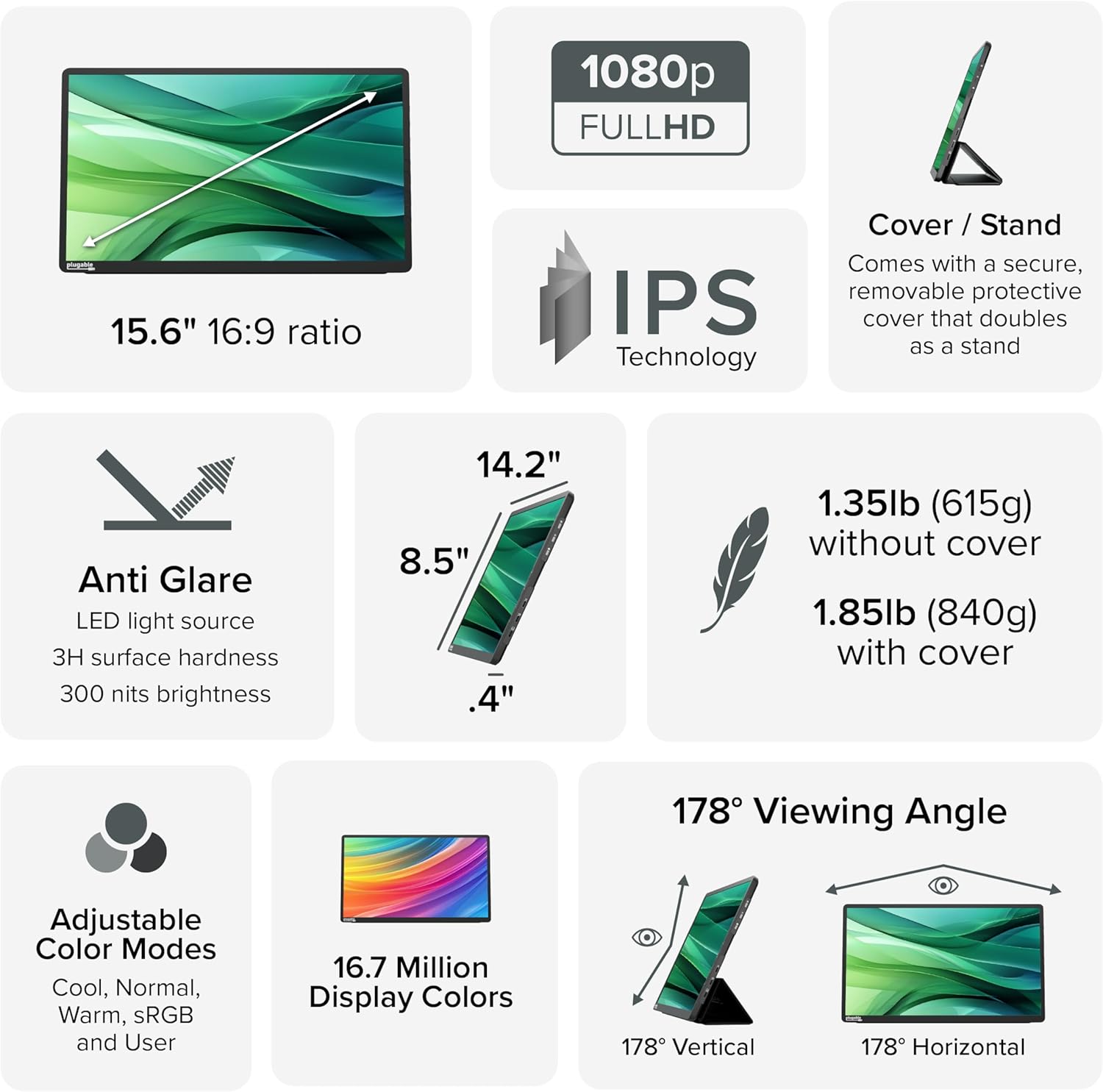
Image: A comprehensive infographic summarizing the monitor's technical specifications, such as screen size, resolution, IPS technology, anti-glare properties, weight, and viewing úhly.
8. Záruka a podpora
The Plugable USBC-PDMON portable monitor is designed with reliability at its core and built to meet the demands of both IT departments and home offices.
- Doživotní podpora: Includes lifetime support from our North American team of connectivity experts.
- Záruka: Backed by a 2-Year Warranty.
For technical assistance or warranty claims, please visit the official Plugable webwebu nebo se přímo obraťte na jejich tým podpory.


