Zavedení
Děkujeme, že jste si vybrali O.urlife WiFi Extender. This device is designed to expand your existing Wi-Fi network coverage, eliminate dead spots, and provide a stable, high-speed internet connection throughout your home or office. With a data transfer rate of up to 300Mbps on the 2.4GHz band, it is ideal for streaming, online gaming, and general internet use. This manual provides detailed instructions for setup, operation, and troubleshooting.
Bezpečnostní informace
- Nevystavujte zařízení vodě nebo vlhkosti.
- Nepokoušejte se zařízení sami rozebírat nebo opravovat.
- Používejte pouze napájecí adaptér dodaný nebo doporučený výrobcem.
- Udržujte zařízení mimo dosah zdrojů tepla a přímého slunečního záření.
- Zajistěte dostatečné větrání kolem zařízení, aby nedošlo k přehřátí.
Obsah balení
Pečlivě zkontrolujte obsah balení. Pokud některá položka chybí nebo je poškozena, kontaktujte svého prodejce.
- Ourlife WiFi Extender (repeater body)
- Uživatelská příručka
Konec produktuview
Ourlife WiFi Extender features a compact design with four high-gain external antennas for enhanced signal penetration and coverage. It includes an Ethernet port for wired connections.
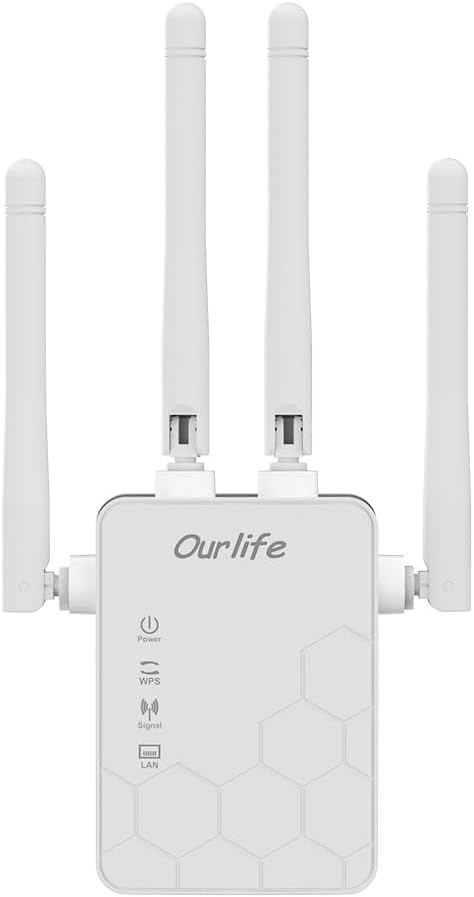
Obrázek: Přední strana view z Ourlife WiFi Extender, showing the Ourlife logo, power indicator, WPS button, signal strength indicator, and LAN port indicator. Four external antennas are visible.
Klíčové komponenty:
- Indikátor napájení: Rozsvítí se, když je zařízení zapnuto.
- Tlačítko WPS: Used for quick, one-button setup with compatible routers.
- Indikátor signálu: Shows the strength of the Wi-Fi signal received from the main router.
- LAN port: An Ethernet port for connecting wired devices or for setting up the extender in Access Point (AP) mode.
- Externí antény: Four adjustable antennas to optimize signal reception and transmission.

Obrázek: Boční view z Ourlife WiFi Extender with dimensions. The device measures approximately 17.2cm/6.8in in height, 5.4cm/2.1in in width, and 3.3cm/1.3in in depth.
Nastavení
Ourlife WiFi Extender offers two primary setup methods: WPS (Wi-Fi Protected Setup) for quick connection, and manual setup via a web prohlížeč.
Metoda 1: Nastavení WPS (doporučeno pro rychlé nastavení)
- Zapnutí: Plug the Ourlife WiFi Extender into an electrical outlet near your main Wi-Fi router. Wait for the Power indicator to light up.
- Stiskněte WPS na extenderu: Press the WPS button on the Ourlife WiFi Extender. The WPS indicator light will start blinking.
- Stiskněte WPS na routeru: Do 2 minut stiskněte tlačítko WPS na hlavním Wi-Fi routeru.
- Čekání na připojení: The WPS indicator on the extender will stop blinking and remain solid when the connection is established. The Signal indicator will also light up, indicating a successful connection.
- Přemístit extender: Once connected, unplug the extender and move it to a location halfway between your router and the Wi-Fi dead zone. Ensure the Signal indicator shows a strong signal (usually green or multiple bars) for optimal performance.

Image: Visual representation of the four simple setup steps: 1. Unbox, 2. Plug it in, 3. Press the button (WPS), 4. And Pair (with router).
Method 2: Manual Setup via Web Prohlížeč
- Zapnutí: Plug the Ourlife WiFi Extender into an electrical outlet near your computer or mobile device.
- Připojení k Wi-Fi extenderu: On your computer or mobile device, connect to the Wi-Fi network named "Ourlife_Extender" (or similar, check the label on the device). No password is required for the initial connection.
- OTEVŘENO Web prohlížeč: Otevřete a web browser (e.g., Chrome, Firefox, Safari) and enter the default IP address or domain name (e.g., 192.168.10.1 or reapeter.net) into the address bar. Refer to the device label or included mini-manual for the exact address.
- Přihlášení: Zadejte výchozí uživatelské jméno a heslo (obvykle admin/admin).
- Vyberte režim: Choose "Repeater Mode" or "AP Mode" based on your needs.
- Režim opakovače: Extends your existing Wi-Fi network wirelessly.
- Režim AP (přístupový bod): Converts a wired internet connection into a wireless Wi-Fi hotspot. Connect an Ethernet cable from your router to the extender's LAN port.
- Konfigurace sítě:
- Pro režim opakovače: Select your main Wi-Fi network from the list, enter its password, and choose whether to keep the same SSID or create a new one for the extended network.
- Pro režim přístupového bodu: Set a new SSID (network name) and password for the Wi-Fi hotspot.
- Použít nastavení: Save the settings and wait for the extender to restart.
- Přemístit extender: Once configured, unplug and relocate the extender to an optimal position.
Provozní
After successful setup, the Ourlife WiFi Extender will operate automatically. The Signal indicator will provide visual feedback on the connection quality.
Připojovací zařízení:
- Bezdrátová zařízení: Connect your smartphones, tablets, laptops, and other Wi-Fi enabled devices to the extended Wi-Fi network (the SSID you configured during setup).
- Wired Devices (via LAN Port): If you are using the extender in Repeater mode, you can connect a wired device (e.g., desktop PC, smart TV, game console) to the extender's LAN port using an Ethernet cable to provide it with network access.
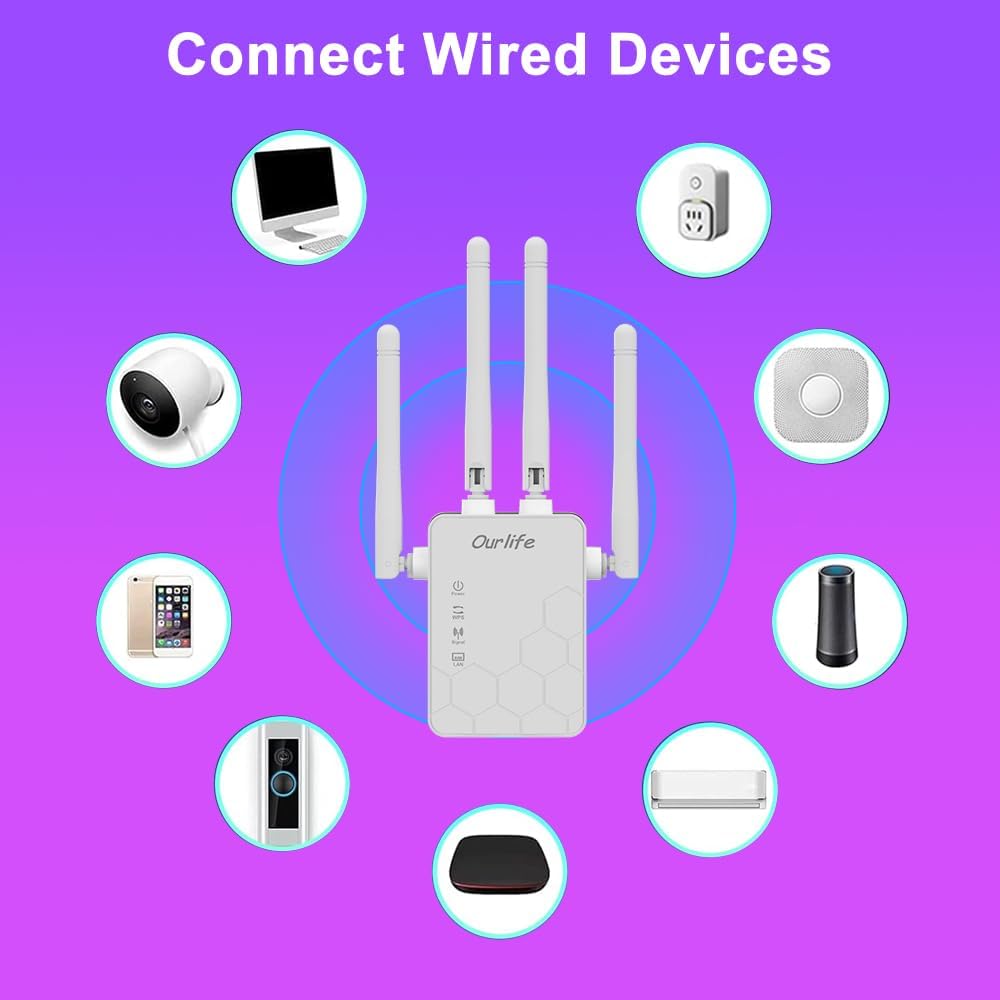
Image: Diagram showing various wired and wireless devices (e.g., desktop computer, smart plug, smart speaker, air conditioner, smart doorbell, security camera, smartphone) that can connect to the Ourlife WiFi Extender.

Obrázek: Ourlife WiFi Extender plugged into a wall outlet, with an Ethernet cable connected to its LAN port, illustrating its capability to provide a wired connection.
Údržba
Regular maintenance helps ensure the longevity and optimal performance of your Ourlife WiFi Extender.
- Čištění: K čištění zařízení používejte měkký, suchý hadřík. Nepoužívejte tekuté čisticí prostředky ani aerosoly.
- Aktualizace firmwaru: Pravidelně kontrolujte informace od výrobce website for firmware updates. Updating firmware can improve performance, add features, and fix bugs.
- Restartování: Pokud se vyskytnou problémy se sítí, zkuste restartovat extender tak, že jej na 10 sekund odpojíte od elektrické zásuvky a poté jej znovu zapojíte.
- Optimální umístění: Ensure the extender is placed in an open area, away from large metal objects, concrete walls, and other electronic devices that may cause interference.
Odstraňování problémů
Pokud narazíte na problémy s vaším Ourlife WiFi Extender, refer to the following common problems and solutions:
| Problém | Možné řešení |
|---|---|
| Extender se nezapíná. | Ujistěte se, že je prodlužovač signálu bezpečně zapojený do funkční elektrické zásuvky. Zkuste jinou zásuvku. |
| Cannot connect to the extender's Wi-Fi for setup. | Ensure you are connecting to the correct default SSID (e.g., "Ourlife_Extender"). Try restarting the extender and your device. |
| Nastavení WPS selhalo. | Ensure your router supports WPS. Press the WPS button on both devices within the 2-minute window. Try manual setup if WPS continues to fail. |
| No internet access after connecting to the extended network. | Check if your main router has internet access. Relocate the extender closer to your main router to ensure a strong signal (check Signal indicator). Reconfigure the extender. |
| Slow speeds on the extended network. | Relocate the extender to an optimal position where the Signal indicator shows a strong connection to the main router. Avoid placing it near interference sources. Ensure your main router is providing good speeds. |
| Zapomenuté přihlašovací heslo pro web stránka správy. | Perform a factory reset on the extender (usually by pressing and holding a reset button for 5-10 seconds). This will revert all settings to default, including the login credentials. |
Specifikace
| Funkce | Detail |
|---|---|
| Značka | Ourlife |
| Model | Ourlife WiFi Extender 300Mbps |
| ASIN | B0D7HB4DBC |
| Rychlost přenosu dat | 300 megabitů za sekundu (2.4 GHz) |
| Antény | 4 externí antény s vysokým ziskem |
| Ethernetový port | 1 x LAN port |
| Barva | Bílý |
| Konektivita | Wireless-N (802.11n/g/b) |
| Bezpečnostní protokoly | Supports Wireless Security (WPA/WPA2) |
| Rozměry (cca) | 17.2 cm (V) x 5.4 cm (Š) x 3.3 cm (H) |
Záruka a podpora
Informace o záruce a technickou podporu naleznete v dokumentaci dodané s vaším nákupem nebo navštivte oficiální webové stránky Ourlife website. You can also contact Ourlife customer service directly for assistance with product setup, troubleshooting, or warranty claims.
Ourlife Store Link: Visit the OurlObchod ife na Amazonu


