1. Úvod
This manual provides detailed instructions for the setup, operation, and maintenance of your A4tech FBK27C AS Bluetooth & 2.4G Rechargeable Keyboard. Please read this manual thoroughly to ensure proper use and to maximize the keyboard's features.
The A4tech FBK27C AS keyboard is designed for enhanced comfort and productivity, featuring dual connectivity options, QuietKey technology for silent typing, and multi-device pairing capabilities. Its ergonomic design aims to reduce wrist strain during extended use.
2. Vlastnosti
- Duální konektivita: Seamlessly switch between 2.4GHz wireless (via USB dongle) and Bluetooth connections.
- Párování více zařízení: Connect and switch between up to three devices (one 2.4GHz and two Bluetooth devices).
- Ergonomický design: Features a split keyboard layout and an integrated wrist rest to promote a natural hand and wrist posture, reducing discomfort during prolonged typing.
- QuietKey Technology: Designed for silent typing, minimizing noise in shared environments.
- Dobíjecí baterie: Equipped with a built-in rechargeable battery, charged via a USB-C port.
- Multimedia & Function Keys: Dedicated keys for media control, system functions, and quick access to common tasks.
- Široká kompatibilita: Supports Windows, Mac, iOS, and Android operating systems.
3. Obsah balení
Ověřte, zda jsou v balení přítomny všechny položky:
- A4tech FBK27C AS Keyboard
- Nabíjecí kabel USB-C
- 2.4GHz USB přijímač (dongle)
- Rychlý průvodce
4. Nastavení
4.1 Nabíjení klávesnice
Before first use, fully charge the keyboard. Connect the provided USB-C cable to the charging port on the keyboard (located on the upper top left edge, near the ON/OFF button) and the other end to a USB power source. The power LED will illuminate during charging and turn off when fully charged.
4.2 Připojení přes bezdrátové připojení 2.4 GHz
- Locate the 2.4GHz USB receiver (dongle), typically stored magnetically on the underside of the keyboard.
- Zapojte USB přijímač do volného USB portu na vašem počítači.
- Zapněte klávesnici pomocí vypínače ON/OFF.
- Press the '2.4G' key on the keyboard to activate 2.4GHz mode. The indicator light will confirm the connection.
4.3 Připojení přes Bluetooth
Klávesnice podporuje dvě připojení Bluetooth (BT1 a BT2).
- Zapněte klávesnici pomocí vypínače ON/OFF.
- Press and hold either the 'BT1' or 'BT2' key for a few seconds until its indicator light starts blinking rapidly. This indicates pairing mode.
- Na svém zařízení (počítači, tabletu, chytrém telefonu) přejděte do nastavení Bluetooth a vyhledejte nová zařízení.
- Select 'A4tech FBK27C AS' (or similar name) from the list of available devices.
- Postupujte podle pokynů na obrazovce a dokončete proces párování. Po úspěšném spárování se kontrolka na klávesnici rozsvítí nepřerušovaně.
- Repeat for the second Bluetooth channel if desired.
4.4 Nastavení sklonu klávesnice
The keyboard features adjustable feet on both the front and back. To achieve a more ergonomic typing angle, you can extend the front feet to raise the keyboard's front edge, further enhancing wrist comfort.
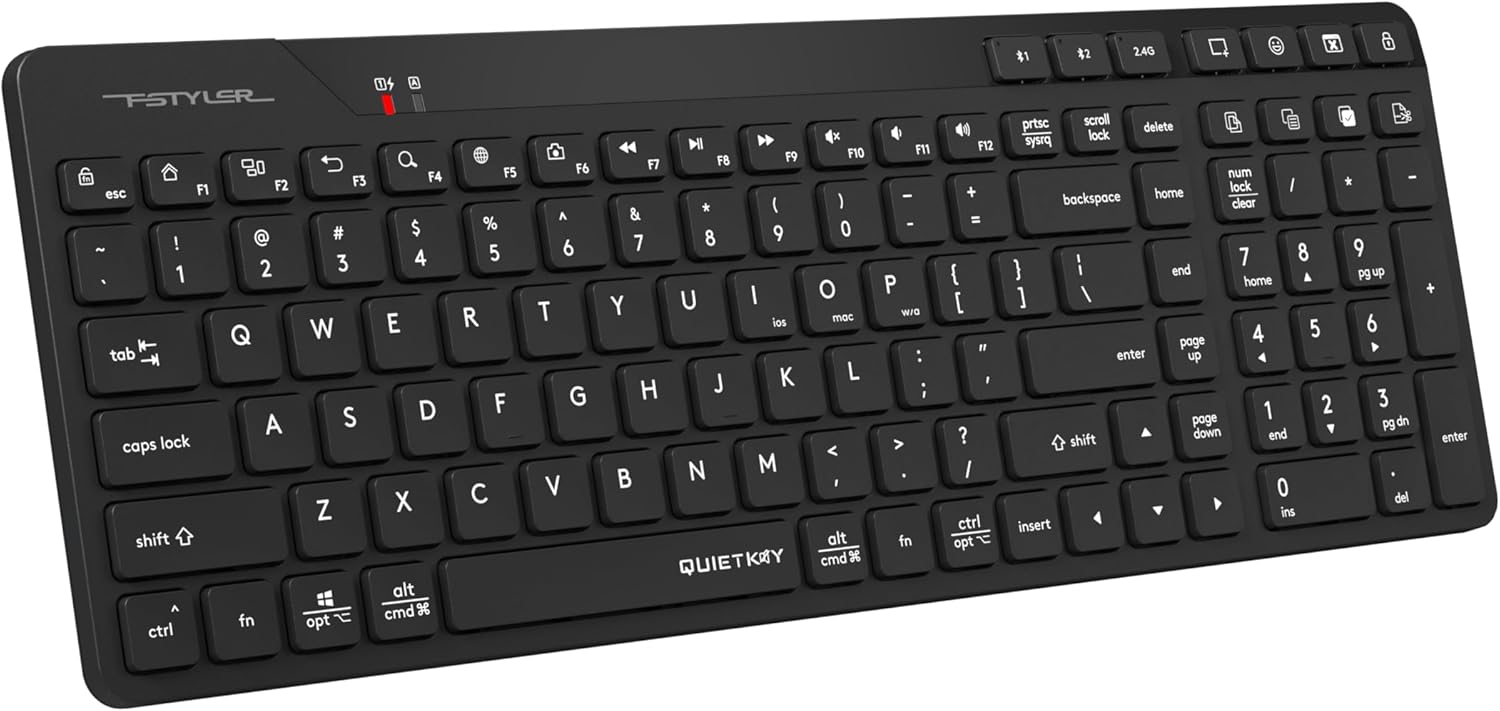
Obrázek 1: Nahoře view of the A4tech FBK27C AS keyboard, showcasing its ergonomic split design and integrated wrist rest.
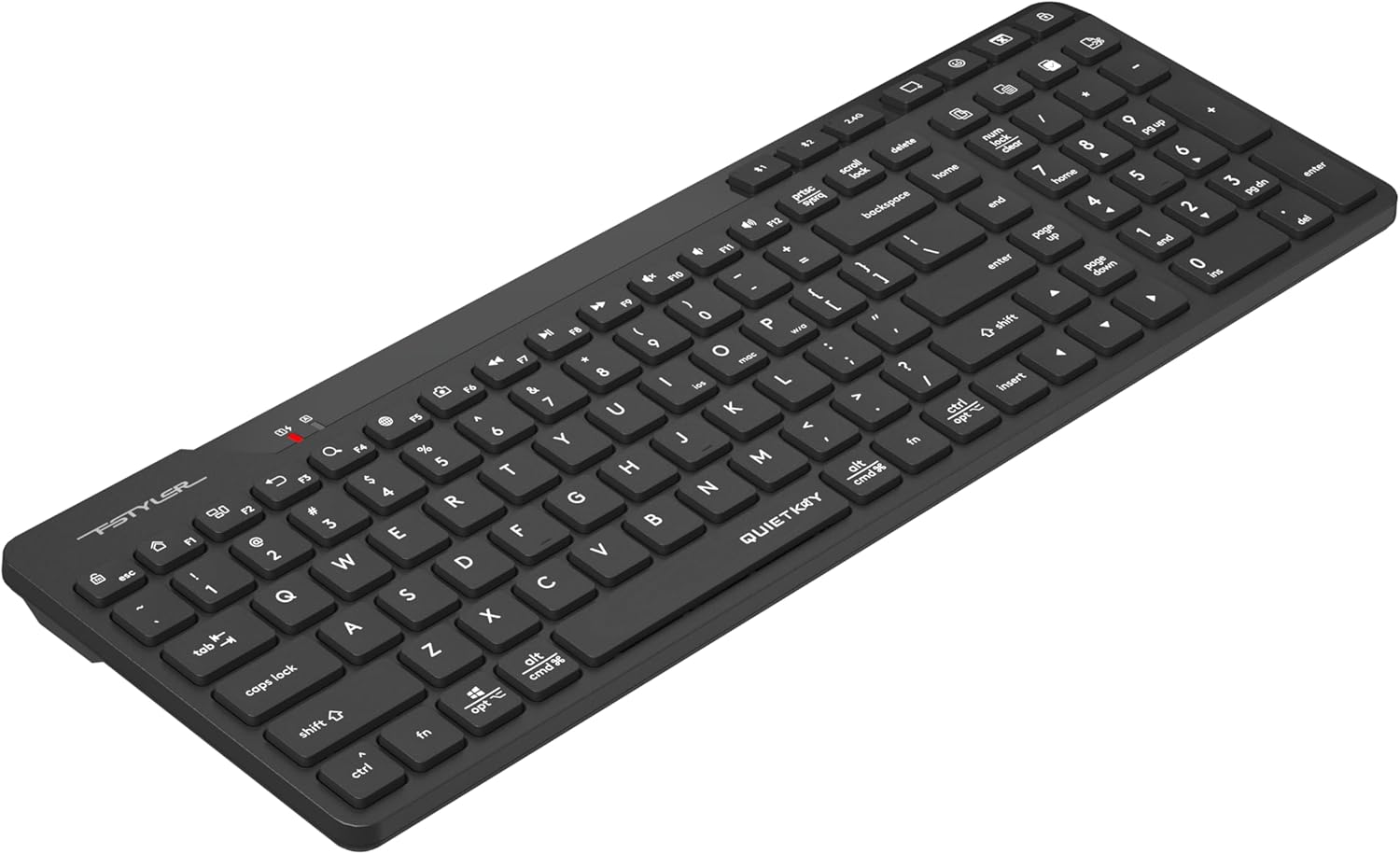
Obrázek 2: Úhlové view of the A4tech FBK27C AS keyboard, highlighting the contoured shape for natural hand positioning.
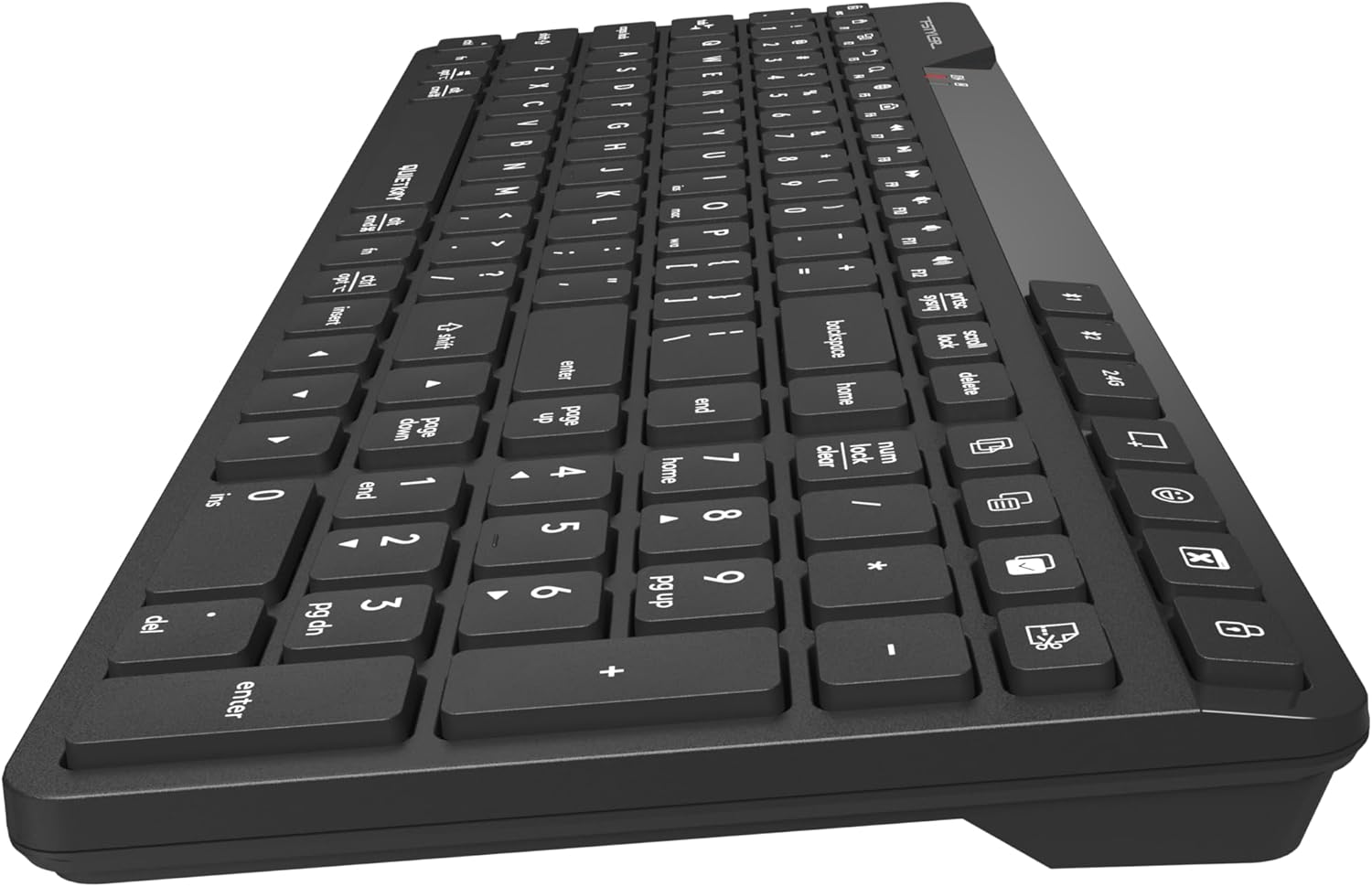
Obrázek 3: Strana view of the A4tech FBK27C AS keyboard, showing the profile and the integrated wrist rest.

Obrázek 4: Shora dolů pod úhlem view of the A4tech FBK27C AS keyboard, providing a comprehensive look at the key layout and ergonomic design.
5. Návod k obsluze
5.1 Přepínání mezi připojenými zařízeními
To switch between your connected devices, simply press the corresponding connectivity key:
- Press '2.4G' to connect to the device using the USB receiver.
- Press 'BT1' to connect to the first Bluetooth-paired device.
- Press 'BT2' to connect to the second Bluetooth-paired device.
5.2 Multimediální a funkční klávesy
The keyboard features a row of function keys (F1-F12) that double as multimedia or special function keys. To use these functions, you may need to press the 'Fn' key simultaneously with the desired function key, depending on your operating system and keyboard settings.
| Klíč | Funkce |
|---|---|
| Fn + F1 | Domov |
| Fn + F2 | Hledat |
| Fn + F3 | |
| Fn + F4 | Možnosti snímku obrazovky |
| Fn + F5 | Symboly Emoji |
| Fn + F6 | Skrýt aplikaci |
| Fn + F7 | Předchozí stopa |
| Fn + F8 | Přehrát/Pozastavit |
| Fn + F9 | Další stopa |
| Fn + F10 | Ztlumit hlasitost |
| Fn + F11 | Snížit hlasitost |
| Fn + F12 | Zvýšení hlasitosti |
| Vyhrazené klíče | Copy, Paste, Select All, Calculator, Computer Lock |

Figure 5: Icons representing special functions like Screenshot, Emoji, Hide Application, Copy, Paste, and Select All.
5.3 Operating System Mode Switching
The keyboard is compatible with multiple operating systems. Use the following key combinations to switch modes:
- Press 'Fn + Win/Alt' for Windows/Android mode.
- Press 'Fn + Cmd/Alt' for Mac/iOS mode.

Figure 6: Keyboard layout illustrating the keys for switching between iOS, Mac, and Windows/Android operating system modes.
6. Údržba
6.1 Čištění
Klávesnici jemně otřete její povrch měkkým hadříkem.amp cloth. Avoid using harsh chemicals or abrasive materials that could damage the finish or key legends. For debris between keys, use compressed air.
6.2 Péče o baterii
To prolong battery life, avoid fully discharging the keyboard frequently. Charge it when the low battery indicator appears. If storing the keyboard for an extended period, charge it to about 50% and store it in a cool, dry place.
7. Řešení problémů
7.1 Problémy s připojením
- Klávesnice se nepřipojuje: Ensure the keyboard is turned on and fully charged. For 2.4GHz, check if the USB receiver is properly inserted. For Bluetooth, ensure your device's Bluetooth is enabled and the keyboard is in pairing mode (blinking BT1/BT2 light).
- Přerušované připojení: Move the keyboard closer to your device to reduce interference. Avoid placing large metal objects between the keyboard and the receiver/device.
7.2 Klávesy nereagují
- Specifické klíče: Zkontrolujte, zda se pod klávesou nenacházejí nějaké fyzické překážky nebo nečistoty.
- Všechny klíče: Ensure the keyboard is powered on and properly connected to your device. Try restarting your device or re-pairing the keyboard.
7.3 Problémy s nabíjením
- Keyboard not charging: Verify the USB-C cable is securely connected to both the keyboard and the power source. Try a different USB-C cable or power adapter.
8. Specifikace
| Funkce | Detail |
|---|---|
| Značka | A4tech |
| Název modelu | FBK27C AS |
| Technologie připojení | Bluetooth, 2.4 GHz |
| Kompatibilní zařízení | PC (Windows, Mac, iOS, Android) |
| Popis klávesnice | Quiet Keys, Ergonomic |
| Doporučená použití | Každodenní použití |
| Speciální funkce | Programovatelné klávesy |
| Hmotnost položky | 1.3 libry |
| Rozměry balení | 16 x 6.5 x 1.25 palce |
9. Záruka a podpora
For warranty information and technical support, please refer to the documentation included with your product or visit the official A4tech webUschovejte si doklad o koupi pro případ reklamace.


