Zavedení
Welcome to the user manual for your new MEIZE Android 14 Tablet D106. This guide provides detailed instructions on setting up, operating, maintaining, and troubleshooting your device. Please read this manual thoroughly to ensure optimal performance and longevity of your tablet.

Obrázek: Přední strana view of the MEIZE Android 14 Tablet D106, displaying its vibrant screen with various application icons and a dynamic wallpaper. The tablet features a sleek design with a dark gray finish.
Co je v krabici
Upon unboxing your MEIZE Tablet, please verify that all the following items are included:
- MEIZE Android 14 Tablet D106
- USB nabíjecí kabel
- Napájecí adaptér
- Uživatelská příručka (tento dokument)
- Nástroj pro vyjmutí SIM karty (pokud je k dispozici)
Průvodce nastavením
1. Počáteční nabíjení
Before first use, it is recommended to fully charge your tablet. Connect the provided USB charging cable to the tablet's charging port and the power adapter, then plug the adapter into a wall outlet. The battery indicator on the screen will show charging progress.
2. Zapnutí/vypnutí
- Zapnutí: Press and hold the Power button (usually located on the side) until the MEIZE logo appears on the screen.
- Vypnutí: Press and hold the Power button until a power options menu appears. Select "Power Off" and confirm.
- Restartovat: V nabídce možností napájení vyberte „Restartovat“ a potvrďte.
3. Instalace SIM a SD karty
Your tablet supports dual 4G cellular connectivity and expandable storage via a microSD card.
- Na boku tabletu vyhledejte slot pro SIM/SD kartu.
- Vložte nástroj pro vysunutí SIM karty do malého otvoru vedle zásobníku a jemně zatlačte, dokud zásobník nevyskočí.
- Carefully place your Nano SIM card(s) and/or microSD card into the designated slots on the tray, ensuring correct orientation.
- Jemně zatlačte zásobník zpět do tabletu, dokud nezacvakne na místo.
Image: Close-up of a SIM and SD card tray, showing the slots for Nano SIM cards and a microSD card, along with a SIM ejector tool.
4. Průvodce počátečním nastavením
The first time you power on your tablet, you will be guided through an initial setup process. Follow the on-screen prompts to:
- Vyberte svůj jazyk.
- Připojte se k síti Wi-Fi.
- Přihlaste se pomocí svého účtu Google nebo si vytvořte nový.
- Nastavení zámku obrazovky (PIN, vzorec, heslo).
- Review a přijměte obchodní podmínky.
Ovládání tabletu
1. Základní navigace
Your MEIZE tablet uses a capacitive touchscreen for interaction:
- Klepněte na: Výběr položky nebo otevření aplikace.
- Klepnutí a podržení: Pro přístup k kontextovým nabídkám nebo přesun ikon.
- Výpad: Procházení stránek nebo seznamů.
- Přiblížení/zvětšení prsty: Pro přiblížení nebo oddálení obrázků nebo web stránky.
2. Připojení k Wi-Fi
To connect to the internet via Wi-Fi:
- Přejít na Nastavení > Síť a internet > Wi-Fi.
- Zapněte Wi-Fi.
- Vyberte požadovanou síť ze seznamu.
- Zadejte heslo, pokud se zobrazí výzva, a klepněte na Připojit.

Image: Visual representation of the tablet's connectivity features, including 5G/2.4G WiFi, Bluetooth 5.0, Octa-Core Processor, and Dual 4G Cellular capabilities.
3. Párování Bluetooth
To connect Bluetooth devices (e.g., headphones, speakers):
- Přejít na Nastavení > Připojená zařízení > Bluetooth.
- Zapněte Bluetooth.
- Ujistěte se, že je vaše zařízení Bluetooth v režimu párování.
- Select the device from the "Available devices" list and follow any on-screen prompts to complete pairing.
4. Použití kamer
Your tablet is equipped with a 13MP rear camera and an 8MP front camera for photos and videos.
- Otevřete Fotoaparát aplikace
- Klepnutím na tlačítko spouště pořídíte fotografii.
- V případě potřeby přepínejte mezi režimy fotografování a videa.
- Klepnutím na ikonu přepínače fotoaparátu přepínáte mezi předním a zadním fotoaparátem.

Image: Depiction of the tablet's dual camera system, highlighting the 13MP HD rear camera and 8MP HD front camera, with a visual of the tablet displaying a vibrant image of a surfer.
5. Správa úložiště
The tablet comes with 128GB of internal storage and supports up to 512GB additional expansion via microSD card. To manage your storage:
- Přejít na Nastavení > Skladování na view využití úložiště.
- You can free up space by uninstalling unused apps, deleting old photos/videos, or moving files na SD kartu.

Image: A graphic illustrating the tablet's memory capabilities, including 128GB of large memory, 14(8+6)GB of running memory, and support for 512GB of additional expansion. Multiple tablets are shown displaying diverse content, emphasizing storage capacity.
6. Správa baterií
Your tablet features an 8000mAh lithium polymer battery. To optimize battery life:
- Upravte jas obrazovky.
- Zavřete nepoužívané aplikace běžící na pozadí.
- Vypněte Wi-Fi, Bluetooth nebo GPS, když je nepoužíváte.
- V Nastavení povolte režim úspory baterie.
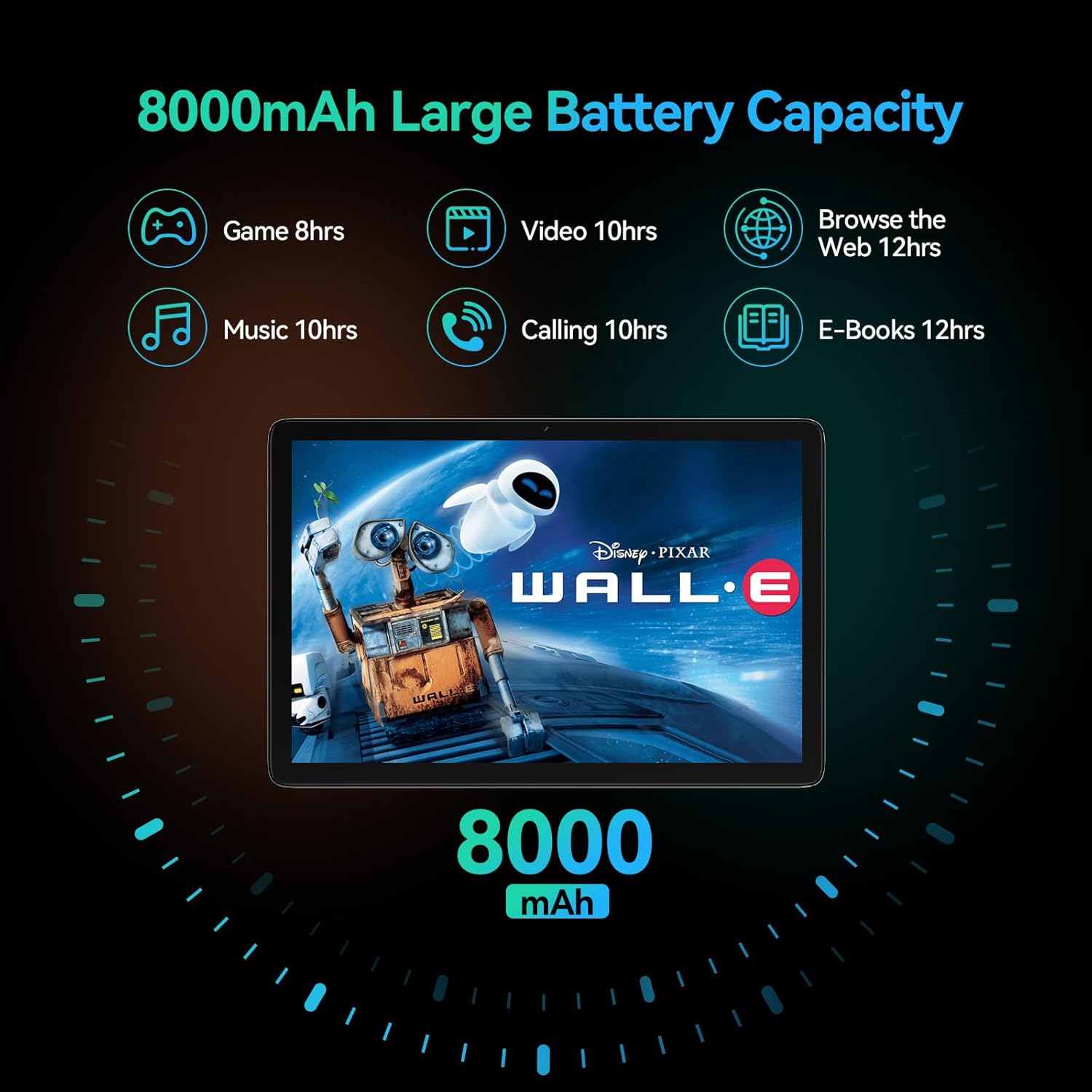
Image: A visual representation of the tablet's 8000mAh battery capacity, detailing estimated usage times for various activities such as gaming (8 hours), video playback (10 hours), music (10 hours), calling (10 hours), e-books (12 hours), and web prohlížení (12 hodin).
7. 4G Cellular Function
With a compatible Nano SIM card, your tablet supports 4G calls and mobile data. Ensure your SIM card is properly installed and activated by your service provider. The tablet supports 2G GSM full band, WCDMA: B1\B2\B4\B5\B8, and 4G full frequency band: B1\B2\B3\B4\B5\B7\B8\B12\B17\B19\B20\B28A\B28B\B66\B38\B39\B40\B41.
Údržba
1. Čištění zařízení
Aby byl váš tablet čistý a v dobrém stavu:
- K otření obrazovky a těla použijte měkký hadřík, který nepouští vlákna.
- Na odolné šmouhy lehce otřeteamphadřík vodou nebo čističem obrazovek.
- Vyhněte se používání agresivních chemikálií, abrazivních materiálů nebo nadměrné vlhkosti.
2. Aktualizace softwaru
Pravidelně kontrolujte a instalujte aktualizace softwaru, abyste zajistili, že váš tablet má nejnovější funkce, bezpečnostní záplaty a vylepšení výkonu.
- Přejít na Nastavení > Systém > Aktualizace systému.
- Postupujte podle pokynů na obrazovce a stáhněte a nainstalujte všechny dostupné aktualizace.
3. Správa úložiště
Pravidelně znovuview your tablet's storage to prevent it from becoming full, which can affect performance. Delete unnecessary files, clear app caches, and uninstall apps you no longer use.
Odstraňování problémů
| Problém | Možné řešení |
|---|---|
| Tablet se nezapne. | Ensure the battery is charged. Connect to the charger for at least 30 minutes. Try holding the Power button for 10-15 seconds to force a restart. |
| Obrazovka nereaguje nebo zamrzá. | Force restart the tablet by holding the Power button for 10-15 seconds. If the issue persists, try a factory reset (data will be lost). |
| Problémy s připojením k Wi-Fi nebo Bluetooth. | Toggle Wi-Fi/Bluetooth off and on. Restart your router/Bluetooth device. Forget the network/device and reconnect. |
| Aplikace padají nebo běží pomalu. | Clear app cache (Settings > Apps > [App Name] > Storage & cache > Clear cache). Update apps. Free up storage space. Restart the tablet. |
| Tablet is not charging. | Check the charging cable and adapter for damage. Try a different outlet. Ensure the charging port is clean and free of debris. |
| Špatná kvalita fotoaparátu. | Ensure the camera lens is clean. Check lighting conditions. Update camera app or system software. |
Obnovení továrního nastavení (poslední možnost)
If you encounter persistent issues that cannot be resolved by other troubleshooting steps, a factory reset may be necessary. Varování: Tímto smažete všechna data v tabletu. Před pokračováním si zálohujte důležitá data.
- Přejít na Nastavení > Systém > Obnovit možnosti.
- Vybrat Vymazat všechna data (obnovení továrního nastavení).
- Potvrďte své rozhodnutí a v případě potřeby zadejte PIN/vzor/heslo.
- Tablet se restartuje a zahájí proces resetování.
Specifikace
Key technical specifications for the MEIZE Android 14 Tablet D106:

Image: An infographic highlighting the core specifications of the MEIZE tablet, including Android 14, 128GB storage, 14(8+6)GB RAM, 8000mAh battery, 13MP+8MP cameras, 10.1-inch display, GPS, and an Octa-core processor.
| Funkce | Detail |
|---|---|
| Název modelu | D106 |
| Operační systém | Android 14 |
| Procesor | Octa-Core, 1.6 GHz |
| BERAN | 14 GB (8 GB + 6 GB rozšíření) |
| Interní úložiště | 128GB ROM |
| Rozšiřitelné úložiště | Až 512 GB přes microSD |
| Velikost obrazovky | 10.1 palce |
| Rozlišení obrazovky | 1920 x 1200 pixels (HD Display) |
| Zadní kamera | 13 MP |
| Přední kamera | 8 MP |
| Kapacita baterie | Lithium-polymer 8000 mAh |
| Konektivita | Dual 4G Cellular, 5G WiFi, Bluetooth 5.0, GPS |
| Rozměry (DxŠxV) | 10 x 7 x 0.3 palce |
| Hmotnost položky | 2.09 libry |
| Barva | Šedá |
Záruka a podpora
MEIZE is committed to providing high-quality products and excellent customer service. Your MEIZE Tablet D106 comes with a standard manufacturer's warranty. Please refer to the warranty card included in your product packaging for specific terms and conditions, including warranty period and coverage details.
For technical support, troubleshooting assistance, or warranty claims, please contact MEIZE customer service through the following channels:
- E-mail: Refer to your product packaging or the official MEIZE webwebu, kde najdete nejaktuálnější e-mailovou adresu podpory.
- Online podpora: Visit the official MEIZE webweb s nejčastějšími dotazy, zdroji podpory a kontaktními formuláři.
- Amazon Store: You can also reach out through the MEIZE store page on Amazon for product-related inquiries: MEIZE Amazon Store
When contacting support, please have your tablet's model number (D106) and purchase information readily available.


