Konec produktuview
The Alienware Pro Wireless Gaming Mouse is engineered for competitive gaming, offering advanced features and a lightweight design. This manual provides instructions for setup, operation, maintenance, and troubleshooting to ensure optimal performance.
Mezi klíčové vlastnosti patří:
- Gaming mouse with 4 kHz or 8 KHz wired polling rate for a pure mind-to-mouse connection.
- Professional-approved and ultra-light at less than 60 grams.
- Champion-approved and expert-designed, incorporating insights from Team Liquid.
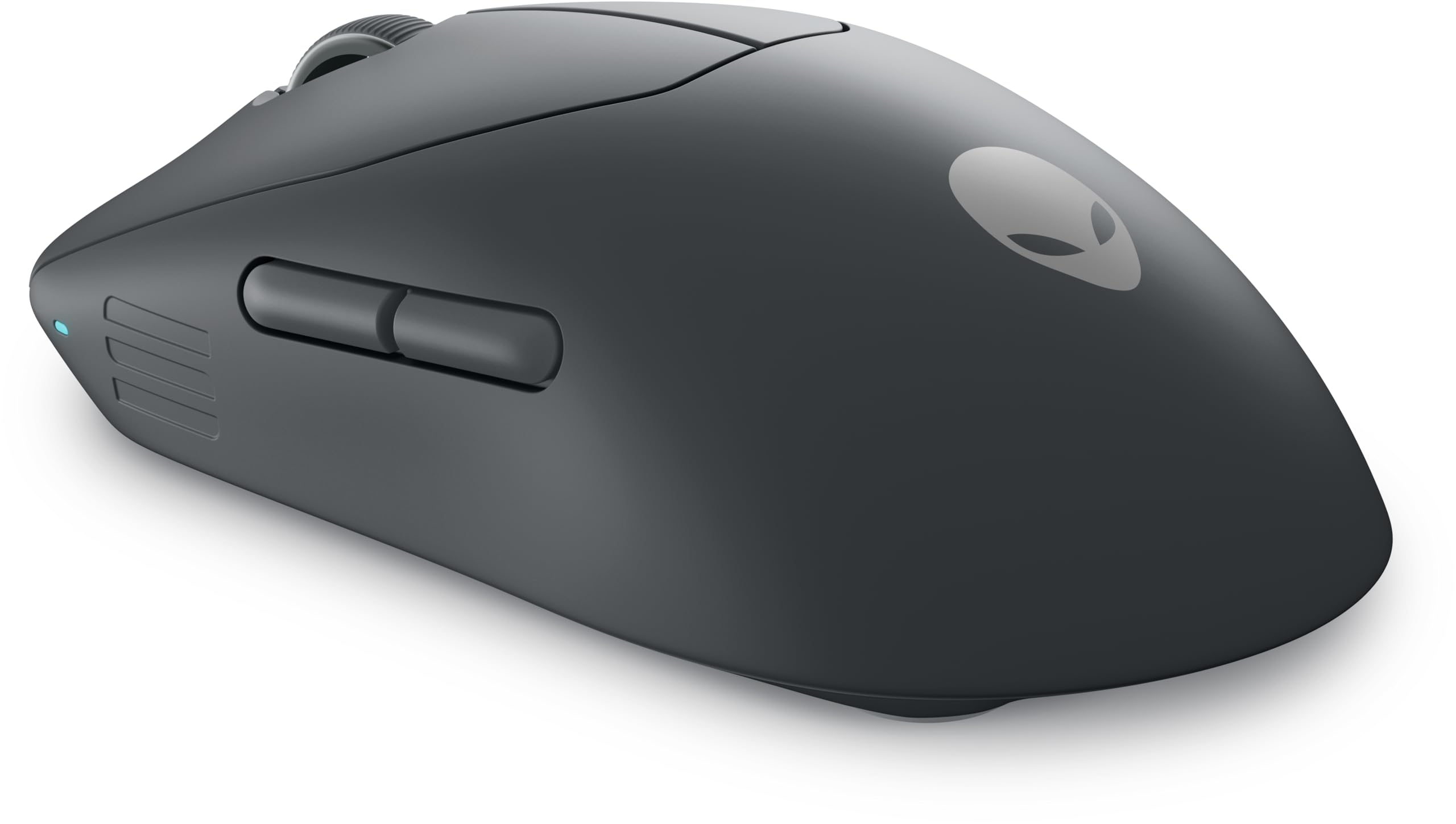
Figure 1: Alienware Pro Wireless Gaming Mouse (Dark Side of the Moon). This image displays the top-down view of the mouse, highlighting its dark grey finish, the scroll wheel, main left and right click buttons, and two programmable thumb buttons on the left side. The Alienware logo is subtly visible on the palm rest.
Nastavení
Follow these steps to set up your Alienware Pro Wireless Gaming Mouse:
- Nabijte myš: Připojte myš ke zdroji napájení USB pomocí dodaného kabelu USB-C. LED indikátor bude zobrazovat stav nabíjení.
- Connect Wirelessly (2.4 GHz):
- Insert the USB wireless dongle into an available USB port on your computer.
- Zapněte myš pomocí vypínače umístěného na spodní straně.
- The mouse should automatically connect. If not, press the pairing button on the mouse and the dongle (if available) to initiate pairing.
- Připojení přes Bluetooth:
- Zapněte myš.
- Press and hold the Bluetooth pairing button (refer to the mouse's underside or a specific button if present) until the LED blinks, indicating pairing mode.
- On your computer, go to Bluetooth settings and select "Add a device."
- Choose the Alienware Pro Wireless Gaming Mouse from the list of available devices to complete pairing.
- Install Alienware Command Center: For full customization of DPI settings, button assignments, and lighting, download and install the Alienware Command Center software from the official Alienware support webmísto.
Návod k obsluze
Understanding the functions of your Alienware Pro Wireless Gaming Mouse:
- Levé a pravé tlačítko pro kliknutí: Standard mouse functions for selection and interaction.
- Rolovací kolečko: Používá se pro vertikální rolování a může také fungovat jako prostřední tlačítko.
- Boční tlačítka: Two programmable buttons on the left side, typically used for forward/back navigation or custom in-game actions. Customize these via Alienware Command Center.
- Tlačítko DPI: Usually located near the scroll wheel, this button allows you to cycle through pre-set DPI (Dots Per Inch) sensitivity levels on the fly. Adjust DPI stages in Alienware Command Center.
- Míra hlasování: The mouse supports high polling rates (4 kHz wireless, 8 kHz wired) for ultra-responsive input. Ensure your system and software are configured to utilize these rates for optimal performance.
- Indikátor baterie: The LED light on the mouse indicates battery status. Refer to the Alienware Command Center for precise battery percentage.
Údržba
Proper maintenance ensures the longevity and performance of your gaming mouse:
- Čištění:
- Použijte měkký hadřík, který nepouští vlákna dampPovrch myši otřete vodou nebo jemným čisticím roztokem.
- Avoid harsh chemicals, abrasive cleaners, or excessive moisture.
- Use compressed air to clear dust and debris from around the scroll wheel and sensor area.
- Péče o senzor: Keep the optical sensor on the bottom of the mouse clean and free from obstructions to ensure accurate tracking.
- Péče o baterie:
- Vyhněte se častému úplnému vybíjení baterie.
- Pokud myš delší dobu nepoužíváte, skladujte ji na chladném a suchém místě.
- Používejte pouze dodaný nabíjecí kabel nebo kompatibilní kabel USB-C.
Odstraňování problémů
If you encounter issues with your Alienware Pro Wireless Gaming Mouse, try the following solutions:
| Problém | Možné řešení |
|---|---|
| Mouse not responding/connecting |
|
| Zpoždění nebo nepravidelný pohyb |
|
| Tlačítka nefungují |
|
| Baterie se nenabíjí |
|
Specifikace
| Funkce | Detail |
|---|---|
| Značka | Alienware |
| Název modelu | Bezdrátová herní myš Alienware Pro |
| Číslo modelu | 545-BBFP |
| Barva | Dark Side of the Moon |
| Technologie připojení | USB (Wireless/Wired) |
| Speciální funkce | Bezdrátový |
| Technologie detekce pohybu | Optický |
| Počet tlačítek | 6 |
| Orientace rukou | Obouruký |
| Doporučená použití pro produkt | Hraní |
| Kompatibilní zařízení | Gaming Console, PC (Windows 10 and up) |
| Složení baterie | Lithium-iontová (1 součástí balení) |
| Typ dokončení | Matný |
| Výrobce | Dell |
Záruka a podpora
For warranty information and technical support, please refer to the official Alienware or Dell support website. You can typically find detailed warranty terms, driver downloads, and contact information for customer service there.
Online zdroje:
When contacting support, please have your product model number (545-BBFP) and serial number ready.


