1. Úvod
This manual provides comprehensive instructions for the setup, operation, maintenance, and troubleshooting of your ASUS RT-AX5400 Dual Band WiFi 6 Extendable Router. The RT-AX5400 is designed to provide robust and secure wireless connectivity for both home and business environments, featuring advanced capabilities such as VPN Fusion, Instant Guard, and comprehensive parental controls.
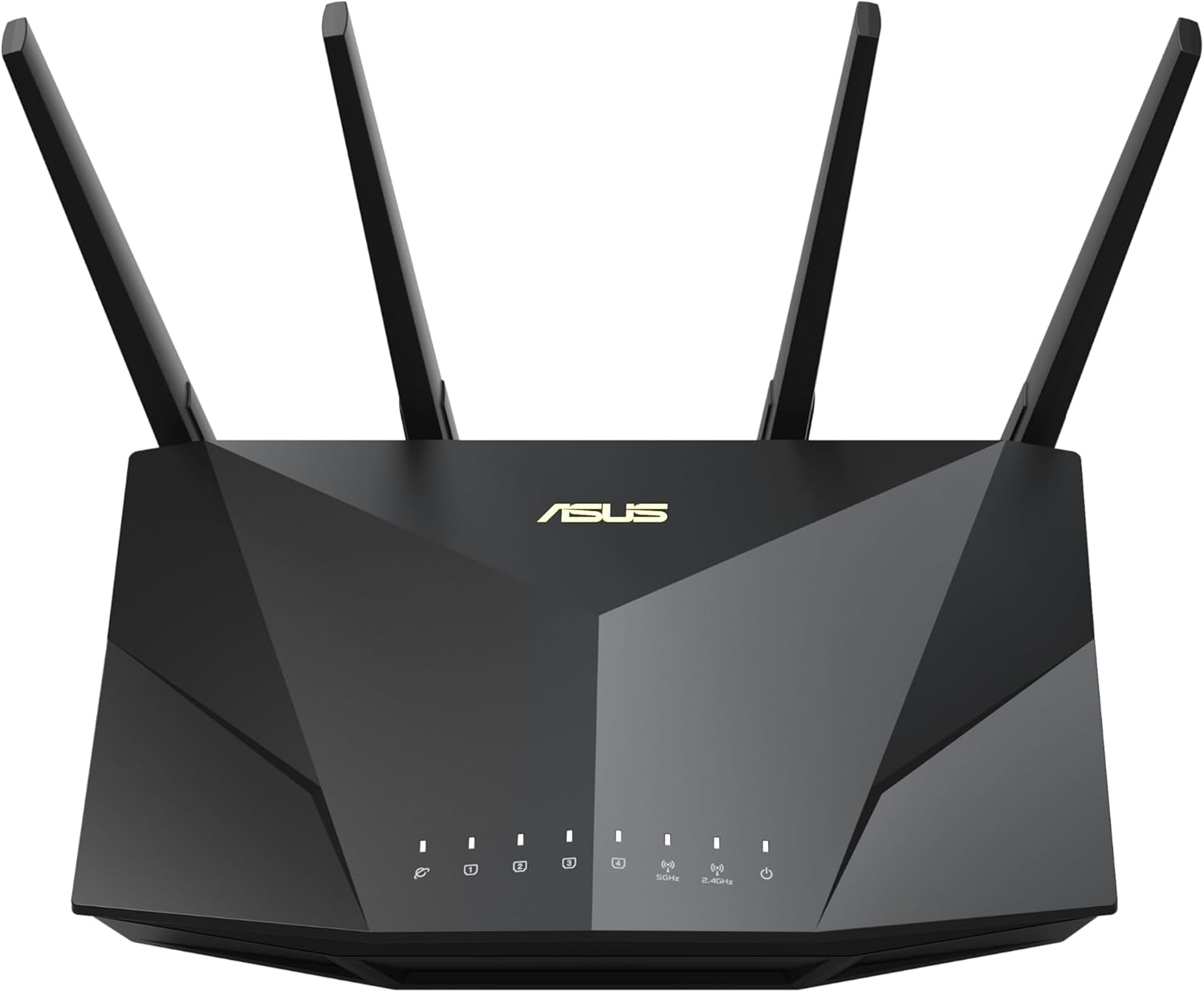
Obrázek 1.1: Přední strana view of the ASUS RT-AX5400 WiFi 6 router, showcasing its modern design and LED indicators.
2. Obsah balení
Before proceeding with the installation, please verify that all items listed below are present in your package:
- ASUS RT-AX5400 WiFi Router
- RJ-45 Cable (Ethernet cable)
- Napájecí adaptér
- Záruční list
- Rychlý průvodce
3. Vlastnosti produktu
The ASUS RT-AX5400 router is equipped with a range of features designed to enhance your network experience:
- Dual-Band WiFi 6 (802.11ax): Provides faster speeds, increased capacity, and reduced network congestion compared to previous WiFi standards.
- Extendable Network (AiMesh): Seamlessly expand your network coverage by adding any AiMesh-compatible ASUS router.
- Enhanced Network Security (AiProtection Pro): Lifetime free internet security powered by Trend Micro, offering protection against online threats.
- Pokročilá rodičovská kontrola: Manage and schedule internet access for connected devices, ensuring a safe online environment for family members.
- Okamžitá ochrana 2.0: Securely access your home network from anywhere using a mobile device, creating a secure VPN tunnel.
- Fúze VPN: Simultaneously run a VPN and a regular internet connection, allowing specific devices to use the VPN while others do not. Supports WireGuard, OpenVPN, PPTP, and L2TP/IPsec protocols.
- Kvalita služeb (QoS): Prioritize network traffic for specific applications or devices to optimize performance.
- Více provozních režimů: Functions as a wireless router, access point, or media bridge.

Figure 3.1: ASUS RT-AX5400 highlighting key features like WiFi 6 and AiMesh extendable network capabilities.
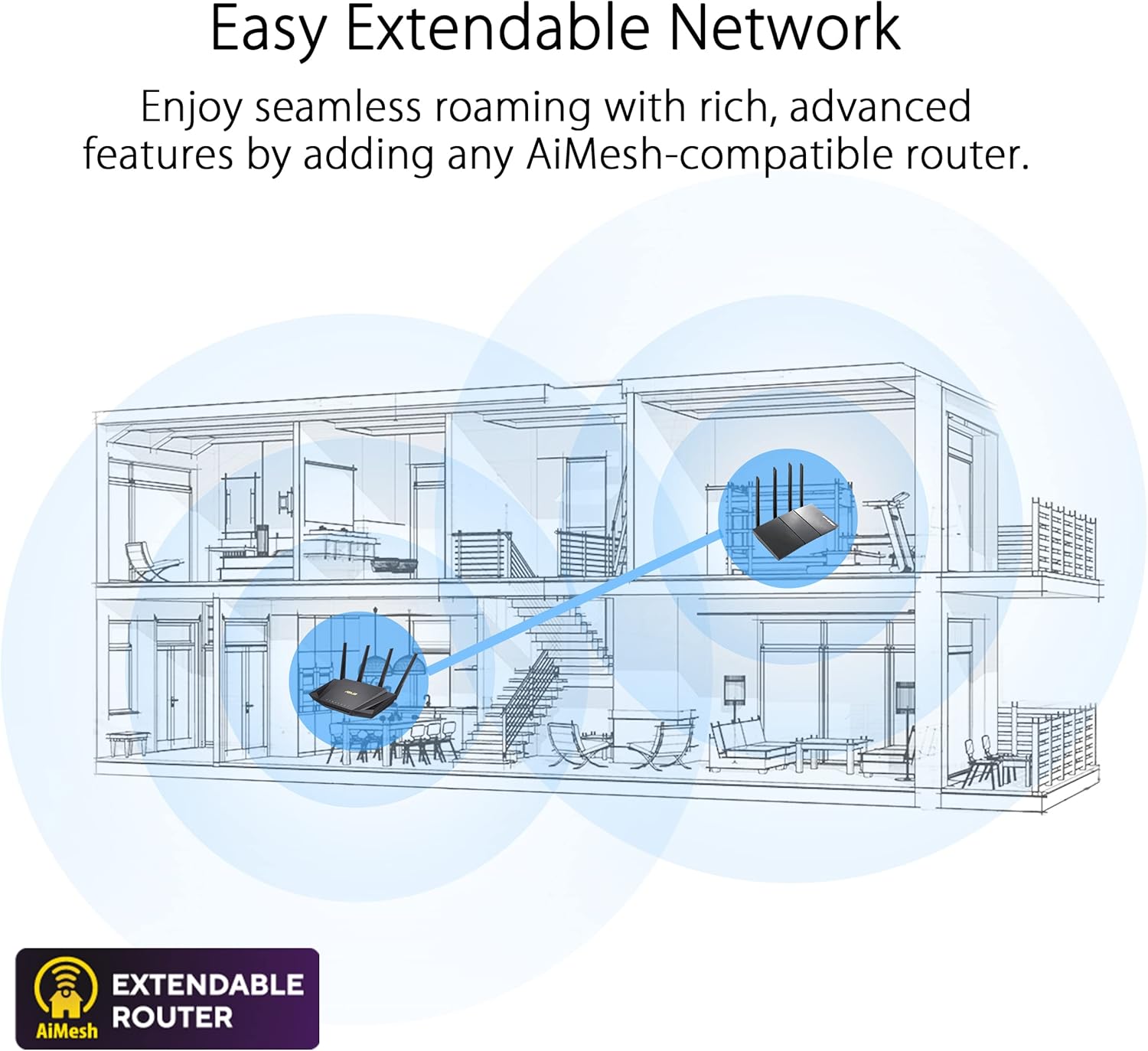
Figure 3.2: Illustration of an AiMesh extendable network, demonstrating how multiple routers can create a unified, seamless Wi-Fi system.

Figure 3.3: Visual representation of the router's enhanced network security features, including AiProtection and advanced parental controls.

Figure 3.4: The Instant Guard 2.0 mobile app interface, designed for secure remote access to your home network.

Figure 3.5: Depiction of the router's versatile VPN capabilities, supporting multiple protocols for secure network access.
4. Průvodce nastavením
4.1 Instalace hardwaru
- Umístění routeru: Place the RT-AX5400 in a central location in your home or office, away from obstructions and electronic devices that may cause interference. Ensure good ventilation.
- Připojte antény: Screw the four external antennas firmly onto the connectors at the back of the router. Adjust them vertically for optimal signal coverage.
- Připojte se k internetu:
- Connect one end of the provided RJ-45 cable to the Port WAN (blue) on the back of the RT-AX5400.
- Connect the other end of the RJ-45 cable to your modem's LAN port.
- Připojte napájení: Zapojte napájecí adaptér do port DCIN on the router, then plug the other end into a power outlet.
- Zapnutí: Stiskněte tlačítko Tlačítko napájení on the back of the router. Wait for the LED indicators on the front to stabilize, indicating the router is ready.
- Připojení zařízení (volitelné):
- V případě kabelového připojení připojte počítač nebo jiná síťová zařízení k libovolnému z LAN porty (yellow) using an RJ-45 cable.
- For wireless connections, connect to the default Wi-Fi network name (SSID) and password found on the label at the bottom of the router.

Figure 4.1: Rear panel of the ASUS RT-AX5400 router, showing all connectivity ports and buttons.
4.2 Počáteční konfigurace (Web GUI)
- Otevřete a web browser on a computer connected to the router (wired or wirelessly).
- Typ http://router.asus.com or http://192.168.1.1 do adresního řádku a stiskněte klávesu Enter.
- Follow the on-screen instructions of the ASUS Setup Wizard to configure your internet connection, Wi-Fi network name (SSID), and password. It is highly recommended to change the default login username and password for the router's administration page for security purposes.
4.3 Initial Configuration (ASUS Router App)
- Download the ASUS Router app from your mobile device's app store (available for iOS and Android).
- Open the app and follow the guided steps to set up your new router. The app provides a user-friendly interface for quick and easy configuration.
5. Návod k obsluze
This section covers the basic operation and advanced features of your ASUS RT-AX5400 router.
5.1 Managing Your Network via Web GUI
Přístup k routeru web rozhraní přechodem na http://router.asus.com ve vašem web browser. The dashboard provides an overview of your network status and access to detailed settings.
- Mapa sítě: View connected devices, internet status, and network topology.
- AiProtection: Configure security settings, including network vulnerability scans, malicious site blocking, and two-way IPS.
- Rodičovská kontrola: Set time limits, content filters, and schedule internet access for specific devices.
- QoS (Quality of Service): Prioritize bandwidth for gaming, streaming, or other applications.
- USB Application: Manage connected USB devices for file sharing (AiDisk), media server (AiMedia), or 4G/5G dongle support.
- VPN: Configure VPN server or client settings, including VPN Fusion.
- Bezdrátové nastavení: Adjust Wi-Fi network names (SSIDs), passwords, security protocols, and channel settings.
5.2 Using the ASUS Router App
The ASUS Router mobile app offers convenient management of your network from your smartphone or tablet. Features include:
- Real-time network monitoring.
- Easy setup and management of Wi-Fi settings.
- Parental control management.
- Instant Guard VPN activation.
- Aktualizace firmwaru.
- Network diagnostics.
5.3 Instant Guard VPN
Instant Guard allows you to create a secure VPN connection back to your home network when you are away. This encrypts your internet traffic and protects your privacy, especially when using public Wi-Fi. To use Instant Guard:
- Ensure your RT-AX5400 router is connected to the internet.
- Download and open the ASUS Router app on your mobile device.
- Navigate to the Instant Guard section within the app and follow the prompts to activate the VPN connection.
5.4 VPN Fusion
VPN Fusion enables you to run both a VPN connection and a regular internet connection simultaneously. This is useful for assigning specific devices to a VPN tunnel while others access the internet directly. Configure VPN Fusion via the router's web GUI under the VPN settings.
6. Údržba
Pravidelná údržba zajišťuje optimální výkon a zabezpečení vašeho routeru.
- Aktualizace firmwaru: Pravidelně kontrolujte a instalujte nejnovější aktualizace firmwaru prostřednictvím routeru web GUI or the ASUS Router app. Firmware updates often include performance improvements, new features, and security patches.
- Restart routeru: Periodically reboot your router (e.g., once a month) to clear its memory and refresh network connections. This can resolve minor performance issues.
- Fyzické čištění: Keep the router clean and free from dust. Ensure ventilation openings are not blocked to prevent overheating. Use a soft, dry cloth for cleaning.
- Správa hesel: Change your Wi-Fi and router administration passwords periodically to enhance security. Use strong, unique passwords.
7. Řešení problémů
This section addresses common issues you might encounter with your RT-AX5400 router.
7.1 Žádné připojení k internetu
- Zkontrolujte kabely: Ensure the Ethernet cable from your modem is securely connected to the router's blue WAN port. Verify all other cables are properly connected.
- Stav modemu: Check your modem's indicator lights to ensure it is receiving an internet signal. If not, contact your Internet Service Provider (ISP).
- Restartujte zařízení: Vypněte modem a router. Počkejte 30 sekund a poté nejprve zapněte modem. Jakmile bude modem plně online, zapněte router.
- Nastavení routeru: Přístup k routeru web GUI and check the WAN settings. Ensure your internet connection type (e.g., DHCP, PPPoE) is correctly configured.
7.2 Problémy se signálem Wi-Fi
- Umístění routeru: Move the router to a central location, away from large metal objects, concrete walls, and other electronic devices that may cause interference.
- Orientace antény: Adjust the router's antennas for optimal signal spread.
- Rušení: Other devices operating on the 2.4 GHz or 5 GHz bands (e.g., cordless phones, microwaves) can cause interference. Try changing the Wi-Fi channel in the router settings.
- Firmware: Ujistěte se, že firmware vašeho routeru je aktuální.
- Extendable Network: If you have a large area, consider adding an AiMesh compatible router to extend coverage.
7.3 Nelze přistupovat k routerům Web GUI
- IP adresa: Ujistěte se, že je váš počítač nastaven tak, aby automaticky získával IP adresu (DHCP).
- Správná adresa: Verify you are typing http://router.asus.com or http://192.168.1.1 správně.
- Mezipaměť prohlížeče: Vymažte mezipaměť a soubory cookie prohlížeče nebo zkuste jiný web prohlížeč.
- Firewall/Antivirus: Dočasně deaktivujte firewall nebo antivirový software v počítači, abyste zjistili, zda neblokuje přístup.
- Reset routeru: If all else fails, perform a factory reset. Locate the Tlačítko Reset on the back of the router (Figure 4.1), press and hold it for 5-10 seconds until the power LED blinks. Varování: Tímto se vymažou všechna vaše vlastní nastavení.
8. Specifikace
| Funkce | Detail |
|---|---|
| Název modelu | RT-AX5400 |
| Bezdrátové Standardní | 802.11ax (Wi-Fi 6) |
| Frekvenční pásmo | Dvoupásmové (2.4 GHz a 5 GHz) |
| Antény | 4 x externí antény |
| Ethernetové porty | 1 x WAN (Gigabit), 4 x LAN (Gigabit) |
| USB port | 1 x USB 3.2 Gen 1 (USB 3.0) |
| Rozměry (D x Š x V) | 8.91 x 6.54 x 6.31 palce |
| Hmotnost | 1.35 libry |
| Speciální funkce | AiMesh, AiProtection Pro, Instant Guard, Parental Control, QoS, Access Point Mode, Guest Mode |
| Kompatibilní zařízení | Personal Computer and other network-enabled devices |
| Doporučená použití | Obchod, Domov |

Figure 8.1: WiFi 6 performance metrics and speed comparison.
9. Záruka a podpora
Your ASUS RT-AX5400 router comes with a warranty card included in the package. Please refer to this card for specific warranty terms and conditions applicable to your region.
For technical support, driver downloads, manuals, and FAQs, please visit the official ASUS support website. You can typically find support by searching for your product model (RT-AX5400) on the ASUS support portal.
- Oficiální podpora ASUSu Webmísto: https://www.asus.com/support/
- Registrace výrobku: Zaregistrujte si svůj produkt online a získejte aktualizace a podporu.


