Zavedení
The Amazon Basics Thunderbolt 4 / USB4 Docking Station is designed to expand your laptop's connectivity and enhance your workspace. It provides multiple ports for monitors, peripherals, and network access, all while delivering power to your connected laptop through a single Thunderbolt 4 cable.
Co je zahrnuto
- Dokovací stanice Thunderbolt 4
- Kabel Thunderbolt 4
- Napájecí adaptér
- Napájecí kabel
- Stručný návod k obsluze

Image: All components included with the docking station.
Konec produktuview
The docking station features a compact design with various ports for versatile connectivity. Below is a detailed look at the ports and indicators.

Obrázek: Přední strana view of the docking station.
Přední panel
- Čtečka SD karet: Pro čtení a zápis na paměťové karty SD.
- Port USB-A 3.1: Connect USB-A peripherals.
- 3.5mm audio jack: Pro sluchátka nebo reproduktory.
- Výstupní port Thunderbolt 4: Connects to your laptop. Supports up to 85W Power Delivery.
- LED indikátory: Power and Thunderbolt connection status.
- Vypínač: Zapnutí nebo vypnutí dokovací stanice.
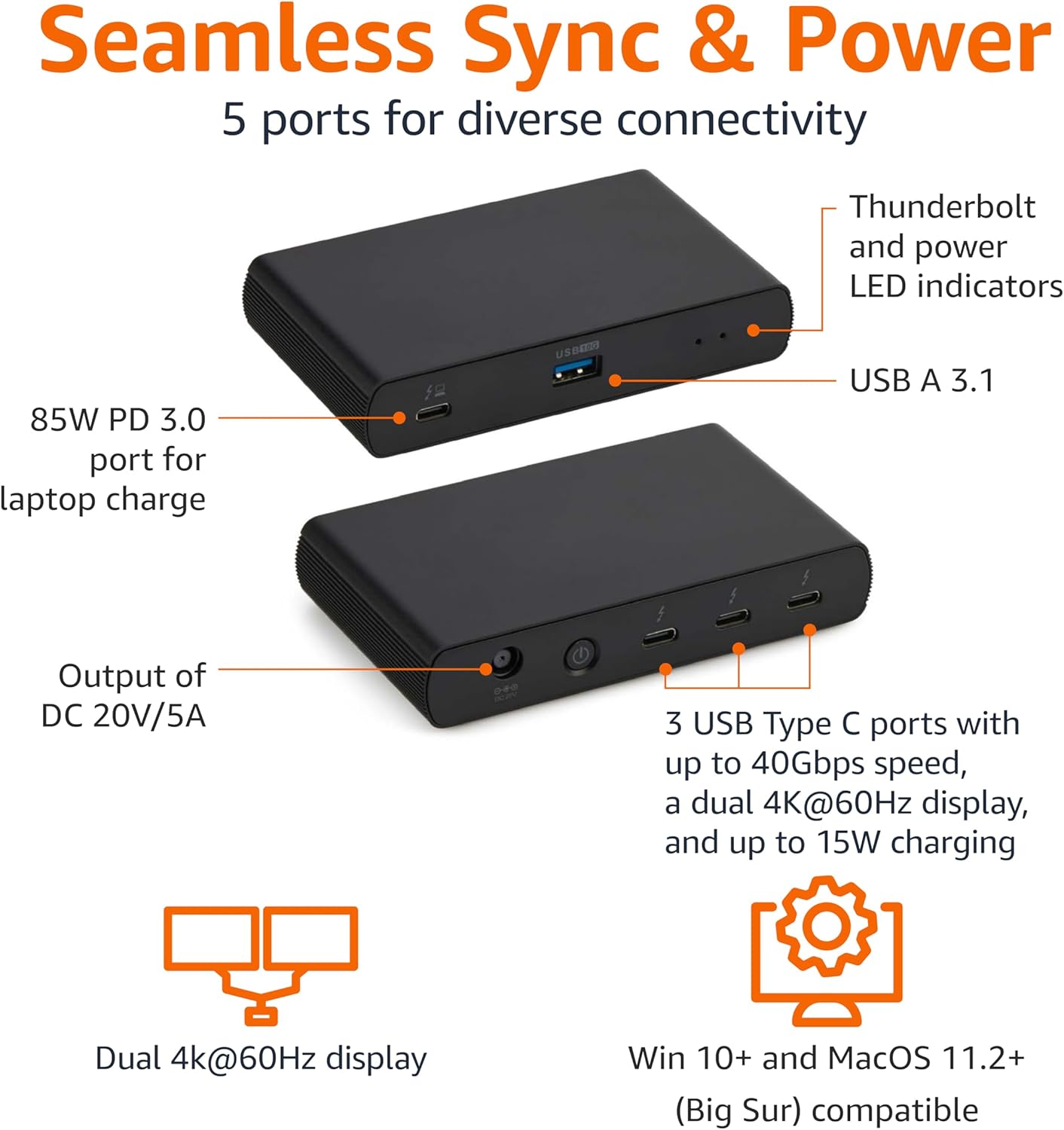
Image: Labeled ports on the docking station.
Zadní panel
- Vstupní port stejnosměrného proudu: Připojte dodaný napájecí adaptér.
- Port HDMI 2.1: Připojte externí displej.
- 2x Thunderbolt 4 downstream porty: Connect additional Thunderbolt devices or external displays. Each supports up to 15W charging.
- 2.5G ethernetový port: Pro připojení k kabelové síti.
- 2x porty USB-A 3.1: Connect additional USB-A peripherals.
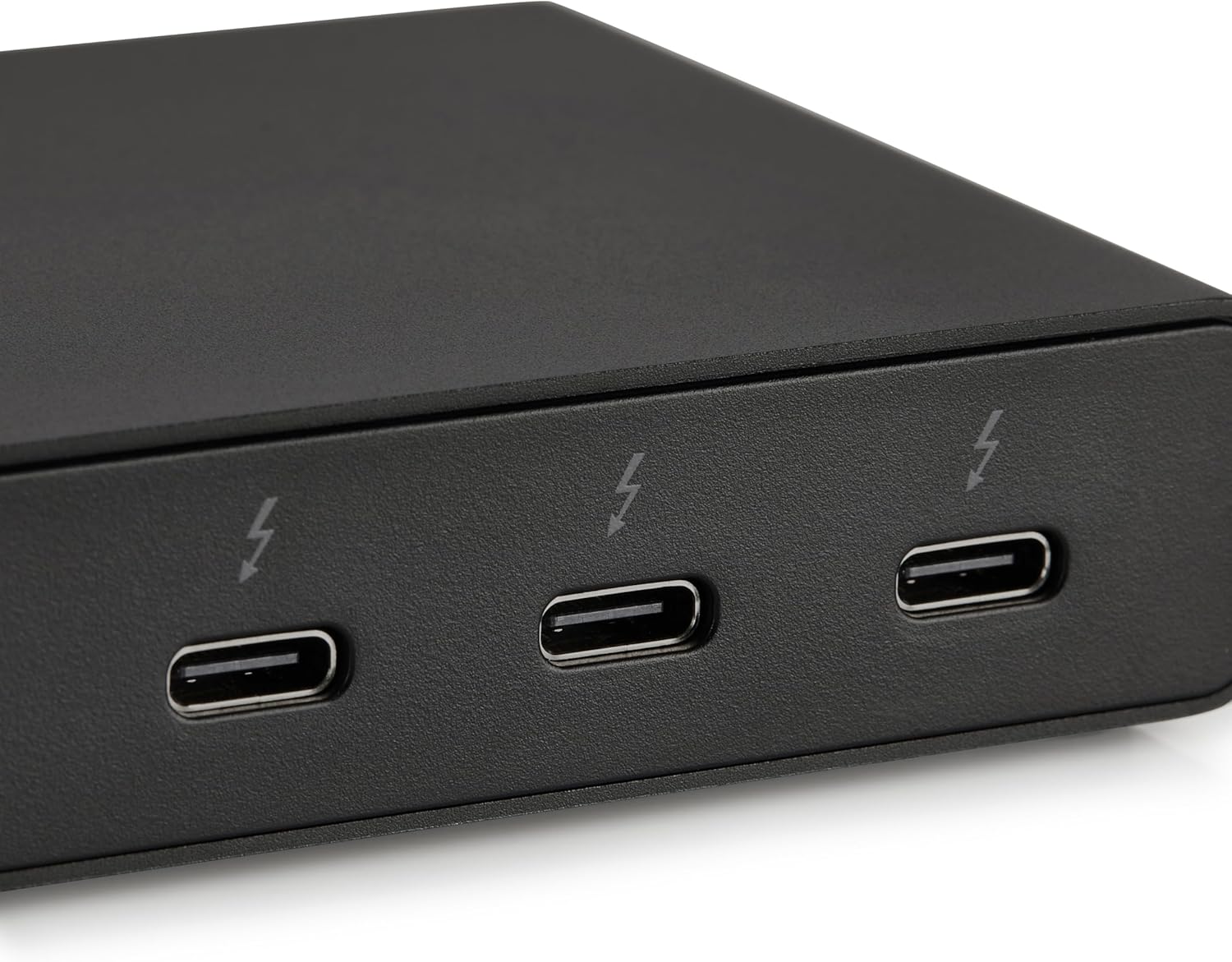
Image: Close-up of Thunderbolt 4 ports.
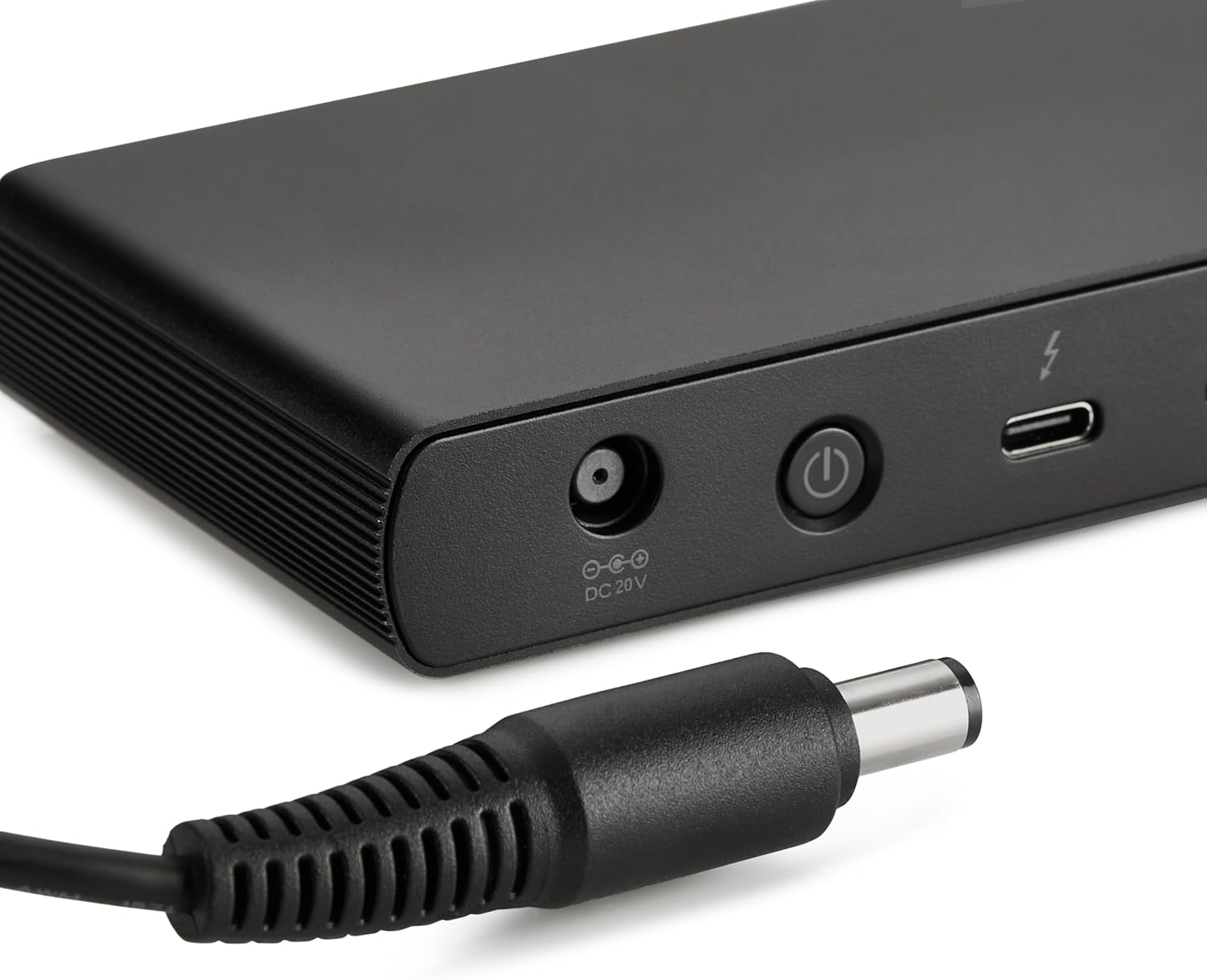
Image: Close-up of the DC power input.
Pokyny pro nastavení
- Připojte napájení: Plug the provided power adapter into the DC In port on the rear of the docking station, then connect the power cord to a wall outlet.
- Připojení k notebooku: Use the provided black Thunderbolt 4 cable to connect the Thunderbolt 4 upstream port on the přední of the docking station to a Thunderbolt 4 port on your laptop.
- Zapnutí: Press the power button on the front panel of the docking station. The green power LED and blue Thunderbolt LED should illuminate.
- Připojení periferií: Connect your monitors, Ethernet cable, USB devices, and audio devices to the appropriate ports on the docking station.
Video: This video demonstrates the basic setup and connectivity of the Amazon Basics Thunderbolt 4 / USB4 Docking Station, including connecting to a laptop, external displays, and peripherals.
Note: If your laptop does not immediately detect the dock, ensure the Thunderbolt 4 cable is securely connected. Wait approximately 60 seconds for the system to complete the setup process.
Návod k obsluze
Podpora dvou displejů
The docking station supports up to dual 4K@60Hz displays. You can connect one display via the HDMI 2.1 port and another via one of the Thunderbolt 4 downstream ports (using an appropriate adapter/cable, not included).
- Verify your laptop's Thunderbolt ports support dual 4K@60Hz output.
- Ensure your graphics card has the latest drivers installed.
- Confirm your monitors support 4K@60Hz display.
- Use high-quality Thunderbolt 4 or USB4 cables for display connections (not included).

Image: Dual display setup with the docking station.
Dodávka energie (PD)
The docking station provides dynamic power delivery up to 85W to charge your connected laptop. This eliminates the need for a separate laptop charger.
- Check your laptop manufacturer's power supply specifications.
- If laptop power requirements exceed 85W, the docking station may activate an overload protection feature, causing disconnection or improper port function.
- The Thunderbolt 4 downstream ports also provide up to 15W charging for connected devices.
Vysokorychlostní přenos dat
Leverage Thunderbolt 4 and USB4 technology for lightning-fast data transfers up to 40Gbps across the Thunderbolt ports, ensuring seamless workflows for large files and demanding applications.
Kompatibilita
- Podporované operační systémy: Windows 10 OS or later (with Thunderbolt 4 port), non-M1/M2 chip MacBooks running macOS 11 (Big Sur) or later.
- Zpětná kompatibilita: Thunderbolt 3 laptops may work with limited functionality (e.g., not supporting dual display).
- Není kompatibilní s: Linux or Chrome OS laptops, and M1/M2 chip MacBooks running macOS 10.16 or earlier.
Specifikace
| Funkce | Detail |
|---|---|
| Značka | Základy Amazonu |
| Číslo modelu | 1010 DBD |
| Rozměry produktu | 4.76 x 2.84 x 0.86 palce |
| Hmotnost položky | 1.76 libry |
| Hardwarové rozhraní | Thunderbolt, USB |
| Celkový počet portů USB | 4 (1x USB-A 3.1 front, 2x USB-A 3.1 rear, 1x Thunderbolt 4 upstream front) |
| Porty Thunderbolt | 3 (1x upstream, 2x downstream) |
| Port HDMI | 1x HDMI 2.1 |
| Ethernetový port | 1x 2.5G RJ45 |
| Dodávka energie | Až 85 W pro hostování notebooku |
| Video výstup | Dual 4K@60Hz displays |
| UPC | 840324412260 |
Odstraňování problémů
- Žádný výstup na displej:
- Ensure all display cables are securely connected.
- Verify your laptop's Thunderbolt ports support dual 4K@60Hz output.
- Aktualizujte ovladače grafické karty na nejnovější verzi.
- Confirm your monitors support 4K@60Hz.
- Try using different high-quality Thunderbolt 4 or USB4 cables for display connections.
- Laptop Not Charging / Intermittent Charging:
- Ensure the provided Thunderbolt 4 cable is used for the upstream connection to your laptop.
- Confirm the power adapter is correctly plugged into the dock and a working wall outlet.
- Check your laptop's power requirements. If they exceed 85W, the dock's overload protection may activate.
- Periferie nebyly detekovány:
- Ensure the Thunderbolt 4 cable connecting the dock to your laptop is firmly seated.
- Try connecting the peripheral directly to your laptop to rule out device issues.
- Restartujte notebook a dokovací stanici.
- Pomalý přenos dat:
- Ensure you are using Thunderbolt 4 or USB4 compatible devices and cables for optimal speeds.
- Check that your laptop's ports support the expected data transfer rates.
Údržba
- Čištění: K čištění vnější strany dokovací stanice používejte měkký, suchý hadřík. Nepoužívejte tekuté čisticí prostředky ani rozpouštědla.
- Skladování: Dokovací stanici skladujte na chladném a suchém místě mimo dosah přímého slunečního záření a extrémních teplot.
- Péče o kabely: Abyste předešli poškození, vyhněte se nadměrnému ohýbání nebo krimpování kabelů.
Záruka a podpora
Informace o záruce a zákaznické podpoře naleznete v oficiálních základních dokumentech Amazonu. website or contact Amazon customer service. Protection plans are also available for extended coverage.
For additional assistance, visit: amazon.com/AmazonBasics


