1. Úvod
This manual provides essential information for the proper use and care of your Apple AirPods Pro (2nd Generation) with MagSafe USB-C Charging Case. Please read these instructions carefully to ensure optimal performance and longevity of your device.
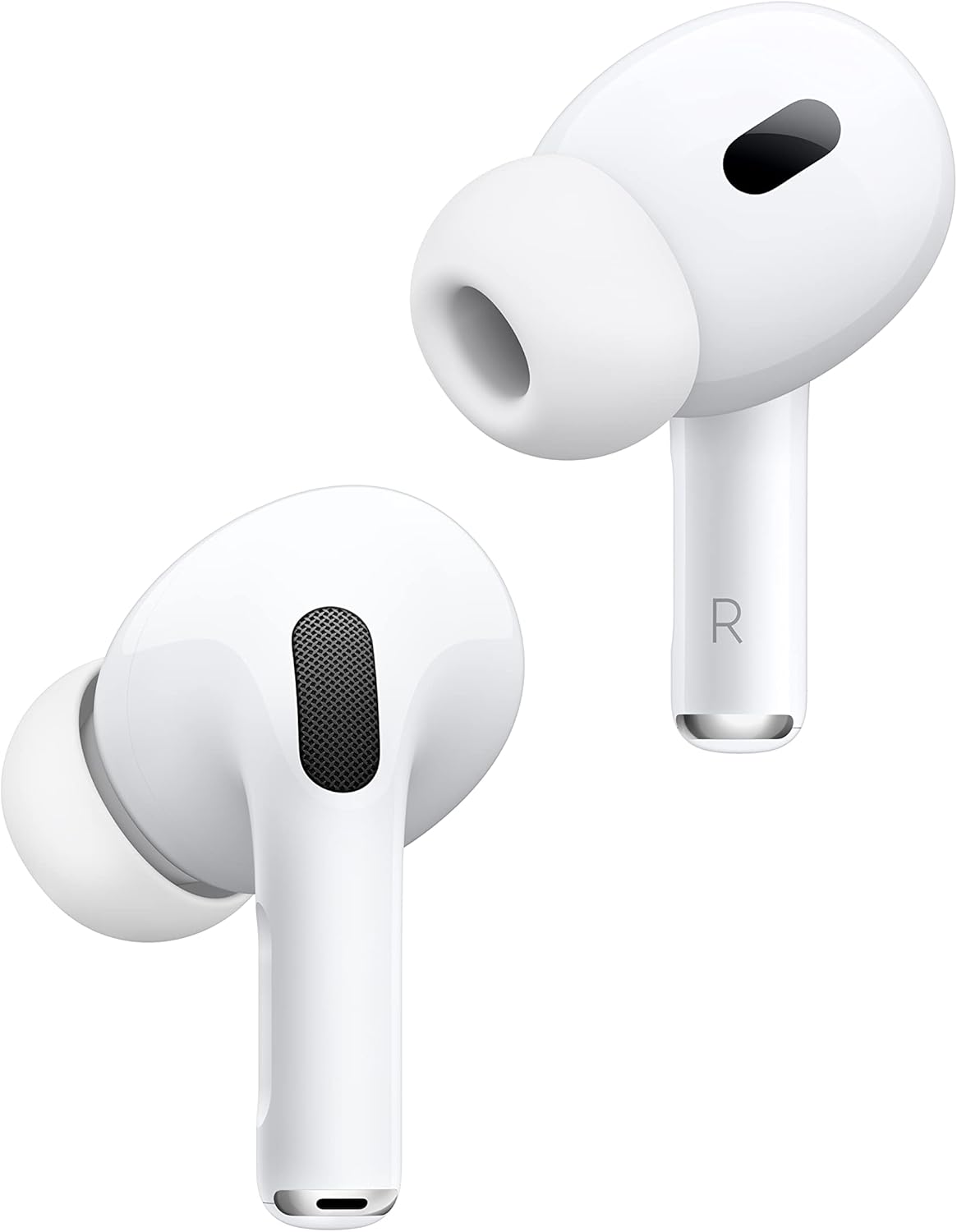
Image 1.1: Apple AirPods Pro (2nd Generation) earbuds. These are white, in-ear earbuds with a short stem, designed for comfortable fit and high-quality audio.
2. Nastavení
2.1 Charging the AirPods Pro
Before first use, ensure your AirPods Pro and charging case are fully charged. The MagSafe USB-C Charging Case can be charged using a USB-C cable or wirelessly with a MagSafe charger or Qi-certified charging mat.
- Kabelové nabíjení: Connect the provided USB-C cable to the port on the bottom of the charging case and the other end to a compatible USB power adapter.
- Bezdrátové nabíjení: Place the charging case with the status light facing up on a MagSafe charger or Qi-certified charging mat. The status light will indicate charging.

Image 2.1: The MagSafe USB-C Charging Case with a USB-C cable connected for charging. The case is white and compact, designed to protect and charge the earbuds.
2.2 Pairing with an Apple Device
- Ensure your Apple device (iPhone, iPad, iPod touch) has the latest iOS/iPadOS version.
- Odemkněte zařízení Apple a přejděte na domovskou obrazovku.
- Open the charging case with your AirPods Pro inside and hold it next to your Apple device.
- A setup animation will appear on your device's screen. Follow the on-screen instructions.
2.3 Pairing with Other Devices
- With your AirPods Pro in the charging case, open the lid.
- Stiskněte a podržte tlačítko nastavení na zadní straně pouzdra, dokud stavová kontrolka nezačne bíle blikat.
- On your device, go to Bluetooth settings and select your AirPods Pro from the list of available devices.
2.4 Ear Tip Fit Test
For optimal audio quality and noise cancellation, it is crucial to achieve a good seal with the ear tips. Your AirPods Pro come with multiple sizes of silicone ear tips (XS, S, M, L). Perform an Ear Tip Fit Test in your device's Bluetooth settings for your AirPods Pro to find the best fit.
3. Návod k obsluze
3.1 Režimy potlačení hluku
AirPods Pro (2nd Generation) offer three noise control modes:
- Aktivní potlačení hluku: Blocks out external sound.
- Režim průhlednosti: Umožňuje vám slyšet své okolí při poslechu zvuku.
- Adaptivní zvuk: Dynamically blends Transparency Mode and Active Noise Cancellation based on your environment.
To switch between modes, press and hold the force sensor on the stem of either AirPod. You can also control these modes from the Control Center on your Apple device or in the AirPods settings.
3.2 Playback and Call Controls
The force sensor on the stem of each AirPod allows for various controls:
- Stiskněte jednou: Play/pause audio, answer a call.
- Stiskněte dvakrát: Přeskočit dopředu.
- Stiskněte třikrát: Přeskočit zpět.
- Stiskněte a podržte: Switch between Noise Control modes.
3.3 Ovládání hlasitosti
Swipe up or down gently on the stem of either AirPod to adjust the volume. You can also use your connected device's volume controls or Siri.
3.4 Using Siri
Say "Hey Siri" to activate Siri and ask questions, make calls, control your music, and more. You can also configure the press-and-hold action on the force sensor to activate Siri instead of switching noise control modes.
3.5 Find My Feature
If you misplace your AirPods Pro or charging case, you can use the Find My app on your Apple device to locate them. The charging case has a built-in speaker that can play a sound to help you find it.
4. Údržba
4.1 Cleaning Your AirPods Pro and Case
Regular cleaning helps maintain audio quality and hygiene.
- Wipe AirPods and the charging case with a soft, dry, lint-free cloth.
- Do not use abrasive materials, sprays, solvents, or harsh chemicals.
- For ear tips, remove them from the AirPods and rinse with water. Dry thoroughly before reattaching.
- Ensure no liquid enters the openings.
4.2 Péče o baterii
Pro maximalizaci životnosti baterie:
- Vyhněte se extrémním teplotám.
- Pokud se nepoužívá, skladujte na chladném a suchém místě.
- Charge regularly, even if not used frequently.
5. Řešení problémů
5.1 Běžné problémy a řešení
- AirPods not connecting: Ensure Bluetooth is enabled on your device. Place AirPods in the case, close the lid, wait 15 seconds, then open the lid and try reconnecting. If issues persist, reset your AirPods by holding the setup button on the back of the case for about 15 seconds until the status light flashes amber, then white.
- Problémy s kvalitou zvuku: Check ear tip fit. Ensure AirPods and ear tips are clean.
- Problémy s nabíjením: Verify the charging cable and power adapter are working. Ensure the charging case is properly aligned on a wireless charger.
- One AirPod not working: Place both AirPods in the charging case, close the lid, then open it and check the battery status on your device. If one AirPod shows no charge, ensure it is properly seated in the case.
5.2 Další pomoc
For more detailed troubleshooting or technical support, please refer to the official Apple Support webwebu nebo kontaktujte zákaznický servis společnosti Apple.
6. Specifikace
| Funkce | Specifikace |
|---|---|
| Název modelu | AirPods Pro (2nd Gen, 2023) |
| Značka | Jablko |
| Technologie připojení | Bezdrátové připojení (Bluetooth 5.3) |
| Kontrola hluku | Adaptive Noise Cancellation, Transparency Mode |
| Výdrž baterie (sluchátka) | Up to 6 Hours (with ANC on) |
| Kontrolní metoda | Touch, Voice (Siri) |
| Nabíjecí pouzdro | Nabíjecí pouzdro MagSafe (USB-C) |
| Hmotnost položky | 1.12 unce |
| Zahrnuté komponenty | Kabel |
| Umístění uší | V uchu |
| Impedance | 32 Ohmy |
| Frekvenční odezva | 7 kHz |
| Velikost zvukového ovladače | 11 milimetrů |
7. Záruka a podpora
This product is offered as a renewed item. It has been professionally inspected and tested to work and look like new by Amazon-qualified suppliers.
- Obnovená záruka Amazonu: If you are not satisfied with your purchase, renewed products are eligible for replacement or refund under the Amazon Renewed Guarantee for 90 days from the date of receipt.
- Podpora výrobce: For product-specific inquiries, software updates, or advanced troubleshooting, please visit the official Podpora Apple webmísto.


