1. Úvod
The Machenike G5 Pro Wireless Gaming Controller is a versatile gamepad designed for an enhanced gaming experience across multiple platforms. Featuring Hall Effect joysticks and triggers, customizable RGB lighting, and programmable back buttons, it offers precision, responsiveness, and personalization. This manual provides detailed instructions for setting up, operating, and maintaining your controller.

Figure 1: Machenike G5 Pro Wireless Gaming Controller (Black)
2. Klíčové vlastnosti
- RGB LEDs with 5 Modes: Customizable lighting effects for personalized aesthetics.
- Hallovy snímací tyčinky: Provides accurate, anti-drift glide for superior control and precision.
- Hall Effect Analog Triggers: Offers lightning-fast response times and seamless gameplay.
- Built-In 6-Axis Gyro: Enables immersive motion control for compatible games.
- 4 Programovatelná tlačítka zpět: Assign custom functions or macro actions for competitive advantage.
- Třírežimové připojení: Supports wired (USB 2.0), 2.4GHz wireless, and Bluetooth connections.
- Ergonomický design: Asymmetrical grip and contour design for comfortable extended gaming sessions.

Obrázek 2: Přesview of Machenike G5 Pro's core features.
3. Nastavení
3.1 Počáteční nabíjení
Before first use, fully charge the controller using the provided USB-C cable. Connect the USB-C end to the controller's port and the USB-A end to a compatible power source (e.g., PC, USB wall adapter).
3.2 Režimy připojení
The G5 Pro supports three connection modes: Wired, 2.4GHz Wireless, and Bluetooth. A switch located on the back of the controller allows you to select the desired mode.

Figure 3: Multi-platform compatibility of the G5 Pro controller.
3.2.1 2.4GHz Wireless Connection (PC/TV)
- Set the mode switch on the back of the controller to '2.4G'.
- Insert the 2.4GHz USB dongle into an available USB port on your PC or TV.
- The controller will automatically pair. The indicator lights will stabilize once connected.
3.2.2 Bluetooth Connection (PC/Switch/iOS/Android)
- Set the mode switch on the back of the controller to 'Bluetooth'.
- Na svém zařízení (PC, Switch, iOS, Android) přejděte do nastavení Bluetooth.
- Hledat new devices and select 'Machenike G5 Pro' from the list.
- Confirm pairing. The controller's indicator lights will stabilize upon successful connection.
3.2.3 Wired Connection (PC/Switch)
- Connect the USB-C cable to the controller and the USB-A end to your PC or Switch dock.
- Ovladač bude automaticky rozpoznán a připraven k použití.
Poznámka: For Nintendo Switch, ensure 'Pro Controller Wired Communication' is enabled in the Switch System Settings under 'Controllers and Sensors' for wired play.
4. Návod k obsluze
4.1 Rozložení a funkce tlačítek
The G5 Pro features a standard gamepad layout with additional customizable buttons.
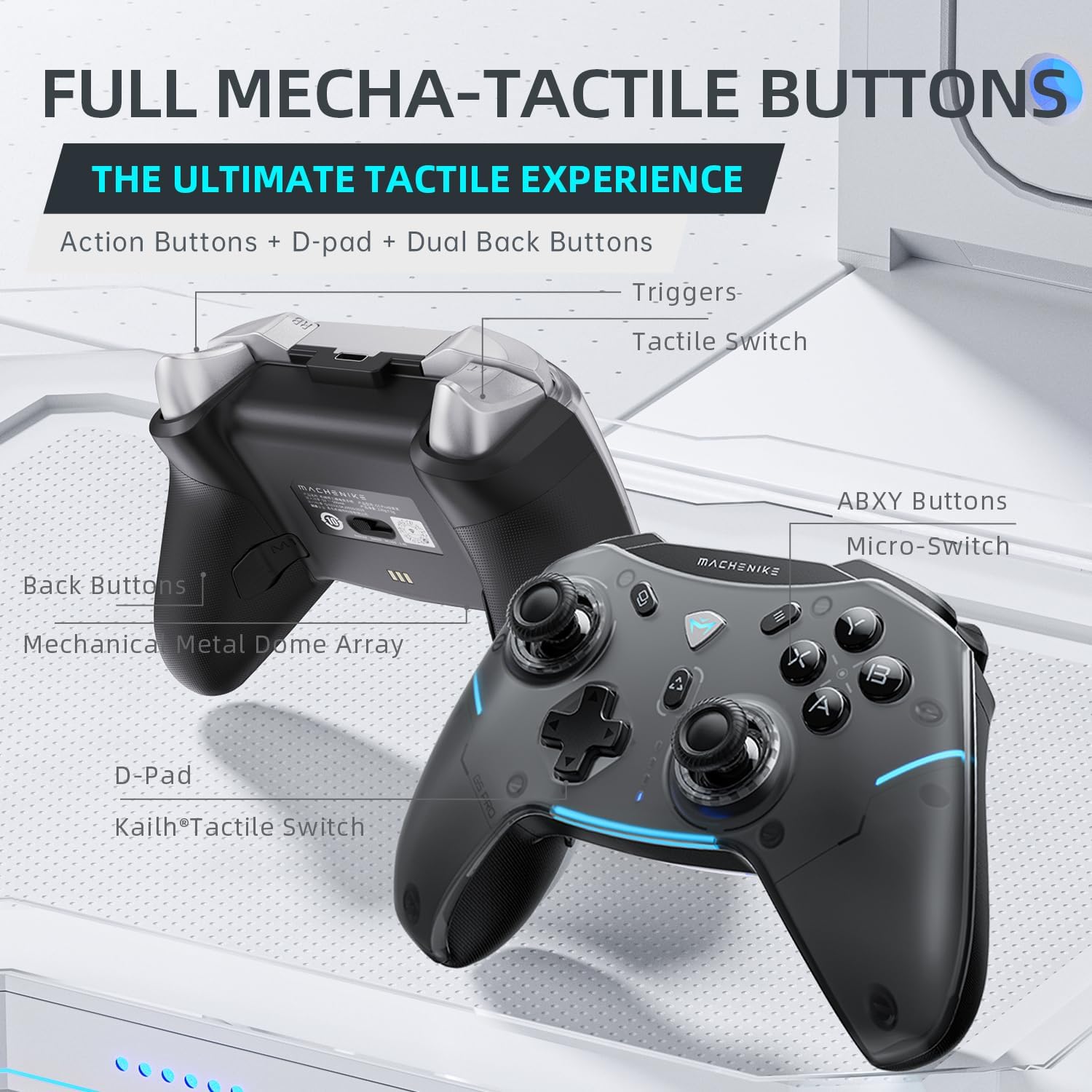
Figure 4: Mecha-Tactile Buttons and their components.
- Tlačítka ABXY: Standard action buttons with mechanical micro-switches for tactile feedback.
- D-Pad: Directional pad with Kailh Tactile Switch for precise input.
- Joysticky s Hallovým efektem: Provides accurate, anti-drift control.
- Spouštěče Hallova jevu: Analog triggers with electromagnetic sensing for linear response.
- Programmable Back Buttons (M1-M4): Located on the underside of the controller, these can be mapped to any other button or complex macros using the proprietary software.
4.2 Přizpůsobení RGB osvětlení
The controller features dynamic RGB flowing light strips with 5 modes. Use the dedicated RGB button or proprietary software to adjust speed, brightness, and color.

Figure 5: Dynamic RGB Lighting features.
4.3 Gyroskop a vibrace
The built-in 6-axis gyroscope allows for motion sensing in compatible games, enhancing control for aiming or driving. Asymmetric contextual vibration provides immersive haptic feedback with 5 levels of intensity adjustment.

Figure 6: 6-Axis Gyroscope Motion Mapping.
4.4 Speciální režimy
- NS One-Button Wake Up: Instantly activate your Nintendo Switch console by pressing a dedicated button on the controller.
- Turbo Burst: Enable rapid-fire button presses for certain actions.
- TV Remote Mode: Native Android TV compatibility for controlling smart TVs.
- PC Airmouse Remote Mode: Transform the controller into an air-mouse for PC control (FN+LS activation).

Figure 7: TV Remote and PC Airmouse Remote Modes.
4.5 Konfigurace softwaru
Utilize the G5 Pro proprietary software to fine-tune controller settings, create custom macros (up to 32-hit combo actions), and manage 16 on-board memory profiles. The software allows for extensive personalization of your gaming experience.
Stáhněte si software z: https://global.machenike.com/products/g5pro

Figure 8: Advanced Software Configuration Interface.
Video: G5 Pro Wireless Controller Overview
Toto video poskytuje vizuální ukázkuview of the G5 Pro Wireless Controller's design and key features, demonstrating its aesthetic appeal and some functionalities.
Video: G5 Pro Wireless Gaming Controller Features
This video showcases various features of the G5 Pro Wireless Gaming Controller, including its RGB lighting, tactile buttons, and overall performance during gameplay.
5. Údržba
- Čištění: K čištění ovladače používejte měkký, suchý hadřík. Nepoužívejte agresivní chemikálie ani abrazivní materiály.
- Skladování: Regulátor skladujte na chladném a suchém místě mimo dosah přímého slunečního záření a extrémních teplot.
- Péče o baterie: Pro prodloužení životnosti baterie se vyvarujte častého úplného vybíjení ovladače. Pravidelně jej nabíjejte, i když jej nepoužíváte neustále.
6. Řešení problémů
| Problém | Možná příčina | Řešení |
|---|---|---|
| Ovladač se nepřipojuje | Incorrect mode selected, low battery, out of range, pairing issue. | Ensure correct mode switch position. Charge controller. Move closer to device. Re-initiate pairing process. |
| Zpoždění vstupu nebo nereagování | Interference, low battery, outdated firmware. | Reduce wireless interference. Charge controller. Check for firmware updates via proprietary software. |
| Tlačítka nereagují | Software glitch, physical damage. | Restart controller and device. If issue persists, contact customer support. |
| RGB světla nefungují | Settings issue, low battery. | Check RGB settings in software/controller. Charge controller. |
7. Specifikace
- Číslo modelu: G5 PRO
- Rozměry produktu: 6.1 x 4.17 x 2.36 palce
- Hmotnost položky: 13.05 unce
- Konektivita: Bluetooth 5.0, 2.4GHz Wireless, Wired (USB 2.0)
- Baterie: 600mAh Li-Ion (součástí balení)
- Kompatibilita: Windows PC, Nintendo Switch, iOS, Android
- Speciální vlastnosti: Hall Effect Joysticks & Triggers, 6-Axis Gyroscope, Programmable Back Buttons, RGB Lighting
- Výrobce: Machenike
- Země původu: Čína
- Datum první dostupnosti: 31. října 2023
8. Záruka a podpora
For warranty information and technical support, please refer to the official Machenike webnebo se obraťte přímo na jejich zákaznický servis. Uschovejte si účtenku jako doklad o koupi pro případné reklamace.


