1. Úvod
Thank you for choosing the Cherry KW 7100 Mini Multi-Device Compact Keyboard. This manual provides essential information for setting up, operating, and maintaining your new keyboard. Designed for versatility and portability, this keyboard offers seamless connectivity across multiple devices.
2. Co je v krabici
- Cherry KW 7100 Mini Multi-Device Compact Keyboard
- USB-C to USB-A Charging/Connection Cable
- 2x AAA baterie
- 2.4 GHz Wireless Nano Receiver (stored magnetically in the keyboard)
- Přepravní pouzdro
- Návod k použití

Obrázek 1: Shora dolů view of the Cherry KW 7100 Mini Keyboard.
3. Nastavení
3.1. Instalace baterie
- Vyhledejte přihrádku na baterie na spodní straně klávesnice.
- Vysuňte kryt přihrádky na baterie.
- Vložte dvě baterie typu AAA a dbejte na správnou polaritu (+/-).
- Bezpečně zavřete kryt bateriového prostoru.
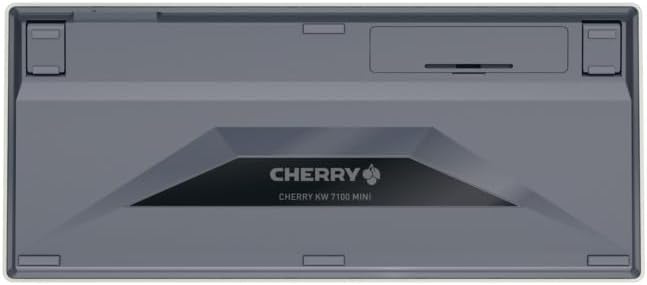
Figure 2: Underside of the keyboard with the battery compartment.
3.2. Připojení klávesnice
The Cherry KW 7100 Mini supports three connection methods: Bluetooth, 2.4 GHz Wireless, and Wired USB-C.
3.2.1. Připojení Bluetooth (až 3 zařízení)
- Zapněte klávesnici pomocí vypínače umístěného na boku.
- Press and hold one of the Bluetooth channel keys (F1, F2, or F3) for 3-5 seconds until the corresponding LED indicator blinks rapidly. This indicates pairing mode.
- On your device (laptop, smartphone, tablet), navigate to Bluetooth settings and search for available devices.
- Select "Cherry KW 7100" from the list to pair. The LED will stop blinking and remain solid for a few seconds upon successful connection.
- Repeat for up to two additional devices using the other Bluetooth channel keys (F1, F2, or F3).
3.2.2. Bezdrátové připojení 2.4 GHz
- Locate the 2.4 GHz wireless nano receiver, typically stored magnetically in a slot on the underside of the keyboard.
- Insert the nano receiver into an available USB-A port on your computer.
- Turn on the keyboard using the power switch. The keyboard should automatically connect to the receiver.
3.2.3. Drátové připojení USB-C
- Připojte jeden konec dodaného kabelu USB-C k portu USB-C na klávesnici.
- Připojte druhý konec kabelu USB-C k volnému portu USB-A v počítači.
- The keyboard will function as a wired keyboard.
Video 1: Demonstrating the setup and typing experience of the Cherry KW 7100 Mini Keyboard.
4. Ovládání klávesnice
4.1. Přepínání mezi připojenými zařízeními
To switch between paired Bluetooth devices, simply press the corresponding Bluetooth channel key (F1, F2, or F3) that your device is paired to. The keyboard will automatically connect to the selected device.
4.2. Function Keys (FN)
The keyboard features a dedicated FN key, typically located near the right Shift key. This key, in combination with other keys, activates secondary functions such as media controls, screen brightness, and other system commands. Refer to the keycap legends for specific FN key combinations.
4.3. LED indikátory
LED indicators on the keyboard provide information about its status:
- Bluetooth Channel LEDs (F1, F2, F3): Indicate the currently active Bluetooth connection or pairing mode.
- Kontrolka Caps Locku: Svítí, když je aktivní Caps Lock.
- LED stavu baterie: Indikuje nízkou úroveň nabití baterie.
4.4. Nastavitelné nohy
The keyboard is equipped with stable, fold-out feet on the underside. These allow you to adjust the typing angle for improved ergonomics and comfort.
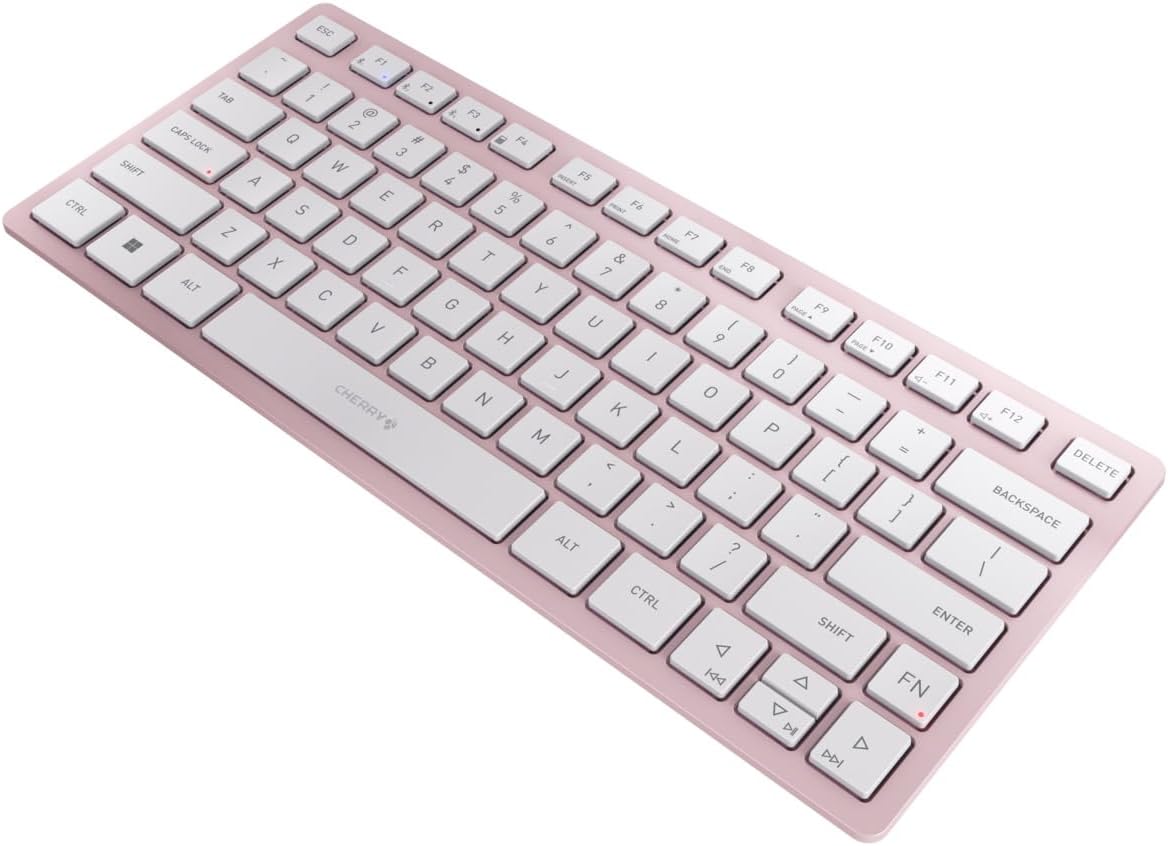
Obrázek 3: Úhlové view of the keyboard, highlighting its slim profile.

Obrázek 4: Strana view showing the adjustable feet extended for an ergonomic typing angle.
5. Údržba
5.1. Čištění
To clean your keyboard, gently wipe the keycaps and surface with a soft, lint-free cloth. For stubborn dirt, slightly dampHadřík očistěte vodou nebo jemným, neabrazivním čisticím roztokem. Zabraňte nadměrné vlhkosti a nestříkejte čisticí prostředky přímo na klávesnici.
5.2. Skladování
When not in use, especially during travel, store the keyboard in its included carrying case to protect it from dust, scratches, and minor impacts.

Figure 5: The keyboard stored in its protective carrying case.
6. Řešení problémů
6.1. Klávesnice se nepřipojuje
- Ujistěte se, že je klávesnice zapnutá.
- Zkontrolujte baterie a v případě potřeby je vyměňte.
- For Bluetooth, ensure the correct channel (F1, F2, or F3) is selected and the keyboard is in pairing mode (blinking LED).
- For 2.4 GHz wireless, ensure the nano receiver is securely plugged into a USB-A port.
- Zkuste se připojit pomocí kabelu USB-C, abyste vyloučili problémy s bezdrátovým připojením.
- Restartujte zařízení a zkuste spárování znovu.
6.2. Klávesy nereagují
- Check the connection as described above.
- Ujistěte se, že se pod klávesami nenacházejí žádné nečistoty.
- Pokud používáte kabelové připojení, zkuste jiný port USB nebo kabel.
6.3. Krátká výdrž baterie
- Ujistěte se, že používáte nové, vysoce kvalitní baterie AAA.
- Turn off the keyboard when not in use to conserve battery power.
7. Specifikace
| Funkce | Specifikace |
|---|---|
| Název modelu | KW 7100 |
| Číslo modelu položky | JK-7100US-19 |
| Značka | Třešeň |
| Technologie připojení | Bluetooth 5.1 (3 channels), 2.4 GHz Wireless, USB-C Wired |
| Kompatibilní zařízení | Notebook, chytrý telefon, tablet |
| Popis klávesnice | Compact, Multi-Device |
| Klíčový mechanismus | CHERRY SX Scissor Mechanism |
| Zdroj napájení | 2x AAA baterie |
| Šifrování | AES-128 |
| Rozměry produktu | 11.6 x 5.1 x 0.6 palce |
| Hmotnost položky | 1.4 libry |
| Materiál | Kov, Plast |
| Barva | Třešňový květ |
8. Záruka a podpora
This product is covered by Cherry's standard manufacturer warranty. For detailed warranty information, technical support, or service inquiries, please visit the official Cherry webwebu nebo se přímo obraťte na jejich zákaznickou podporu.
Výrobce: Třešeň
Webmísto: www.cherry.de


