1. Úvod
This manual provides detailed instructions for the safe and efficient operation of your NexiGo Aurora Pro Ultra Short Throw 4K Tri-Color Laser Projector. Please read this manual thoroughly before using the product and retain it for future reference.
The NexiGo Aurora Pro is designed to deliver a high-quality home cinema experience with its 4K resolution, tri-color laser technology, and ultra-short throw capabilities.
2. Bezpečnostní informace
Důležité bezpečnostní pokyny:
- Do not look directly into the projector lens when the projector is on. The laser light source is powerful and can cause eye damage.
- Zajistěte dostatečné větrání kolem projektoru. Neblokujte větrací otvory.
- Používejte pouze napájecí adaptér dodaný s projektorem.
- Nevystavujte projektor dešti nebo vlhkosti, aby nedošlo k požáru nebo úrazu elektrickým proudem.
- Udržujte projektor mimo dosah zdrojů tepla, jako jsou radiátory, topná tělesa, kamna nebo jiná zařízení produkující teplo.
- Během bouřek nebo pokud projektor delší dobu nepoužíváte, odpojte jej ze zásuvky.
- Veškeré opravy svěřte kvalifikovanému servisnímu personálu.
3. Obsah balení
Ověřte, zda jsou v balení přítomny všechny položky:
- NexiGo Aurora Pro Projector
- Dálkové ovládání
- Napájecí kabel
- Uživatelská příručka (tento dokument)
- Volitelný: 100/120 Fresnel Screen (if purchased as a bundle)
- Volitelný: 3D Glasses (if purchased as a bundle)
4. Konec produktuview
4.1 Součásti projektoru
Familiarize yourself with the main components of your NexiGo Aurora Pro projector.

Obrázek 1: Přední view of the NexiGo Aurora Pro projector, showcasing its sleek design and front speaker grille.

Obrázek 2: Zadní view of the NexiGo Aurora Pro projector, highlighting the various input and output ports for connectivity.
The projector features multiple connectivity options including HDMI ports, USB ports, and an Ethernet port for network connectivity. One HDMI port supports eARC.
4.2 Dálkové ovládání
The included remote control allows for easy navigation and control of the projector's functions. It features backlit keys for use in dark environments.
5. Nastavení
5.1 Umístění
The Aurora Pro is an Ultra Short Throw (UST) projector, designed to project a large image from a very short distance to the screen or wall. Proper placement is crucial for optimal image quality.

Obrázek 3: Diagram illustrating the recommended placement distances for various screen sizes (80-150 inches) for the NexiGo Aurora Pro projector.
Refer to the table below for recommended distances from the screen based on desired image size:
| Velikost obrazovky (úhlopříčka) | A: Screen to Front | B: Screen to Rear | C: Screen to Top | D: Screen to Foot | E: Y+D |
|---|---|---|---|---|---|
| 80" | 20.00 | 3.96 | 6.95 | 11.76 | 50.98 |
| 90" | 21.92 | 5.88 | 7.91 | 12.72 | 56.71 |
| 100" | 23.84 | 7.80 | 8.87 | 13.68 | 62.66 |
| 110" | 25.76 | 9.72 | 9.83 | 14.64 | 68.57 |
| 120" | 27.56 | 11.52 | 10.91 | 15.72 | 74.54 |
| 135" | 30.44 | 14.40 | 12.35 | 17.16 | 83.35 |
| 150" | 33.32 | 17.28 | 13.79 | 18.60 | 92.10 |
Note: The unit for values in the table is inches. Measurements do not include the screen border size.
5.2 Připojení napájení
- Připojte napájecí kabel ke vstupnímu portu projektoru.
- Zapojte druhý konec napájecího kabelu do uzemněné elektrické zásuvky.
5.3 Připojení zařízení
The Aurora Pro offers various ports for connecting external devices:
- HDMI: Connect Blu-ray players, gaming consoles, streaming devices, or computers. HDMI 1 supports eARC.
- USB: Připojte USB disky pro přehrávání médií nebo externí příslušenství.
- Optický zvuk: Connect to external audio systems.
- Ethernet: Pro kabelové síťové připojení.
Před zapnutím projektoru se ujistěte, že jsou všechny kabely bezpečně připojeny.
6. Návod k obsluze
6.1 Zapnutí/vypnutí
- Chcete-li projektor zapnout, stiskněte tlačítko napájení na projektoru nebo na dálkovém ovladači.
- To power off, press the power button again. A confirmation prompt may appear.
6.2 Průvodce počátečním nastavením
Upon first power-on, the projector will guide you through an initial setup wizard to configure language, network settings, and image adjustments.
6.3 Úprava obrazu
The Aurora Pro features automatic screen adoption and dynamic dimming. Manual adjustments can be made via the settings menu.
- Soustředit: Adjust the focus using the remote control or on-screen menu to achieve a sharp image.
- Korekce lichoběžníkového zkreslení: If the image is not perfectly rectangular, use keystone correction to adjust. Note that excessive keystone correction can reduce image quality.
- Zarovnání obrazovky: Fine-tune the image position to fit your screen perfectly.
6.4 Výběr vstupního zdroje
Press the "Input" button on the remote control to select between connected HDMI devices, USB media, or internal smart TV applications.
6.5 Nastavení zvuku
The projector includes built-in 60W stereo speakers with Dolby Atmos support. You can adjust volume and audio modes through the settings menu. For external audio systems, connect via HDMI eARC or optical audio output.

Obrázek 4: Visual representation of the immersive sound experience provided by the projector's 60W speakers, supporting Dolby Atmos and DTS HD.
6.6 Chytré funkce a aplikace
The projector includes a smart TV interface. Navigate using the remote control to access pre-installed applications or download new ones from the app store.
Poznámka: Some streaming applications may require specific external devices for 4K content or may have compatibility limitations.
6.7 Herní režim
For an optimized gaming experience, enable Gaming Mode in the settings. This mode reduces input lag to 8ms (tested at 1080p 240Hz) and supports 4K@120Hz input, providing smoother motion.
Obrázek 5: A user engaged in gaming on a large projected screen, demonstrating the projector's low latency and 4K 120Hz input capabilities for a smooth gaming experience.
7. Údržba
7.1 Čištění projektoru
- Vnější: K otření vnější strany projektoru používejte měkký, suchý hadřík. Nepoužívejte abrazivní čisticí prostředky ani rozpouštědla.
- Čočka: Gently clean the projector lens with a lens cleaning cloth specifically designed for optical surfaces. Avoid touching the lens directly with your fingers.
7.2 Air Filter (if applicable)
Check the user manual for specific instructions regarding air filter cleaning or replacement, if your model is equipped with one. Regular cleaning ensures optimal performance and prevents overheating.
7.3 aktualizací firmwaru
Periodically check for firmware updates through the projector's settings menu. Updates can improve performance, add features, and resolve issues.
8. Řešení problémů
Pokud se s projektorem setkáte s problémy, podívejte se na následující běžné problémy a jejich řešení:
| Problém | Možná příčina | Řešení |
|---|---|---|
| Není zobrazen žádný obrázek | Power cable loose, incorrect input source, device not connected. | Check power connections. Select correct input source. Ensure source device is on and connected. |
| Obraz je rozmazaný | Out of focus, dirty lens, incorrect placement. | Adjust focus. Clean the lens. Verify projector placement according to guidelines. |
| Žádný zvuk | Volume too low, incorrect audio output setting, external audio system issue. | Increase volume. Check audio output settings on projector and source. Verify external audio system connections. |
| Dálkové ovládání nefunguje | Slabé baterie, překážka, dálkový ovladač není spárovaný. | Replace batteries. Remove obstructions. Re-pair remote if necessary (refer to remote control section in full manual). |
| Smart apps not working or slow | Network connectivity issues, outdated app, insufficient memory. | Check Wi-Fi/Ethernet connection. Update the app. Restart the projector. |
For further assistance, please contact NexiGo customer support.
9. Specifikace
| Funkce | Detail |
|---|---|
| Číslo modelu | PJ92 |
| Rozlišení displeje | 3840 x 2160 (4K UHD) |
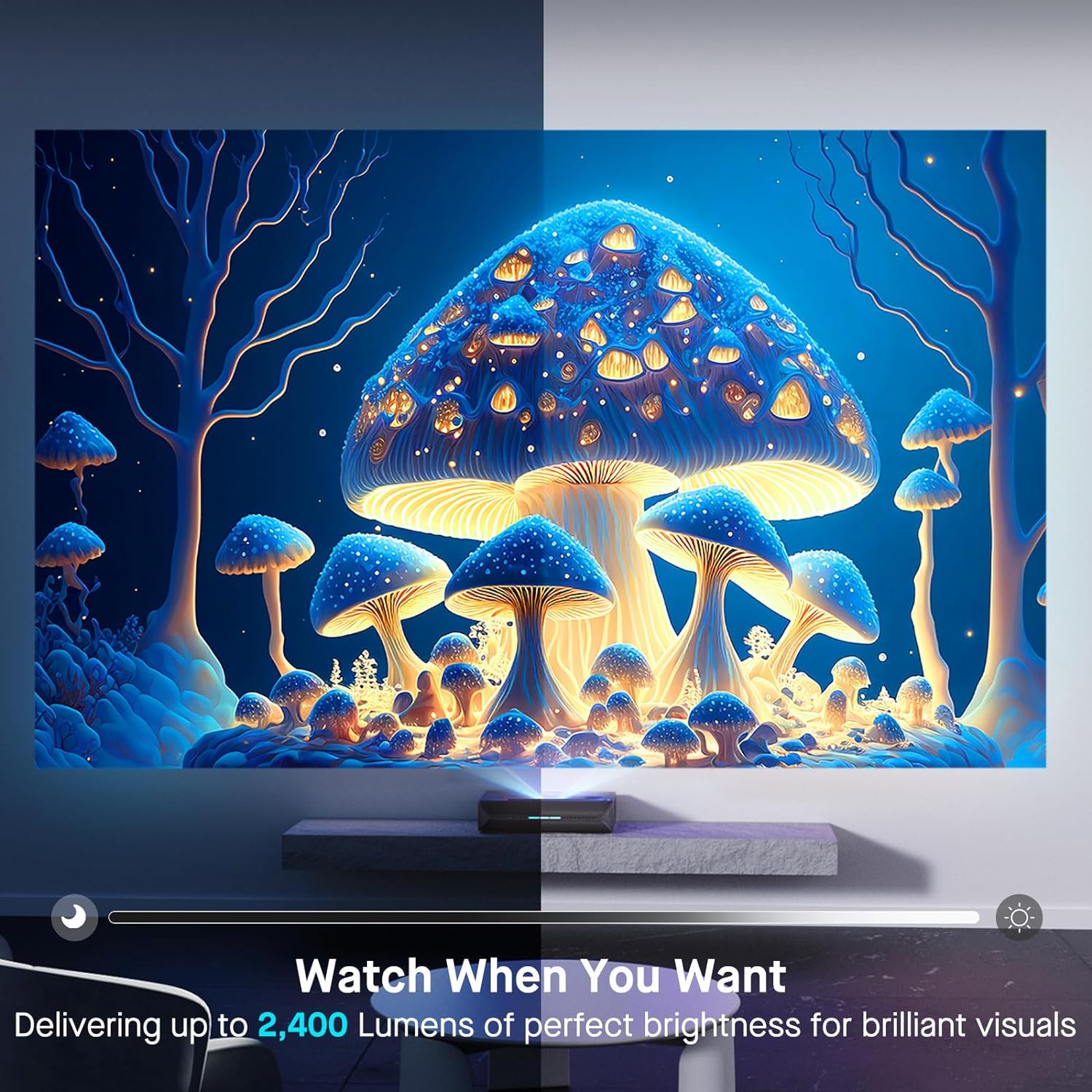
| Jas | 2400 XNUMX lumenů |
| Světelný zdroj | Tri-Color Laser (ALPD 4.0 RGB+) |
| Nativní kontrastní poměr | 3000:1 |
| Dynamický kontrastní poměr | >6000:1 (with dynamic laser dimming) |
| Barevný gamut | 107 % Rec. 2020 |
| Podpora HDR | Dolby Vision, HDR10+, HLG |
| 3D podpora | Aktivní 3D |
| Vstupní zpoždění | 8ms (tested at 1080p 240Hz) |
| Max Input Resolution/Refresh Rate | 4K @ 120 Hz |
| MEMC | Yes (120Hz) |
| Zvukový výstup | 60W Stereo Speakers (2x15W Woofers, 2x15W Tweeters), Dolby Atmos, eARC |
| Konektivita | HDMI (3, one with eARC), USB, Optical Audio, Ethernet |
| Rozměry produktu | 21.54 x 16.04 x 4.81 palce |
| Hmotnost položky | 22 libry |
| Viditelná úhlopříčka obrazovky | 80" - 150" (max. 381 cm) |
| Životnost laseru | 25,000 hodin |
10. Záruka a podpora
NexiGo provides customer support and warranty services for its products. For specific warranty terms and conditions, please refer to the warranty card included with your product or visit the official NexiGo webmísto.
Zákaznická podpora:
- For technical assistance, troubleshooting, or product inquiries, please contact NexiGo customer support.
- Contact information can typically be found on the NexiGo webmístě nebo na obalu produktu.
- NexiGo offers 24-hour customer support and lifetime technical support.
Vrácení a výměna zboží:
- Refer to your purchase agreement or retailer's policy for details on returns and exchanges. NexiGo typically offers a 30-day return or exchange period.