Zavedení
Thank you for choosing the Azpen 8 Inch Unlocked LTE Tablet. This device is designed to provide a versatile and powerful mobile computing experience, featuring an Android 12 OS, Octa-Core CPU, 3GB RAM, and 32GB storage. Its IPS HD display offers clear visuals, and built-in 4G LTE connectivity ensures you stay connected on the go. This manual provides essential information for setting up, operating, and maintaining your tablet.

Obrázek: Přední a zadní strana view of the Azpen 8 Inch Unlocked LTE Tablet, showcasinjeho elegantní design.
Vlastnosti produktu
- Pokročilé připojení: Stay connected with built-in 4G LTE and Wi-Fi. LTE bands B2/B4/B5/B7/B12/B17/B66 are compatible with T-Mobile and AT&T networks. (SIM card not included; check carrier compatibility before purchase).
- Silný výkon: Experience stunning performance with the quick and powerful Android 12 OS, driven by an Octa-Core 8 x 1.6 GHz CPU & GPU.
- Ample Storage & RAM: Equipped with 3GB of DDR4 RAM and 32GB of internal storage, expandable up to 128GB via Micro SD Slot, providing ample space for movies, songs, and games.
- Živý displej: The stunning 8-inch HD (1280 x 800) IPS display delivers a crisper and brighter image for an enhanced viewzkušenosti.
- Prodloužená životnost baterie: A 4000 mAh battery allows for up to 6 hours of watching or browsing without frequent recharging.
- Dual Cameras & Bluetooth: Features Bluetooth connectivity and dual cameras (front and rear) for versatile use.
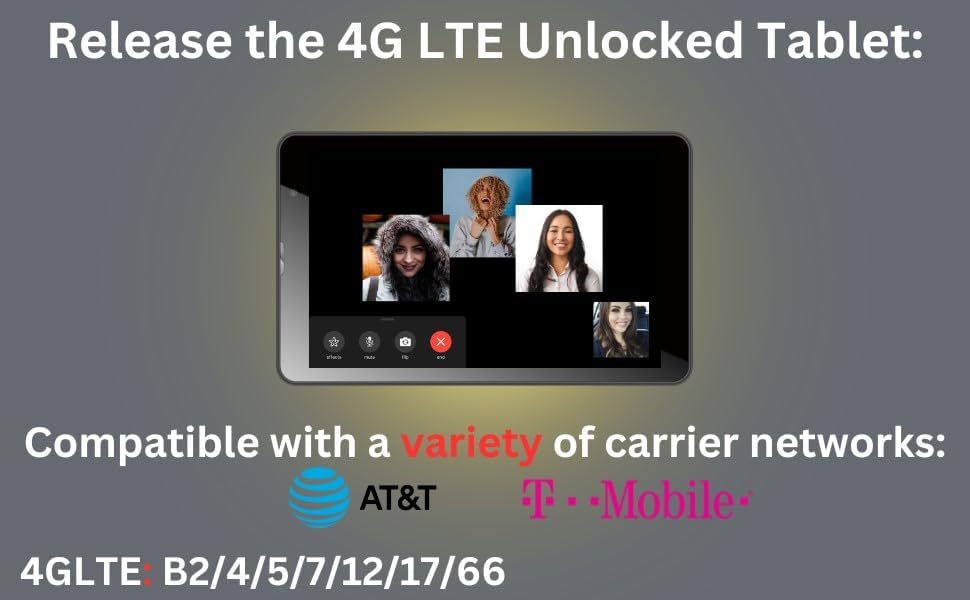
Image: The tablet highlighting its 4G LTE compatibility with major carrier networks like AT&T and T-Mobile.
Poznejte své zařízení
Familiarize yourself with the physical components and ports of your Azpen Tablet.
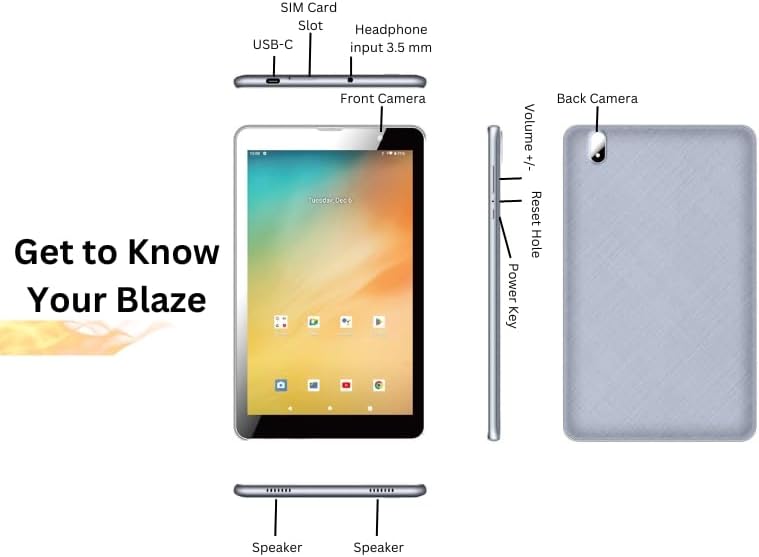
Image: Detailed diagram illustrating the location of the SIM Card Slot, USB-C port, 3.5mm Headphone input, Front Camera, Back Camera, Volume buttons, Reset Hole, Power Key, and Speakers on the Azpen Tablet.
- Slot pro SIM kartu: Insert your 4G LTE SIM card here for cellular data connectivity.
- Port USB-C: Slouží k nabíjení tabletu a připojení k počítači pro přenos dat.
- Headphone Input (3.5 mm): Connect your wired headphones or external speakers.
- Přední kamera: Pro videohovory a selfie.
- Zpět Fotoaparát: Pro pořizování fotografií a videí.
- Hlasitost +/-: Upravte hlasitost zvuku.
- Obnovit otvor: A small pinhole for performing a hard reset if the device becomes unresponsive.
- Vypínač: Press and hold to power on/off or restart the device. Short press to wake/sleep the screen.
- Řečníci: Nachází se ve spodní části pro zvukový výstup.
Nastavení
Průvodce počátečním zapnutím a nastavením
- Nabijte tablet: Before first use, fully charge your tablet using the provided USB-C cable and power adapter. The battery indicator will show charging status.
- Zapnutí: Press and hold the Power Key until the Azpen logo appears on the screen.
- Postupujte podle pokynů na obrazovce: The Android 12 setup wizard will guide you through selecting your language, connecting to a Wi-Fi network, setting up your Google account, and configuring basic settings.
Inserting SIM Card and Micro SD Card
To utilize cellular data or expand storage, insert the respective cards into their designated slots.
- Vypnout: Ensure the tablet is powered off before inserting or removing cards.
- Vyhledejte sloty: Refer to the "Get to Know Your Device" diagram for the exact location of the SIM card slot and Micro SD card slot.
- Vložte SIM kartu: Gently push your nano-SIM card into the SIM card slot until it clicks into place. Ensure the correct orientation.
- Vložte Micro SD kartu: Gently push your Micro SD card into the Micro SD card slot until it clicks into place.
- Zapnutí: Power on the tablet. The device should automatically detect the inserted cards.
Návod k obsluze
Základní navigace
- Gesta na dotykové obrazovce: Navigate the Android 12 interface using taps, swipes, pinches, and long presses.
- Domovská obrazovka: Access your apps, widgets, and notifications from the customizable home screen.
- Rychlé nastavení: Swipe down from the top of the screen to access quick settings for Wi-Fi, Bluetooth, brightness, and more.
Připojení k Wi-Fi a Bluetooth
- Wi-Fi: Přejít na
Settings > Network & internet > Internet. Select your desired Wi-Fi network and enter the password if prompted. - Bluetooth: Přejít na
Settings > Connected devices > Connection preferences > Bluetooth. Turn Bluetooth on and select a device to pair with.
Používání kamer
The tablet features both front and rear cameras for photos and video.
- Otevřete aplikaci Fotoaparát: Klepněte na ikonu Fotoaparát na domovské obrazovce nebo v liště aplikací.
- Přepnout kamery: Pro přepínání mezi předním a zadním fotoaparátem použijte ikonu přepínače fotoaparátu.
- Pořídit fotografii/nahrát video: Klepnutím na tlačítko spouště pořídíte fotografii nebo na tlačítko nahrávání spustíte/zastavíte nahrávání videa.
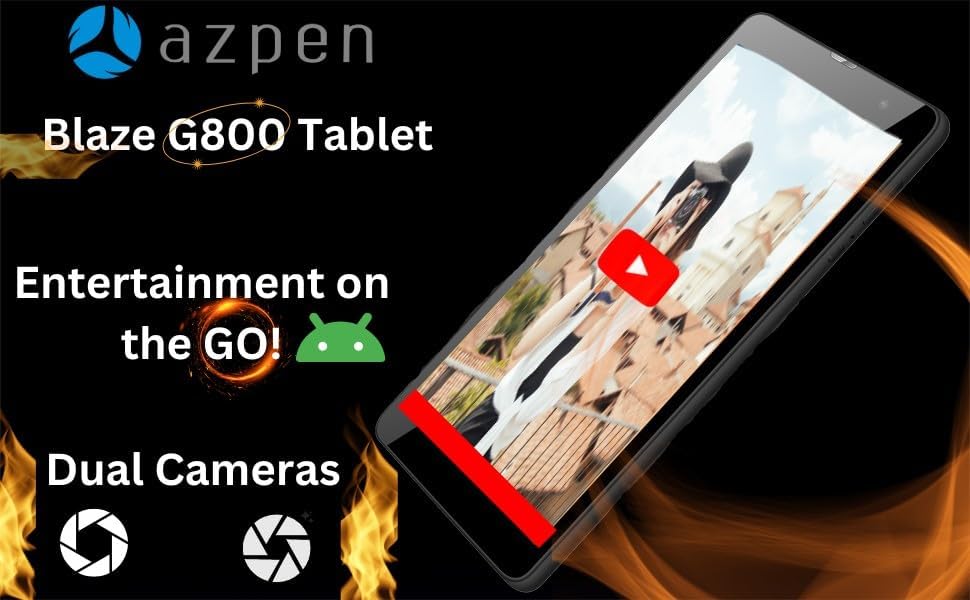
Obrázek: Výstava tabletůasing its capability for entertainment on the go, featuring dual cameras and a video playing on screen.
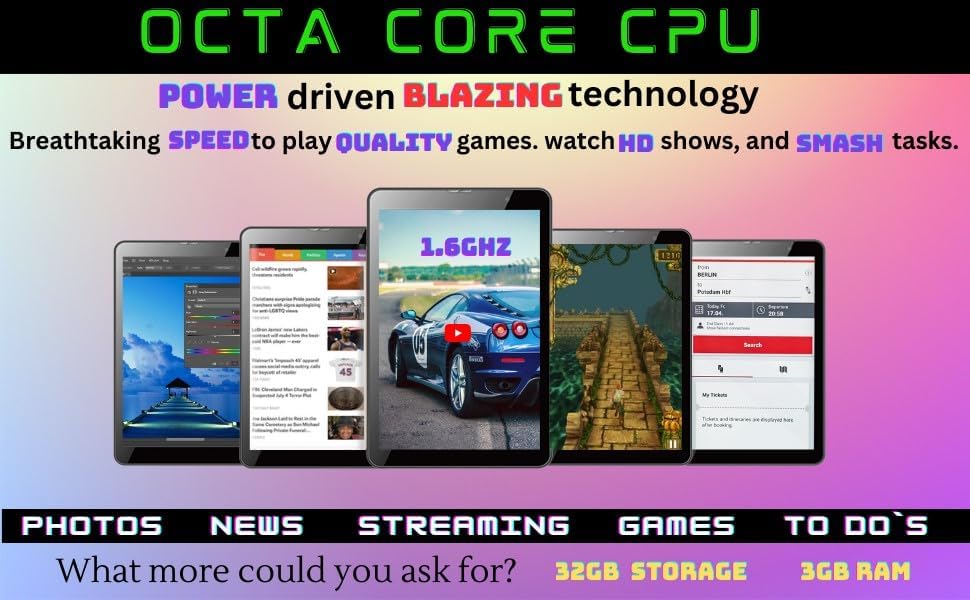
Image: Multiple Azpen tablets displaying different applications and media, emphasizing the Octa-Core CPU's power for gaming, HD shows, and multitasking.
Údržba
Péče o baterie
- Optimální nabíjení: Use the original charger and cable. Avoid overcharging or letting the battery drain completely too often.
- Teplota: Nevystavujte tablet extrémním teplotám, mohlo by to snížit životnost baterie.
- Skladování: Pokud tablet skladujete delší dobu, nabijte jej před vypnutím přibližně na 50 %.
Správa úložiště
- Vymazat mezipaměť: Regularly clear app caches to free up space. Go to
Settings > Apps > [App Name] > Storage & cache > Clear cache. - Delete Unused Apps: Odinstalujte aplikace, které již nepoužíváte.
- Převod Files: Přesunout velké files (photos, videos) to the Micro SD card or cloud storage to free up internal memory.

Obrázek: Výstava tabletůasing its storage and RAM capabilities, ideal for playing intense games, powered by Android 12.
Odstraňování problémů
| Problém | Možné řešení |
|---|---|
| Tablet se nezapne. | Ensure the battery is charged. Connect the charger and wait a few minutes before attempting to power on again. If unresponsive, press and hold the Power Key for 10-15 seconds. |
| Tablet is frozen or unresponsive. | Press and hold the Power Key for 10-15 seconds to force a restart. If that doesn't work, use a thin pin to press the Reset Hole. |
| Problémy s připojením k Wi-Fi. | Restartujte tablet a Wi-Fi router. Zapomeňte na síť v Settings > Network & internet > Internet and reconnect. Ensure you are within range. |
| Pomalý výkon. | Close unused apps, clear app caches, and free up storage space. Consider a factory reset as a last resort (backup data first). |
| SIM karta nebyla detekována. | Ensure the SIM card is correctly inserted and activated with your carrier. Restart the tablet. Verify carrier compatibility (T-Mobile and AT&T networks supported). |
Obnovení továrního nastavení
Obnovení továrního nastavení vymaže všechna data z tabletu a obnoví jeho původní tovární nastavení.
- Záložní data: Before proceeding, back up all important data to a computer or cloud storage.
- Navigate to Reset: Přejít na
Settings > System > Reset options > Erase all data (factory reset). - Potvrdit: Follow the on-screen instructions to confirm the reset. The tablet will restart and begin the reset process.
Specifikace
| Funkce | Detail |
|---|---|
| Název modelu | TF800 (TFBLAZE) |
| Operační systém | Android 12 |
| CPU | Octa-Core 8 x 1.6 GHz |
| BERAN | 3 GB DDR4 |
| Interní úložiště | 32 GB |
| Rozšiřitelné úložiště | Up to 128 GB via Micro SD Slot |
| Velikost displeje | 8 palce |
| Rozlišení displeje | 1280 x 800 pixelů (IPS HD) |
| Bezdrátová komunikace | 4G LTE (Bands B2/B4/B5/B7/B12/B17/B66), Wi-Fi, Bluetooth |
| Kamery | Dual Cameras (Front and Rear) |
| Kapacita baterie | 4000 XNUMX mAh |
| Rozměry produktu | 10.2 x 6.2 x 0.38 palce |
| Hmotnost položky | 1.23 libry |
| Barva | Černý |
Záruka a podpora
For warranty information and technical support, please refer to the documentation included with your product packaging or visit the official Azpen webmísto.
Výrobce: Richwoods
Datum první dostupnosti: 3. září 2023


